
Settings
Configure Car Rental plugin settings.
Global configuration for Car Rental Manager lives under Car Rental → Global Settings, organized into eight tabs.
Car Settings
General plugin behavior, custom taxonomy labels, search form titles, URL slugs, and section visibility across single car details pages.
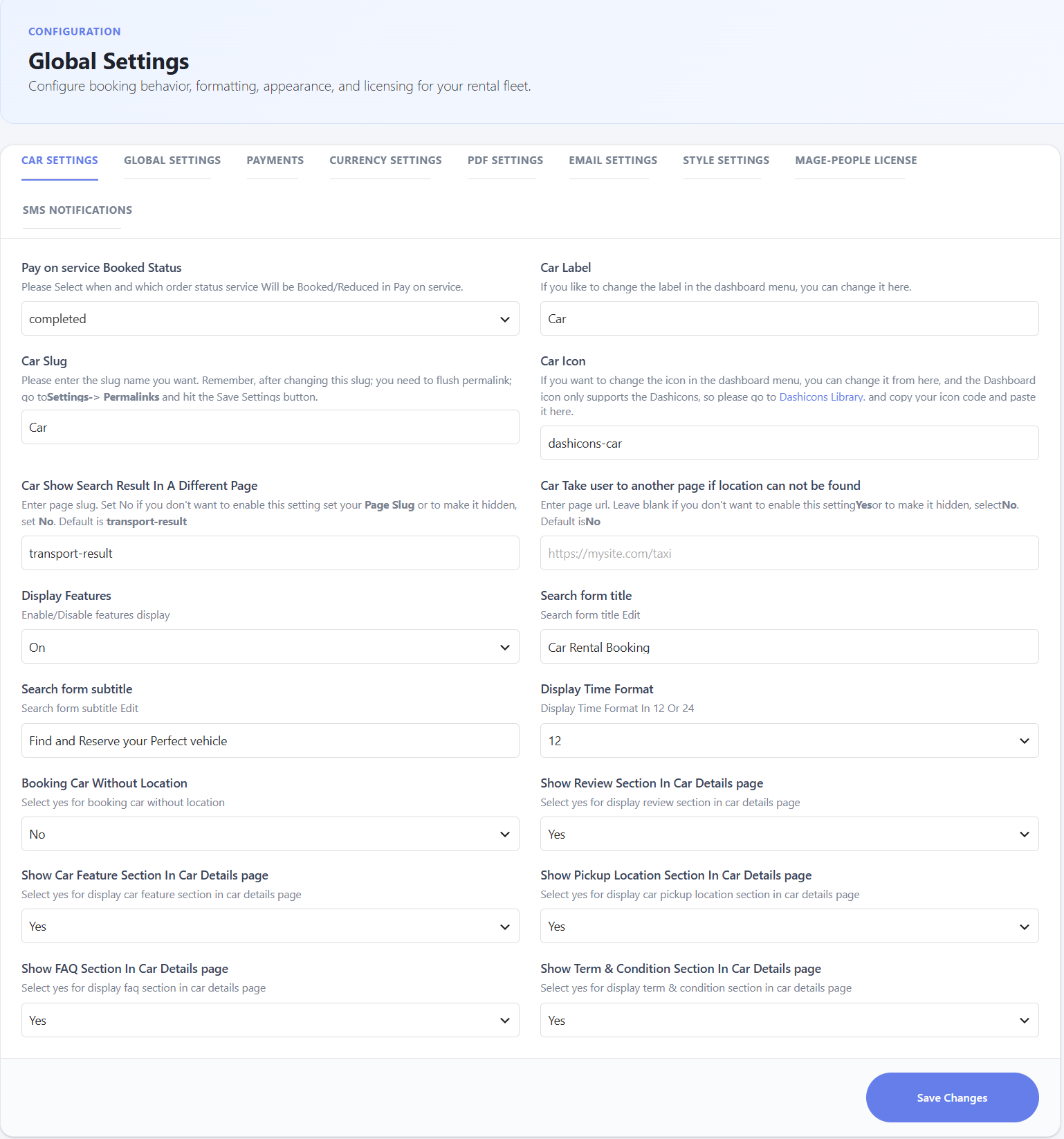
| Pay on service Booked Status | The WooCommerce order status at which stock/inventory is reserved for pay-on-service orders. |
| Car Label | Customizes the dashboard sidebar menu label (default: Car). |
| Car Slug | The URL permalink slug for vehicle single pages. Flush permalinks (Settings > Permalinks > Save Changes) after changing it. |
| Car Icon | The Dashicon class used for the admin menu icon. |
| Car Show Search Result In A Different Page | Custom page slug to redirect search results to (default: transport-result). |
| Car Take user to another page if location can not be found | A fallback URL for unserviceable pickup/drop-off locations. |
| Display Features | Globally enables or disables feature badge displays. |
| Search form title / subtitle | The heading and sub-heading text on the frontend search widget. |
| Display Time Format | 12-hour or 24-hour time across the booking system. |
| Booking Car Without Location | Whether customers can book without specifying pickup/drop-off. |
| Show Review / Car Feature / Pickup Location / FAQ / Term & Condition Section In Car Details page | Toggles visibility of each section on the single vehicle page. |
Tip: whenever you change the Car Slug or the search-results page, go to Settings > Permalinks and click Save Changes to avoid 404 errors.
Global Settings
Core system behaviors, editor compatibility, inventory reservation triggers, and date display formats.
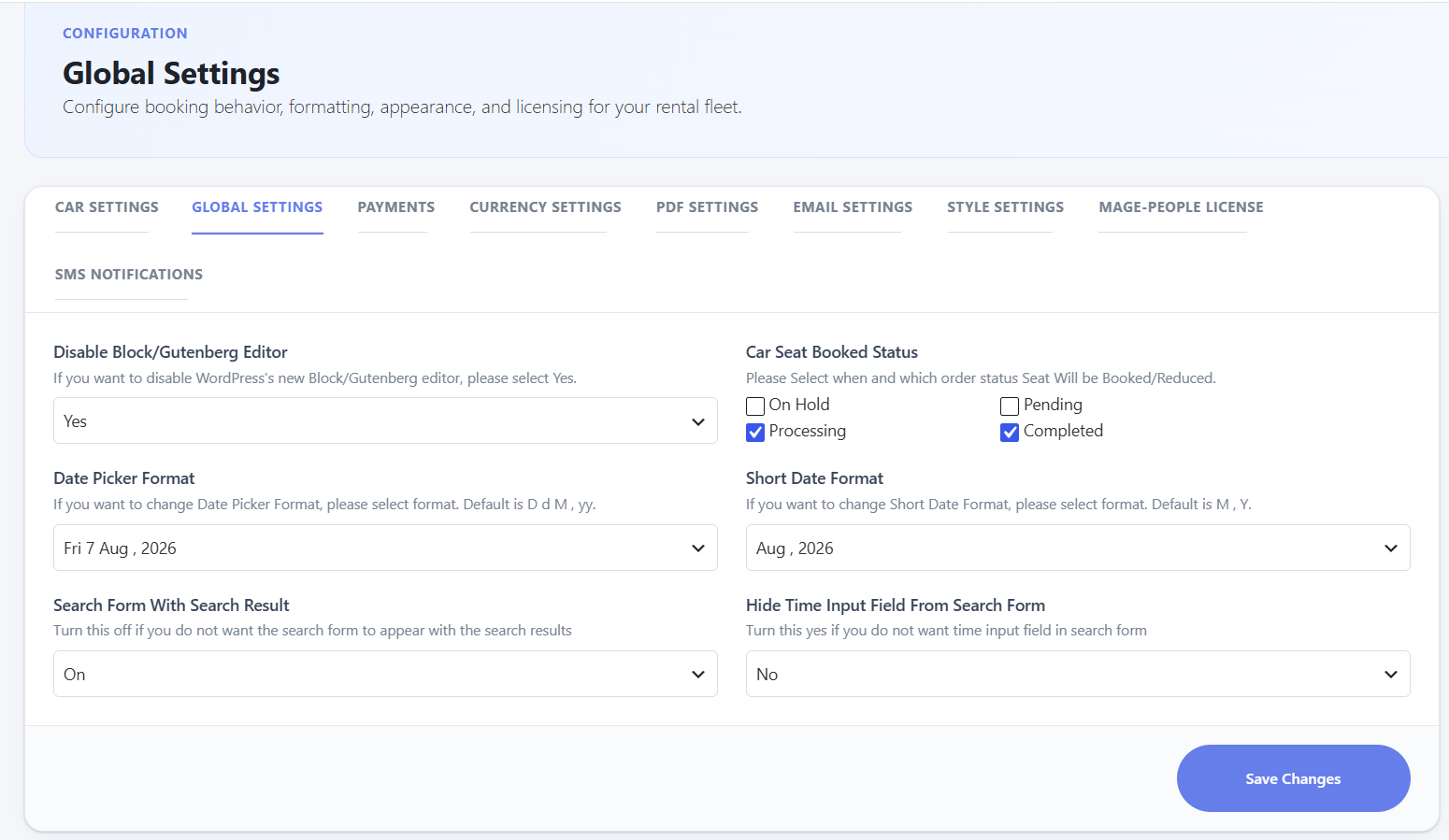
| Disable Block/Gutenberg Editor | Yes/No — disables the block editor for vehicle posts in favor of the classic editor. |
| Car Seat Booked Status | Checkboxes (On Hold, Pending, Processing, Completed) for which order statuses trigger inventory reservation. |
| Date Picker Format | The date structure used in search inputs and booking calendars (default: D d M, yy). |
| Short Date Format | Compact date formatting for summary cards and list tables (default: M, Y). |
| Search Form With Search Result | On/Off — keeps the search widget visible alongside displayed results. |
| Hide Time Input Field From Search Form | Yes restricts searches to date-only filters. |
Tip: keep Processing and Completed checked under Car Seat Booked Status to prevent double-booking while orders are still being fulfilled.
Payments
The transaction engine and payment gateways responsible for processing customer reservations.
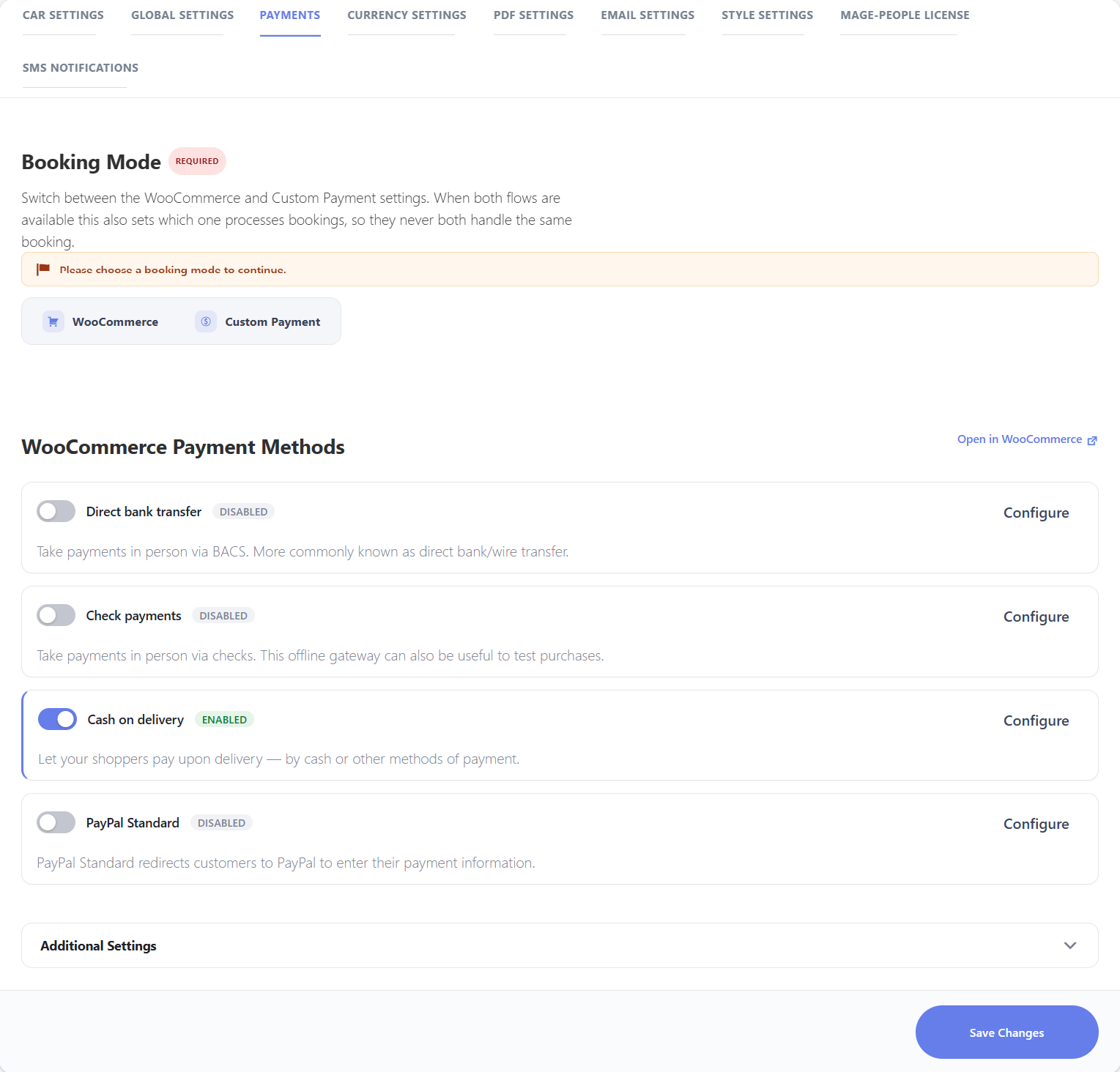
- Booking Mode (required) — switch between WooCommerce and Custom Payment checkout flows. Only one mode processes bookings at a time, so they never both try to handle the same booking.
- WooCommerce Payment Methods — quick-toggle switches and Configure links for Direct bank transfer, Check payments, Cash on delivery, and PayPal Standard, plus a link to open WooCommerce’s full payment settings.
- Additional Settings — a collapsible section for deposit rules, partial payment requirements, and tax calculations.
Tip: always select a single Booking Mode during initial setup for a smooth checkout experience.
Currency Settings
Pricing display formats, currency symbols, ISO transaction codes, and numerical formatting rules applied across rental prices.
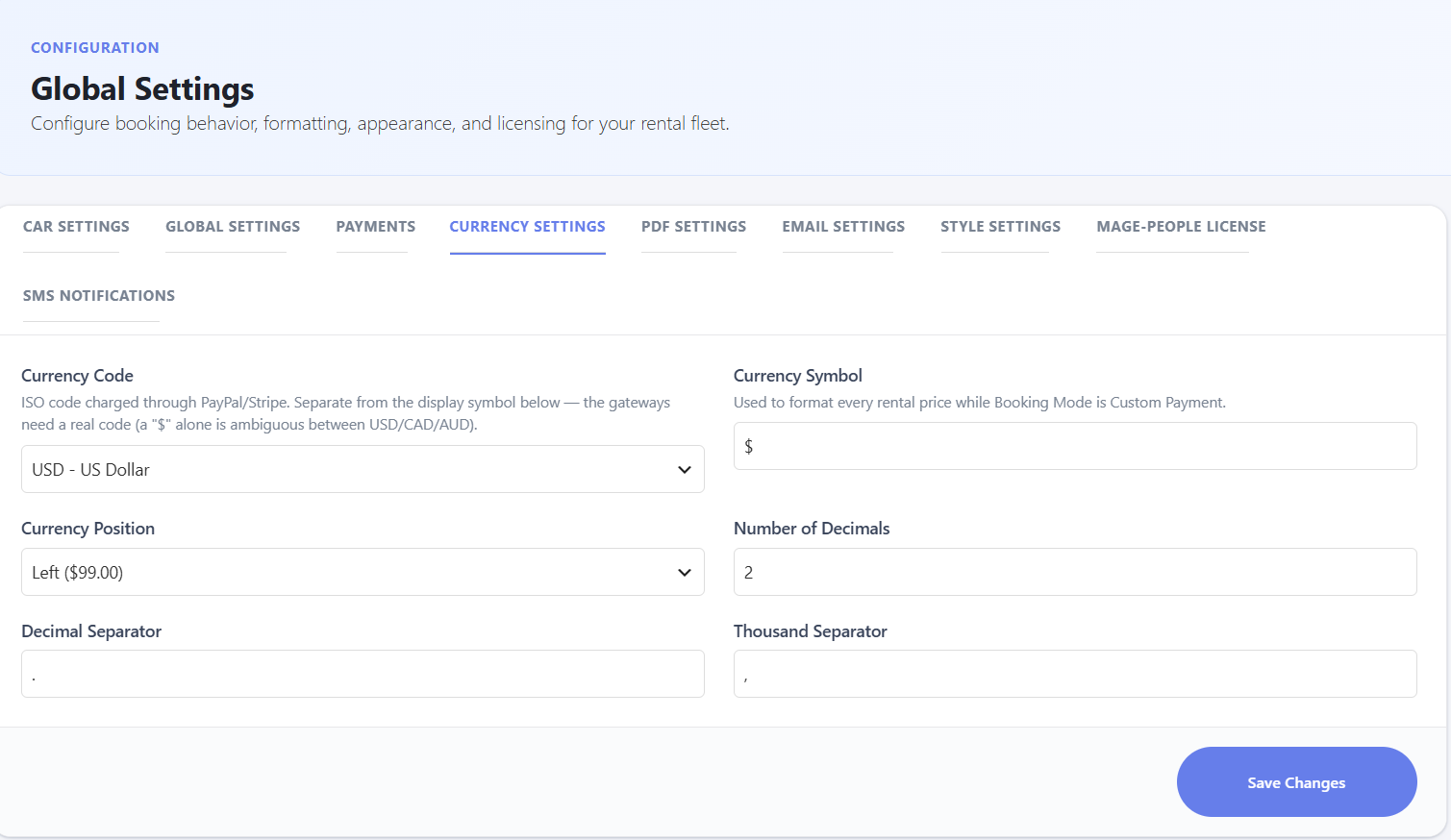
| Currency Code | ISO 4217 code charged through PayPal/Stripe (e.g. USD – US Dollar). |
| Currency Symbol | The display symbol used to prefix or suffix prices (active when Booking Mode is Custom Payment). |
| Currency Position | Left, Right, Left with space, or Right with space (e.g. $99.00). |
| Number of Decimals | Decimal digits displayed (e.g. 2 renders $99.00). |
| Decimal Separator | Character separating whole amounts from decimals (e.g. “.” for $99.00). |
| Thousand Separator | Character separating thousands (e.g. “,” for $1,250.00). |
Tip: always match the Currency Code with your merchant gateway’s primary currency to avoid conversion errors or payment rejections at checkout.
PDF Settings
Customize the visual appearance, branding, contact details, and policy terms shown on printable PDF invoices and ticket receipts.
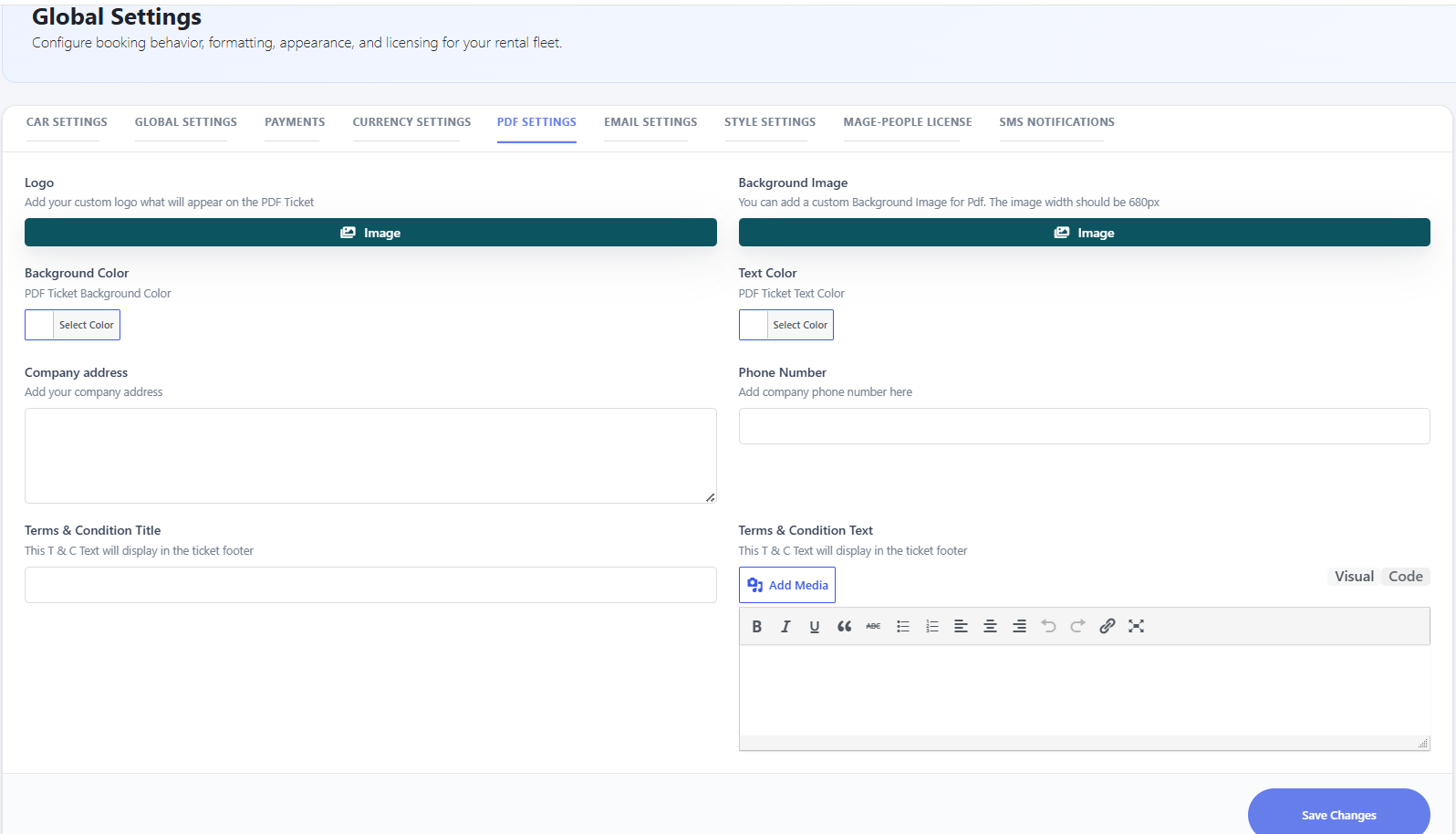
| Logo | A custom logo shown at the top of generated PDF tickets and invoices. |
| Background Image | A custom background for PDF receipts (recommended width: 680px). |
| Background Color / Text Color | The overall fill and body text colors for the PDF document. |
| Company address / Phone Number | Your business contact details shown on the ticket. |
| Terms & Condition Title / Text | A heading and rich-text footer for fine print, rental rules, or liability policies. |
Email Settings
Automated email notifications, order confirmation templates, PDF ticket attachments, and administrative alert recipients.
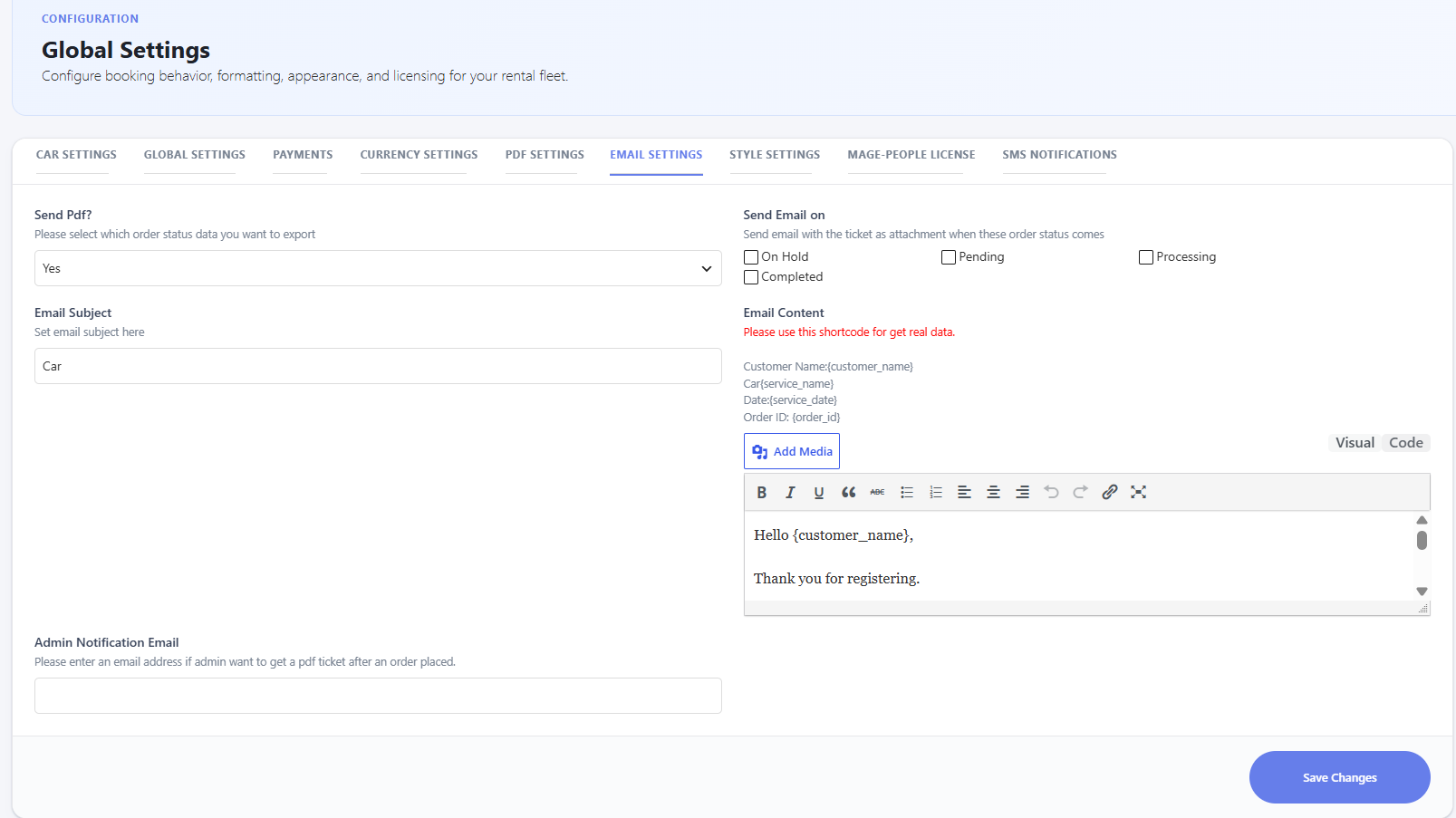
| Send Pdf? | Yes/No — attaches the generated PDF ticket/invoice to confirmation emails. |
| Email Subject | The default subject line for booking notification emails. |
| Admin Notification Email | Email address(es) that receive notification copies and PDF tickets when a reservation is placed. |
| Send Email on | Checkboxes for which order statuses trigger notification emails (On Hold, Pending, Processing, Completed). |
| Email Content | A rich-text editor for the email body. |
Available shortcodes for the email body: {customer_name}, {service_name}, {service_date}, and {order_id}.
Tip: always test custom email bodies after adding dynamic tags to make sure they populate correctly, and keep at least Processing or Completed selected so customers get their confirmation once payment is verified.
Style Settings
Customize the visual appearance of the frontend booking engine — primary branding colors, typography sizes, button styles, and container backgrounds.
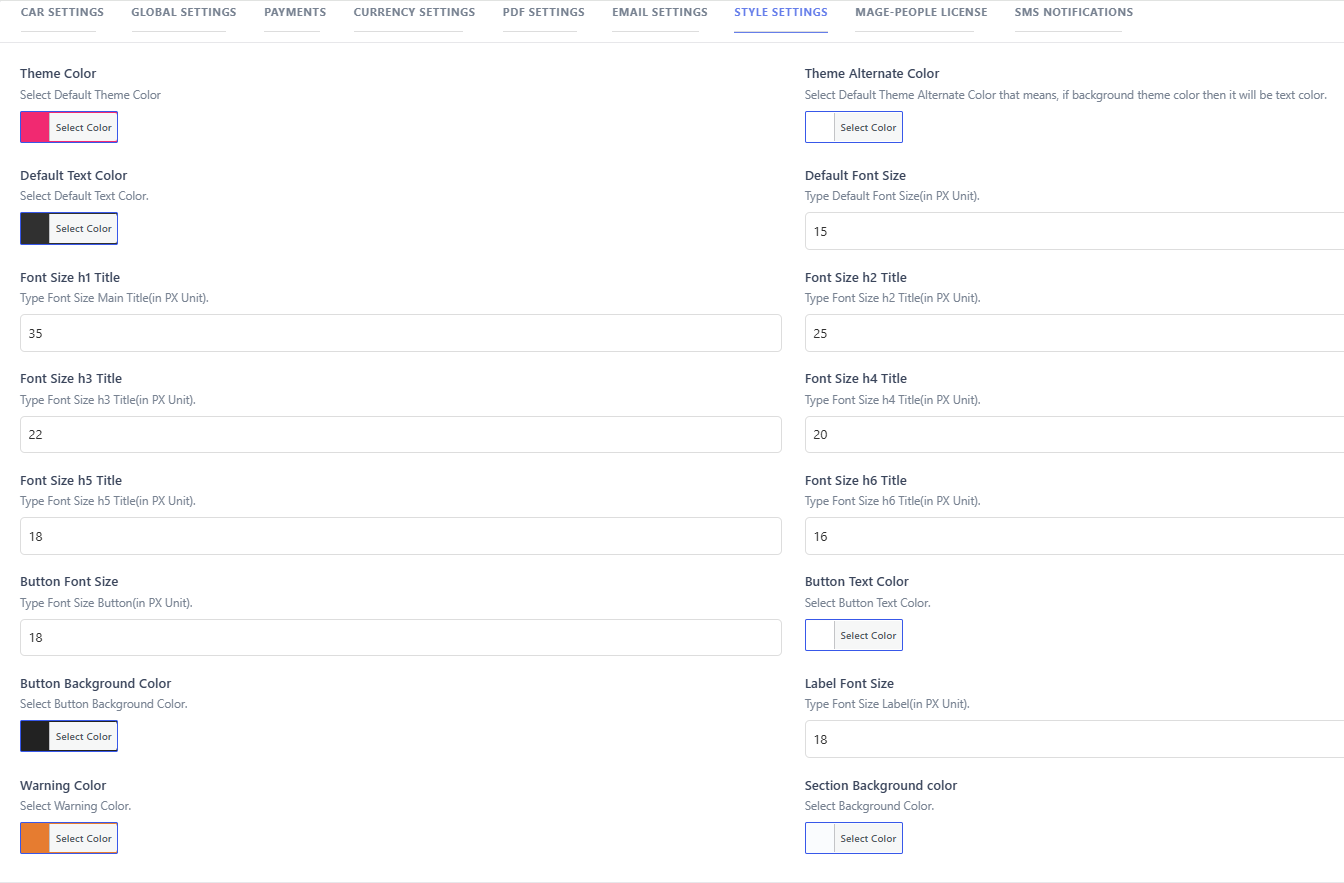
| Theme Color / Theme Alternate Color | The primary brand accent color and its contrasting text/icon color. |
| Default Text Color / Default Font Size | Base body text color and font size in pixels. |
| Font Size h1–h6 Title | Heading sizes in pixels for each heading level. |
| Button Font Size / Button Text Color / Button Background Color | Styling for action buttons. |
| Label Font Size | Font size for form field labels. |
| Warning Color | Color for warning alerts, error messages, and stock notices. |
| Section Background color | Container background fill for card blocks and form sections. |
Tip: match Theme Color with your site’s brand identity, and keep strong contrast between Button Text Color and Button Background Color for accessibility.
SMS Notifications
Third-party SMS gateway credentials, custom API webhooks, and automated text message templates for customers and administrators.
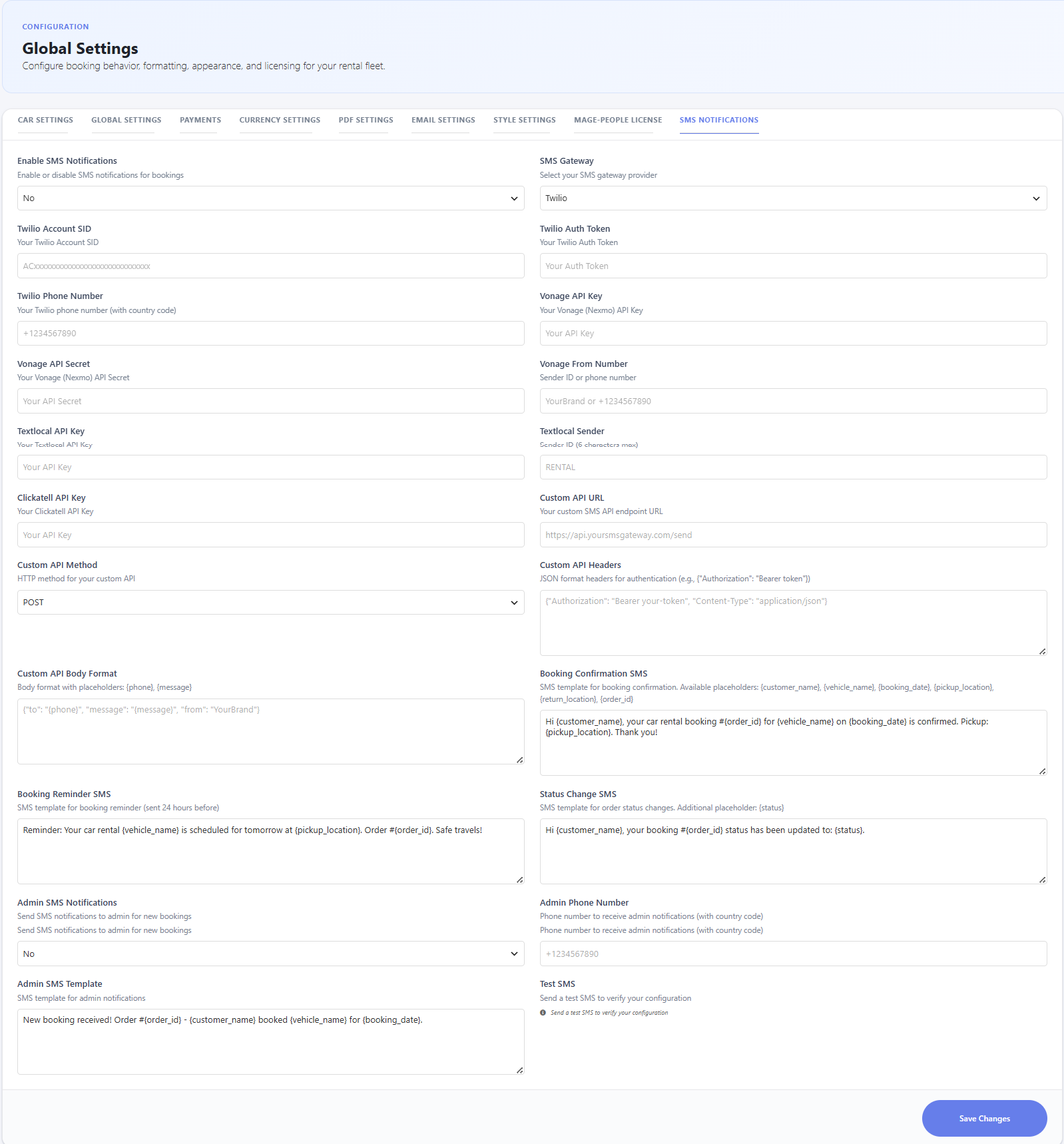
- Enable SMS Notifications & SMS Gateway — globally enable SMS and choose a provider: Twilio, Vonage (Nexmo), Textlocal, Clickatell, or Custom API.
- Provider API Credentials — each gateway has its own credential fields (e.g. Twilio Account SID, Auth Token, and Phone Number; Vonage API Key and Secret; Textlocal API Key and Sender ID; Clickatell API Key).
- Custom API Gateway — configure a Custom API URL, HTTP Method (POST/GET), JSON Headers, and a Body Format template with placeholders like
{phone}and{message}. - Automated Customer SMS Templates — Booking Confirmation SMS, Booking Reminder SMS (sent before pickup), and Status Change SMS, each supporting placeholders:
{customer_name},{vehicle_name},{booking_date},{pickup_location},{return_location},{order_id}, and{status}. - Admin SMS Notifications — send a copy to an Admin Phone Number using its own Admin SMS Template.
- Test SMS — send a test message to verify your configuration.
Tip: use standard E.164 phone formatting (e.g. +1234567890) for both the Twilio Phone Number and Admin Phone Number fields, and keep SMS templates under 160 characters to avoid multi-part message splitting and extra gateway costs.