
Pricing & Availability
Configure pricing models, seasonal rates, and availability for Car Rental Manager.
Pricing lives in the Pricing and Fee & Deposit tabs of the vehicle configuration wizard (see Vehicle Management for the full wizard walkthrough). This guide covers every pricing rule, discount type, and fee in detail, with worked examples.
Base Price
Every vehicle has a base daily rate.

Price/Day is the daily rental price used to calculate the booking cost based on the number of rental days. Customers are charged according to this price unless a discount rule or day-specific rate overrides it.
Tiered Discount Rules
Offer discounts based on rental duration — customers who book for longer periods automatically receive better pricing. Tiered discounts are off by default; turn them on with the switch at the top of the panel.
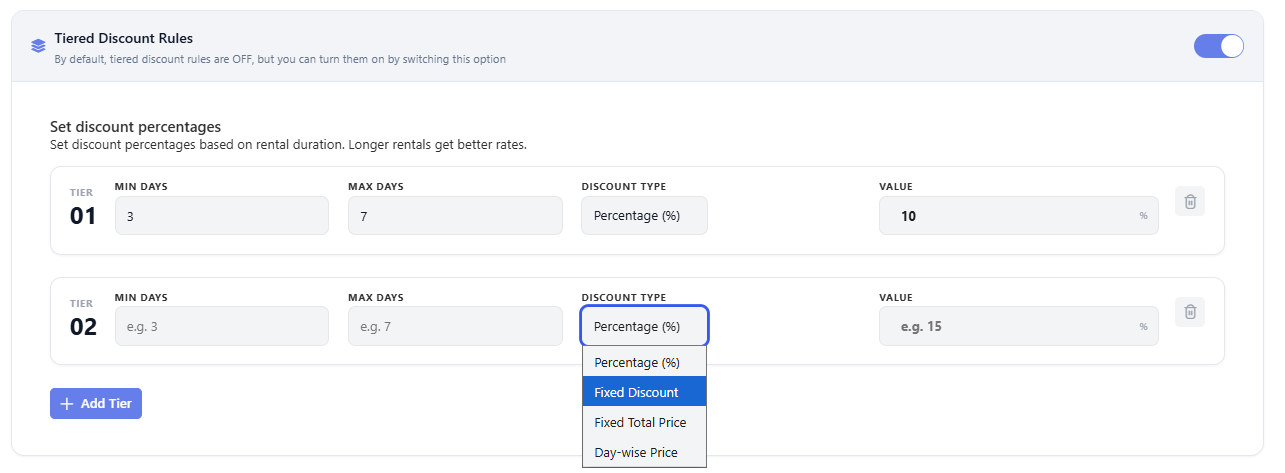
Each tier has four fields:
- Min Days / Max Days — the rental-duration range this tier applies to.
- Discount Type — how the discount is calculated:
- Percentage (%) — applies a percentage discount to the rental price.
- Fixed Discount — deducts a flat amount from the total price.
- Fixed Total Price — overrides the entire rental charge with one fixed sum for the whole duration.
- Day-wise Price — replaces the standard daily rate with a custom per-day rate for bookings in that range.
- Value — the discount amount or price, based on the selected type.
Click + Add Tier to add another rule, or the trash icon to remove one.
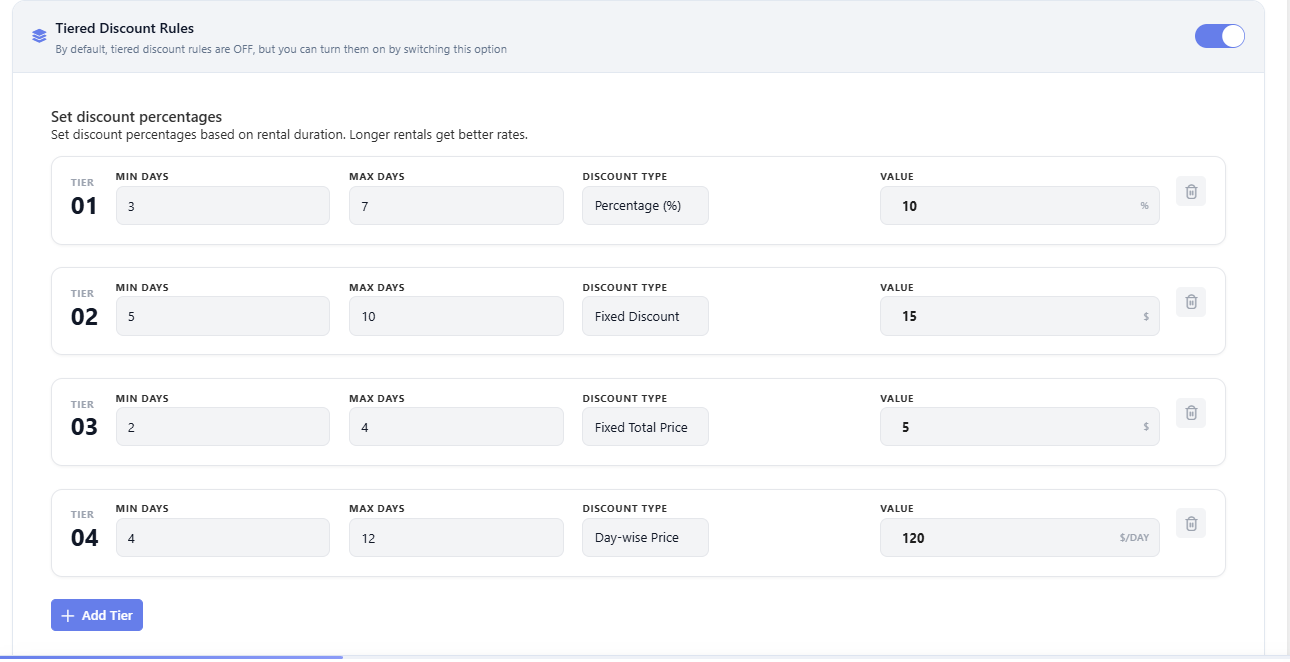
Worked Examples
Using a vehicle with a $100.00/day base rate and these four tiers — Tier 01: 3–7 days, Percentage, 10%; Tier 02: 5–10 days, Fixed Discount, $15; Tier 03: 2–4 days, Fixed Total Price, $5; Tier 04: 4–12 days, Day-wise Price, $120/day:
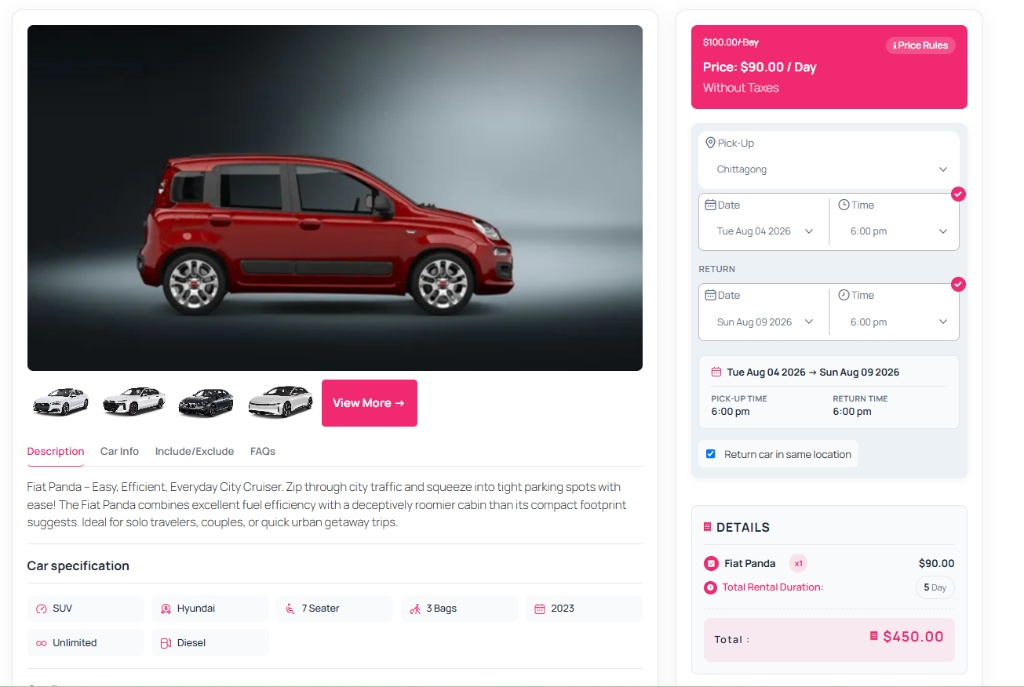
Tier 01 — Percentage (5-day booking): $100 − (10% × $100) = $90.00/day. Total for 5 days = $90 × 5 = $450.00.
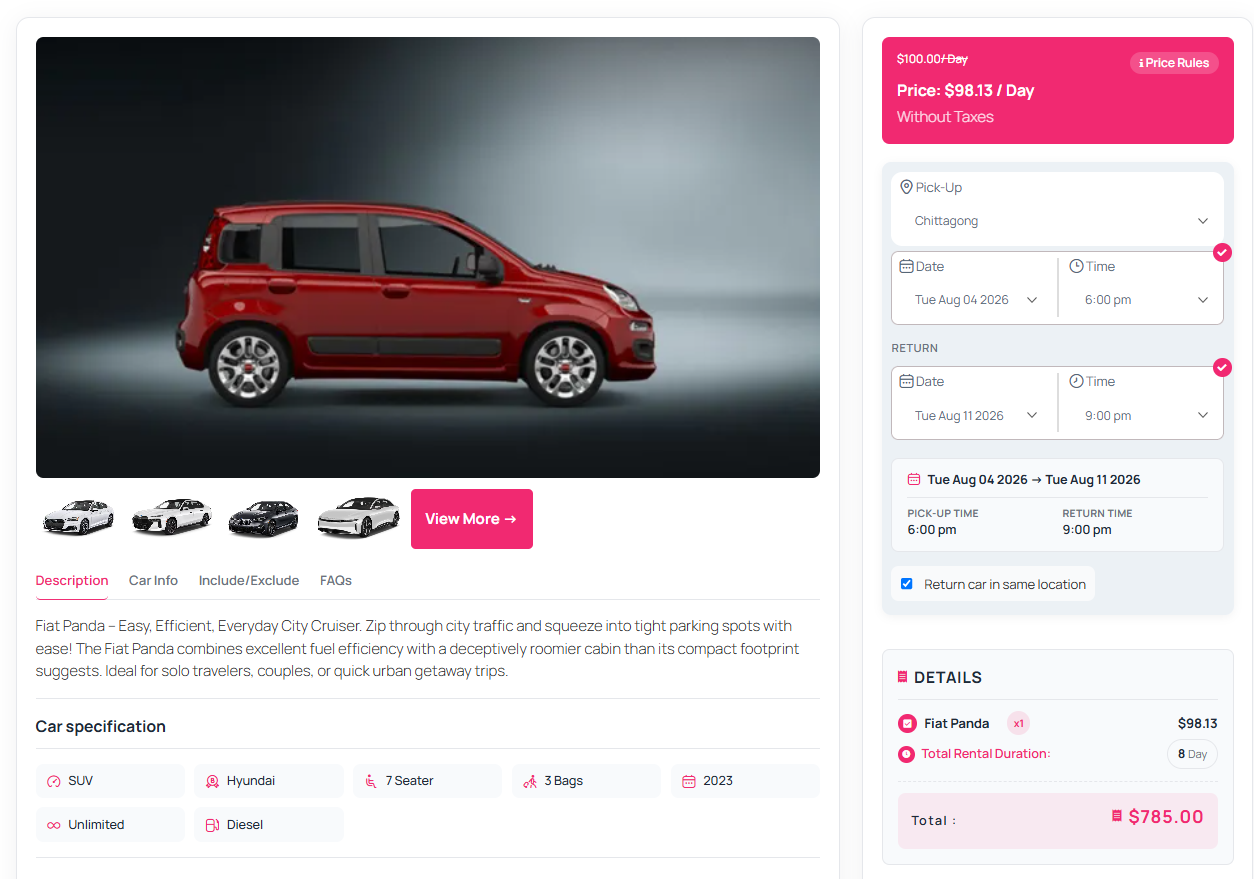
Tier 02 — Fixed Discount (8 billable days): base cost $100 × 8 = $800; minus the flat $15 discount = $785.00 (displayed as roughly $98.13/day).
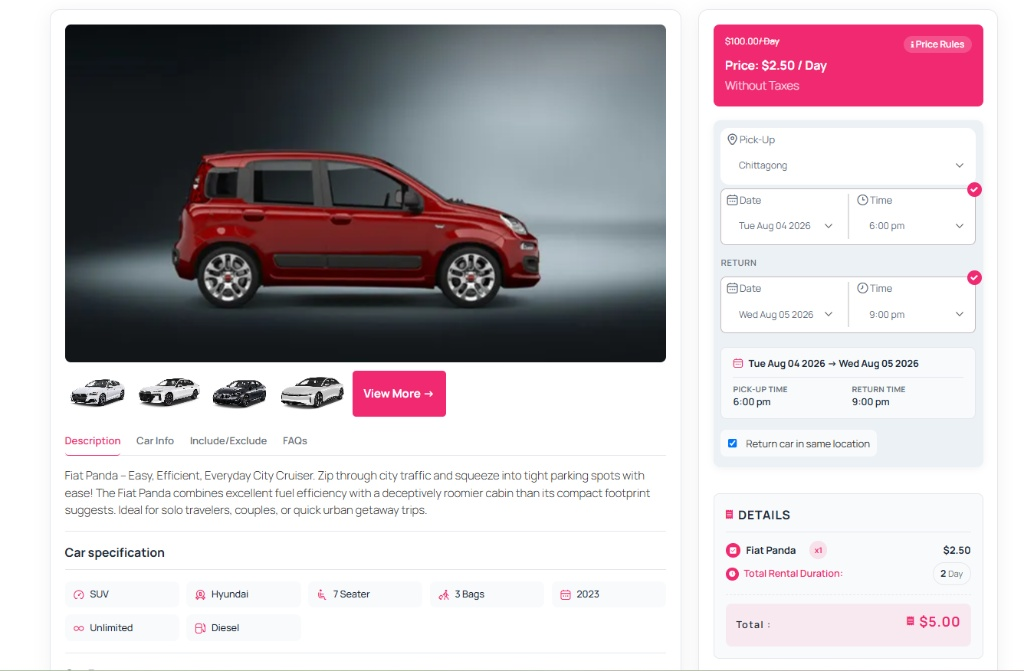
Tier 03 — Fixed Total Price (2 billable days): the entire charge is overridden with the fixed sum of $5.00 for the booking, regardless of the $200 the base rate would otherwise produce (displayed as $2.50/day).
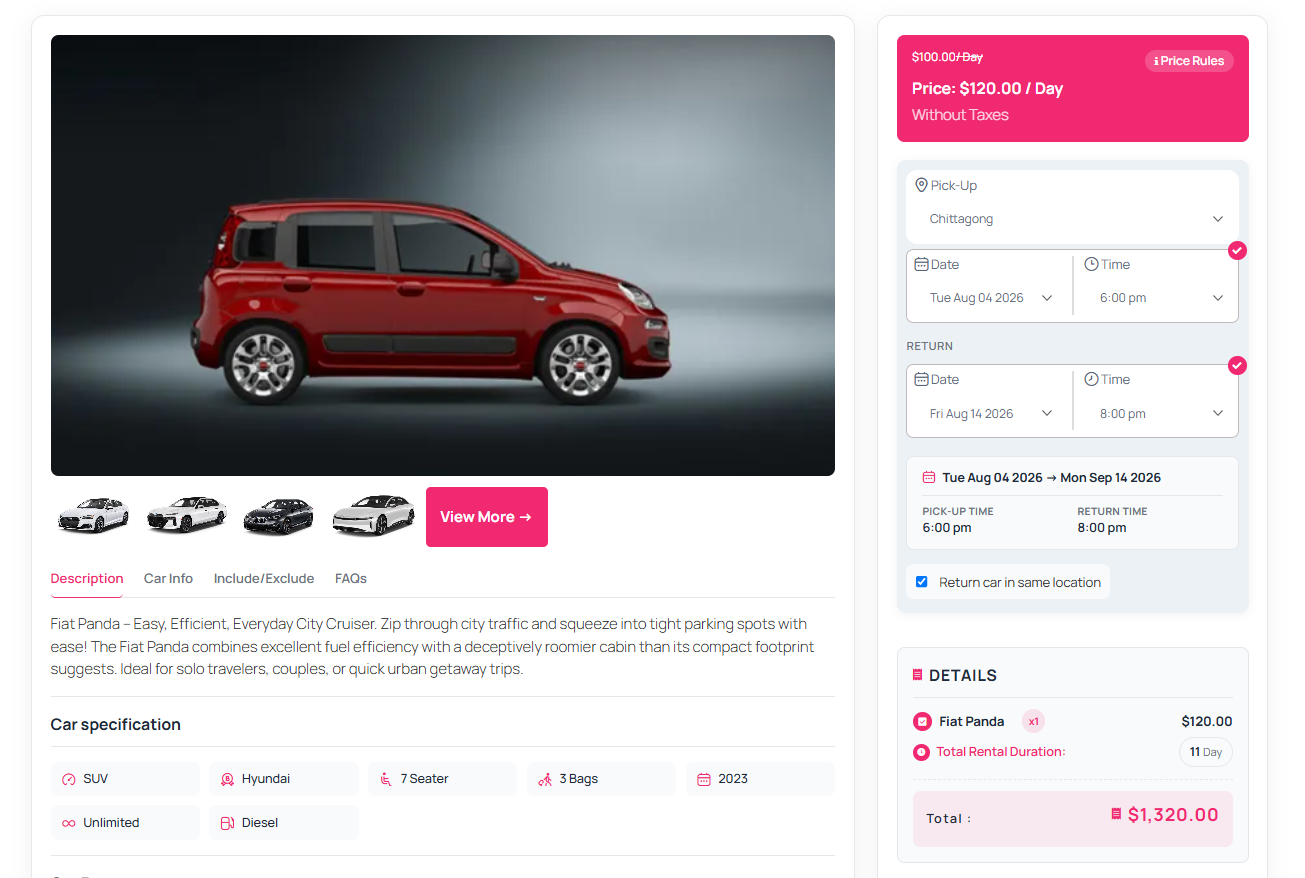
Tier 04 — Day-wise Price (11 billable days): the daily rate is replaced with $120/day for the whole stay: $120 × 11 = $1,320.00.
Important: avoid overlapping day ranges between tiers — if two tiers cover the same duration, the plugin matches whichever tier appears first, which can produce unexpected pricing. Keep tiers sequential (shortest duration to longest) with non-overlapping ranges.
Day-wise Pricing
Enables dynamic daily rate overrides based on the day of the week — useful for weekday demand shifts or weekend rates, without touching the vehicle’s base price. Off by default.
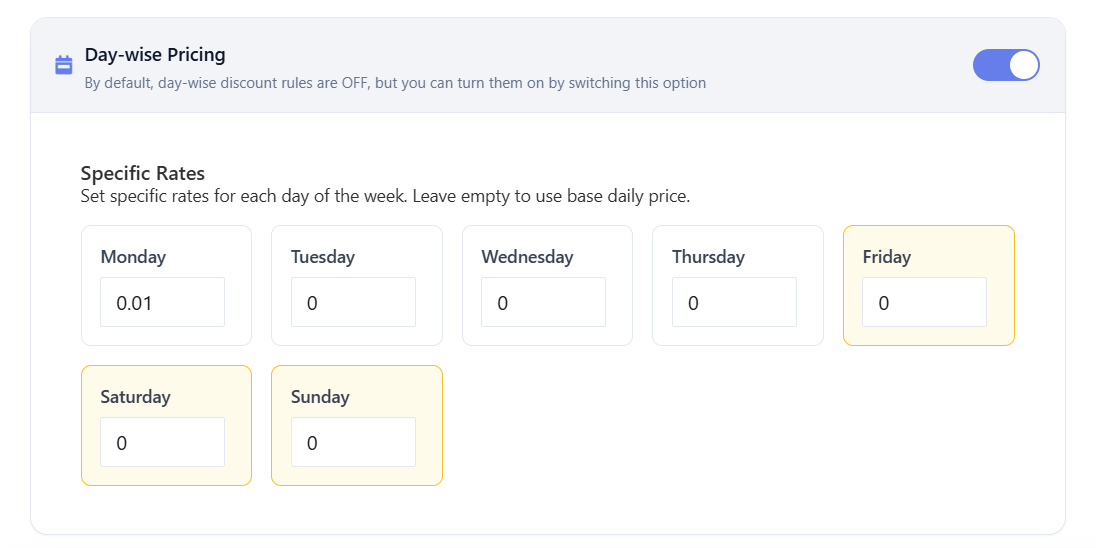
Set a specific rate for each day of the week; leaving a day at 0 or empty makes it fall back to the vehicle’s base daily price.
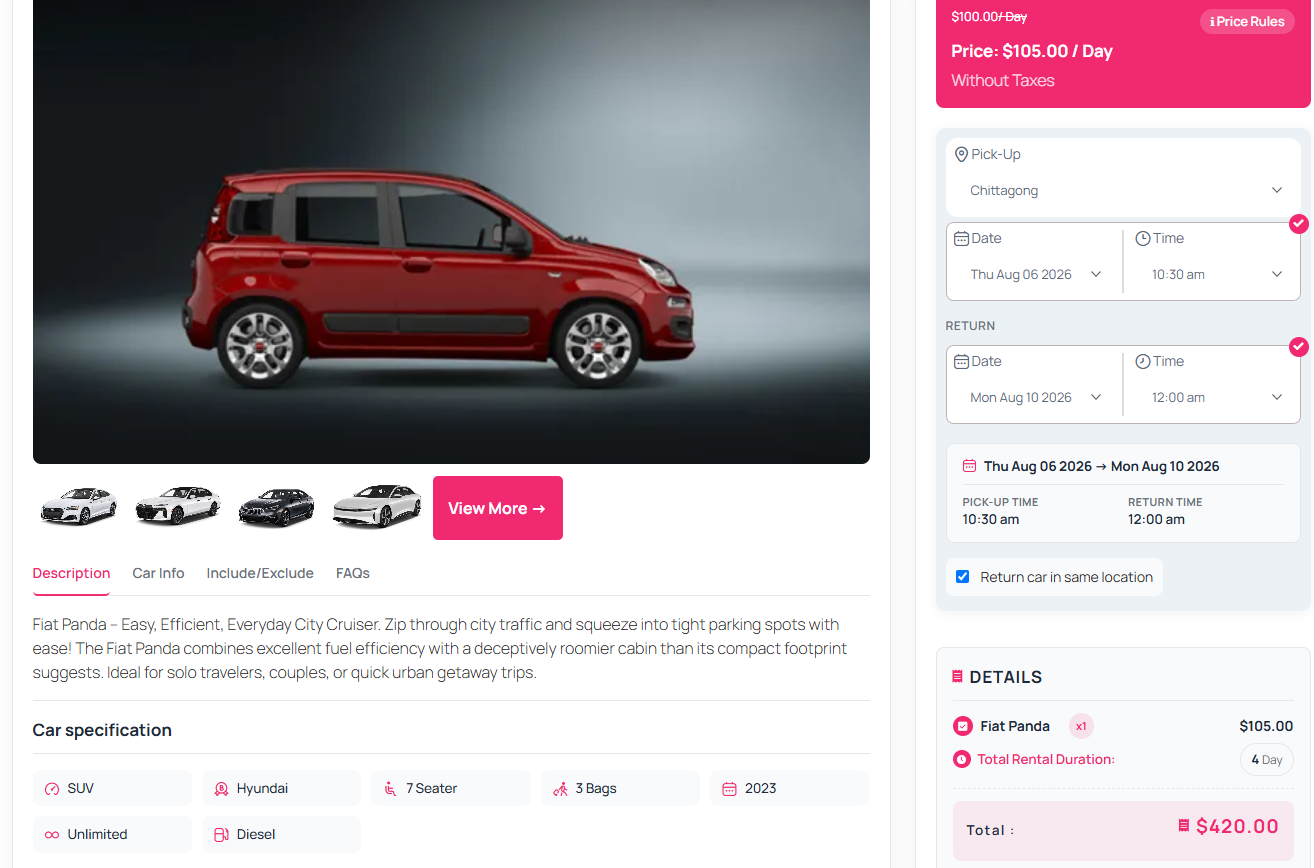
Example (base price $100/day): Thursday $130, Friday $90, Saturday and Sunday left at 0 (fall back to $100). A 4-day booking from Thursday to Sunday totals $130 + $90 + $100 + $100 = $420.00, averaging $105.00/day.
Seasonal Pricing
Set dynamic price adjustments for specific date ranges — ideal for peak seasons (summer, holidays) or low-season promotional rates. Off by default.
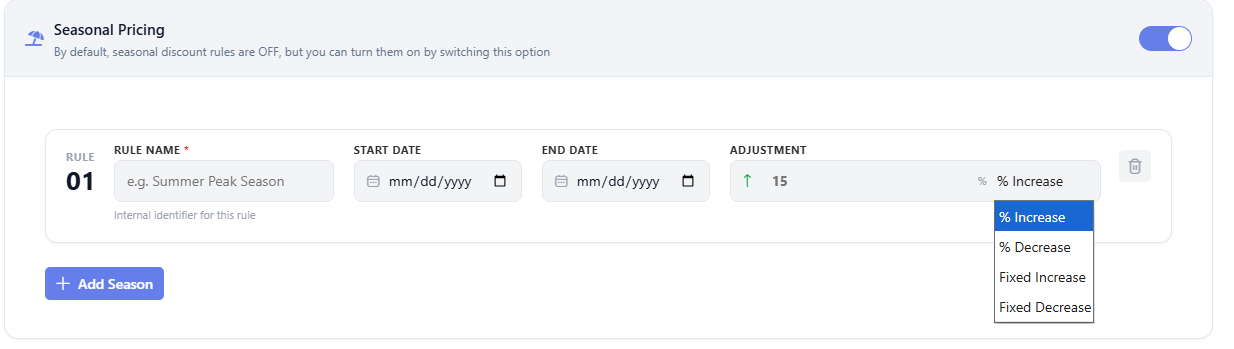
Each seasonal rule has a Rule Name (internal label, e.g. “Summer Peak Season”), a Start Date and End Date, and an Adjustment with four possible types:
- % Increase — e.g. 15% on a $100 base rate charges $115/day.
- % Decrease — e.g. 10% on a $100 base rate charges $90/day.
- Fixed Increase — e.g. $20 on a $100 base rate charges $120/day.
- Fixed Decrease — e.g. $15 on a $100 base rate charges $85/day.
Click + Add Season for another rule. Start and end dates are inclusive, applying from 00:00 on the start date through 23:59 on the end date — avoid overlapping date ranges with contradictory rules.
Early Bird Discount
Reward customers who book well in advance with automated discount tiers. Off by default.
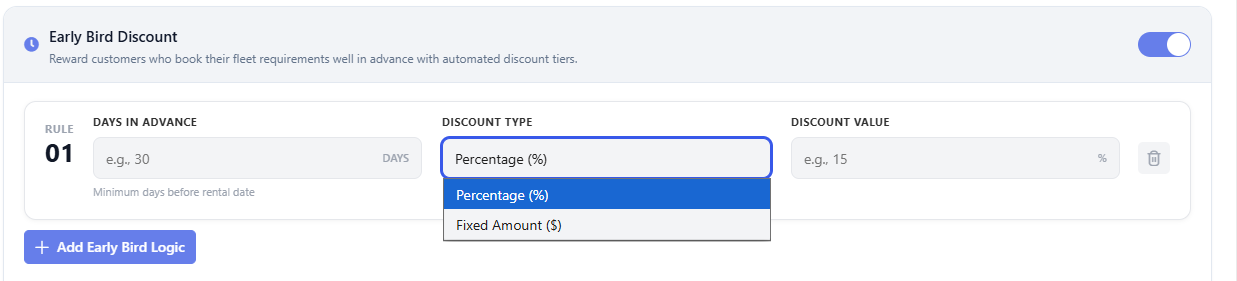
- Days In Advance — the minimum number of days before pickup that a booking must be placed to qualify (e.g. 30).
- Discount Type — Percentage (%) deducts a percentage from the total (e.g. 15% off for booking 30+ days ahead), or Fixed Amount ($) subtracts a flat sum (e.g. $50 off for booking 60+ days ahead).
Click + Add Early Bird Logic for additional lead-time tiers. If you configure multiple tiers, organize them so the largest discount applies to the furthest-in-advance bookings.
Extra Service Pricing
Extra services (child seats, GPS, welcome drinks, and similar add-ons, configured per vehicle in the Extra Service Options step) each carry their own price and pricing type — typically Flat, applied once per booking regardless of duration. See Vehicle Management for how to configure them.
Fee & Deposit
The Fee & Deposit tab configures additional charges beyond the base rental price.
Multi-Location Fee
Charge a route-specific transfer fee when a vehicle is picked up at one branch and dropped off at another. Daily rates are still taken from the main pricing settings — you only configure the transfer surcharge here.
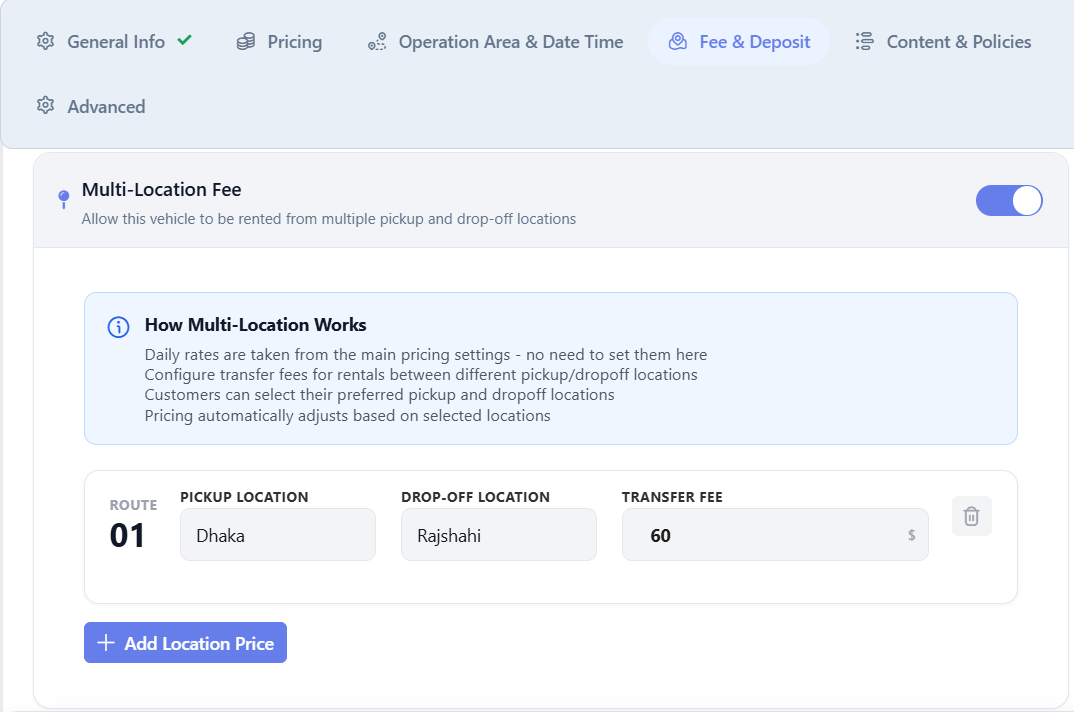
Each route row sets a Pickup Location, Drop-off Location, and Transfer Fee (e.g. Dhaka → Rajshahi, $60). Click + Add Location Price for more routes. If a return leg should also carry a fee, add the reverse route explicitly (Rajshahi → Dhaka) — transfers within the same branch never trigger this fee.
One-Way Fee
A simpler alternative to Multi-Location Fee: charge one uniform surcharge any time the pickup and drop-off locations differ, without configuring a route table.
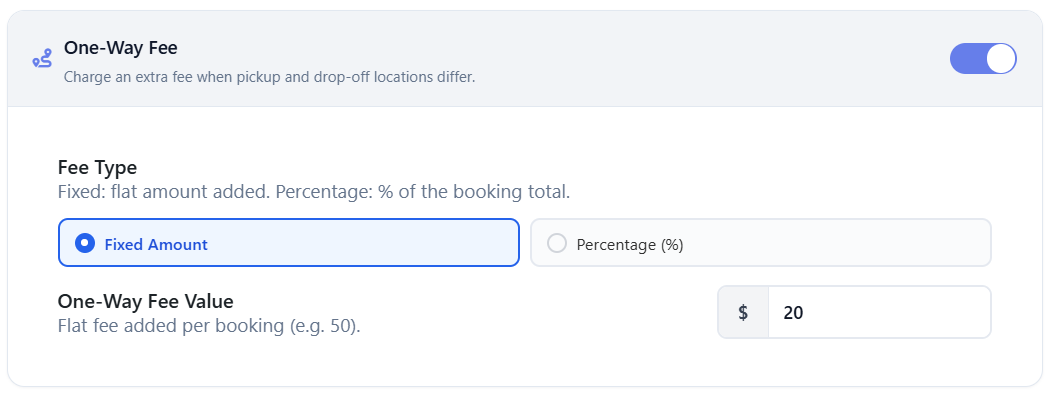
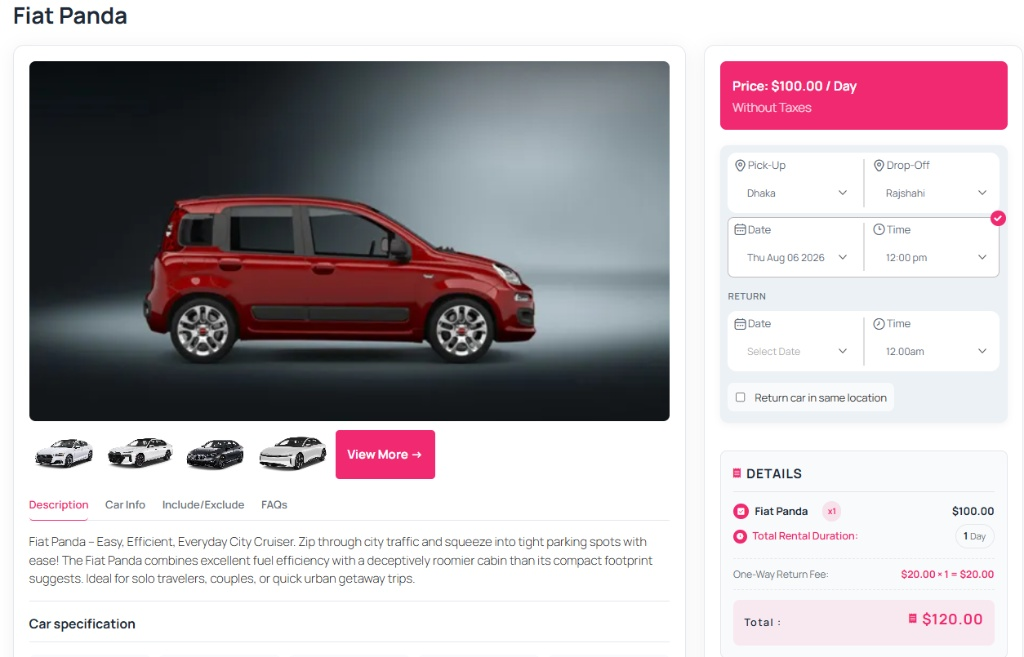
Choose a Fee Type — Fixed Amount (a flat charge, e.g. $20) or Percentage (%) (e.g. 20% of the booking total) — and set the One-Way Fee Value. Use One-Way Fee for a simple uniform surcharge; use Multi-Location Fee instead when different routes should carry different costs.
Example: a $100/day vehicle booked for 1 day from Dhaka to Rajshahi with a $20 fixed one-way fee totals $100 + $20 = $120.00.
Security Deposit
Charge a refundable deposit at booking time to cover potential damage, toll violations, or incidental costs.
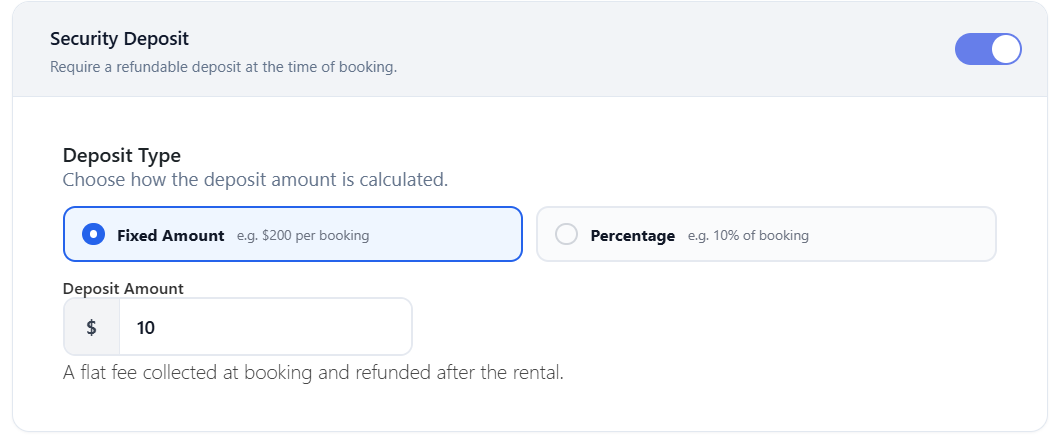
Choose Fixed Amount (e.g. $200 per booking) or Percentage (e.g. 10% of the booking) and set the deposit amount. The deposit is collected upfront alongside the rental payment and marked for refund after post-rental inspection.
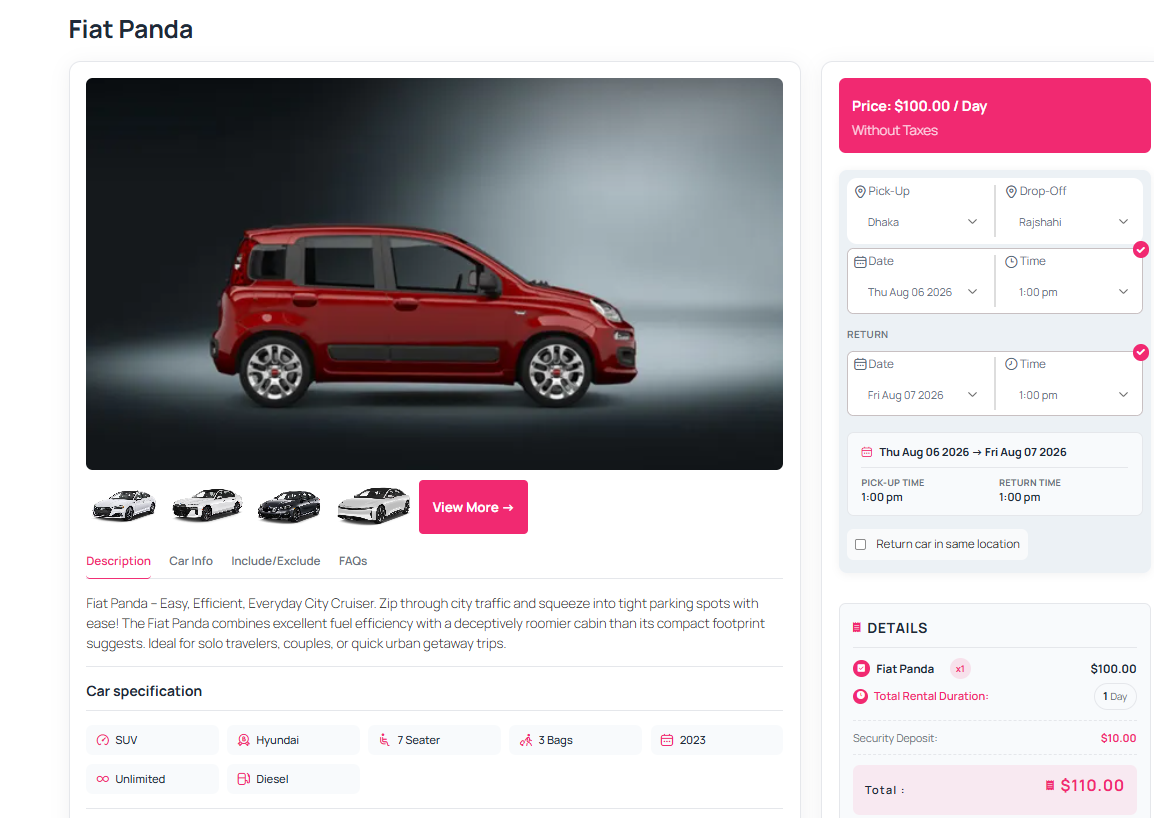
Example: a $100/day vehicle for 1 day with a $10.00 fixed security deposit totals $100 + $10 = $110.00, with $10.00 flagged as a refundable deposit.
Vehicle Delivery
Offer doorstep delivery of the vehicle to the customer’s address for an extra fee.
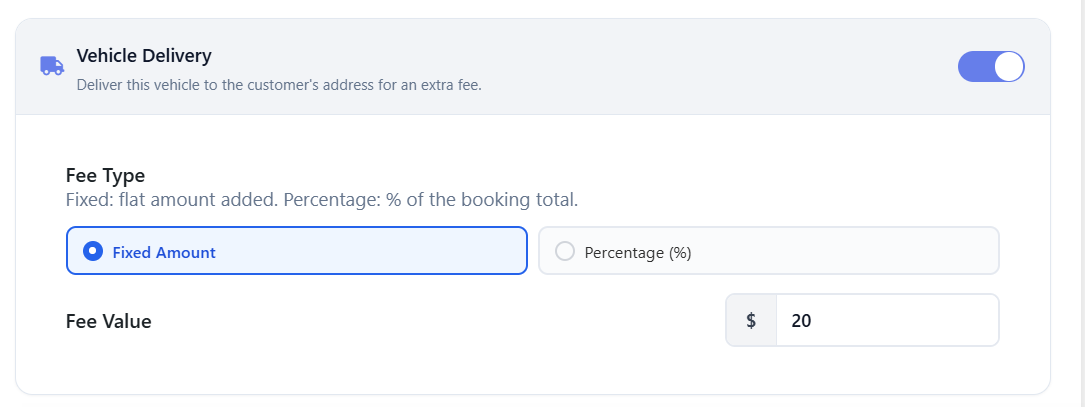
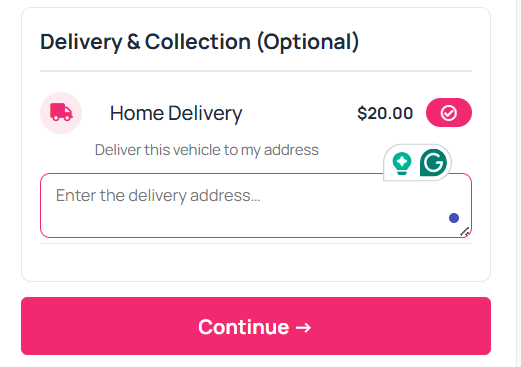
Choose Fixed Amount or Percentage (%) and set the fee value. When enabled, customers see a Home Delivery option at checkout with a text field to enter their delivery address.
Vehicle Collection
The counterpart to Vehicle Delivery: retrieve the vehicle from the customer’s address at the end of the rental for an extra fee.
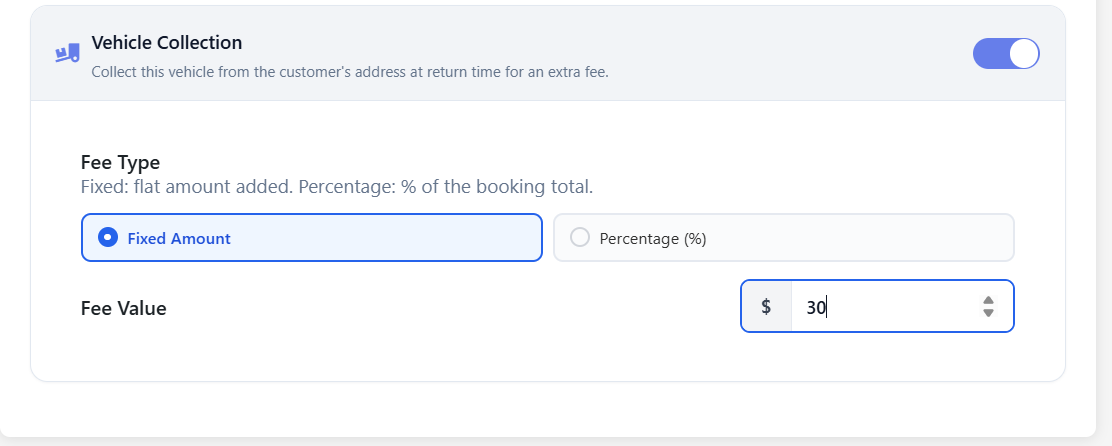
Configured the same way — Fixed Amount or Percentage (%). When enabled, customers see a Home Collection option with an address field at checkout.
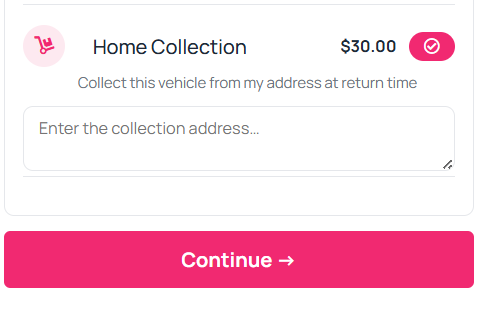
Offering both Vehicle Delivery and Vehicle Collection gives customers complete door-to-door service for their rental.
Availability
Where a vehicle can be booked, and when, is controlled per-vehicle in the Operation Area & Date Time step, and fleet-wide in the Fleet Operation Schedule settings — see Vehicle Management for details.