
Integrations
Car Rental Manager connects to Google Reviews for social proof, and to Google Calendar and iCal feeds for keeping your booking schedule in sync with external calendar apps.
Google Reviews
Fetch real customer reviews from Google Places and display them anywhere on your site. Go to Car Rental → Google Reviews.
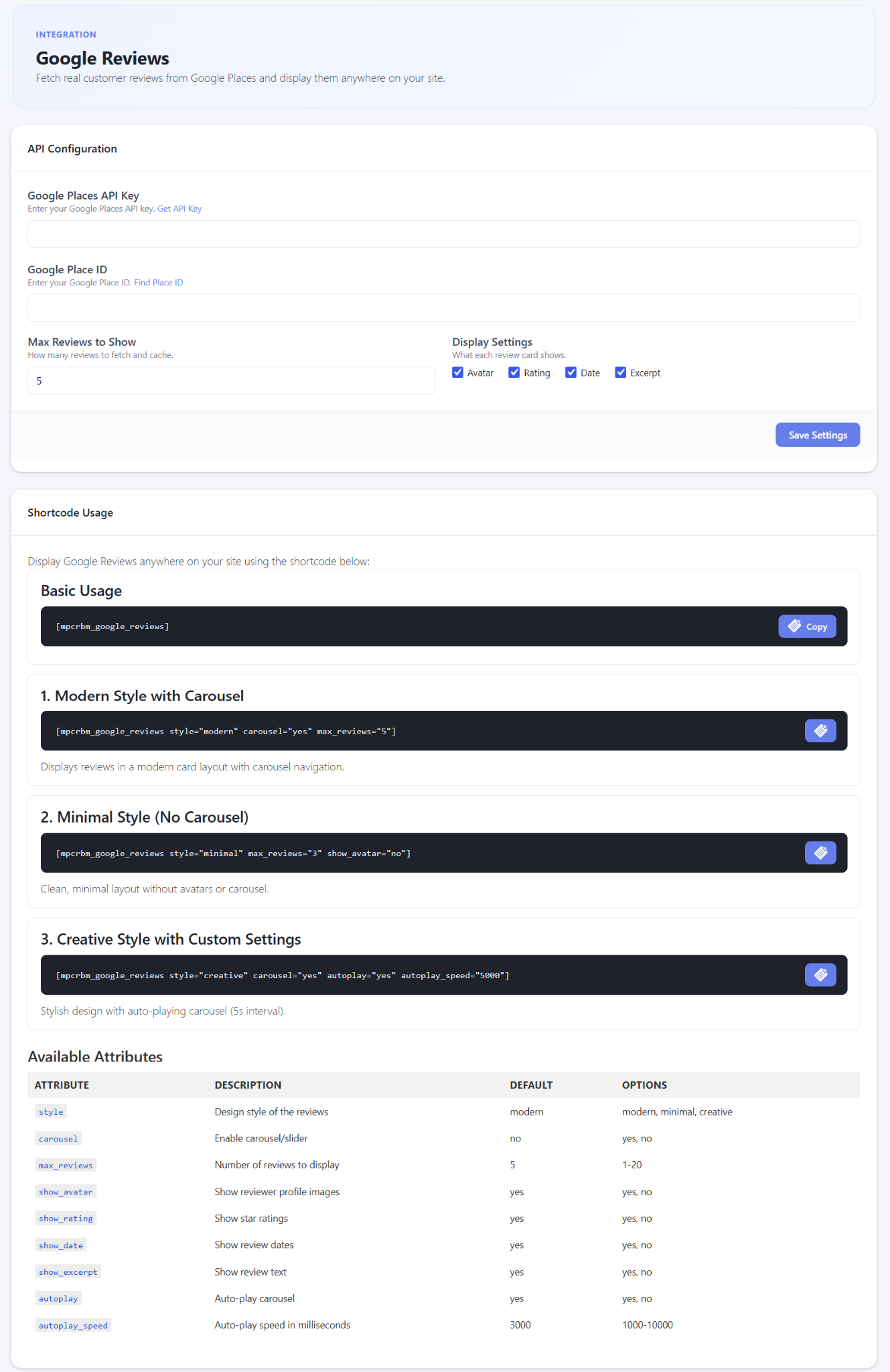
API Configuration
- Google Places API Key — your Google Cloud API key for authenticating requests to Google Places (a “Get API Key” link is provided).
- Google Place ID — the specific Google Business Location ID (a “Find Place ID” link is provided).
- Max Reviews to Show — how many reviews to fetch and cache (default: 5).
- Display Settings — checkboxes for which elements appear on each review card: Avatar, Rating, Date, Excerpt.
Shortcode Usage
Display Google Reviews anywhere on your site with the [mpcrbm_google_reviews] shortcode:
- Basic usage:
[mpcrbm_google_reviews]— renders review cards using default settings. - Modern style with carousel:
[mpcrbm_google_reviews style="modern" carousel="yes" max_reviews="5"] - Minimal style (no carousel):
[mpcrbm_google_reviews style="minimal" max_reviews="3" show_avatar="no"] - Creative style with auto-play:
[mpcrbm_google_reviews style="creative" carousel="yes" autoplay="yes" autoplay_speed="5000"]
Available Attributes
style |
Design style of the reviews | Default: modern |
Options: modern, minimal, creative |
carousel |
Enable carousel/slider navigation | Default: no |
Options: yes, no |
max_reviews |
Number of reviews to display | Default: 5 |
Range: 1–20 |
show_avatar |
Display reviewer profile pictures | Default: yes |
Options: yes, no |
show_rating |
Display star rating | Default: yes |
Options: yes, no |
show_date |
Display review posting date | Default: yes |
Options: yes, no |
show_excerpt |
Display the review text | Default: yes |
Options: yes, no |
autoplay |
Auto-advance carousel slides | Default: yes |
Options: yes, no |
autoplay_speed |
Auto-play interval in milliseconds | Default: 3000 |
Range: 1000–10000 |
Tip: restrict your Google Places API key to your domain in the Google Cloud Console to prevent unauthorized usage, and keep max_reviews reasonable (5–10) to optimize page load and API quota.
Google Calendar
Sync vehicle rental bookings directly with a Google Calendar account, enabling real-time schedule tracking and automated event creation upon customer reservations. Go to Car Rental → Calendar Settings → Google Calendar.
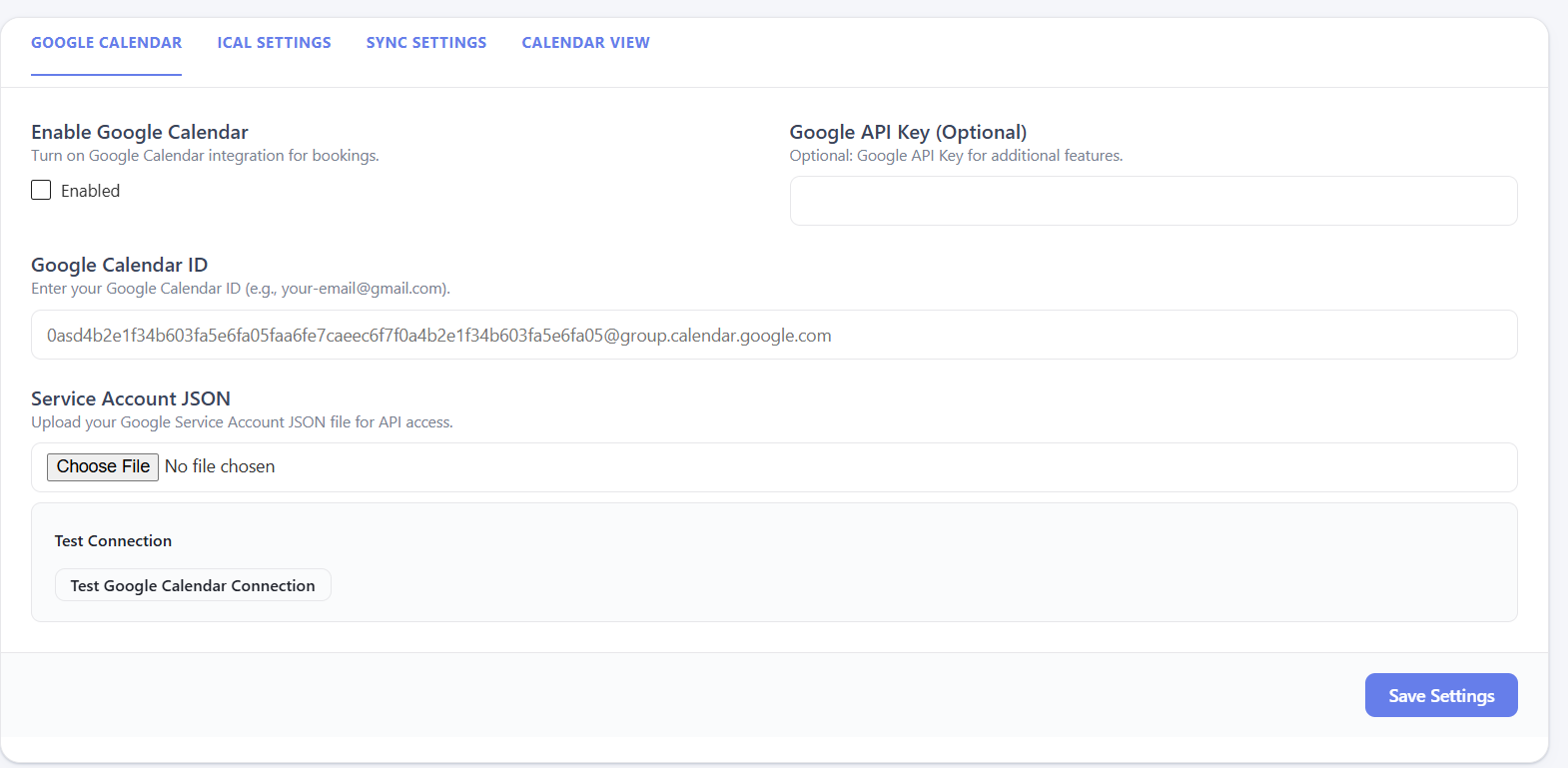
- Enable Google Calendar — toggles sync on or off.
- Google API Key (Optional) — for secondary calendar queries or public data fetching.
- Google Calendar ID — the target calendar where new booking events are created.
- Service Account JSON — upload the service account credentials file generated from the Google Cloud Console for secure, server-to-server access.
- Test Google Calendar Connection — verifies the Calendar ID and Service Account JSON can authenticate successfully.
Tip: share the Service Account’s email address (from the Google Cloud Console) directly with your target Google Calendar, with “Make changes to events” permission, and always click Test Google Calendar Connection after uploading a new JSON file before relying on live bookings.
iCal Settings
Export booking schedules as standardized iCalendar (.ics) feed URLs, enabling real-time, read-only synchronization with external calendar clients such as Apple Calendar, Outlook, or third-party booking channels.
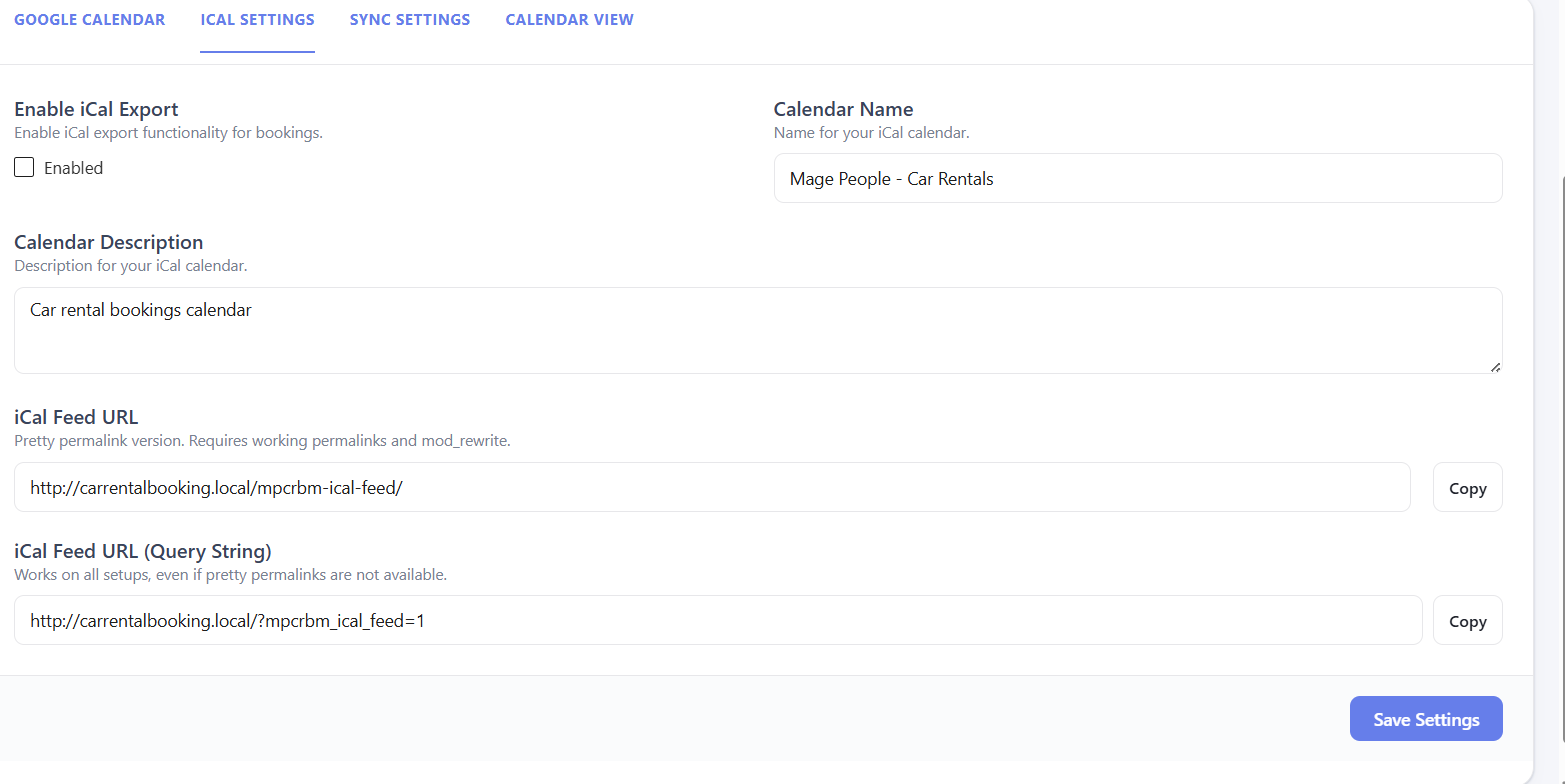
- Enable iCal Export — toggles the feed on or off.
- Calendar Name / Calendar Description — metadata attached to the exported feed.
- iCal Feed URL — the clean, pretty-permalink feed URL (requires working permalinks and mod_rewrite).
- iCal Feed URL (Query String) — a fallback URL that works on every server setup, even without pretty permalinks.
Paste the copied feed URL into an external calendar app’s “Subscribe via URL” or “Add Calendar by URL” option. If an external platform throws sync errors on the pretty-permalink URL, use the query-string version instead.
Sync Settings
Controls the automation parameters for pushing booking data to your connected external calendars.
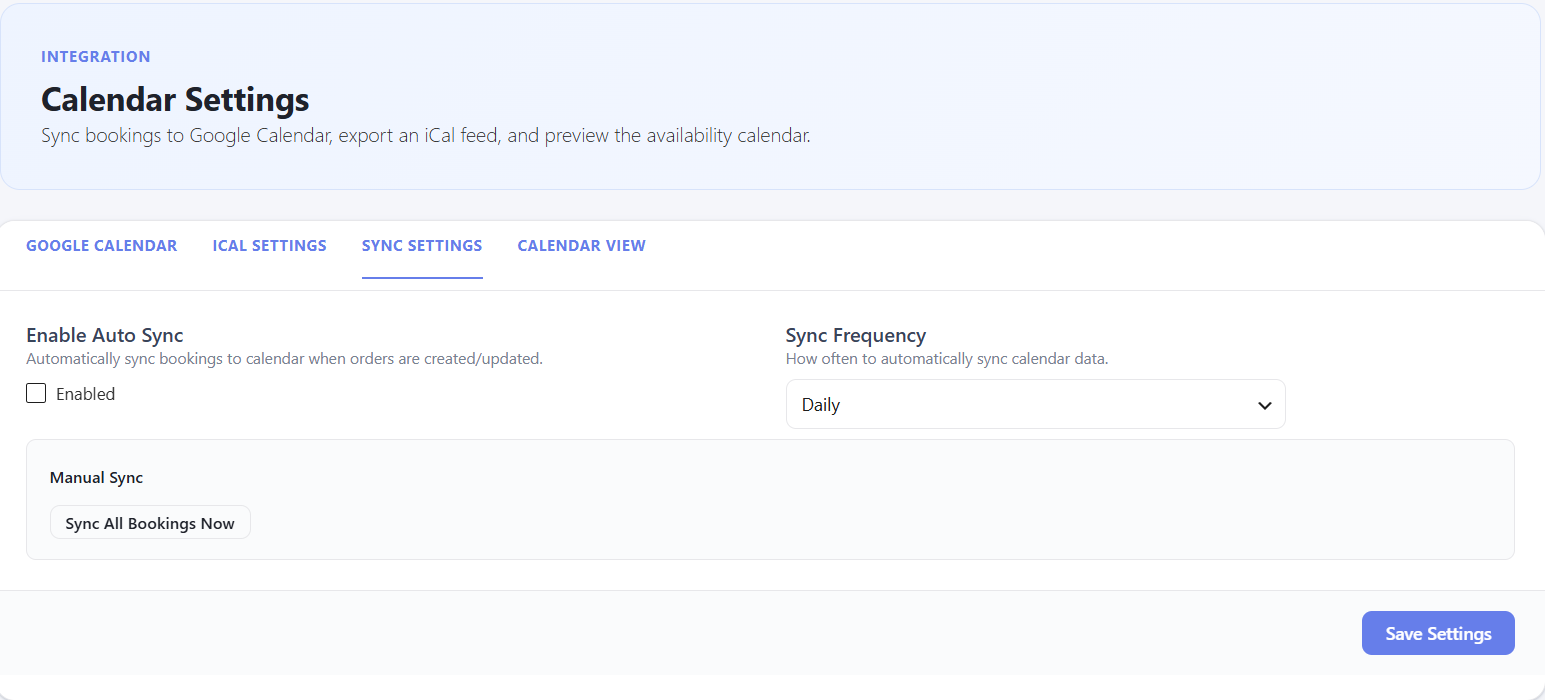
- Enable Auto Sync — when checked, the system automatically pushes booking data to the connected calendar whenever orders are created or modified.
- Sync Frequency — how often automated background synchronization runs (e.g. Daily).
- Sync All Bookings Now — triggers an immediate, one-time push of all pending booking data, bypassing the automated schedule.
Tip: if you’ve just connected a new calendar or imported historical booking data, click Sync All Bookings Now to populate it immediately rather than waiting for the next scheduled sync.