
Booking Management
Once your fleet is live, Car Rental Manager gives you a centralized place to track, filter, and manage every reservation, plus a visual calendar and a performance dashboard.
Booking List
Go to Car Rental → Booking List for a single view of every car rental reservation — filter by date, place, or status, then review, edit, or refund a booking without leaving the page.
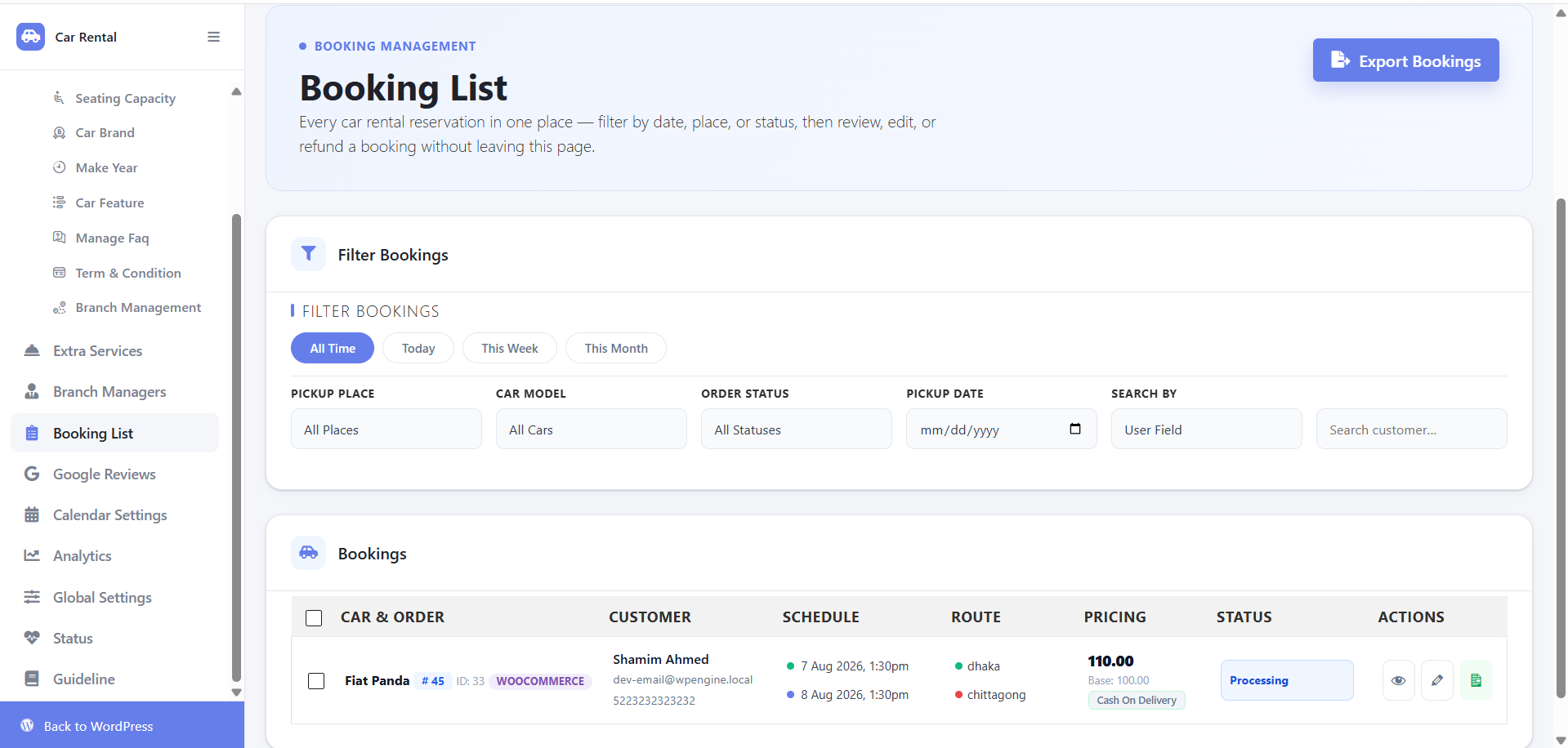
Click Export Bookings in the top-right corner to download the current booking records as a CSV or Excel file for reporting and auditing.
Filtering Bookings
Use the preset time pills — All Time, Today, This Week, This Month — or the detailed filters:
- Pickup Place — filter by branch or location.
- Car Model — narrow down to a specific vehicle.
- Order Status — All Statuses, Processing, Completed, Cancelled, etc.
- Pickup Date — a specific calendar date.
- Search By — choose the search attribute (User Field or Order ID), then use the search box to look up a customer by name, email, or phone number.
Reading a Booking Row
Each row shows the vehicle and order IDs, the customer’s name/email/phone, the pickup and return schedule, the pickup/drop-off route, the final price with a base-cost breakdown and payment method, and the current order status. Quick-action icons let you view order details (eye icon), edit booking metadata (pencil icon), or view/print the invoice (document icon).
Tip: use the Order Status filter during daily dispatch operations to separate active Processing pickups from Completed or Cancelled reservations, and filter by This Month before exporting to generate monthly performance reports.
Calendar View
The Calendar View tab (under Car Rental → Global Settings → Calendar Settings) provides a visual month-by-month availability calendar, letting you monitor fleet reservations, track vehicle occupancy, and verify booking schedules directly from the admin dashboard.
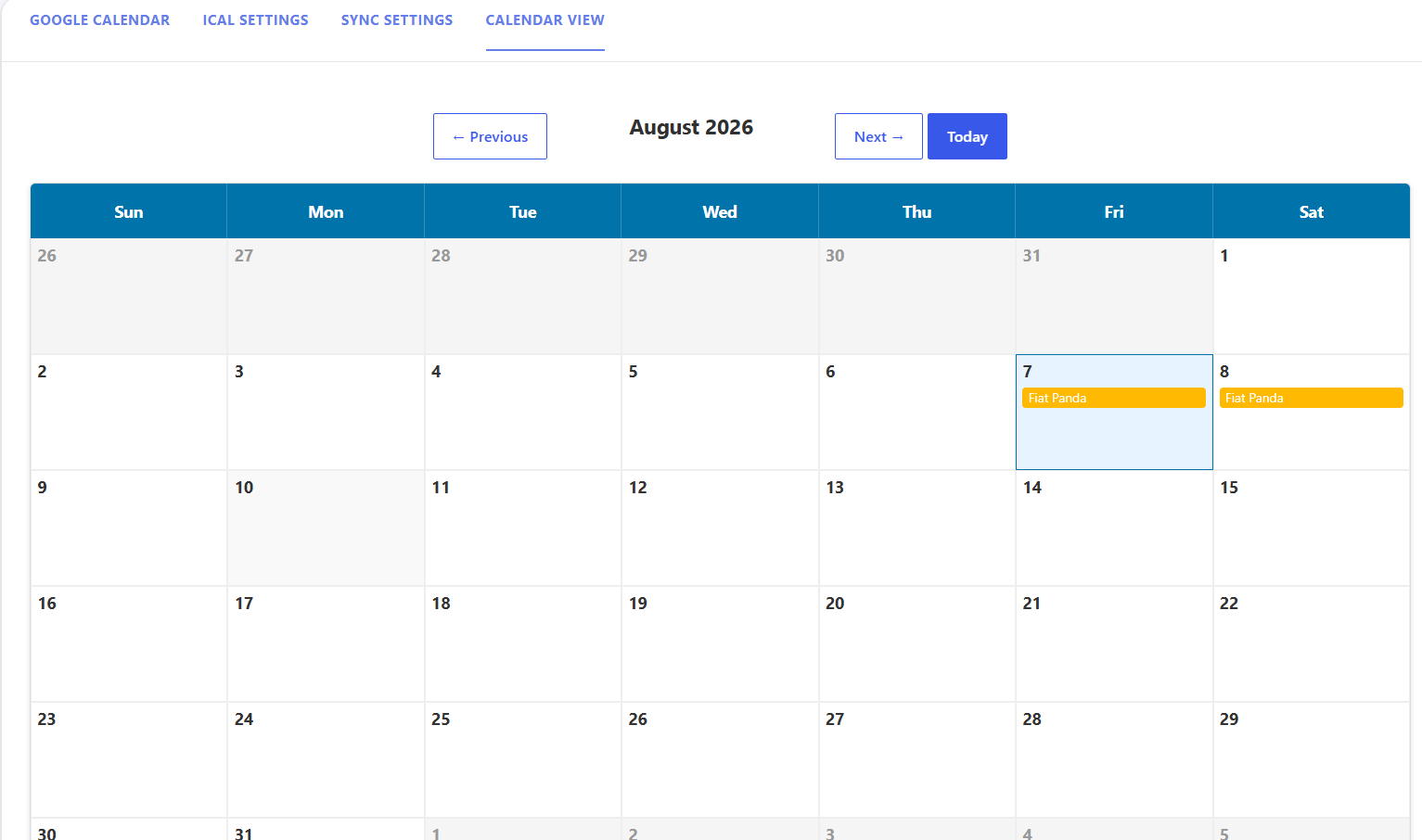
- Month Navigation — use ← Previous / Next → to browse months, or Today to jump back to the current date.
- Grid Layout — a standard 7-day weekly layout (Sunday through Saturday); the current date is highlighted.
- Booking Color Bars — scheduled reservations appear as color-coded event bars spanning their reserved date range, labeled with the vehicle name.
Tip: use the Calendar View to double-check vehicle availability before manually scheduling offline or phone reservations, and cross-reference booking blocks here with incoming customer inquiries to avoid double-booking fleet models during peak rental periods.
Analytics
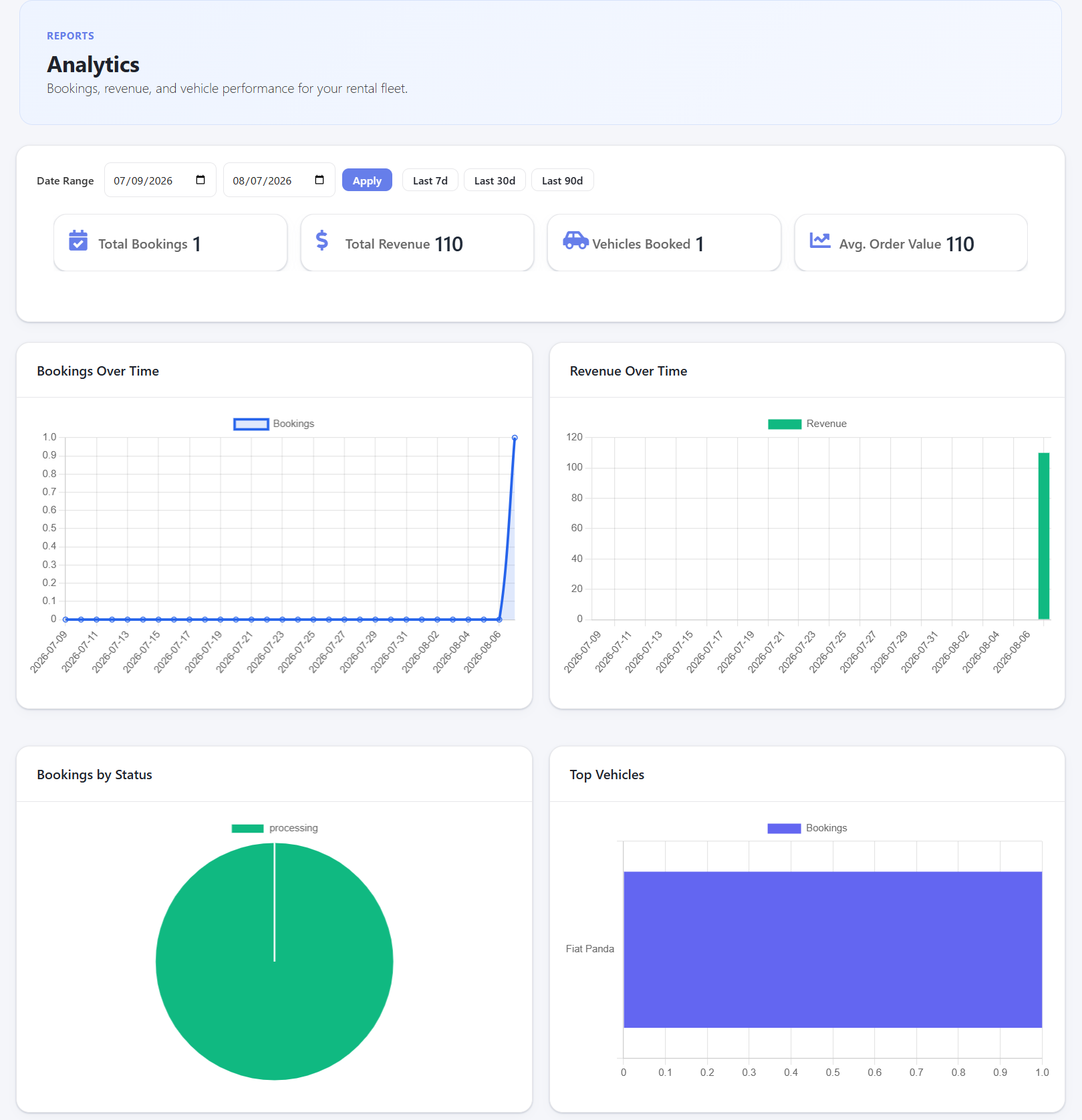
Go to Car Rental → Analytics for a visual performance summary of your rental operations — booking volume trends, revenue generation, order status distribution, and top-performing vehicles.
Key Performance Indicators
- Total Bookings — the number of reservations placed within the selected timeframe.
- Total Revenue — total monetary value generated across all valid bookings.
- Vehicles Booked — the distinct count of vehicles assigned to confirmed orders.
- Avg. Order Value — Total Revenue ÷ Total Bookings.
Use the Date Range pickers with the Apply button, or the quick presets Last 7d, Last 30d, and Last 90d, to change the reporting window.
Charts
- Bookings Over Time (line chart) — reservation volume trends per day across the selected range.
- Revenue Over Time (bar chart) — daily gross revenue across the selected range.
- Bookings by Status (pie chart) — the proportion of orders in each fulfillment state.
- Top Vehicles (horizontal bar chart) — fleet vehicles ranked by total reservation volume.
Tip: use the Top Vehicles chart to identify high-demand models versus underperforming ones when planning fleet expansion or pricing changes, and reconcile Total Revenue and Avg. Order Value against your WooCommerce sales reports at period-end.
Customer Checkout Experience
At checkout, customers see an order summary that breaks down everything selected during booking — the vehicle thumbnail and quantity, pickup/return locations and times, the base price calculation, any coupon field, the subtotal, and the final total.
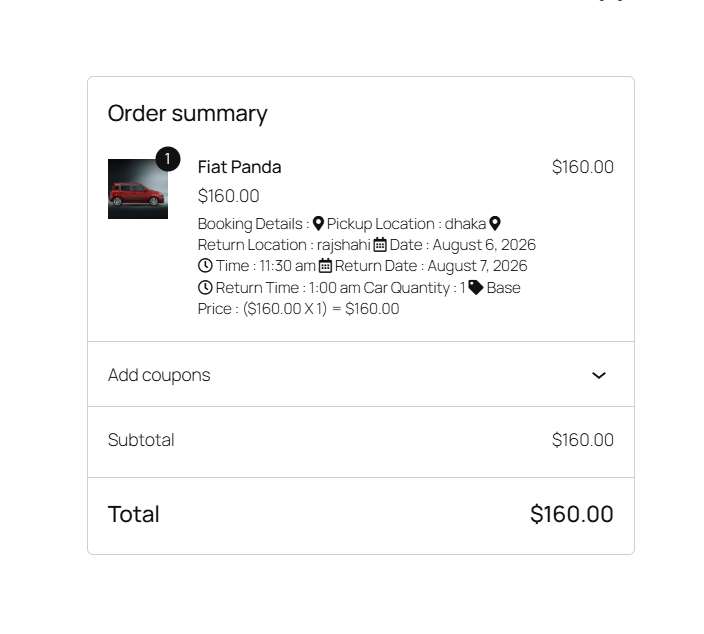
Any fees you’ve configured — multi-location or one-way fees, security deposits, delivery/collection charges — appear as their own line items in this summary before the customer completes payment through your active WooCommerce or custom payment gateway.