
WooCommerce Event Calendar
Display events in a calendar view for easy date-based browsing.
Overview
The Event Calendar add-on shows your events on a monthly calendar, so visitors can see at a glance what is on each day. Add one shortcode to any page. You can add filters and search, show seat availability, and style the colors.
Video Tutorial
Watch how to add the calendar, add filters and search, style it and change the global options.
Requirements
- Event Booking Manager (WpEvently).
- WooCommerce, which the event plugin uses for tickets.
Installation
- Download the add-on zip from your account.
- Go to Plugins → Add New → Upload Plugin.
- Upload the zip and click Install Now.
- Click Activate.
Show the calendar
Add this shortcode to any page or post:
[mep-event-calendar]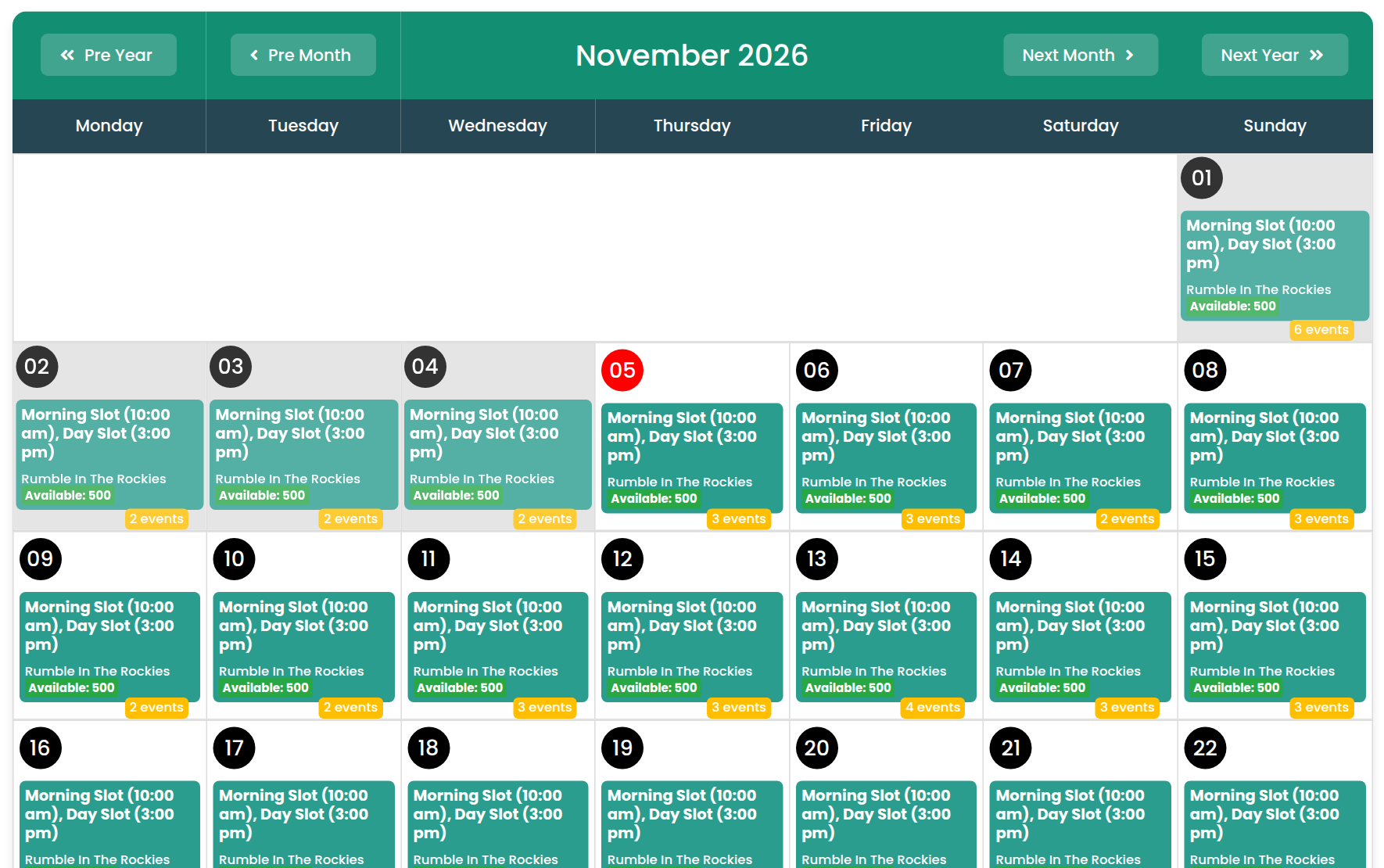
Visitors use Pre Month and Next Month to change the month, and Pre Year and Next Year to jump a year. Hover over an event to see its details, and click it to open the event page.
To open the calendar on a specific month, add the year and month:
[mep-event-calendar month='2028-09']The shortcode [mep-event-calendar-month month='2028-09'] does the same.
Note: the free WpEvently plugin also has a calendar with the same shortcode name. With this add-on active, the add-on’s calendar is the one that is shown, and the parameters below apply.
Filters and search
Add a filter bar above the calendar:
[mep-event-calendar show_filters='yes' show_search='yes']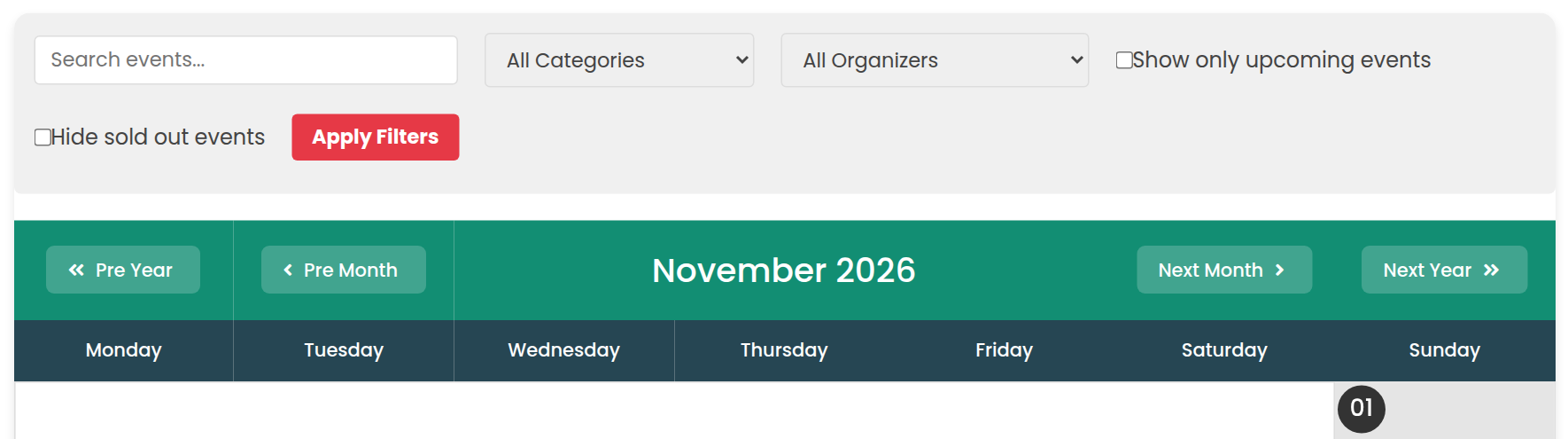
Visitors can search by event name, pick a category or organizer, show only upcoming events, hide sold out events, then click Apply Filters.
Style the calendar
Change the header and day-name colors, and limit what is shown:
[mep-event-calendar style='lite' header_color='#3a86ff' day_names_color='#457b9d' upcoming_only='yes' hide_soldout='yes']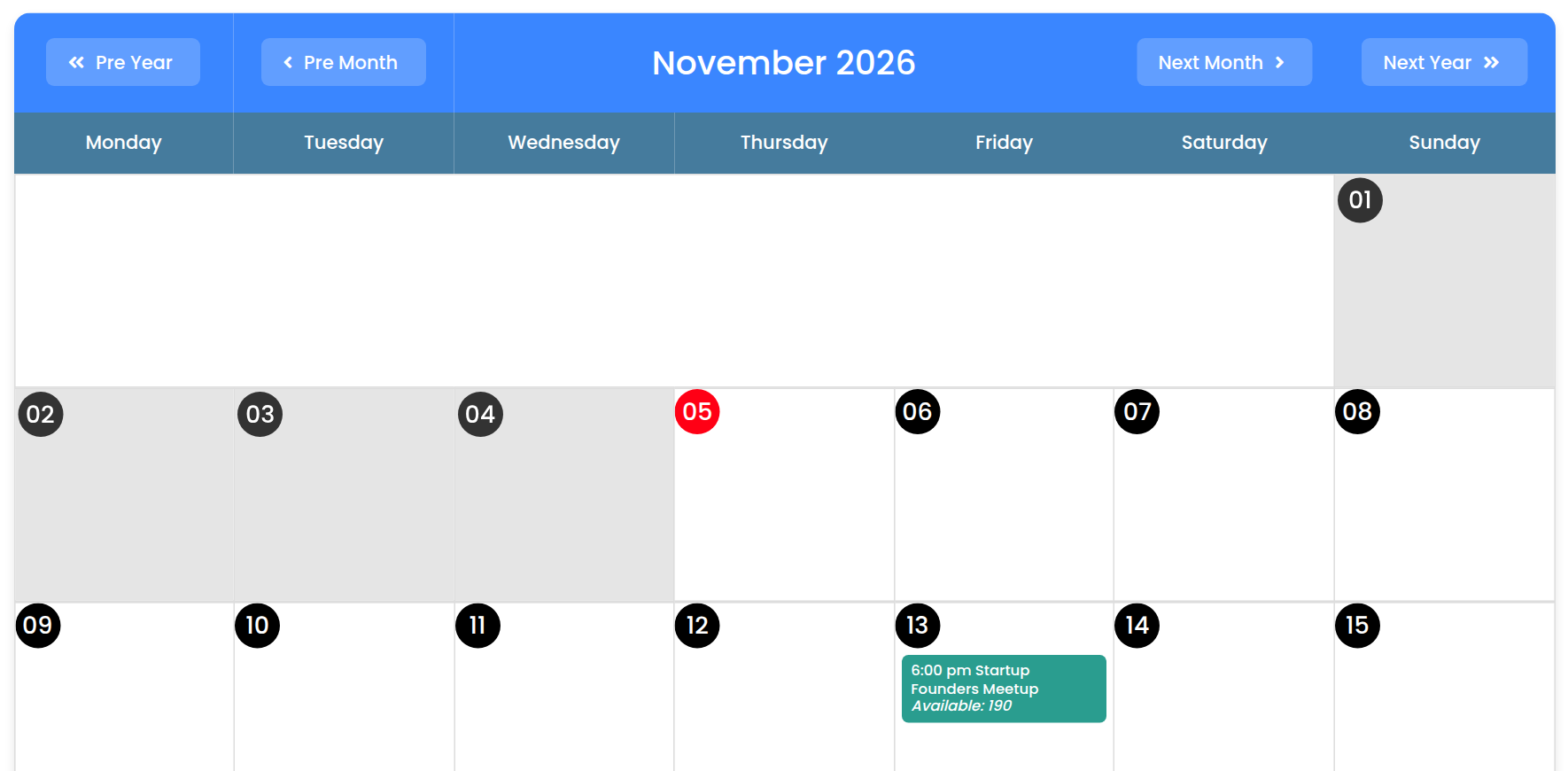
Shortcode parameters
Add any of these to the shortcode, for example [mep-event-calendar show_filters='yes' cat_id='5'].
What to show
| Parameter | Default | What it does |
|---|---|---|
cat_id |
0 | Show events from one category ID. |
categories |
(empty) | Show events from several category IDs, comma-separated, for example 5,12,18. |
org_id |
0 | Show events from one organizer ID. |
month |
(current month) | The month to open, as YYYY-MM. |
upcoming_only |
no | yes hides past events. |
hide_soldout |
no | yes hides sold out events. |
hide_time |
no | yes hides the event times. |
Filters
| Parameter | Default | What it does |
|---|---|---|
show_filters |
no | yes shows the filter bar. |
show_search |
no | yes adds the search box to the filters. |
filter_by_stock |
no | yes adds a stock status filter. |
Appearance
| Parameter | Default | What it does |
|---|---|---|
style |
(default) | lite (or light) gives a simpler view. |
header_color |
(theme color) | Color of the calendar header, for example #3a86ff. |
day_names_color |
(theme color) | Color of the day names row. |
Stock and availability
| Parameter | Default | What it does |
|---|---|---|
show_stock |
yes | Show the stock status. |
show_stock_details |
no | yes shows the number of available seats. |
stock_color_coding |
no | yes uses colors for different stock levels. |
show_event_status |
yes | Show the event status, for example expired. |
waitlist_button |
no | yes shows a waitlist button on sold out events. Needs the waitlist add-on. |
stock_threshold |
(empty) | Custom number for the limited availability warning. |
show_limited_availability |
(empty) | Show the “Limited Availability” ribbon when seats are running low. |
limited_availability_threshold |
(empty) | Show that ribbon at this many seats or fewer. |
show_low_stock |
(empty) | Show the “Low Stock” warning when seats are critically low. |
low_stock_threshold |
(empty) | Show that warning at this many seats or fewer. |
Global settings
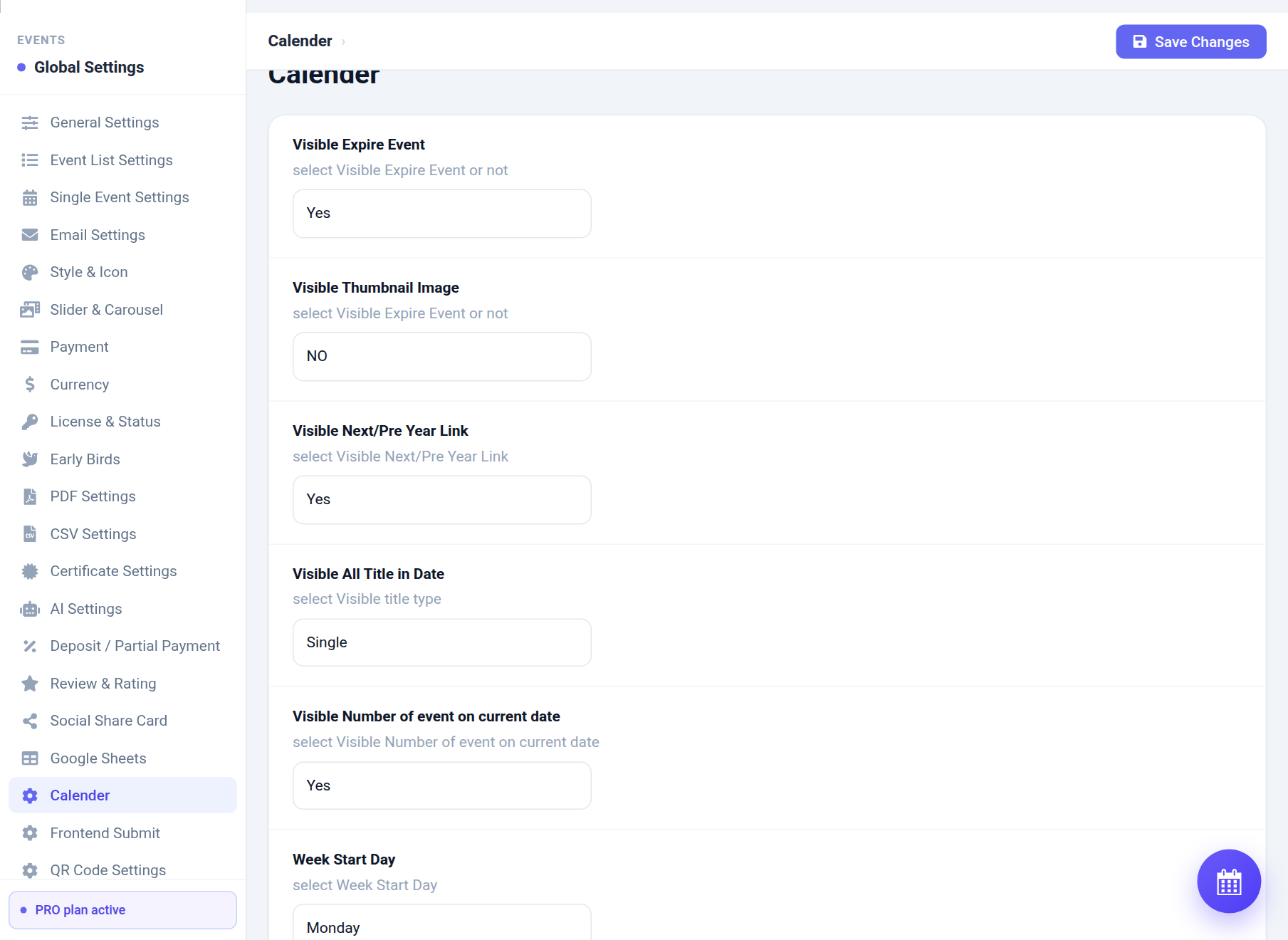
Go to Events → Settings → Calender for options that apply to every calendar. Click Save Changes after you change them.
| Setting | What it does |
|---|---|
| Visible Expire Event | Show or hide events that have already ended. |
| Visible Thumbnail Image | Show or hide the event image. |
| Visible Next/Pre Year Link | Show or hide the Pre Year and Next Year buttons. |
| Visible All Title in Date | Show a single title or all titles when a day has several events. |
| Visible Number of event on current date | Show or hide the “N events” badge on each day. |
| Week Start Day | The first day of the week, for example Monday. |
| Calender Maximum Width | The widest the calendar can be, with its unit, for example 1170px. |
| Colors | Background, title, each weekday, today and the event popup (background, text, button and important text). |
The add-on also has its own documentation page under Events → Calendar Docs.
Purchase
This addon is available for purchase from the MagePeople website.