
Event Duplicator
Duplicate events with all settings, ticket types, and details to save time.
Overview
Event Duplicator saves time when you create similar events. It copies an existing event, with its settings and ticket types, into a new draft. You can make one copy, copies on several dates, or a whole repeating series in one step.
Requirements
- Event Booking Manager for WooCommerce (WpEvently)
- WooCommerce
Installation
- Download the add-on zip from your account.
- Go to Plugins → Add New → Upload Plugin.
- Upload the zip and click Install Now.
- Click Activate.
Where to find Duplicate
After activation, a duplicate option is added to the event lists:
- Events → All Events: hover over an event title to see the Duplicate Event link in the row actions.
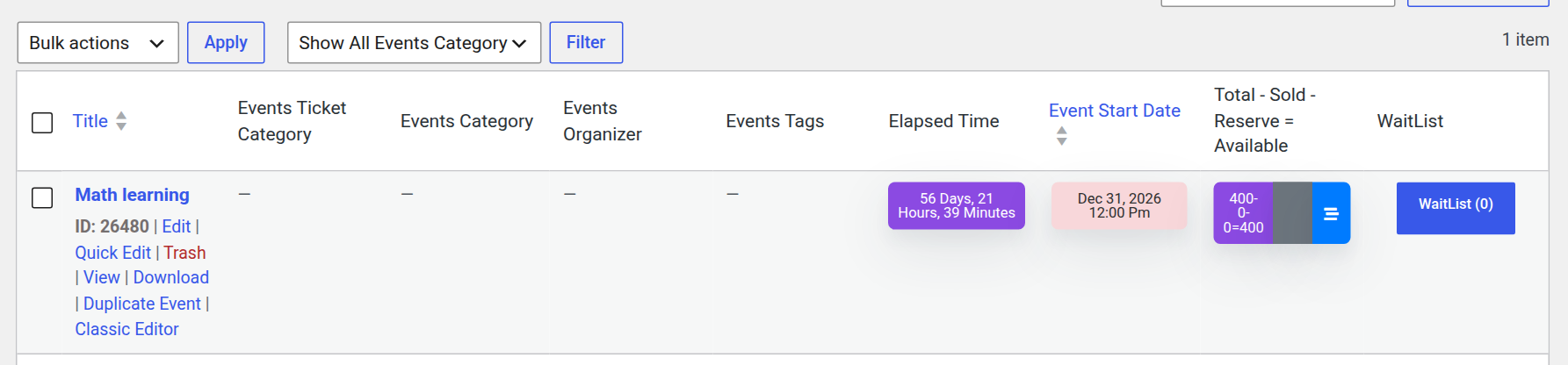
- Events → Event Lists: click the clipboard button at the end of the Actions column.

How to duplicate an event
- Click Duplicate Event for the event you want to copy. The Duplicate Event popup opens.
- Choose the Event Duplicate Type (see below).
- Change the Event Title if you want. It starts with the title of the original event.
- Set the dates for the new event or events.
- Click Add Duplicate Event.
The new events are saved as drafts and you are taken back to the Events list. Review each draft, then publish it.
Duplicate types
Single Duplicate
Creates one new event. The dates table shows the start and end date and time of the original event. Change them for the new event. Click Add New More Date to add extra dates to the same new event.

Multiple Duplicate Single Date
Creates separate events with one date each. The first copy uses the dates in the main row. Every date you add with Add New More Date creates one more copy.
Multiple Duplicate
Creates a repeating series of single-day events. Fill in:
| Field | What it does |
|---|---|
| Start Date and End Date | The period of the series. |
| Start Time and End Time | The time of day used for every copy. |
| Repeated after | The gap between copies, in days. 1 means every day, 7 means every week. |
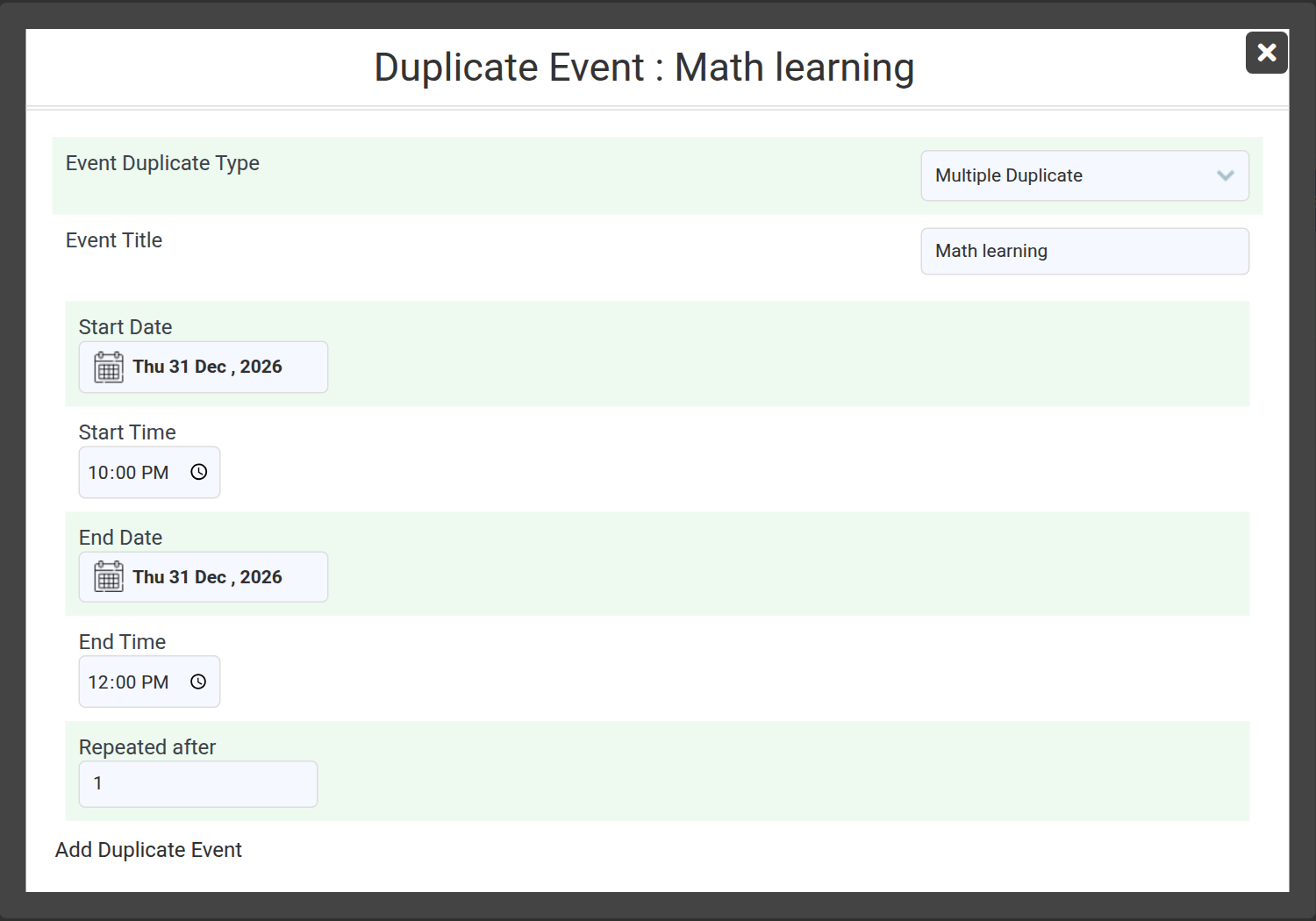
One event is created for each date in the period. The last date of the series is not created. For example, a period from 1 June to 7 June repeated after 1 day creates events for 1 to 6 June.
What is copied
- The title (which you can edit), description and excerpt.
- Categories, organizers, tags and other taxonomies.
- All event settings, including ticket types, extra services and the featured image.
Booking counts are not copied. Each new event starts with no bookings.
Tips
- Copies are always created as drafts, so nothing goes live until you publish it.
- Check the dates of every draft before publishing.
- Use Multiple Duplicate for regular events such as weekly classes, and Multiple Duplicate Single Date for a few separate dates.
Purchase
This addon is available for purchase from the MagePeople website.