
Settings
Configure eCab taxi booking plugin settings.
All global eCab options live on one page, Transportation → Settings. The tabs on the left group the options. Pick a tab, change the options and click Save Changes. A “Settings saved successfully” banner confirms the save.
Some tabs depend on what is installed. Payments, Currency, Map API, REST API, Style, Custom CSS and License come with the free plugin. The PDF, Email, Driver, Search Filter, Calendar and Google Sheets Sync tabs appear when eCab Pro is active, and GPS Tracking appears with the GPS Tracking add-on. The label “Transportation” in the menu is itself a setting (see Transportation Settings), so your menu may use another name.
Global Settings
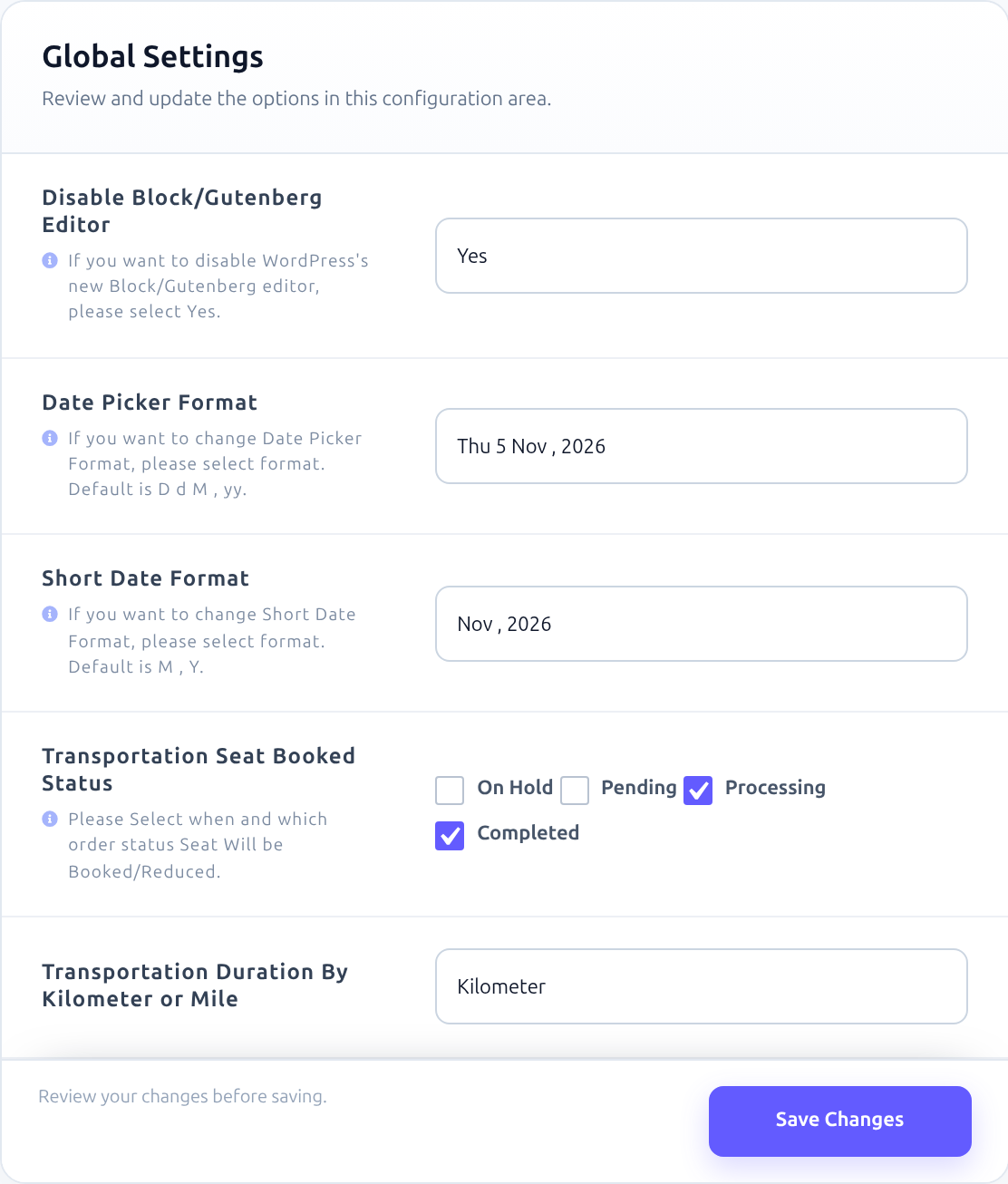
Date formats, which order statuses count as booked, and the distance unit.
| Setting | What it does |
|---|---|
| Disable Block/Gutenberg Editor | Select Yes to turn off the WordPress block editor. Default: Yes |
| Date Picker Format | How dates look in the booking form date picker. Default: Day, date, month and year (e.g. Thu 5 Nov, 2026) |
| Short Date Format | The short date style used in lists, month and year. Default: Nov, 2026 |
| Transportation Seat Booked Status | The WooCommerce order statuses (On Hold, Pending, Processing, Completed) at which a booking is counted as booked. Default: Processing and Completed |
| Transportation Duration By Kilometer or Mile | The unit used for distance, shown to customers and used to calculate the fare. Default: Kilometer |
Map API Settings
Choose how locations and distances are worked out, and enter your map keys.
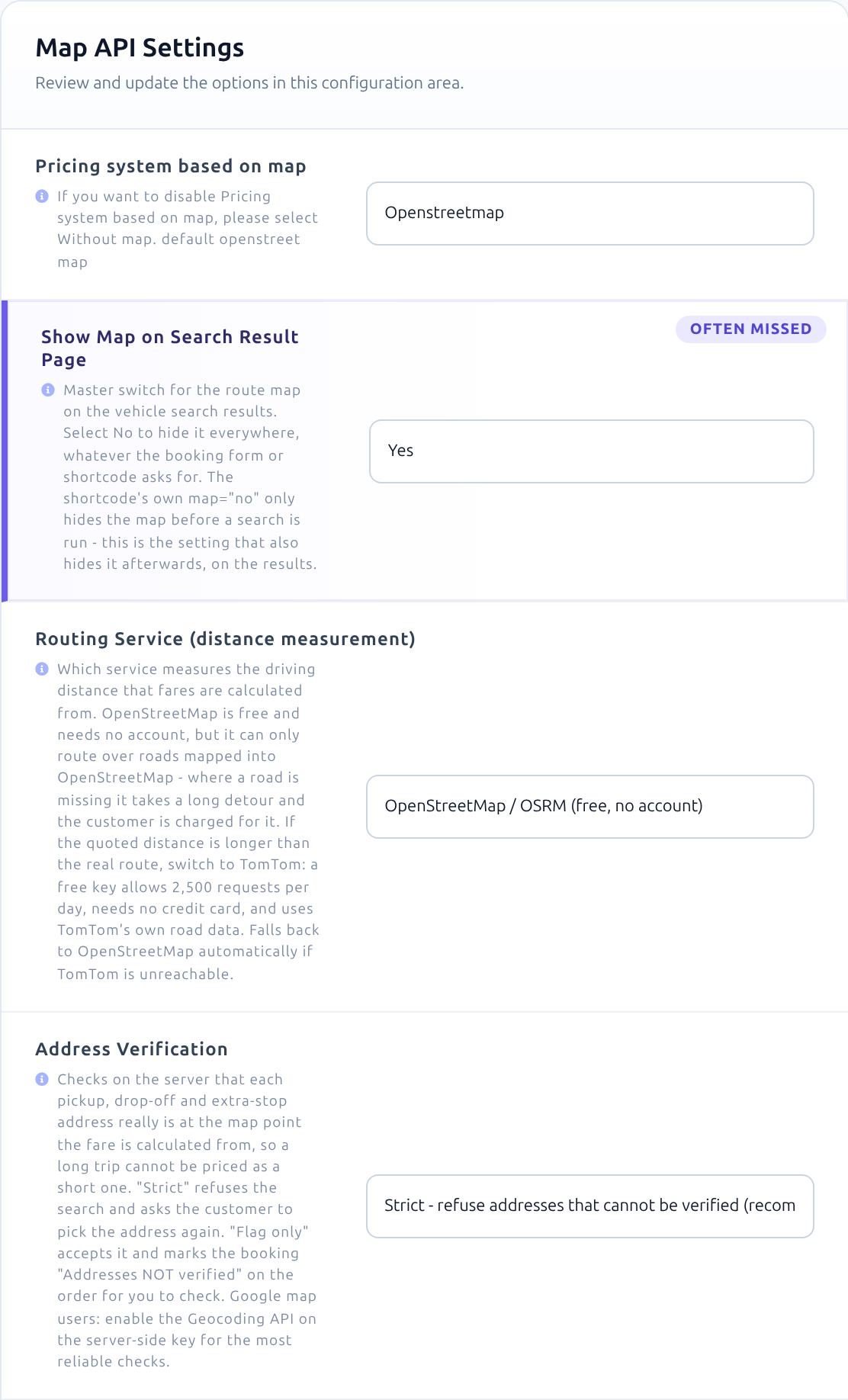
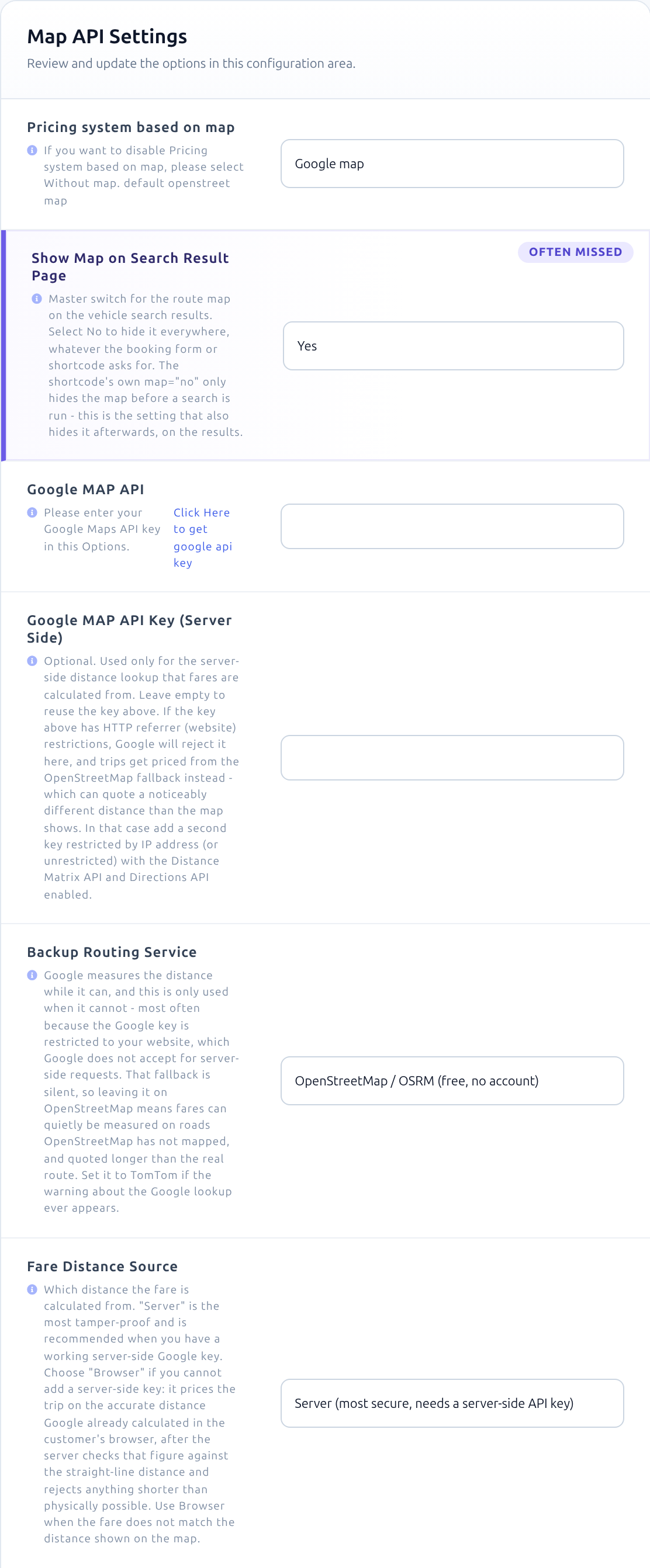
The page changes with Pricing system based on map. With Google map selected, the Google key fields appear:
| Setting | What it does |
|---|---|
| Pricing system based on map | Google map, Openstreetmap (free, default) or Without map api to turn map-based pricing off. |
| Show Map on Search Result Page | Master switch for the route map on the search results. No hides it everywhere, even if a shortcode asks for the map. The shortcode’s own map="no" only hides the map before a search. |
| Google MAP API | Your Google Maps API key (browser key). Google map only. |
| Google MAP API Key (Server Side) | Optional second key used for the distance lookup that fares are calculated from. Leave empty to reuse the key above. If the first key is restricted to your website (HTTP referrer), Google rejects it on the server, so add a second key restricted by IP address (or unrestricted) with the Distance Matrix and Directions APIs enabled. |
| Routing Service / Backup Routing Service | The service that measures the driving distance for the fare. OpenStreetMap (OSRM) is free but only knows mapped roads. TomTom uses its own road data and is more accurate; a free key allows 2,500 requests per day. |
| TomTom API Key | Needed when the routing service is TomTom. Enable the Routing API on the key. |
| Fare Distance Source | Google map only. Server (most secure, needs a server-side key) or Browser, verified server-side (no extra key; the server checks the distance Google calculated in the customer’s browser). |
| Address Verification | Checks on the server that each address is really at the map point the fare uses. Strict (default) refuses the search and asks the customer to pick the address again. Flag only accepts it and marks the booking “Addresses NOT verified” for you to review. |
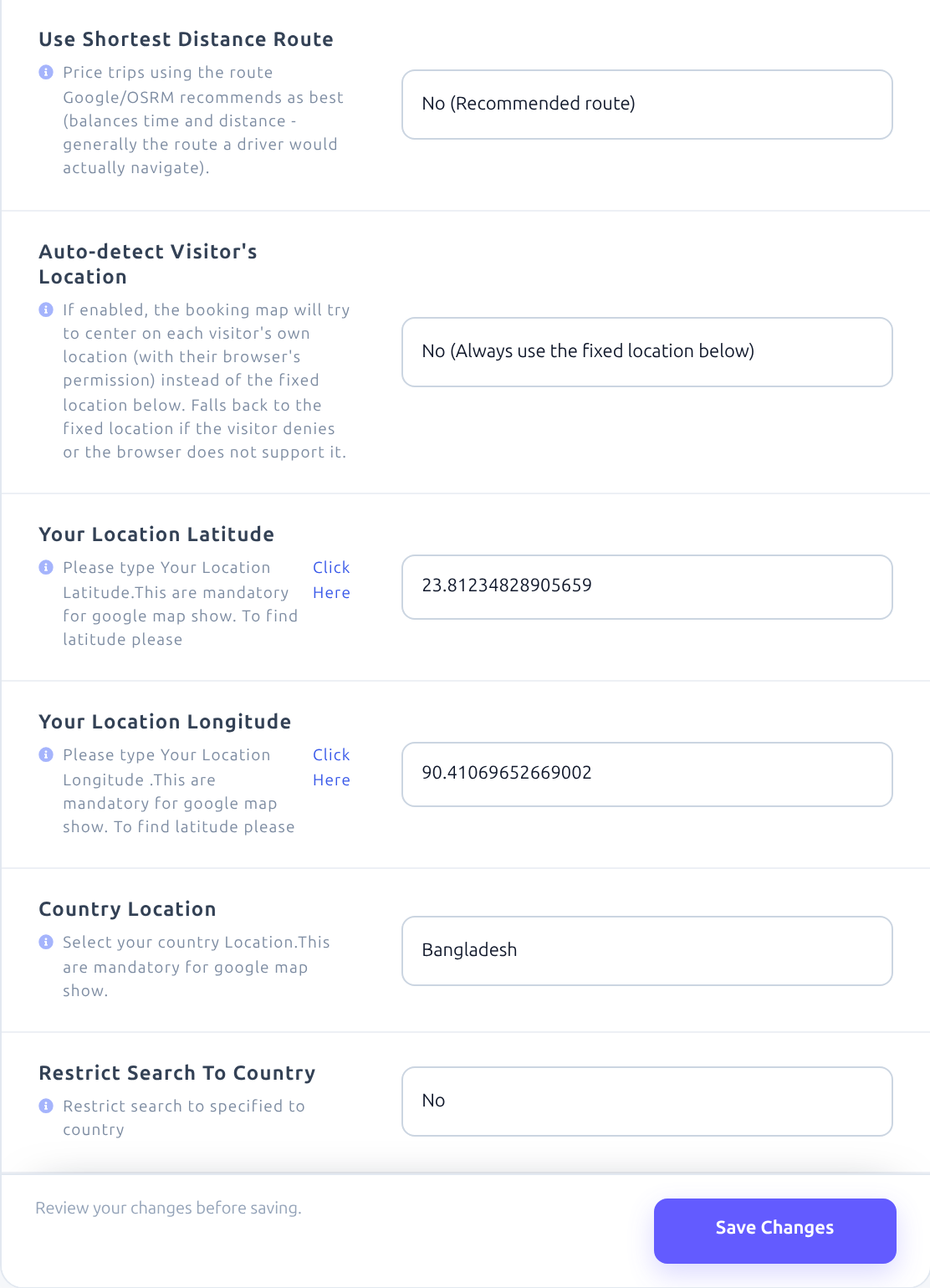
| Use Shortest Distance Route | No prices the route the map service recommends (default). Yes compares all routes and prices the shortest, which can lower fares but may not match the route driven. |
| Auto-detect Visitor’s Location | Yes centres the map on each visitor (with their permission). No always uses the fixed latitude and longitude below. |
| Your Location Latitude / Longitude | The default map centre, for example your city. |
| Country Location | Your country, used for the map. |
| Restrict Search To Country | Yes limits address search to that country. |
Transportation Settings
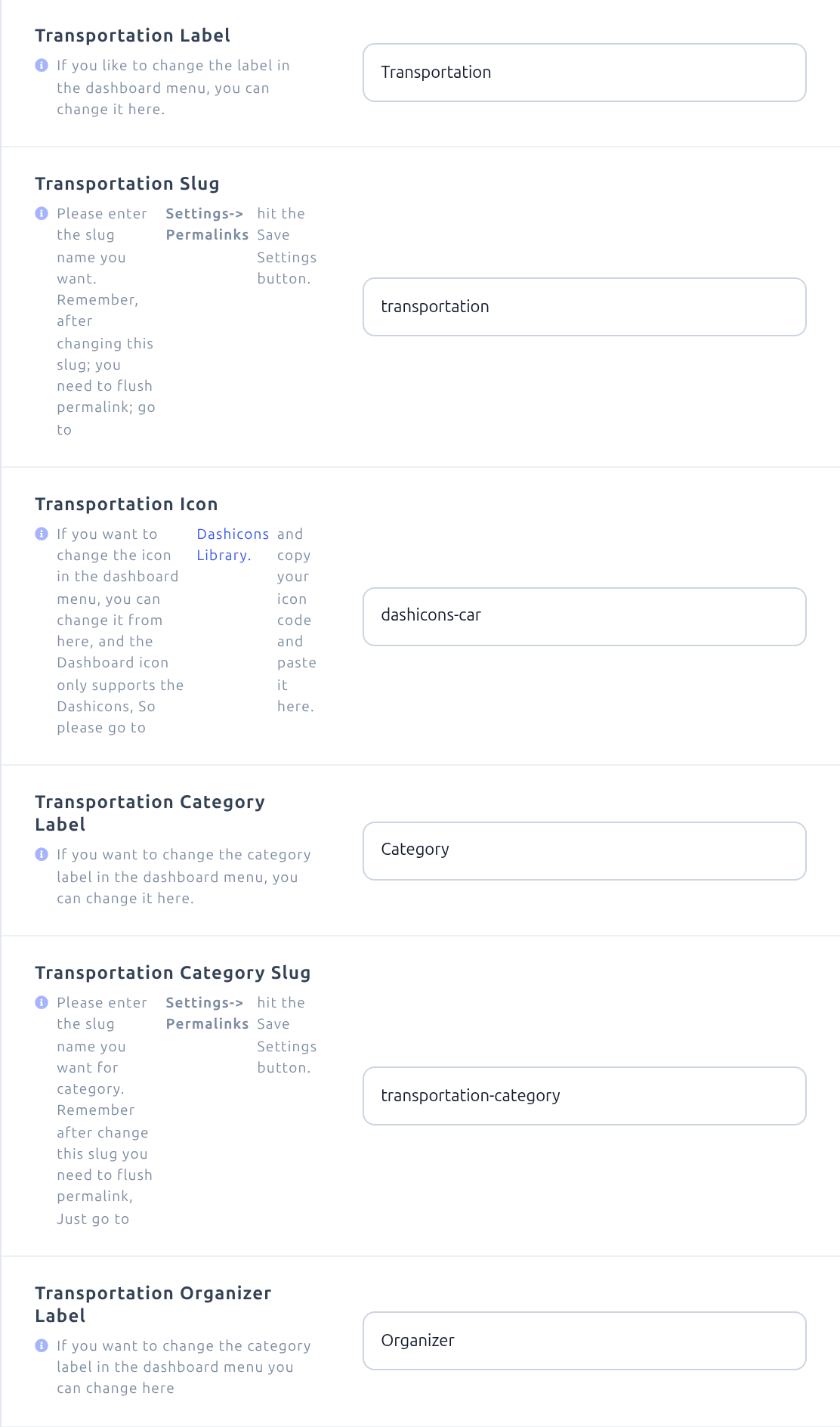
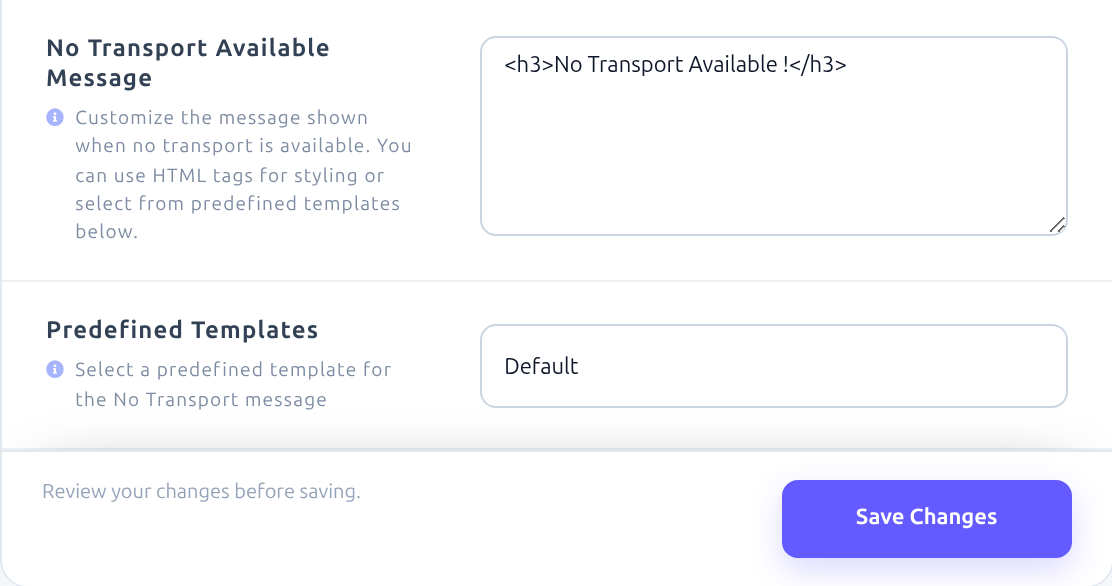
Booking rules, how the booking form behaves, the menu names and the “no transport” message. The tab is long, so it is shown in six parts.
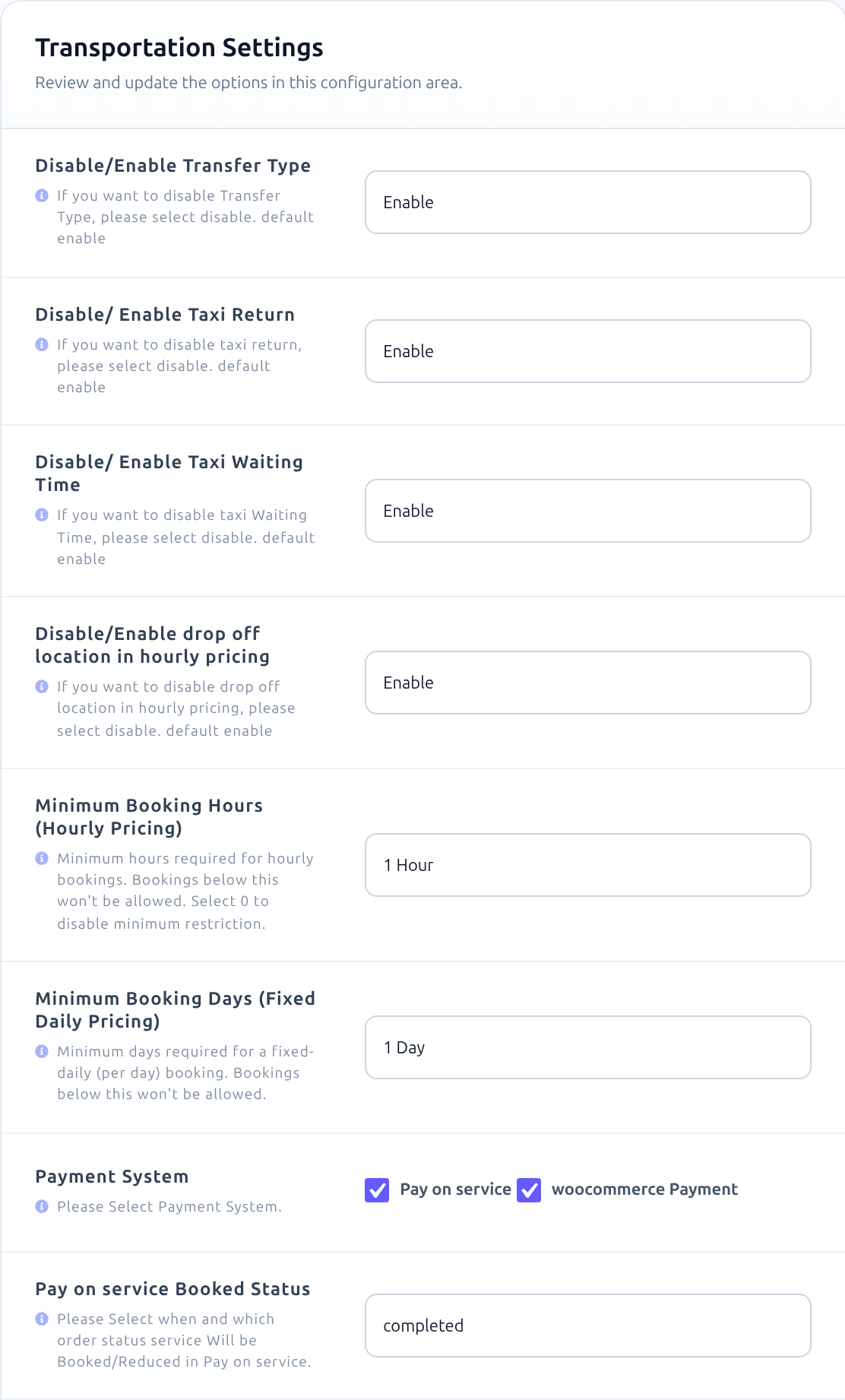


Booking form and rules
| Setting | What it does |
|---|---|
| Disable/Enable Transfer Type | Shows or hides the One Way / Return choice on the booking form. Default: Enable |
| Disable/Enable Taxi Return | Turns return trips on or off. Default: Enable |
| Disable/Enable Taxi Waiting Time | Turns the waiting time option on or off. Default: Enable |
| Disable/Enable drop off location in hourly pricing | Hides the drop-off field for hourly bookings. Default: Enable |
| Minimum Booking Hours (Hourly Pricing) | The fewest hours a customer can book for hourly pricing. Default: 0 (no minimum) |
| Minimum Booking Days (Fixed Daily Pricing) | The fewest days for a per-day booking. Default: 1 Day |
| Buffer Time | Minutes of notice needed before a pickup. Set the correct timezone in WordPress Settings → General. Default: Empty |
| Interval of pickup/return time in frontend | Gap between the times offered: 30, 15, 10 or 5 minutes. Default: 30 |
| Pickup/Return Time Picker Style | Classic list or a grid of buttons for the time slots. Default: Classic list |
| Enable return in different date | Adds a separate return date field. Default: No |
| Add extra stops between pickup and dropoff location | Lets customers add stops on the way. Default: No |
| Maximum number of extra stops | How many stops one trip can have. Used when extra stops are on. Default: 3 |
| “Use my location” link on pickup | Lets customers fill the pickup from their device position. Needs HTTPS. Default: Yes |
| Enable filter via features | Lets customers filter vehicles by passengers and bags. Default: No |
| Hide Sort & View Toggle Controls | Hides the List/Grid switch and the Sort dropdown on the search results. Default: No |
| Show Summary in Mobile Version | Shows the booking summary on phones. Default: Yes |
| Expired Visibility | Yes keeps expired items visible. Default: No |
Payment, names and links
| Setting | What it does |
|---|---|
| Payment System | The payment ways offered: Pay on service and/or WooCommerce Payment. Default: Both |
| Pay on service Booked Status | The order status at which a pay-on-service booking is counted: Pending or Completed. Default: completed |
| Label, Slug, Icon | The menu name, URL slug and Dashicon of the main post type. After changing a slug, go to Settings → Permalinks and click Save Settings. Default: Transportation, transportation, dashicons-car |
| Category Label / Slug | The same for the category. Default: Category, transportation-category |
| Organizer Label / Slug | The same for the organizer. Default: Organizer, transportation-organizer |
| Show Search Result In A Different Page | Page slug or full URL of a page that should show the search results. The plugin assigns the right template to it. Leave empty to keep results on the same page. Default: Empty |
| Take user to another page if location can not be found | Page slug or URL to send customers to when their location is not served. Leave empty to turn off. Default: Empty |
Service area restriction
Use this to take online bookings only inside your operating area.
| Setting | What it does |
|---|---|
| Enable Service Area Restriction | When Enabled, a booking is allowed only if both pickup and drop-off are inside the selected area, or one of the approved exception locations. A trip between two exception locations is always blocked. Everything else shows the “No Transport Available” message. Default: Disable |
| Service Area (Operation Area) | The Operation Areas (drawn under Operation Areas) that make up your service boundary. A point inside any checked area counts. Default: None |
| Approved Exception Locations | Locations such as airports that can be booked to or from the service area even though they are outside it. Default: None |
No Transport Available message
| Setting | What it does |
|---|---|
| No Transport Available Message | The message shown when no vehicle is available. HTML is allowed. Default: “No Transport Available !” |
| Predefined Templates | Fills the message with a ready-made layout: Default, With Icon, With Description or With Contact Info. Default: Default |
REST API Settings
Controls the REST API at /wp-json/ecab-taxi/v1/. The API is off until you enable it.
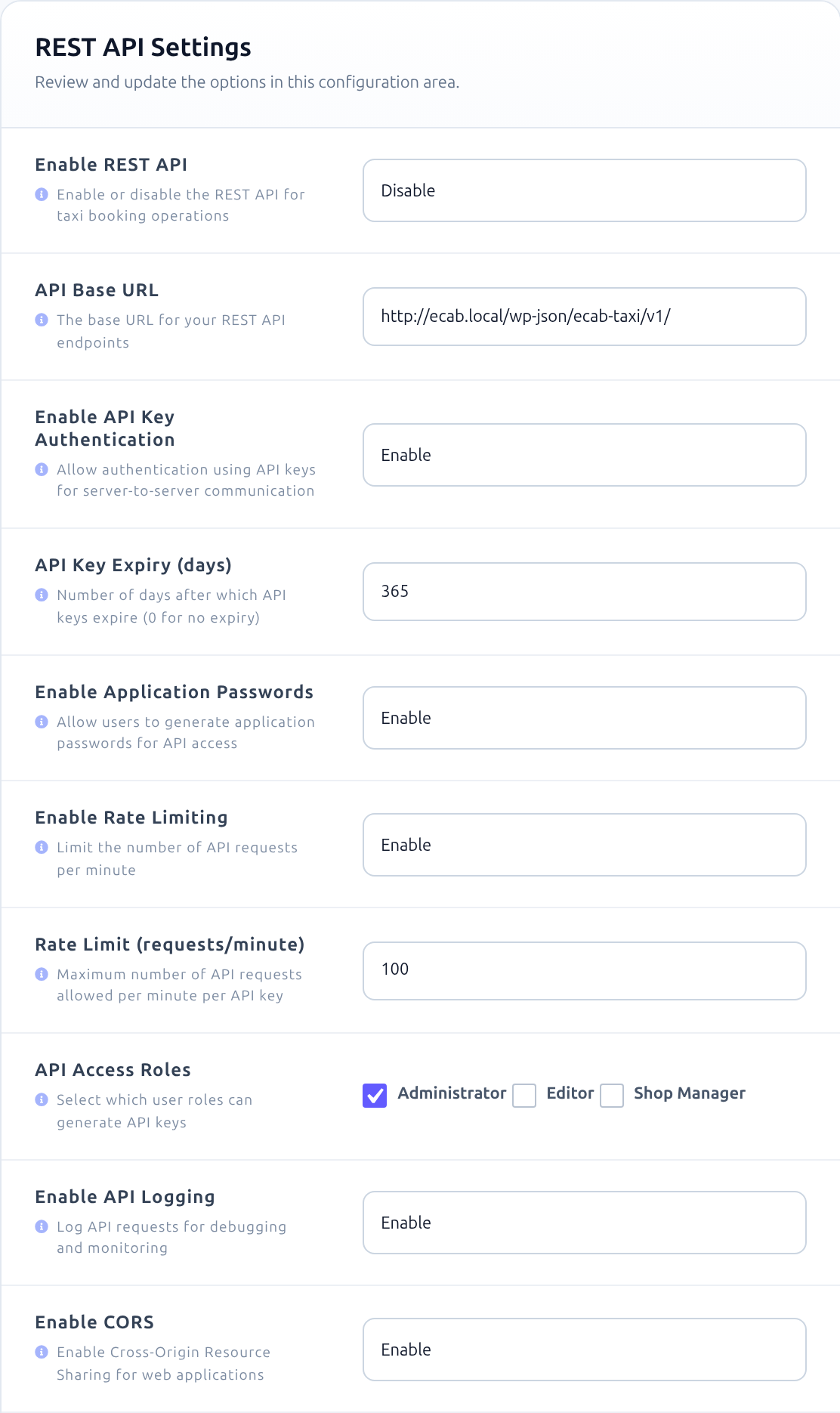
| Setting | What it does |
|---|---|
| Enable REST API | Turns the API on or off. Default: Disabled |
| API Base URL | The address of your API endpoints (shown for reference). Default: Your site + /wp-json/ecab-taxi/v1/ |
| Enable API Key Authentication | Allows API keys for server-to-server calls. Default: Enable |
| API Key Expiry (days) | Days until a key expires. 0 means never. Default: 365 |
| Enable Application Passwords | Lets users create WordPress application passwords for API access. Default: Enable |
| Enable Rate Limiting / Rate Limit | Limits requests per minute for each API key. Default: Enabled, 100 per minute |
| API Access Roles | Roles that may create API keys. Default: Administrator |
| Enable API Logging | Logs requests for debugging. Default: Enable |
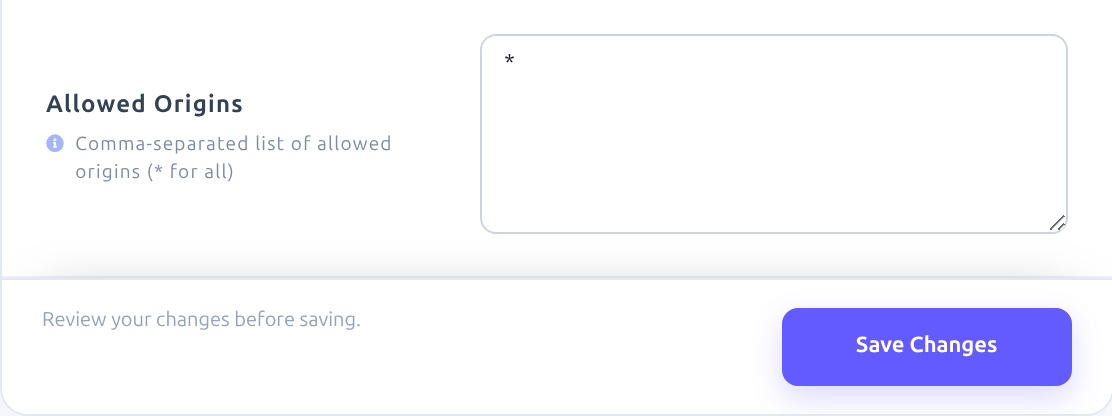
| Enable CORS / Allowed Origins | Lets web apps on other domains call the API. Use a comma separated list of origins, or * for all. Default: Enabled, * |
Payments
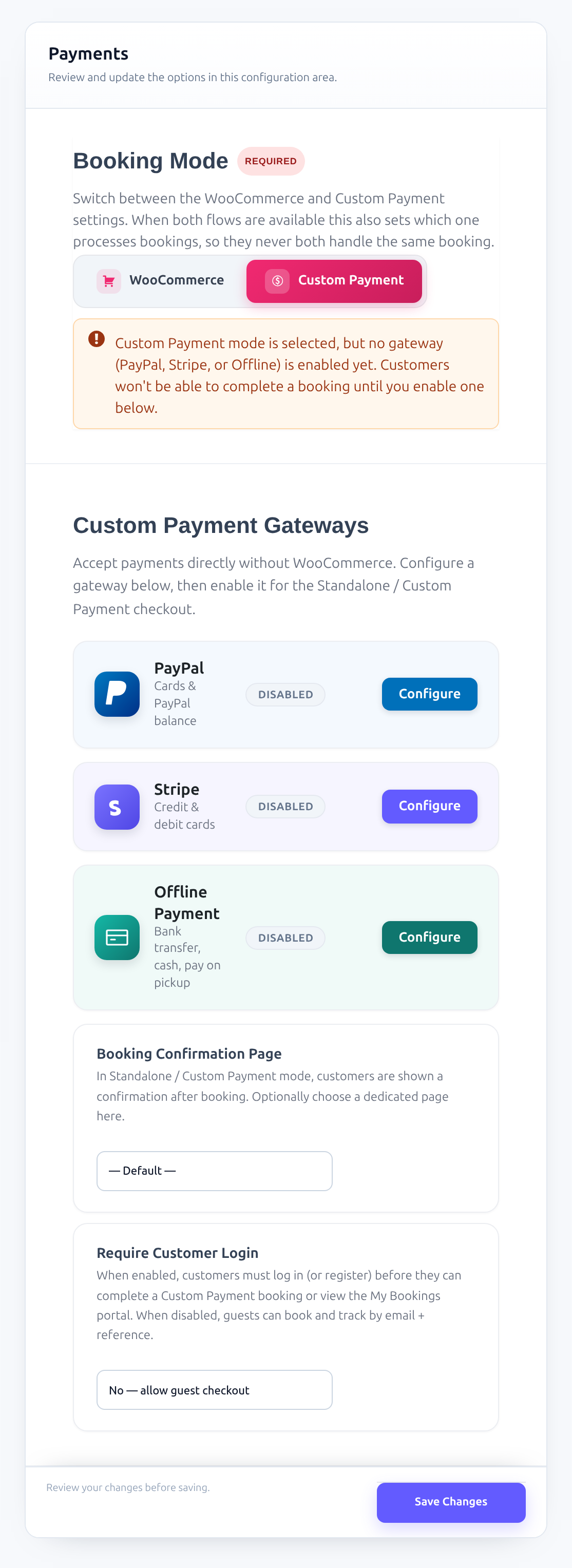
Pick how customers pay. Booking Mode is required: choose it before anything else. The mode decides which flow handles bookings, so the two never handle the same booking.

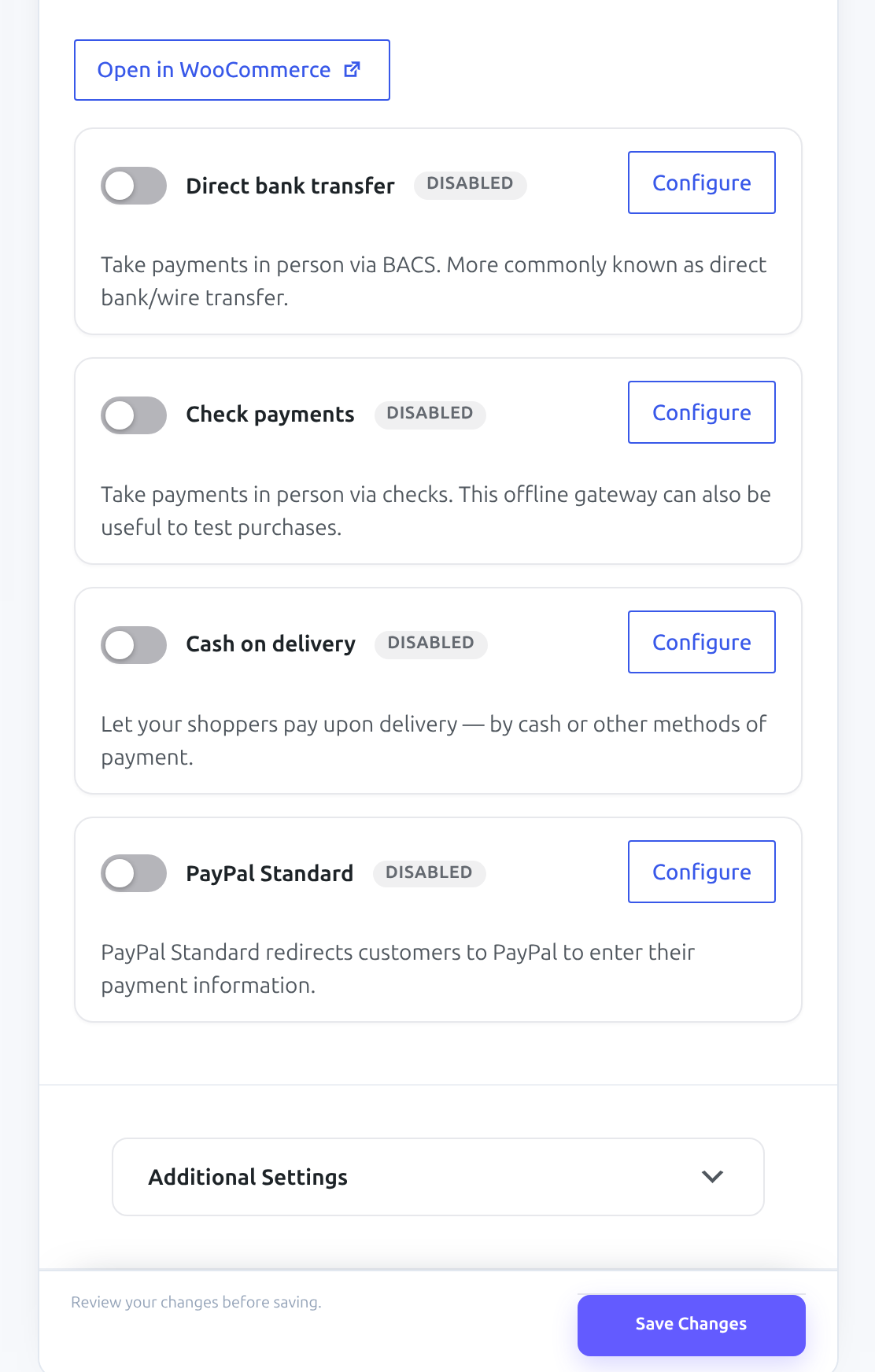
- WooCommerce shows the WooCommerce payment methods (Direct bank transfer, Check payments, Cash on delivery, PayPal Standard). Click Configure to set one up, or Open in WooCommerce.
- Custom Payment takes bookings without WooCommerce checkout.
| Custom Payment option | What it does |
|---|---|
| PayPal, Stripe | Card and PayPal payments. Configuring them needs eCab Pro. |
| Offline Payment | Bank transfer, cash or pay on pickup. Available in the free plugin. |
| Booking Confirmation Page | A page to show after a booking. Default uses the built-in confirmation. |
| Require Customer Login | Yes makes customers log in or register before booking or opening My Bookings. No lets guests book and track with email and reference. |
If Custom Payment is selected but no gateway is enabled, the page warns you that customers cannot complete a booking yet.
Currency Settings
How fares are displayed in Custom Payment mode. In WooCommerce mode, prices follow WooCommerce’s own currency settings.

| Setting | What it does |
|---|---|
| Currency Code | The ISO code charged by PayPal or Stripe (for example USD, EUR, BDT). Separate from the display symbol, because gateways need a real code. |
| Currency Symbol | The symbol shown on fares. |
| Currency Position | Left ($99.00), Right (99.00$), Left with space or Right with space. |
| Number of Decimals | How many decimals fares show. |
| Decimal Separator / Thousand Separator | The characters used in numbers. |
Search Filter Settings (Pro)
Adds dropdowns to the search form so customers only see vehicles that fit.

| Setting | What it does |
|---|---|
| Enable Maximum Passenger Filter | Shows a Maximum Passenger dropdown on the search form and filters vehicles by it. Default: No |
| Enable Maximum Bag Filter | The same for bags. Default: No |
| Enable Maximum Hand Luggage Filter | The same for hand luggage. Default: No |
Set each vehicle’s maximum passengers and bags on the vehicle (transportation) edit screen.
PDF, Email and Driver Settings (Pro)
PDF Settings
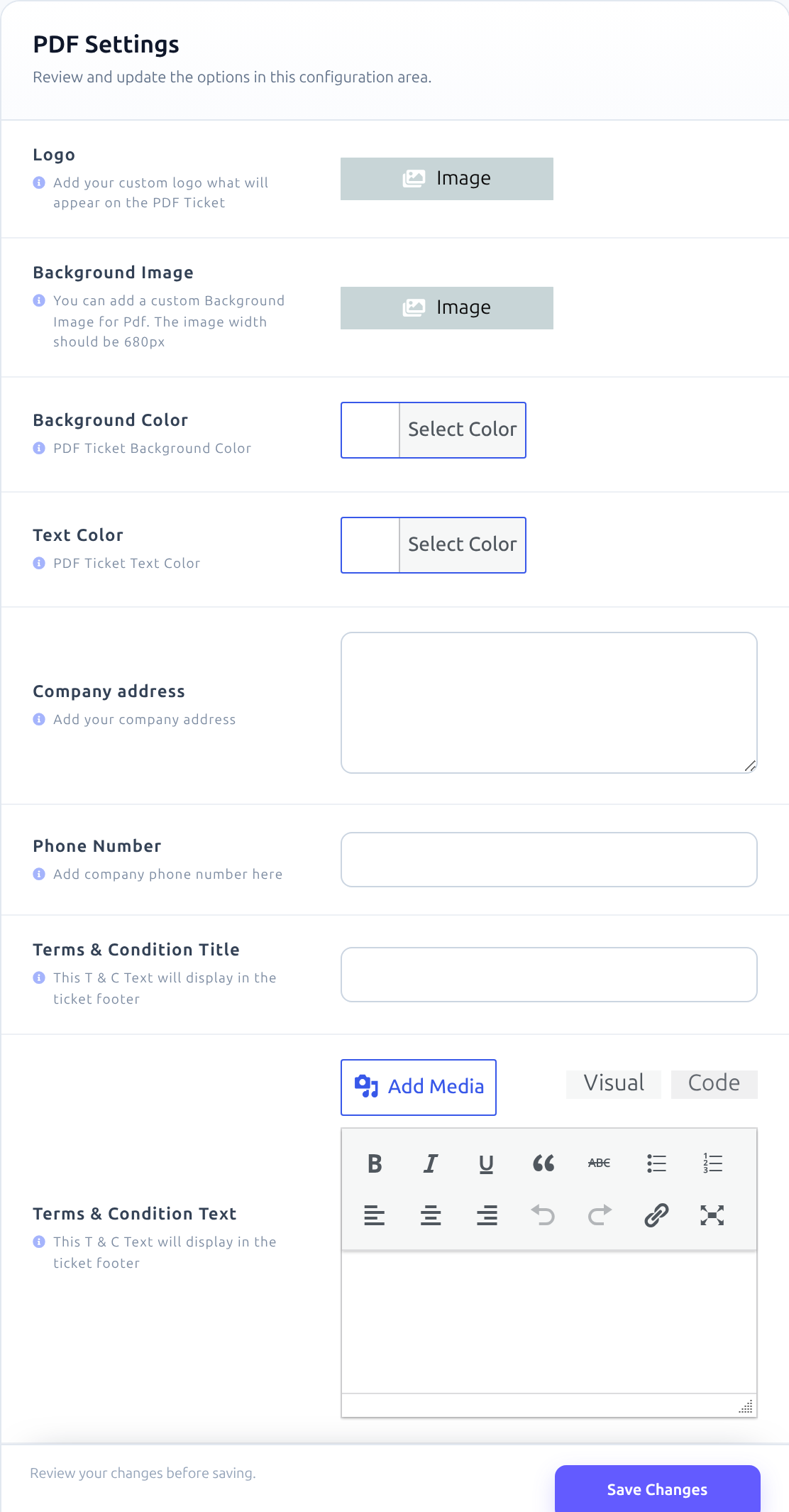
Design the PDF ticket: logo, background image (680px wide), background and text colours, company address and phone, and the Terms & Conditions text in the footer.
Email Settings
Controls the booking email. Use the placeholders in the subject and content: {customer_name}, {service_name}, {service_date}, {order_id}.

| Setting | What it does |
|---|---|
| Send Pdf? | Attach the PDF ticket to the email. |
| Send Email on | The order statuses that trigger the email: On Hold, Pending, Processing, Completed. |
| Email Subject / Email Content | The text of the customer email. |
| Admin Notification Email | An address that also gets the PDF ticket when an order is placed. |
| Custom Booking Emails | For Custom Payment bookings (WooCommerce emails do not cover them): turn them on, attach the PDF, and edit the customer and admin subject and content. Extra placeholders include {booking_reference}, {vehicle_name}, {start_place}, {end_place}, {total}, {payment_method} and {payment_status}. |
Driver Settings
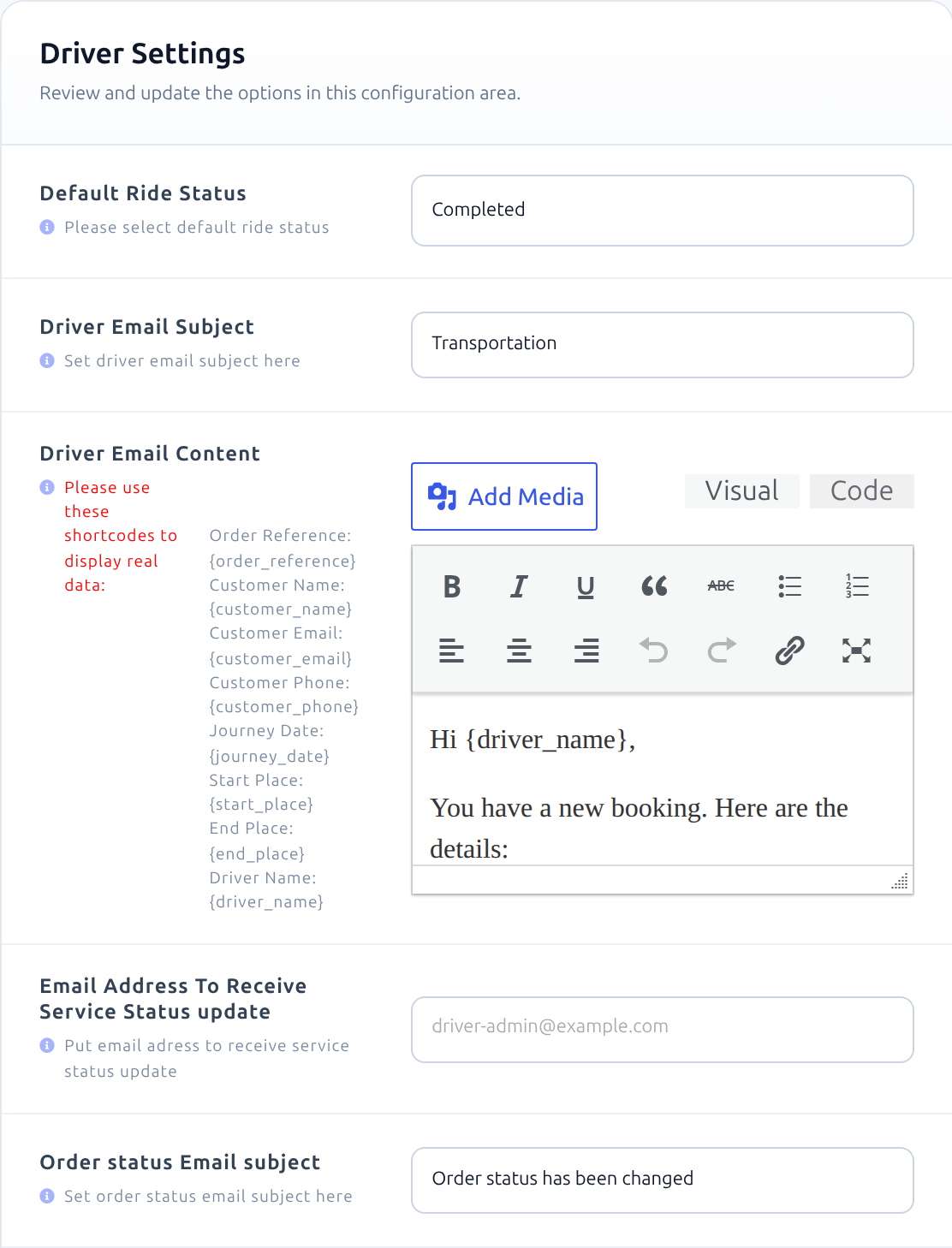
The default ride status and the emails sent to drivers and admins: the new booking email, the booking-changed email and the service status update email. Placeholders include {driver_name}, {order_reference}, {customer_name}, {customer_email}, {customer_phone}, {journey_date}, {start_place}, {end_place}, {extra_services}, {service_status} and {old_service_status}. Email Address To Receive Service Status update is where status updates go.
Calendar and Google Sheets Sync (Pro)
Calendar Settings
Default Event Duration is the length in minutes given to a booking on the calendar. Default 120.

Google Sheets Sync
Writes each booking to a Google Sheet when its order reaches a chosen status.
- Create a Google service account, download its JSON key and share your sheet with the service account email.
- Upload or paste the JSON in Service Account JSON.
- Enter the Spreadsheet ID (the part of the sheet URL between
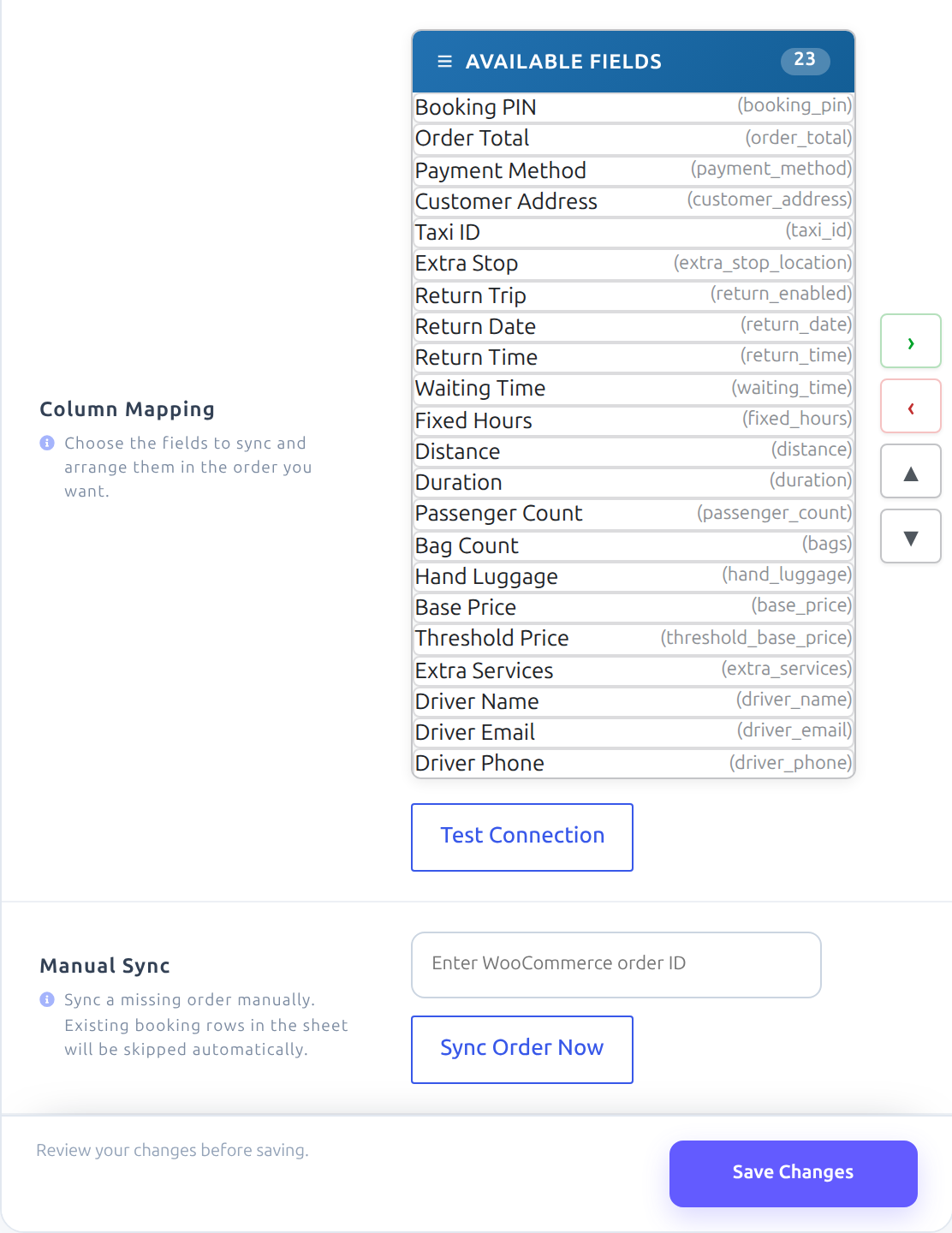
/d/and/edit) and the Sheet / Tab Name (default Sheet1). - Pick Sync on Order Status, choose the columns and their order under Column Mapping, then click Test Connection.
- Turn on Enable Google Sheets Sync and save.
Auto Create Header Row writes the column names when the sheet is empty. Manual Sync pushes a missed order; rows already in the sheet are skipped.

Style, Custom CSS and License
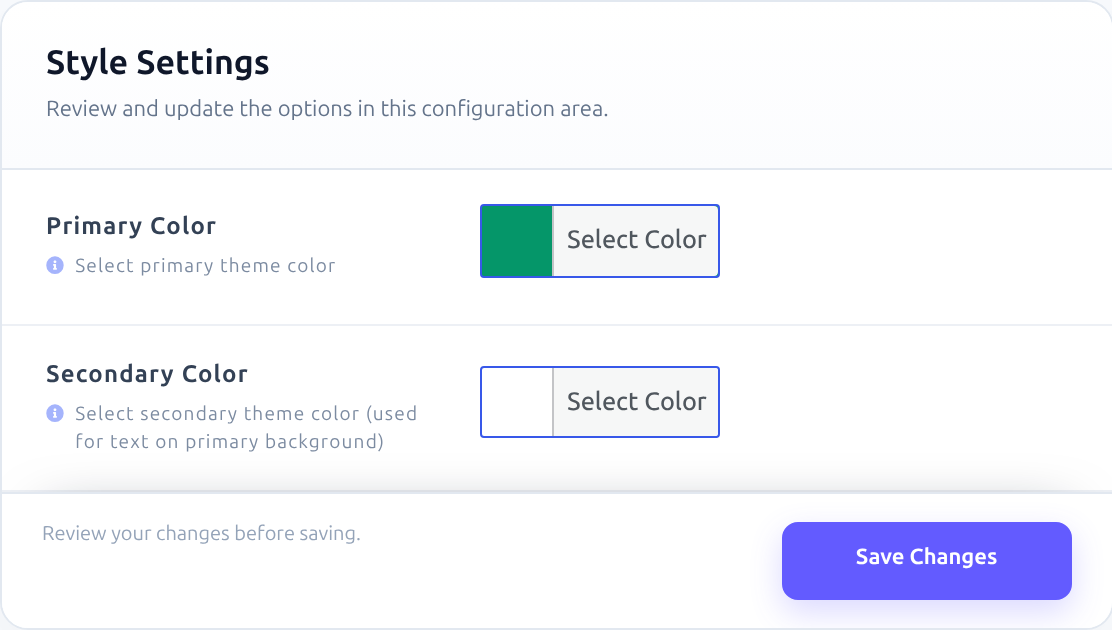
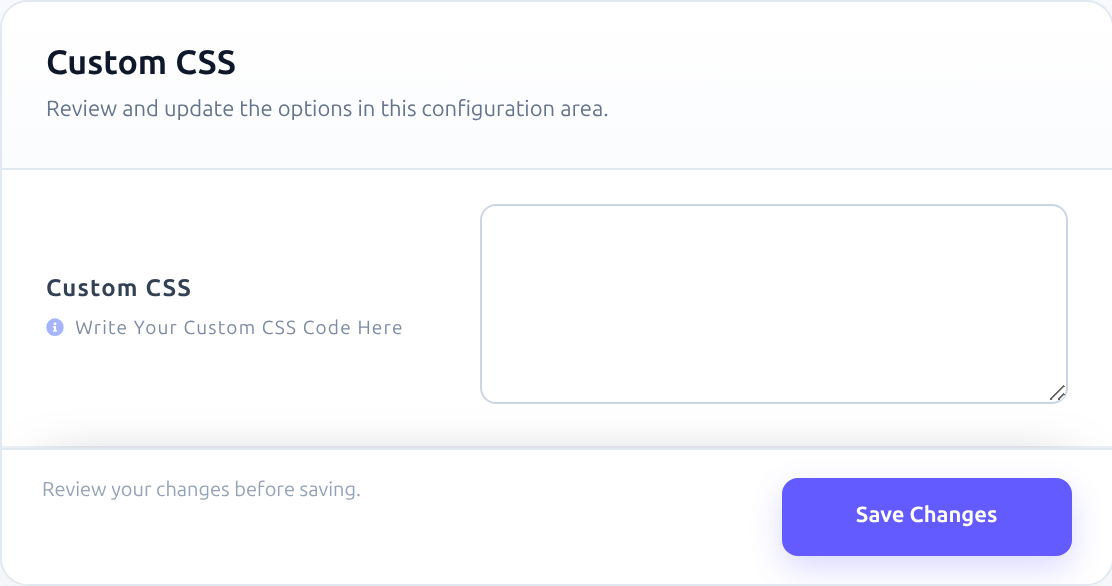
Style Settings sets the Primary Color (default green #059669) and the Secondary Color (text on the primary color, default white). Custom CSS is a box for your own CSS. Mage-People License lists your plugins and lets you activate a Pro or add-on license key. The free plugin needs no key.

GPS Tracking (add-on)
Shown when the GPS Tracking add-on is active. It lets assigned drivers share their browser location for active bookings.

| Setting | What it does |
|---|---|
| Enable Live Tracking | Lets assigned drivers share their location. Default: Yes |
| Request High-Accuracy GPS | Uses GPS where available. Uses more battery. Default: Yes |
| Update Interval | Seconds between location uploads (5 to 120). Default: 10 |
| Minimum Movement | Metres a driver must move before another point is stored. Default: 10 |
| Location History Retention | Hours before stored locations are deleted. Default: 24 |
| Stale Location Threshold | Minutes without a fresh position before a warning shows. Default: 5 |
| Automatic Arrival Radius | Metres from pickup or destination that move the trip to the next phase automatically. Default: 100 |
| Driver GPS Presence | Lets drivers show themselves online or offline. It does not change vehicle availability. Default: Yes |
| Customer Arrival Alerts | Lets customers opt in to browser notifications when the driver arrives. Default: Yes |
| Resume Tracking After Reopen | Resumes the last active booking when the page is reopened and location permission is already granted. Default: Yes |