
Service Management
Create and manage services with WpBookingly.
Services are the core offerings customers book. The Service Management dashboard is your central hub for creating, managing, and tracking every bookable service, and the Add/Edit Service wizard is where each one is configured.
Service Listings Dashboard
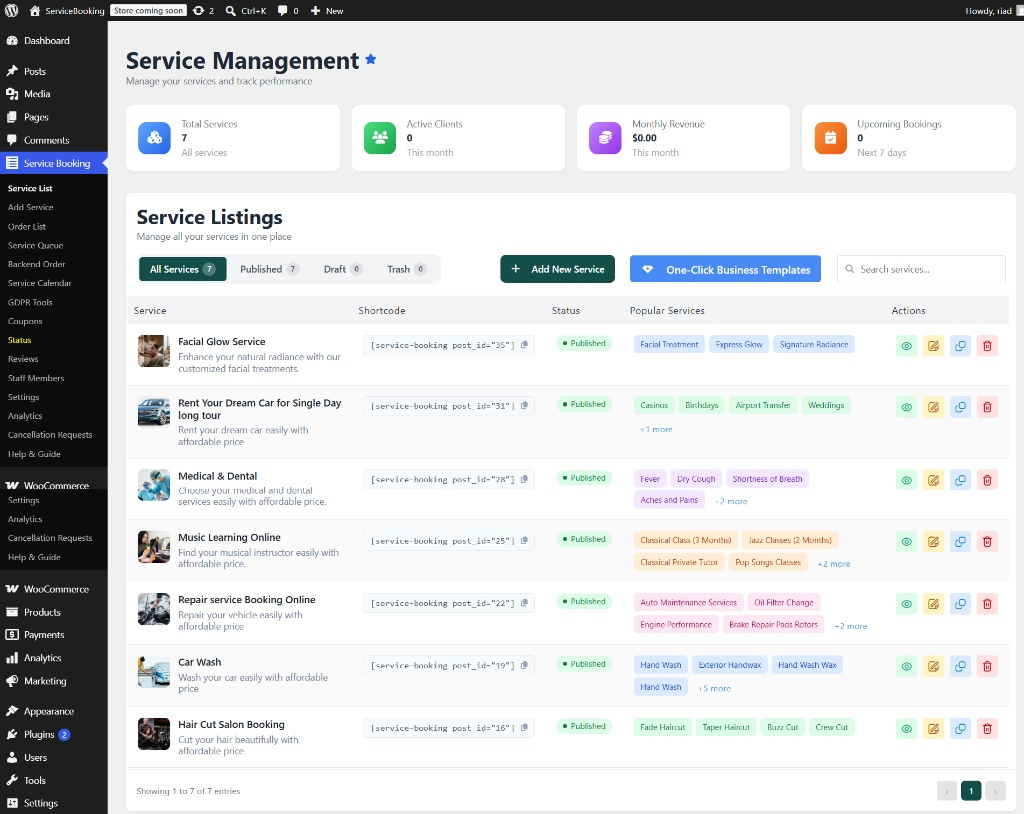
Top Metrics
- Total Services — total count of all configured services
- Active Clients — total number of unique clients served this month
- Monthly Revenue — revenue generated from bookings within the current month
- Upcoming Bookings — total confirmed bookings scheduled for the next 7 days
Quick Action Toolbar
- Status Filters — toggle between All Services, Published, Draft, and Trash
- + Add New Service — opens the service creation wizard to set up a new offering
- One-Click Business Templates — instantly load pre-configured service setups tailored for various industries (e.g. Salon, Medical, Car Wash, Online Learning)
- Search Services — real-time search by title or keyword
Service Listings Table
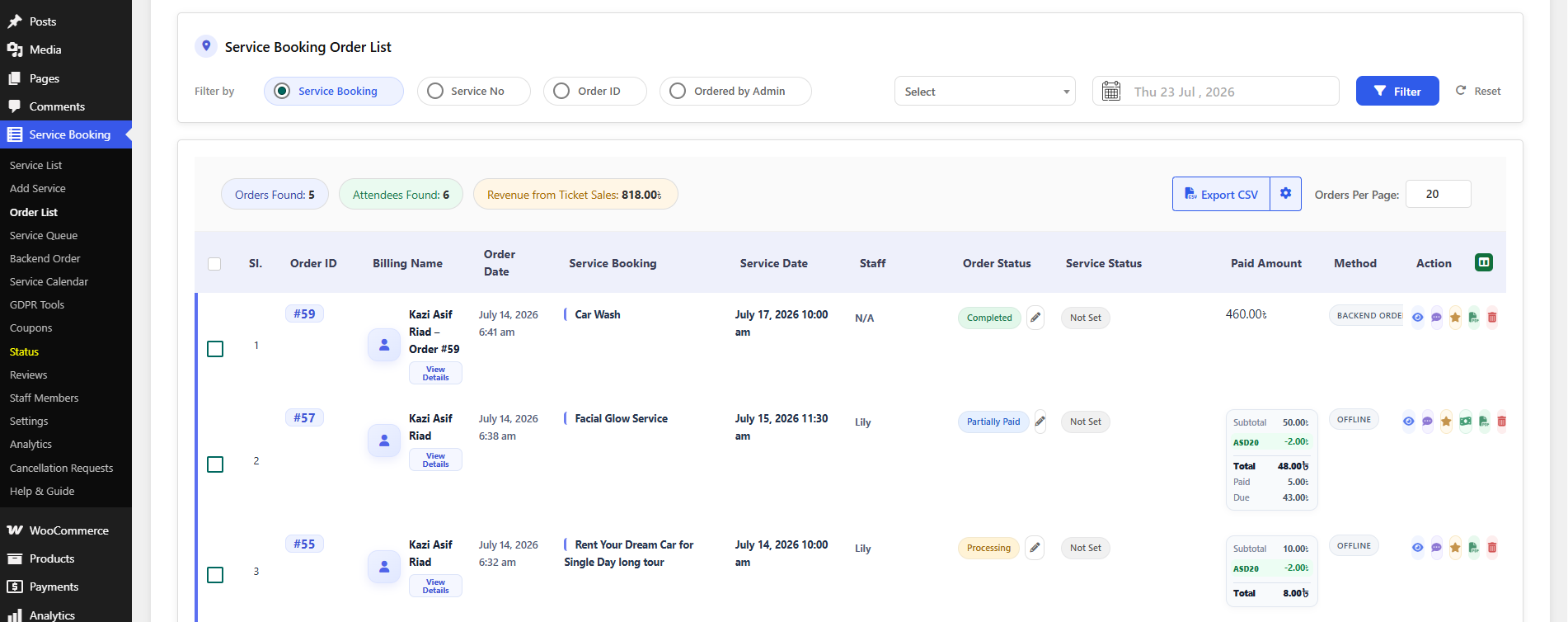
| Column | Description |
|---|---|
| Service | Thumbnail, title, and short description visible to customers |
| Shortcode | Unique shortcode (e.g. [service-booking post_id="XX"]) with a One-Click Copy icon |
| Status | Current publication status (Published, Draft, etc.) |
| Popular Services / Tags | Associated sub-services, categories, or tags |
| Actions | View, Edit, Duplicate, and Delete controls for each listing |
Adding or Editing a Service
Creating a service uses a 4-step wizard: General → Pricing → Availability → Advanced. A progress bar at the top tracks your place in the wizard, alongside Draft Saved Locally / Published status badges, a Preview button, and Update / Publish.
Step 1 — General Settings
- Title & Sub Title — primary service name and short tagline
- Service Overview — rich text editor for the main summary, media, and key bullet points
- Customer Reviews — rating value, scale, and summary text shown as a social-proof badge
- Service Feature Details — highlight key features with custom feature blocks (individually reorderable)
- Service Details — expanded description covering terms and operating/booking hours
- Featured Image & Gallery — showcase photos, with a toggle for the gallery slider
- Payment Method — the active payment method and gateway for this service, with a quick link to Payment Settings — see Payment Integration
- Shortcode & Template — the embeddable Add To Cart Form shortcode and template selector (Static / Dynamic)
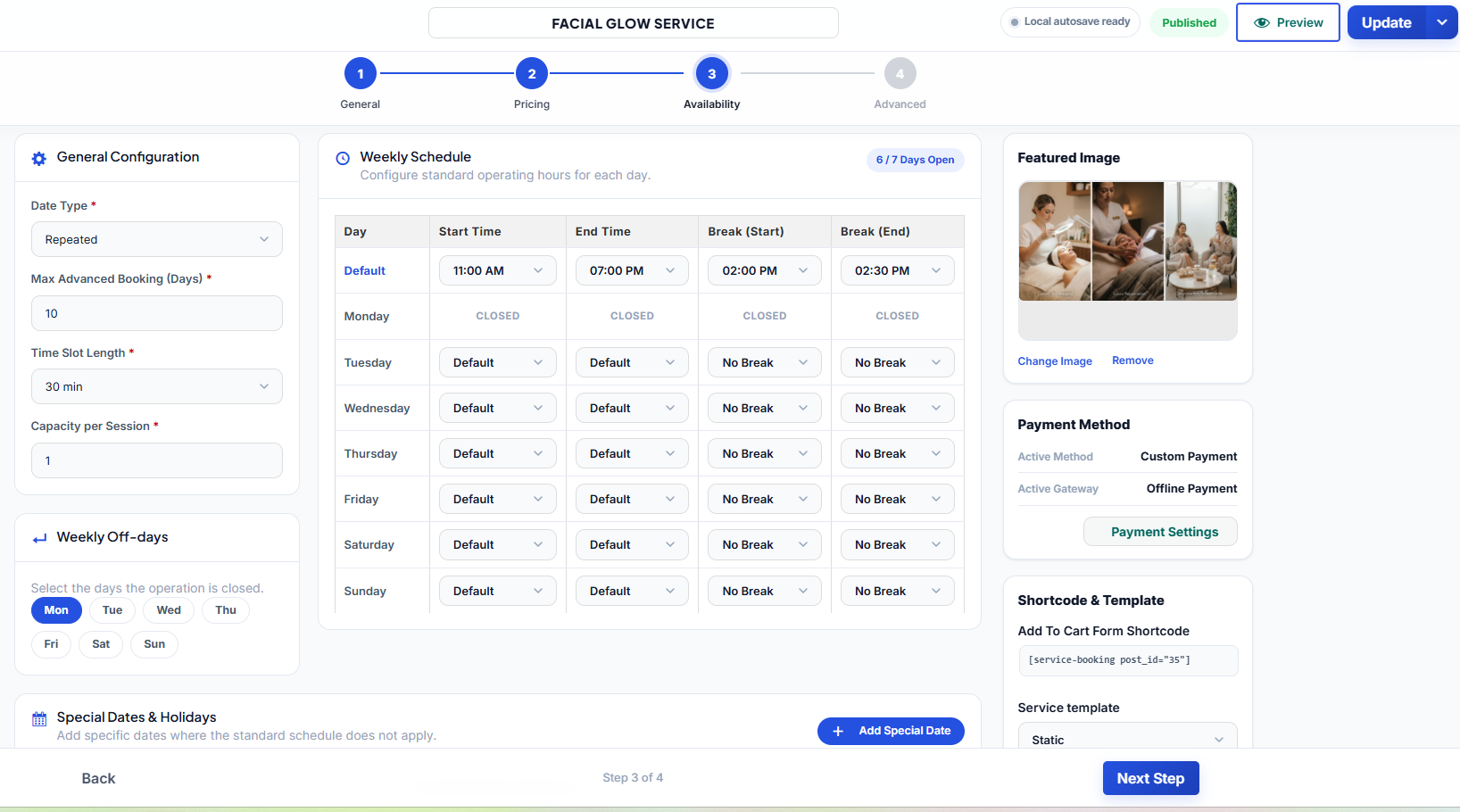
Step 2 — Pricing Settings
- Category Navigation — filter sub-services by category; deleting a category moves its services to Uncategorized automatically
- Sub-Services Grid — each sub-service card shows an icon, title, category badge, description, base price, and duration
- Use Template — load pre-configured pricing and duration templates for faster setup
- Extra Services (Paid Add-ons) — optional add-ons customers can select at checkout, each with its own title, description, price, and stock/capacity limit
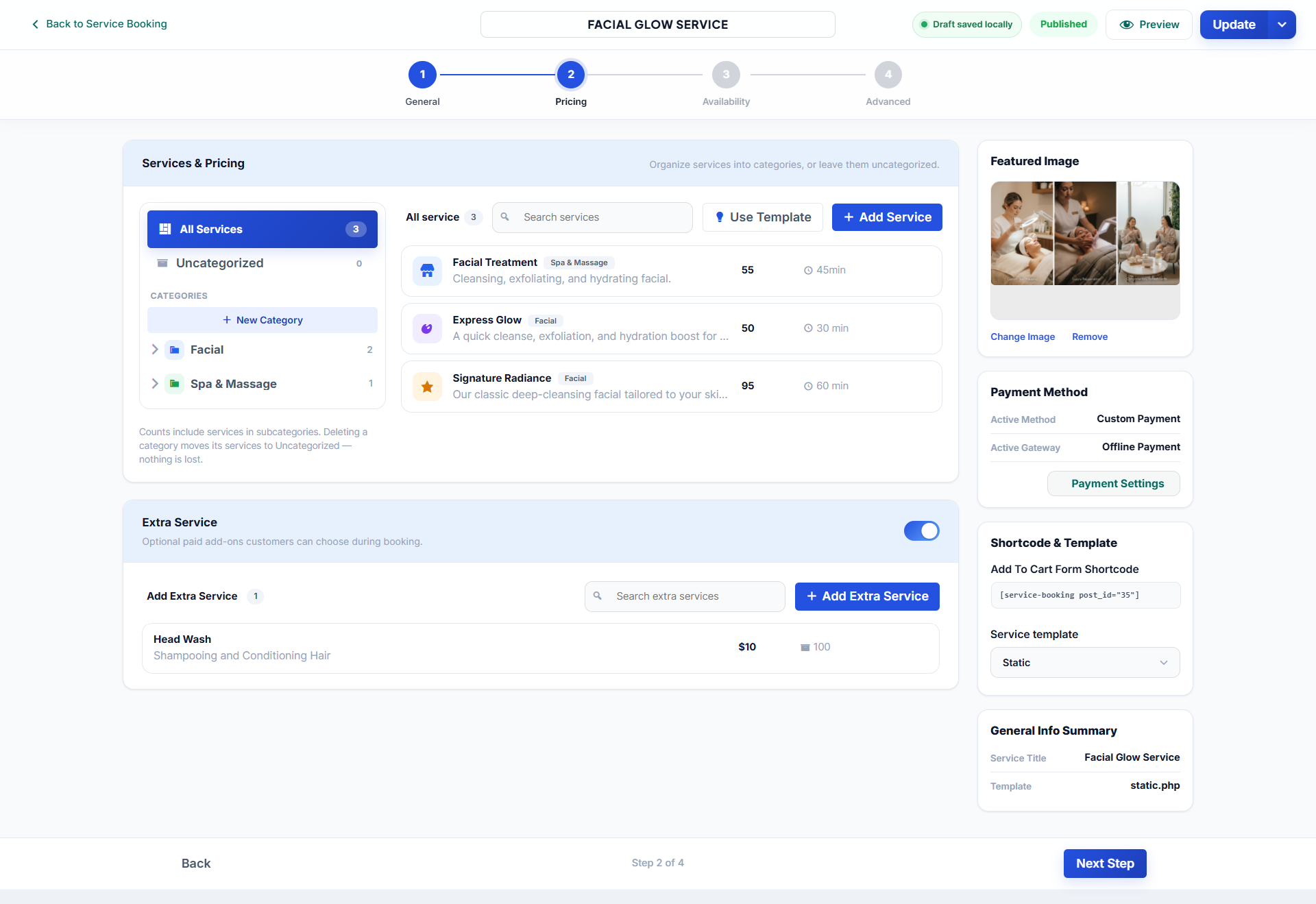
Step 3 — Availability Settings
- Date Type — Repeated (recurring weekly schedule) or single-date
- Max Advanced Booking (Days) — how far in advance customers can book
- Time Slot Length — duration interval for each booking slot
- Capacity per Session — maximum clients allowed per time slot
- Weekly Off-days — click day pills to mark recurring closed days
- Weekly Schedule Grid — default hours and break windows, with per-day overrides and a CLOSED badge for off-days
- Special Dates & Holidays — add one-off schedule overrides for holidays or special events
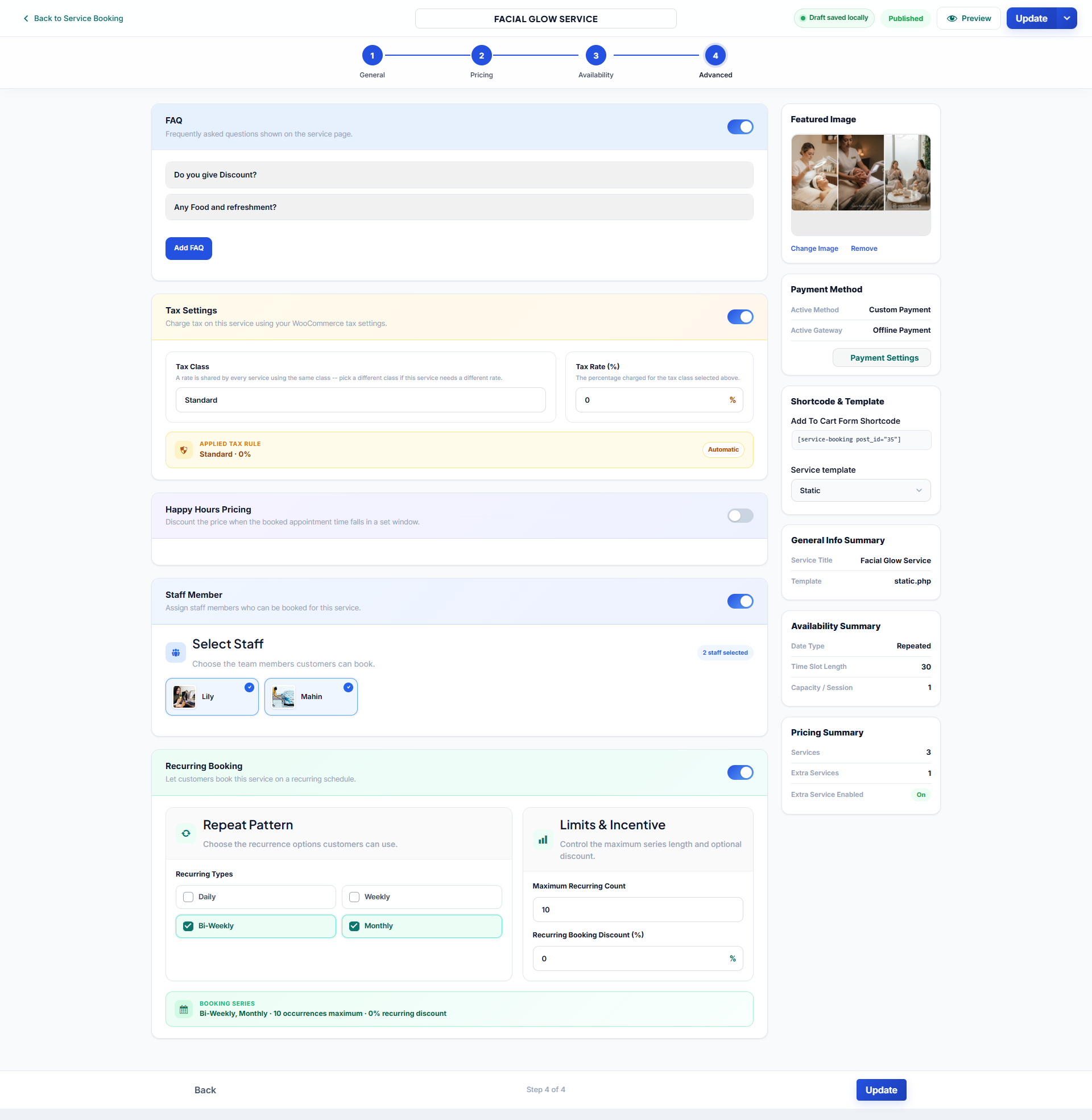
Step 4 — Advanced Settings
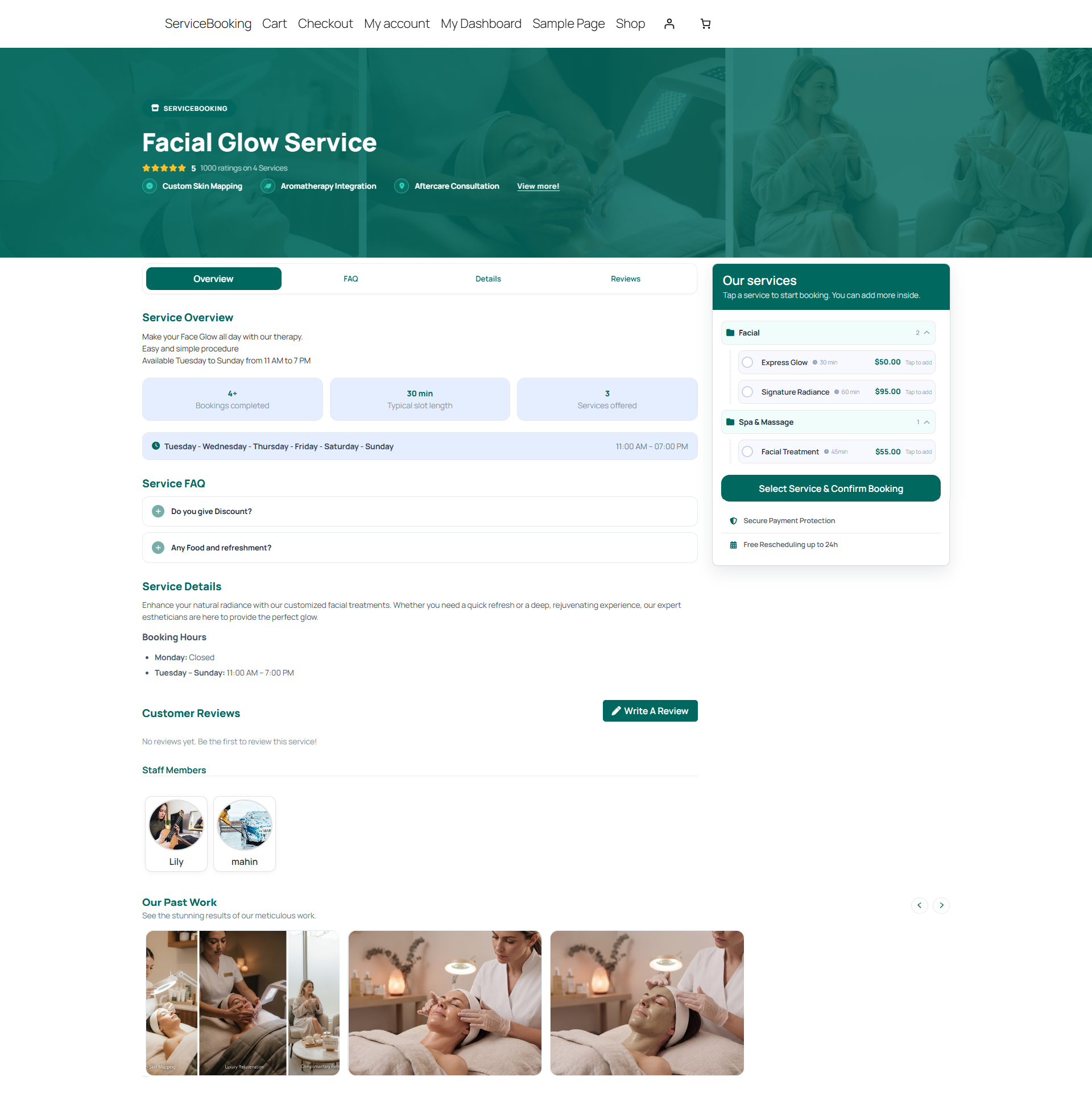
- FAQ Section — add service-specific questions and answers shown on the front-end service page
- Tax Settings — enable WooCommerce tax classes and rates for the service
- Happy Hours Pricing — automatic dynamic discounts for off-peak booking windows
- Staff Member Selection — enable staff selection at checkout and choose which staff can be assigned to this service — see Staff & Scheduling
- Recurring Booking Configuration — allow customers to subscribe to repeating appointments (Daily, Weekly, Bi-Weekly, Monthly) with a maximum occurrence count and optional recurring discount
Click Update / Publish on the final step to save your changes and take the service live.