
Bookings & Orders
Manage the order list, the daily service queue, the booking calendar, and manual backend orders in WpBookingly.
Manage, filter, and track every customer booking, payment status, and fulfillment detail in real time from the Bookings & Orders screens.
Service Booking Order List
Advanced Search & Filtering
- Filter By Type — Service Booking (search by service title), Service No / Order ID, or Ordered by Admin (manually placed backend orders)
- Date Range Picker — display bookings scheduled or placed on specific dates
- Filter & Reset — apply selected filters or clear all in one click
Order Summary Bar & Export
- Orders Found — total count of orders matching current filters
- Attendees Found — total number of booked slots/clients in the retrieved orders
- Revenue from Sales — live total collected revenue for the filtered subset
- Export CSV — export the filtered order dataset for offline accounting or reporting
- Orders Per Page — adjust row density (e.g. 20, 50, 100)
Order List Table
| Column | Description |
|---|---|
| Sl. & Order ID | Row number and clickable Order ID link for detailed inspection |
| Billing Name | Customer name with a View Details link |
| Order Date | Timestamp when the booking transaction was placed |
| Service Booking | Title of the reserved service (e.g. Car Wash, Facial Glow Service) |
| Service Date | Scheduled date and time for the actual service fulfillment |
| Staff | Assigned team member or service provider handling the booking |
| Order Status | Payment/processing state (Completed, Partially Paid, Processing) |
| Service Status | Real-time fulfillment status of the service (Service Completed, Not Set) |
| Paid Amount & Breakdown | Total paid, subtotal, discounts, taxes, and remaining due balance |
| Method | Payment method used (Backend Order, Offline, COD) |
| Actions | View details, send email updates, print invoices, download PDF tickets, or delete |
Service Queue
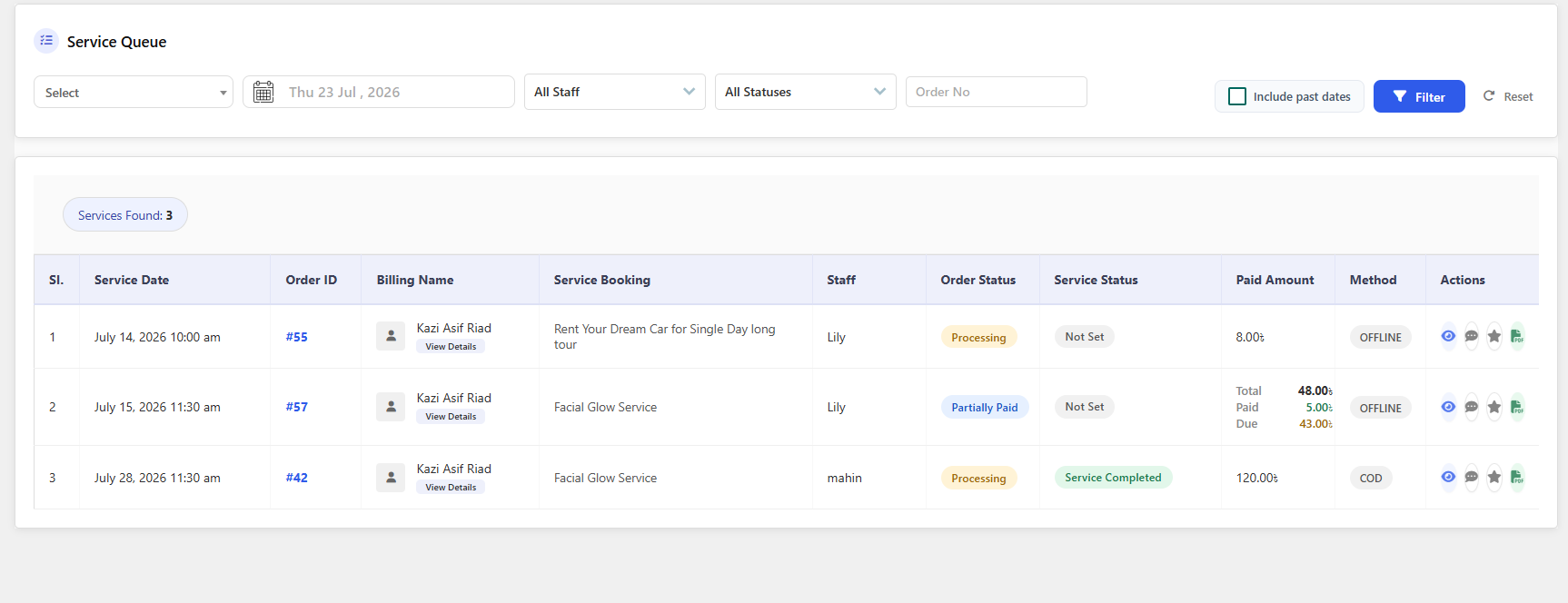
The Service Queue is a real-time operational dashboard for tracking upcoming appointments, fulfillment progress, and staff assignments — optimized for daily staff operations rather than the historical Order List.
Queue Filtering
- Service Selector — isolate the queue for a specific service
- Date Picker — filter by service delivery date
- Staff Dropdown — filter by assigned team member
- Status Dropdown — narrow by order or service state
- Order No Field — direct lookup by order ID
- Include Past Dates — toggle to view historical appointments alongside upcoming ones
- Filter & Reset
Queue Data Grid
| Column | Description |
|---|---|
| Sl. | Sequential queue item number |
| Service Date | Scheduled date and time slot |
| Order ID | Clickable transaction ID linking to full order details |
| Billing Name | Customer profile with a View Details button |
| Service Booking | Reserved service item or package title |
| Staff | Assigned staff member with a quick reassign icon |
| Order Status | Current payment/order status badge |
| Service Status | Live operational status with an Edit icon |
| Paid Amount & Breakdown | Subtotal, total paid, and due balance for partial payments |
| Method | Payment channel used |
| Actions | Preview, message the client/staff, view feedback, or download the PDF ticket |
Service Calendar
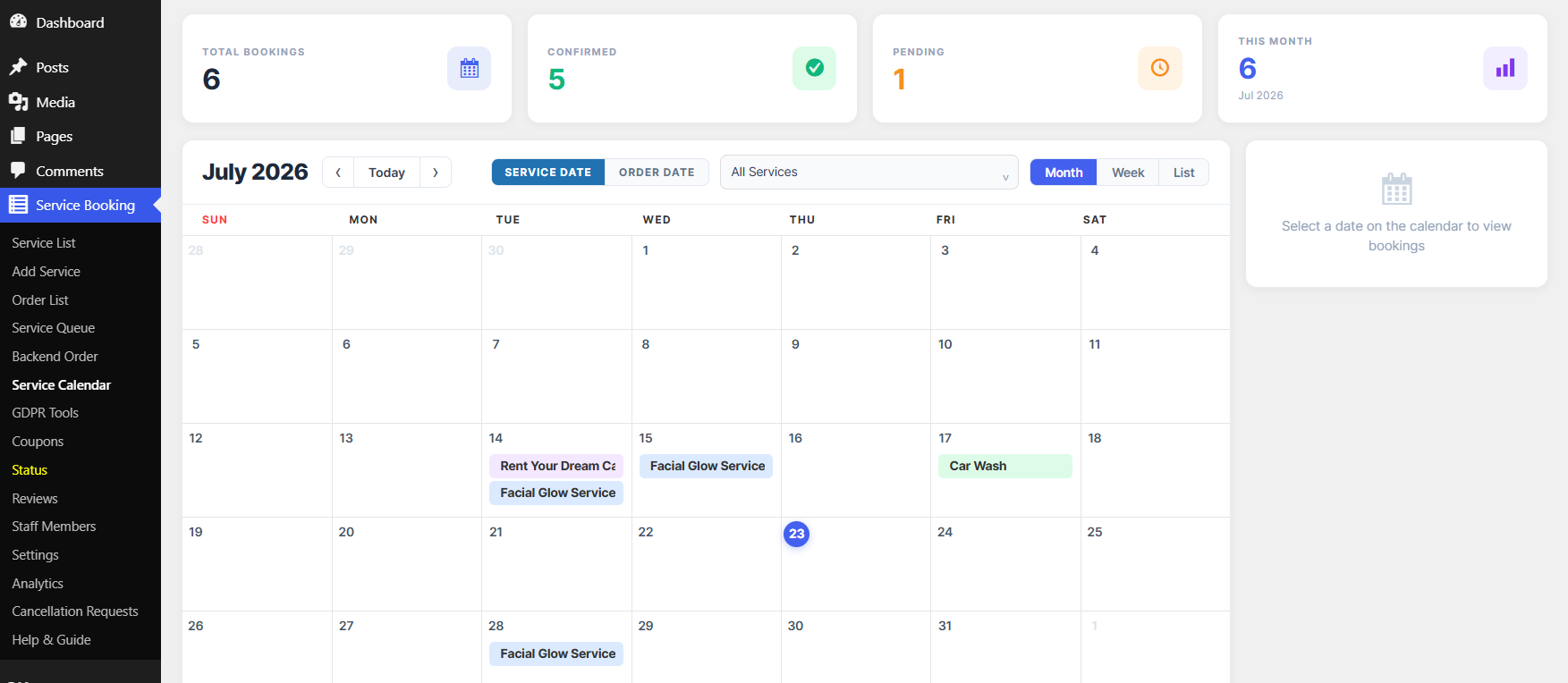
A visual, interactive schedule of all appointments, letting administrators and staff view, filter, and plan daily operations at a glance.
Top Metrics
- Total Bookings — aggregate bookings for the selected period
- Confirmed — approved/confirmed bookings
- Pending — bookings awaiting approval or payment
- This Month — live count of bookings for the active month
Calendar Controls
- Date Navigation —
</>arrows or Today to jump to a specific date - View By — Service Date (when the service will be delivered) or Order Date (when it was booked)
- Service Filter — restrict the view to a single service or show all
- View Granularity — Month, Week, or List
Interactive Grid
- Color-coded event pills show the service name on each calendar date
- The current day is highlighted with a blue indicator
- Clicking a date or service tag opens a side inspector with full client, order, and time-slot details
Creating a Backend (Manual) Order
Use the Backend Order screen for phone bookings, walk-in customers, or any reservation placed on behalf of a client.
- Select Service — choose the parent service offering
- Service Configuration — filter by category, select sub-service packages/variations and set quantities, then select any extra services with quantities
- Date & Time Selection — pick the service date and available time slot
- Select Staff — assign a specific staff member, if enabled
- Customer Information — search by email/phone to auto-fill an existing customer profile, or click + Create New Customer; linking an account lets the customer view the booking in their My Account portal, while leaving it manual creates a guest order. Fill in First Name, Last Name, Email, Phone, and Address
- Order Summary & Coupon — review the itemized breakdown, apply a coupon code, and confirm the total
Click Create Order to submit the reservation, send notification emails, and update the schedule — or Cancel to discard the form.
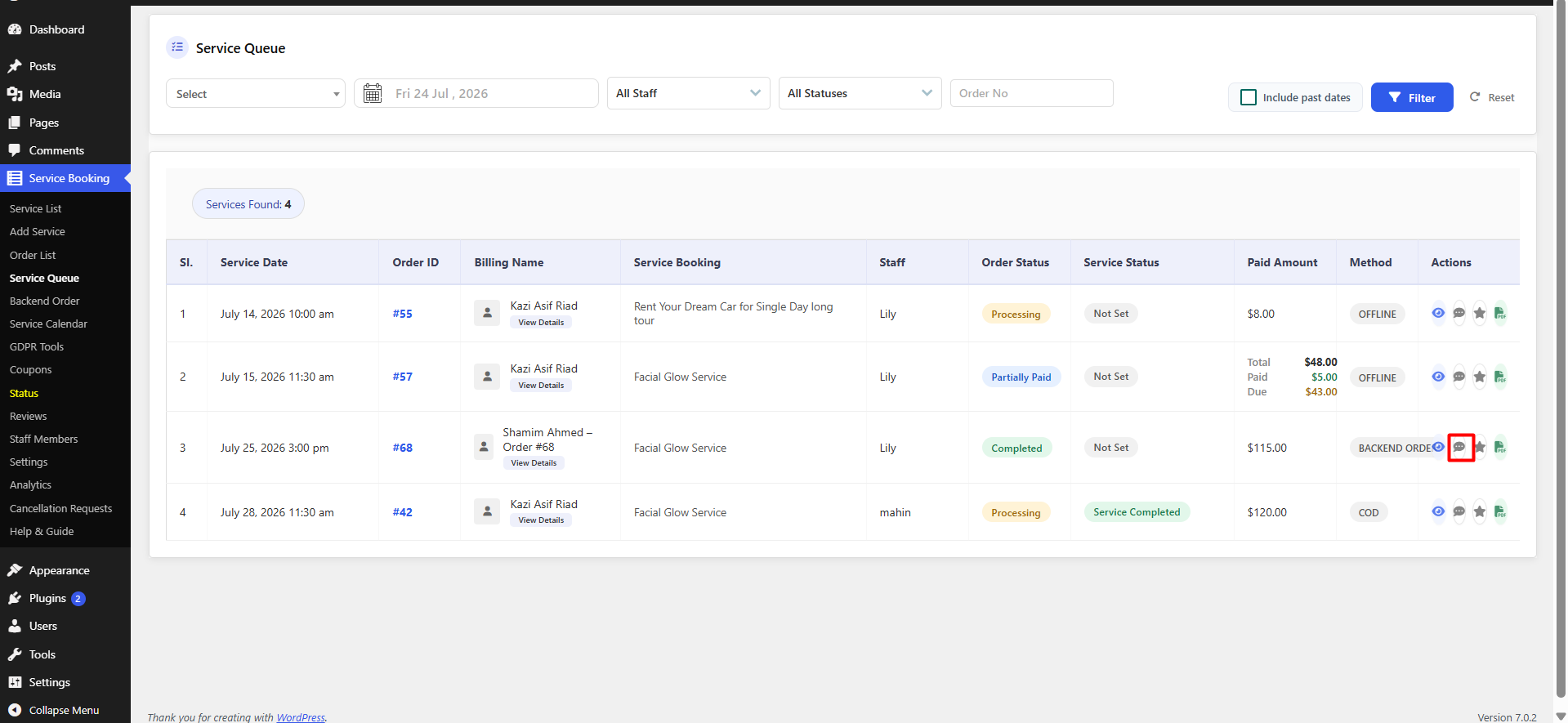
Contacting Staff About an Order
-
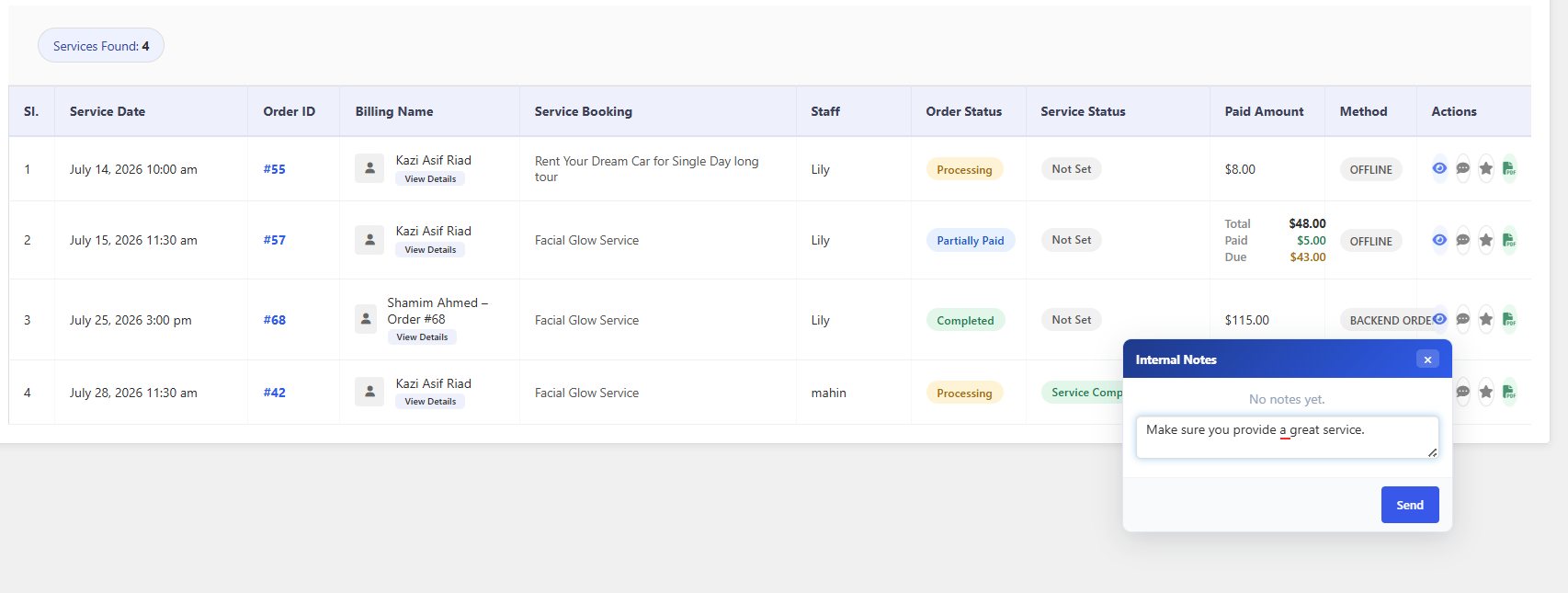
Go to the Service Queue tab and locate the order
-
Click the message icon on that row, type the message, and click Send
-
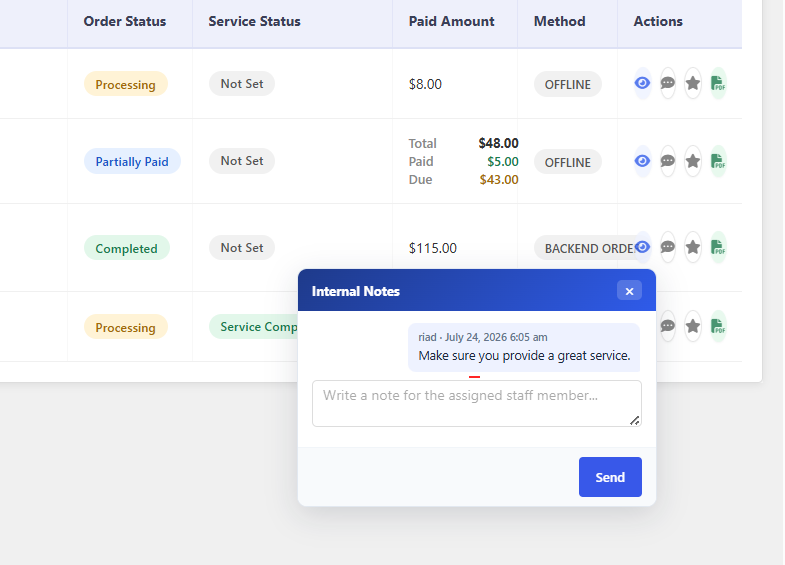
The message is confirmed as sent
-
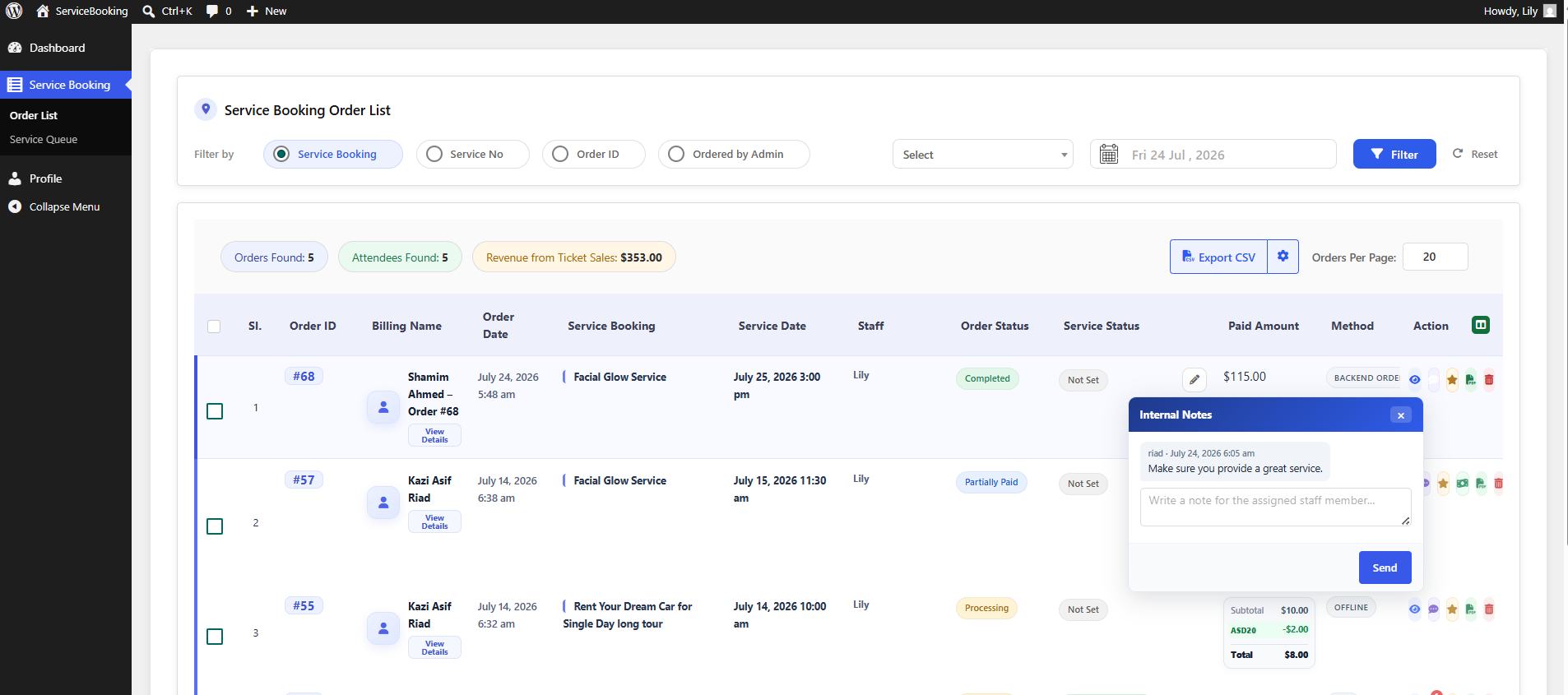
The staff member logs in and reads the message from the backend