Event Seat Plan Addon
The Seat Plan Addon for WpEvently transforms standard event ticketing into an interactive, visual booking experience. By leveraging WooCommerce, it ensures real-time availability and allows attendees to select their preferred seats directly from a custom map.
Installation
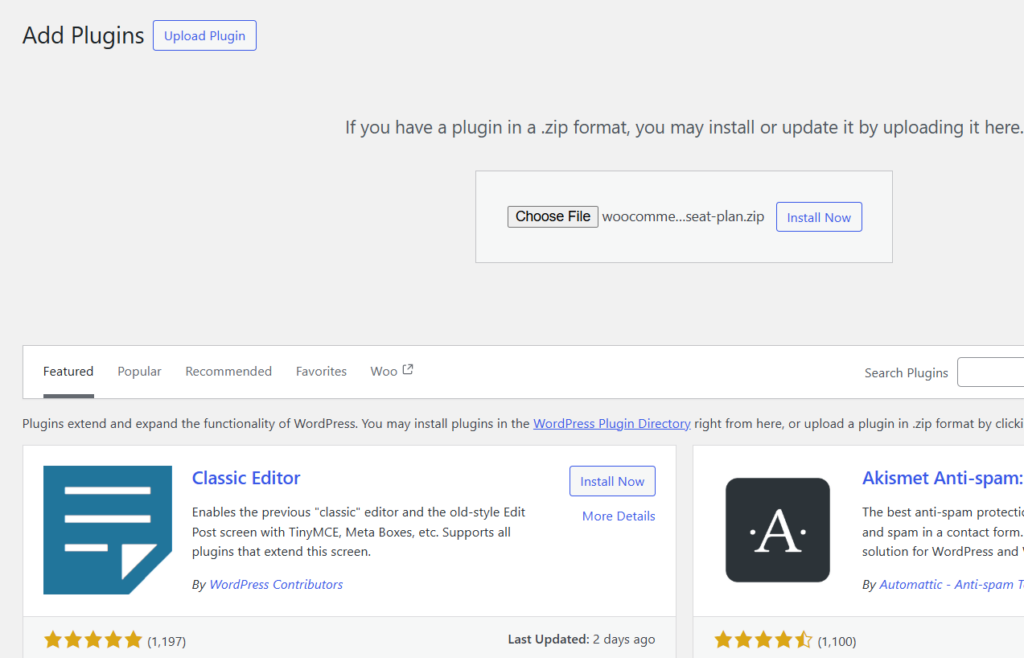
- Download the addon zip from your account.
- Go to Plugins → Add New → Upload Plugin.
- Upload the zip and click Install Now.
- Activate the plugin from the Plugins page.
Create Event
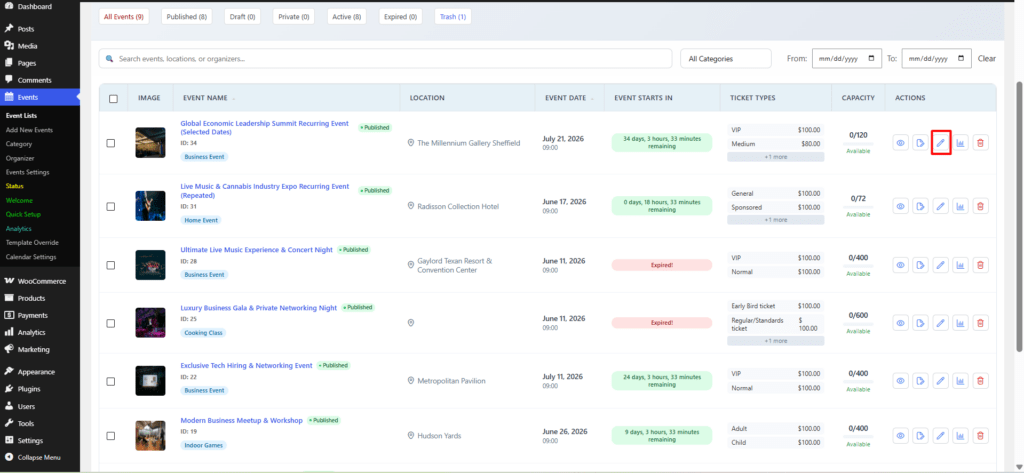
After logging into the WordPress Dashboard, go to Event Manager → Add New Event or edit an existing event.
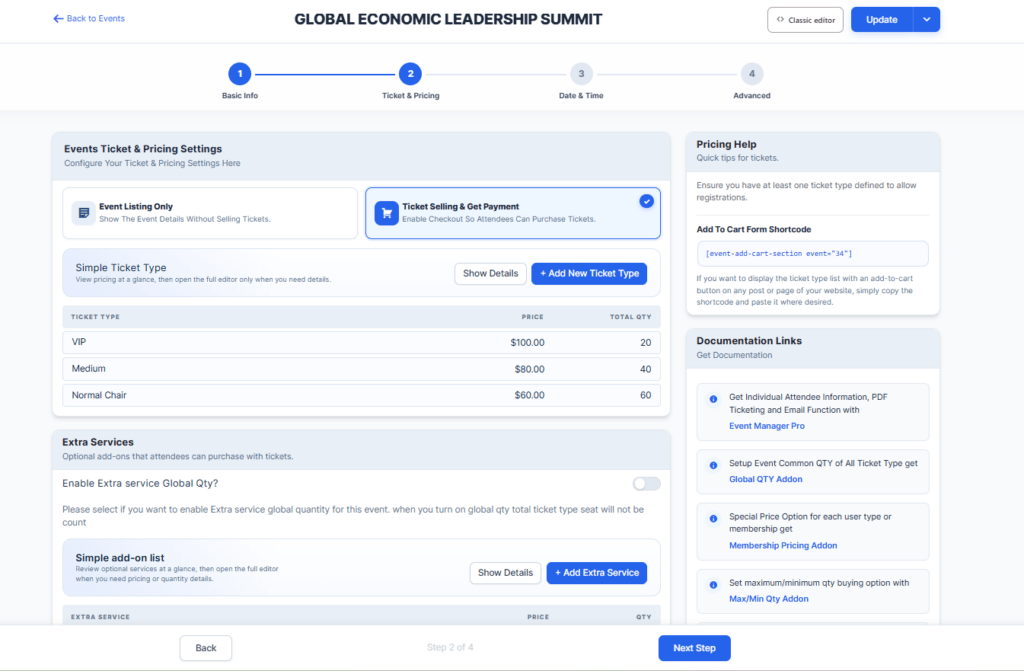
From your modern editor, navigate to Ticket & Pricing and start creating a ticket type with ticket name, price, capacity, sales end time, and date. Add more ticket types by clicking Add New Ticket Type.
Simple Grid Mode
Scroll down to the Seat Plan section and enable the seat plan for this event. The option to set each ticket type's quantity from its seat count will be enabled for the Free-form designer seat plan. There are two options: Simple Grid and Free-form Designer.
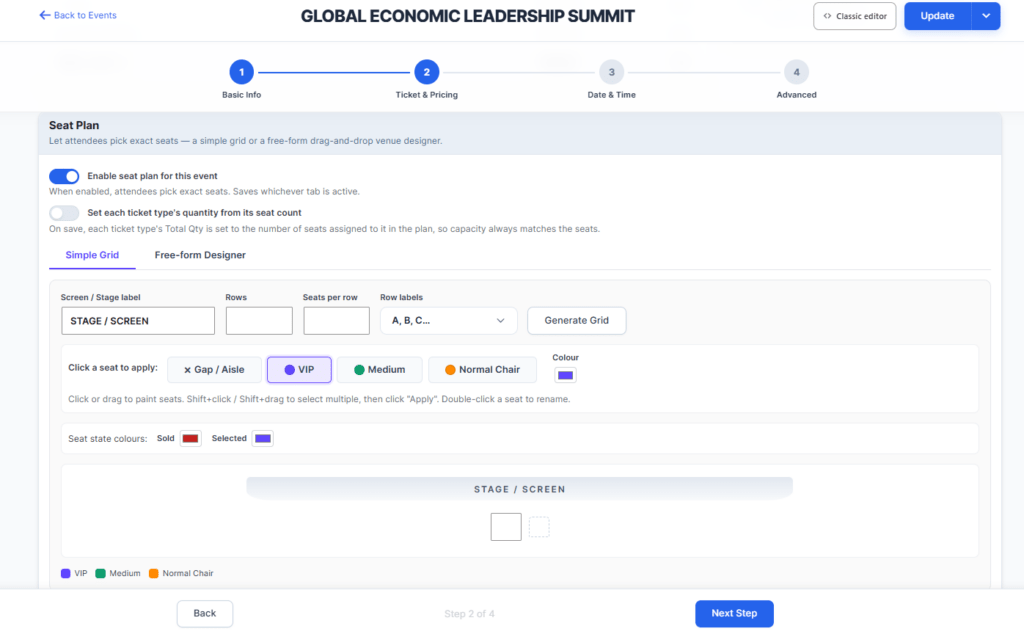
Add a label for your screen or stage from the Screen/Stage label field. Add rows and seats based on the total quantity of the event ticket types. For example, if you have 60 seats across 3 ticket types (VIP: 10, Medium: 20, Normal: 30), set 6 rows with 10 seats per row. Choose row labels (numbers or letters) and click Generate grid.
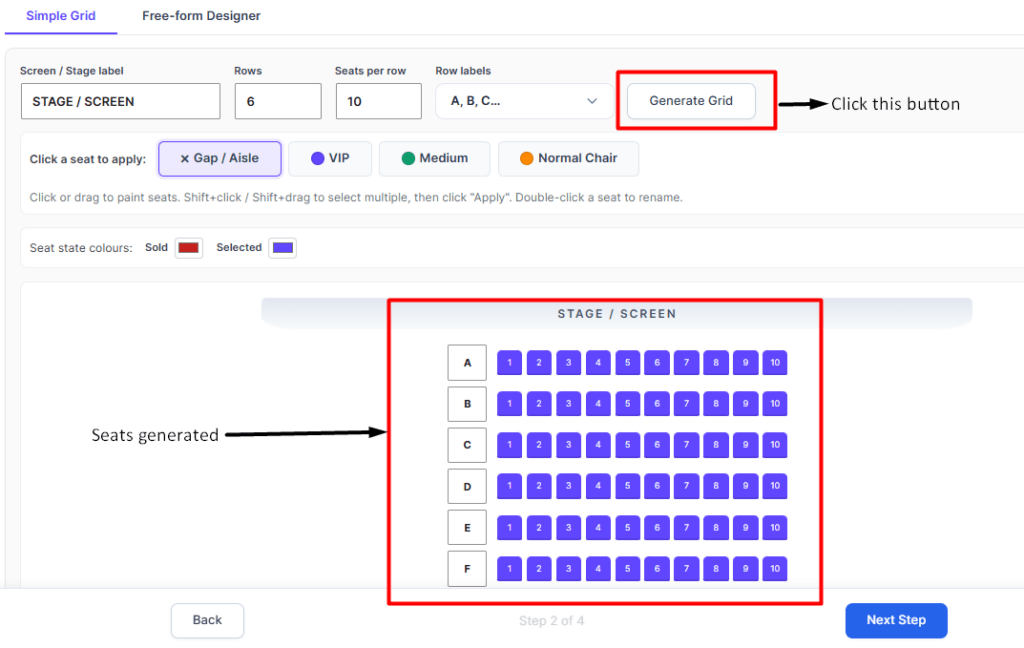
Add seat type color for different ticket types, sold, and selected row.
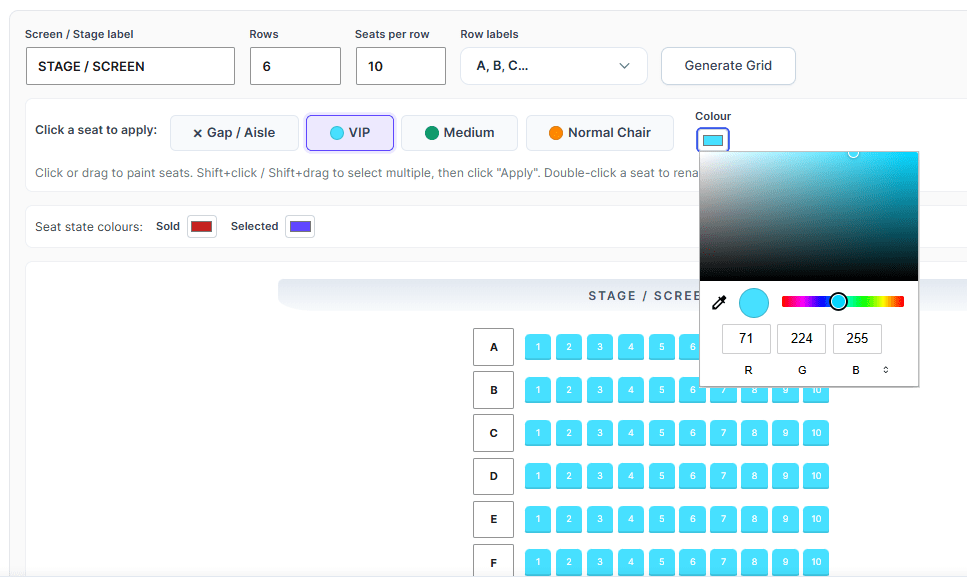
You can add any color to your seat type. For the Gap/Aisle row, there is no color.
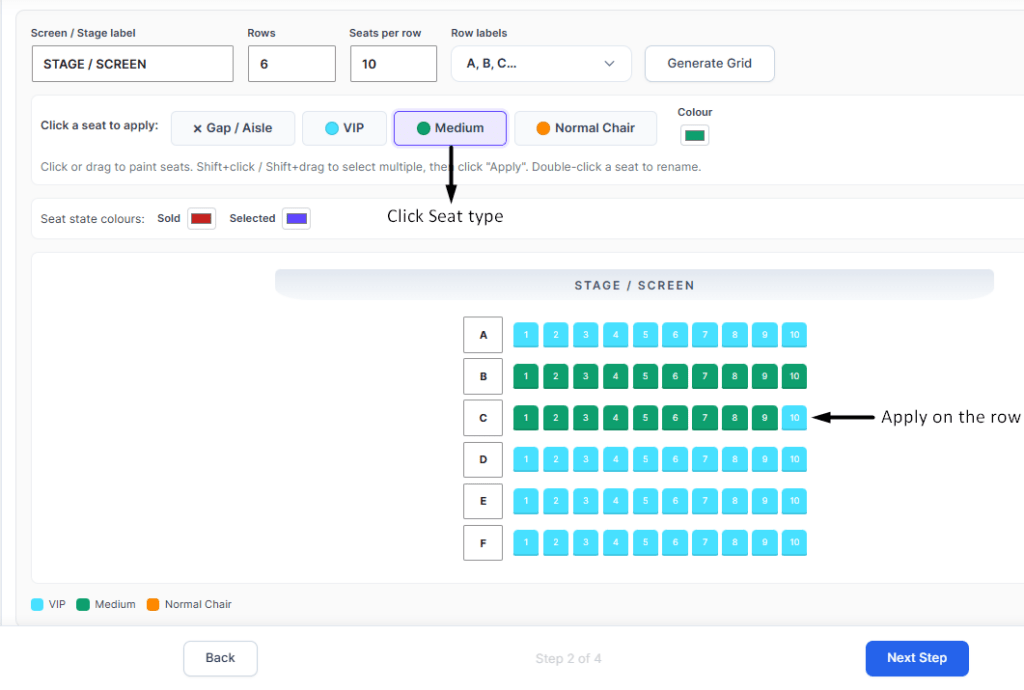
Click on any seat type and apply its color to the rows.
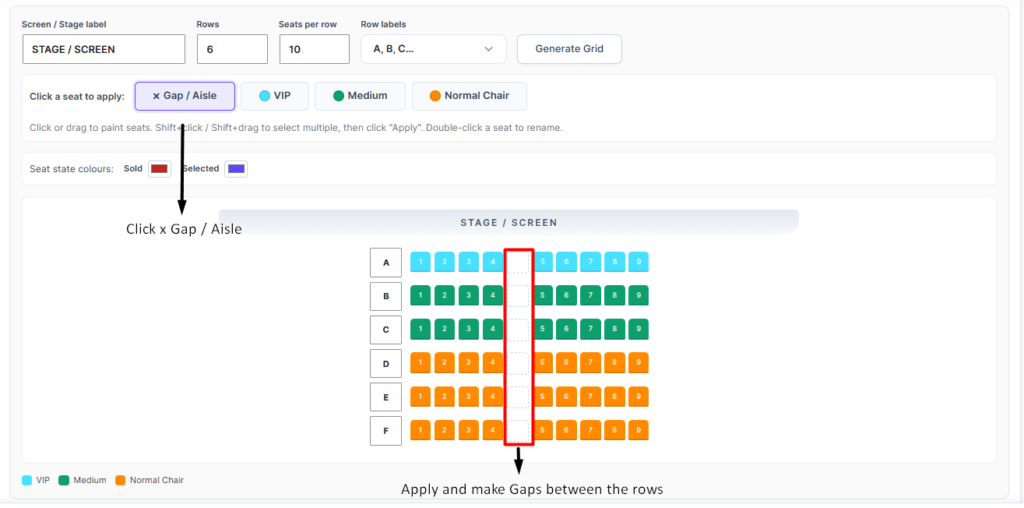
Create gaps between rows using the x Gap / Aisle button.
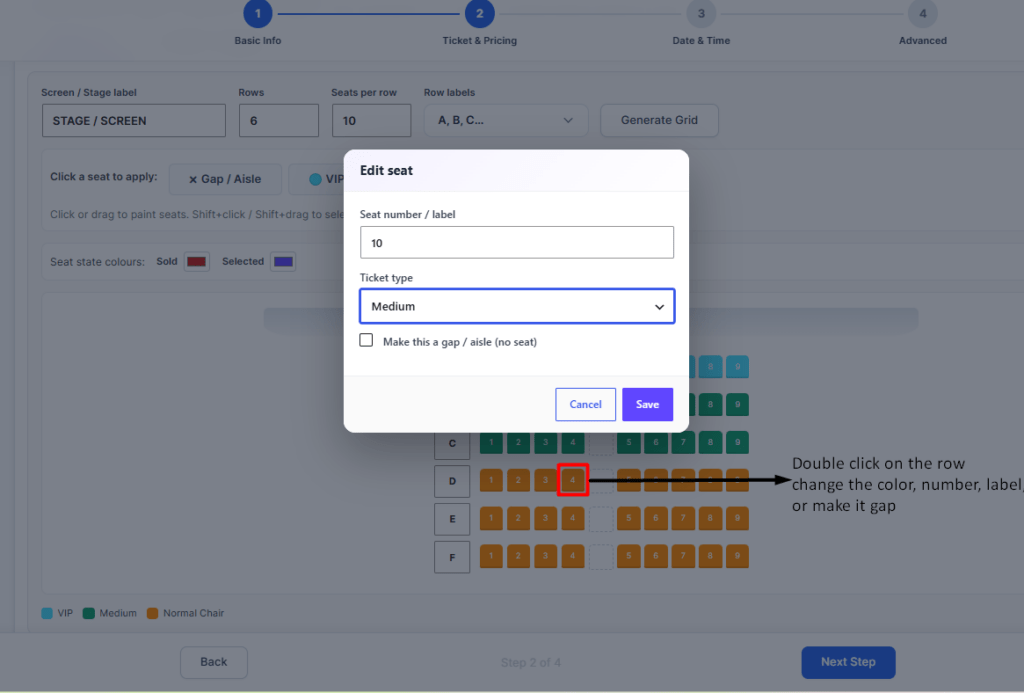
Double-click any seat to change its number, label, ticket type color, or mark it as a gap. Hit Save after making changes.
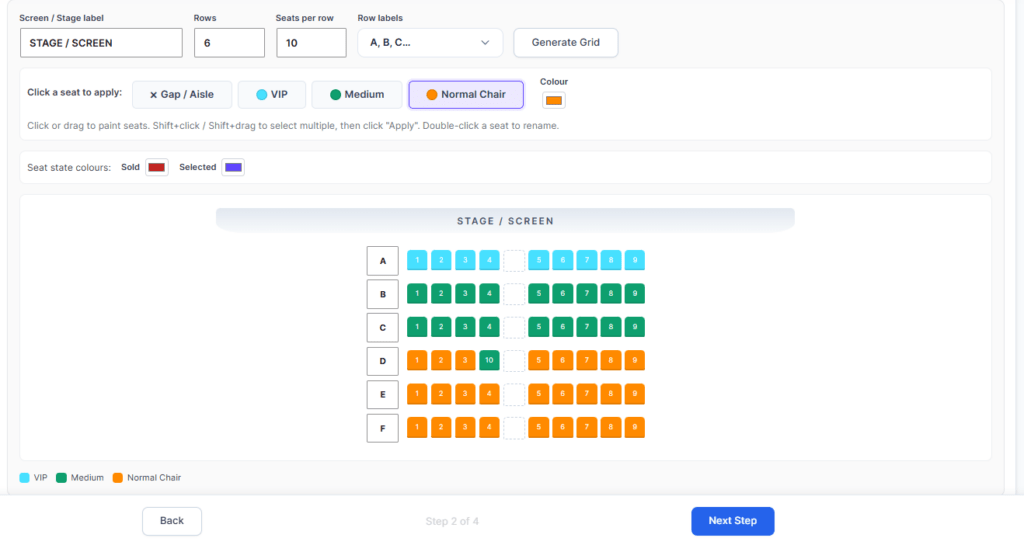
You can see the changes reflected in the seats.
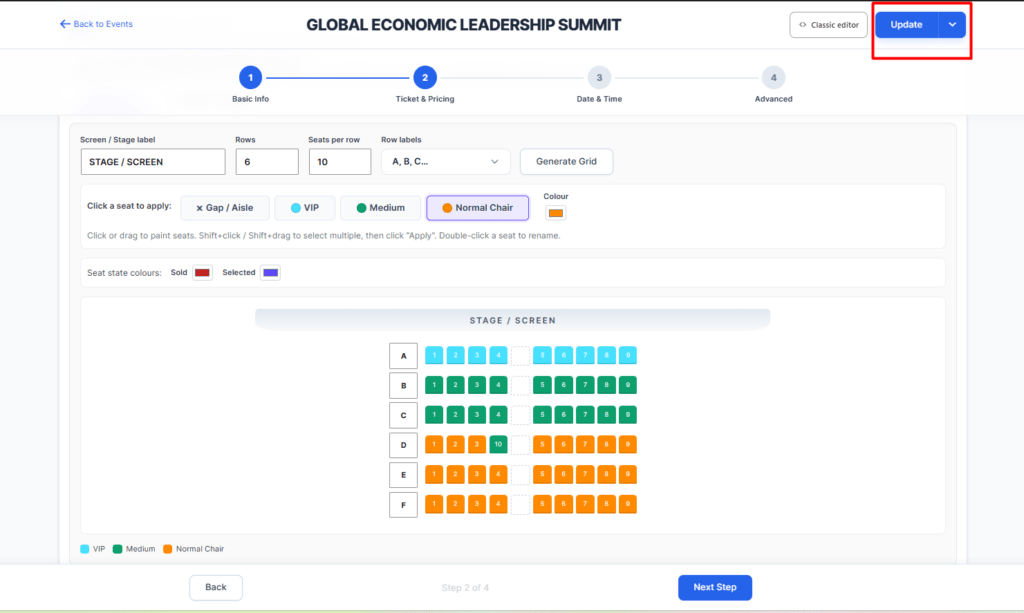
Update and Publish: Once satisfied, click Update at the top right corner to publish the seating plan.
Book a Seat: Go to the event booking page and select the event.
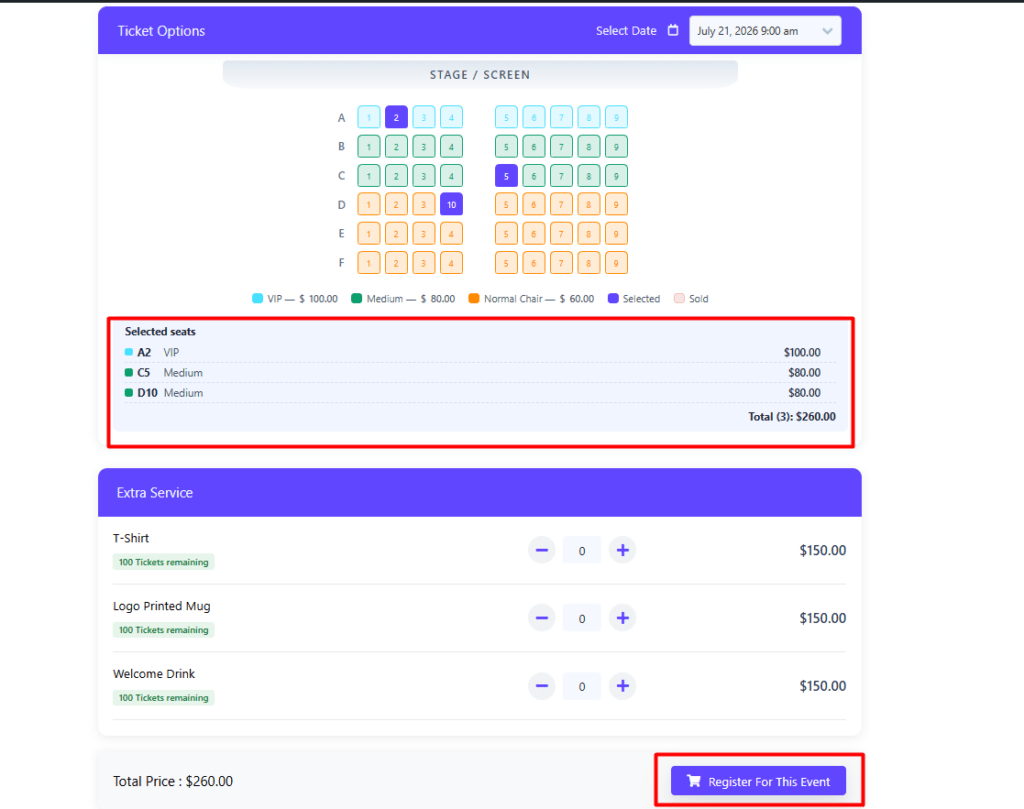
Select a seat from the seat type and click Register for this event.
Free-form Designer
Navigate to the Seat Plan section and choose the Free-form Designer option.
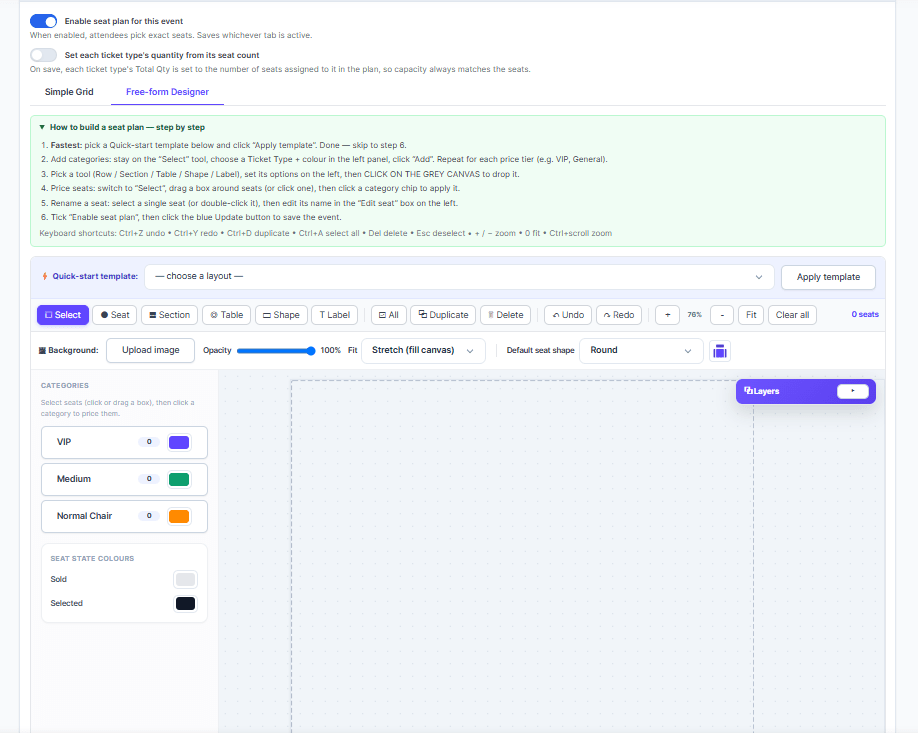
You will find many options in this designer. There are three ways to add a seat plan:
- Create your own seat design
- Using existing seat templates
- Using the Seat type quantity generation button
Create Your Own Seat Design
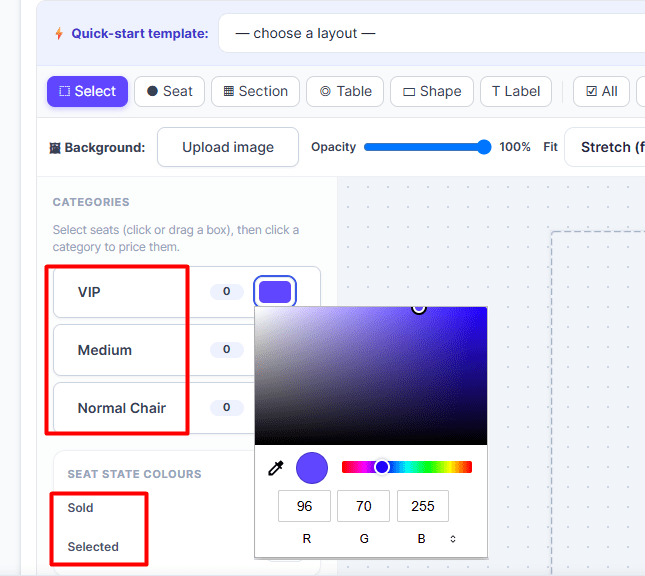
Click the Select button and navigate to Categories. Choose a ticket type and pick a color for the seats.
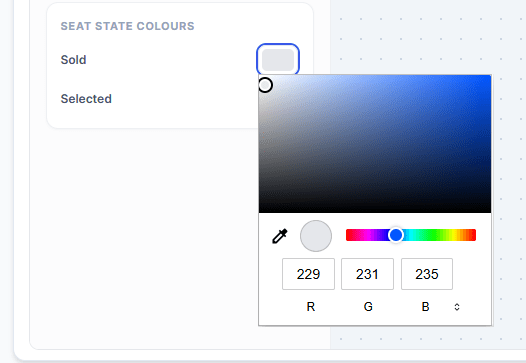
For seat state color, you can apply different colors for sold or selected seats.
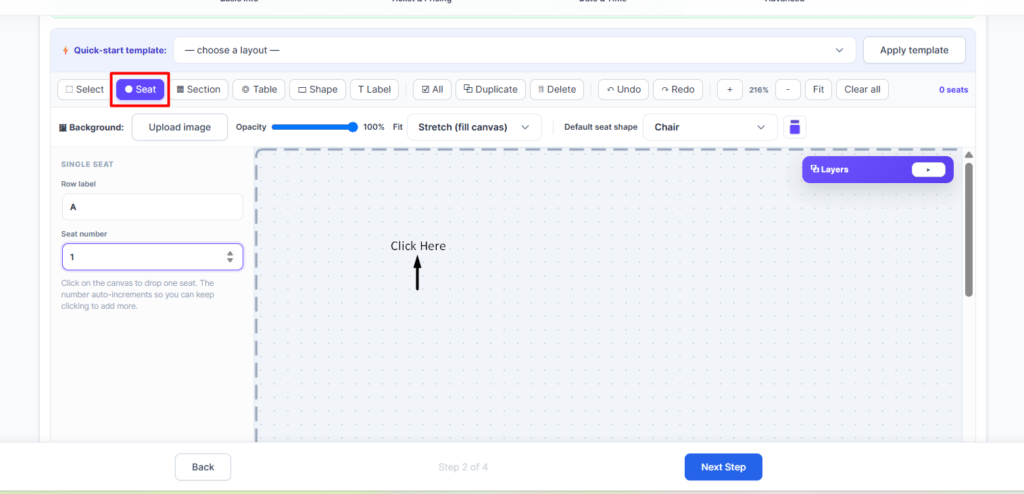
Click the Seat button and click on the design panel to place a seat.
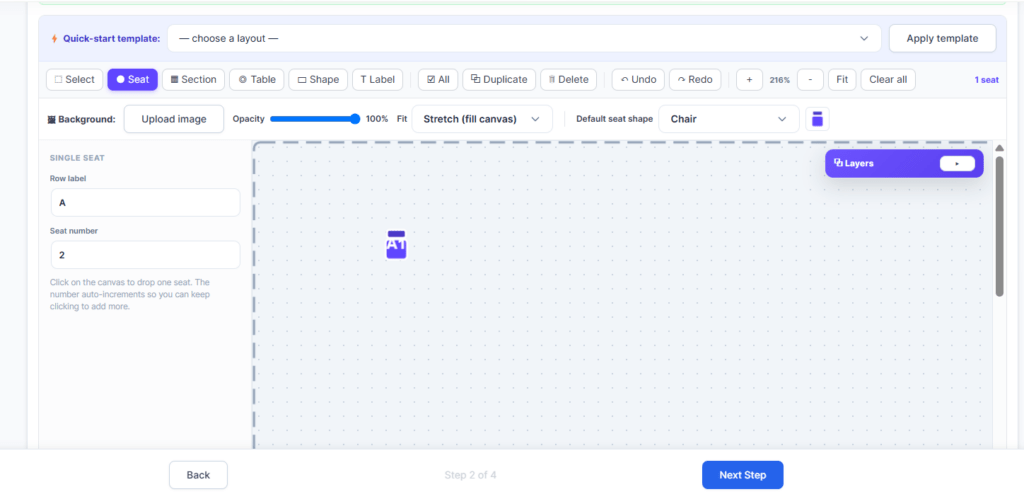
A single seat appears based on the row label and seat number.
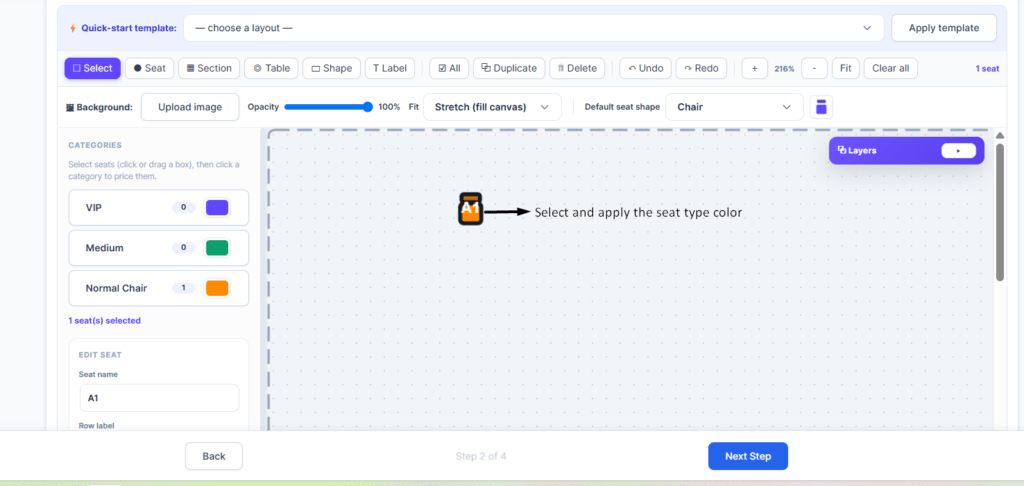
To add another seat for a different ticket type, click Select, choose the seat type color, and apply it.
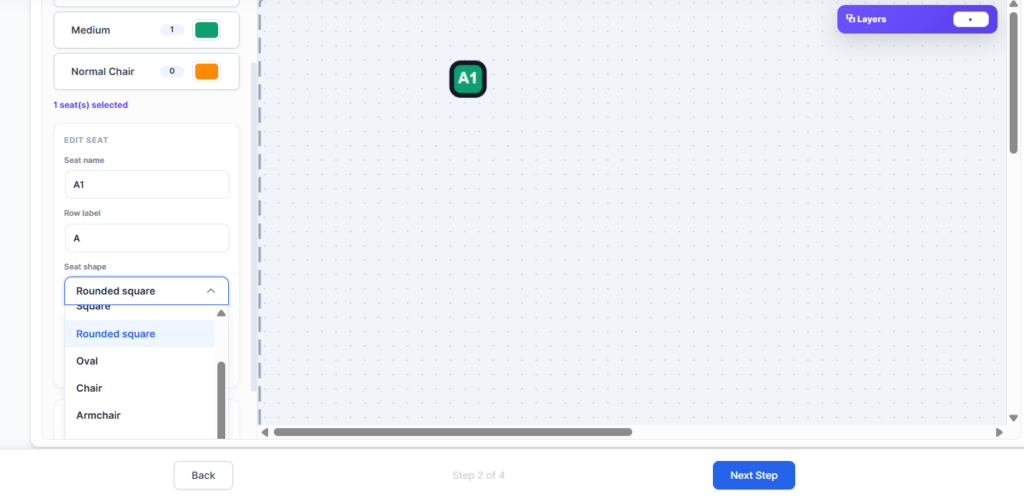
Change seat shapes from the Seat Shape section.
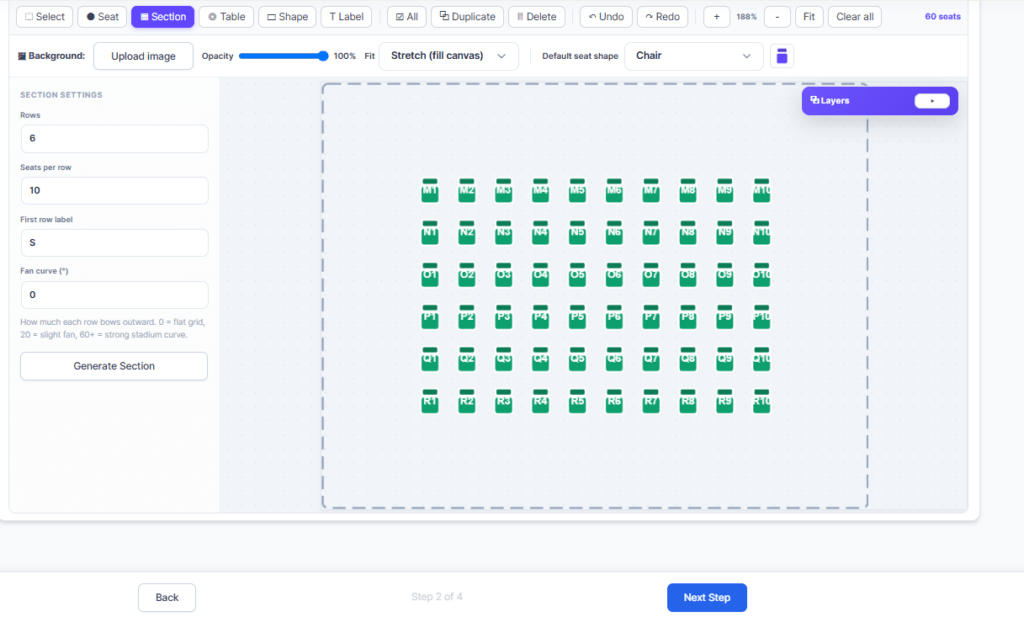
Click the Section button, add rows, seats per row, label, and fan curve, then click Generate Sections.
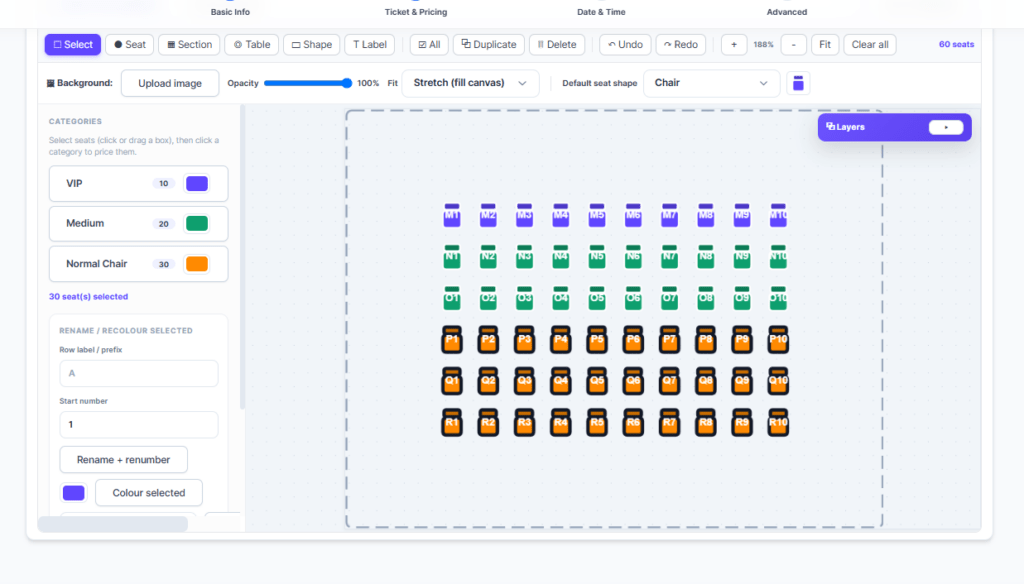
Select seats and change their color based on ticket types.

Click Clear all to reset the design panel.
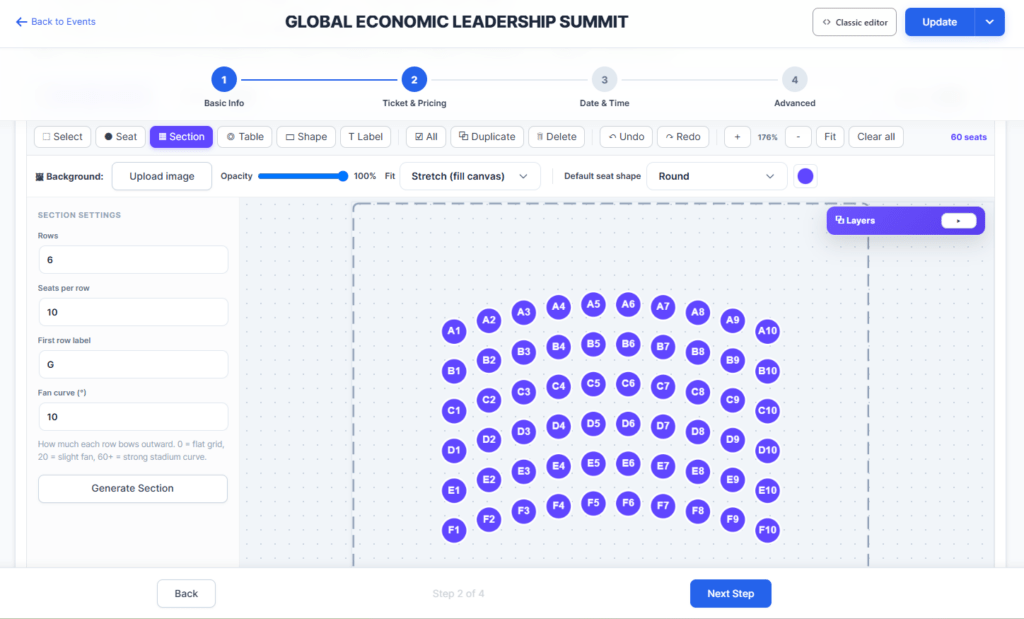
The Fan Curve lets you curve the seat design at any angle.
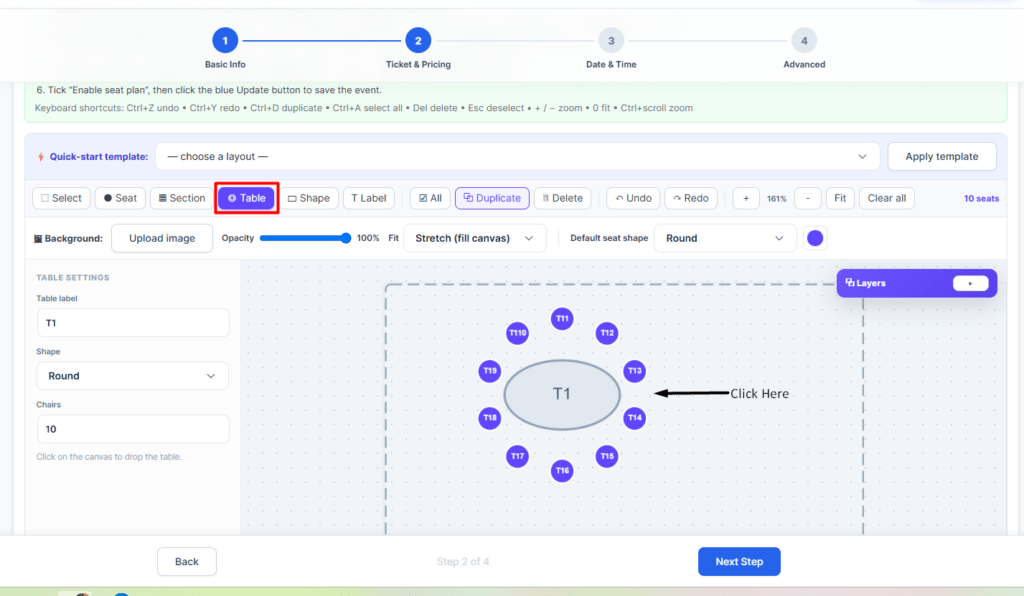
Click the Table button and set table label, shape (round or rectangular), and number of chairs.
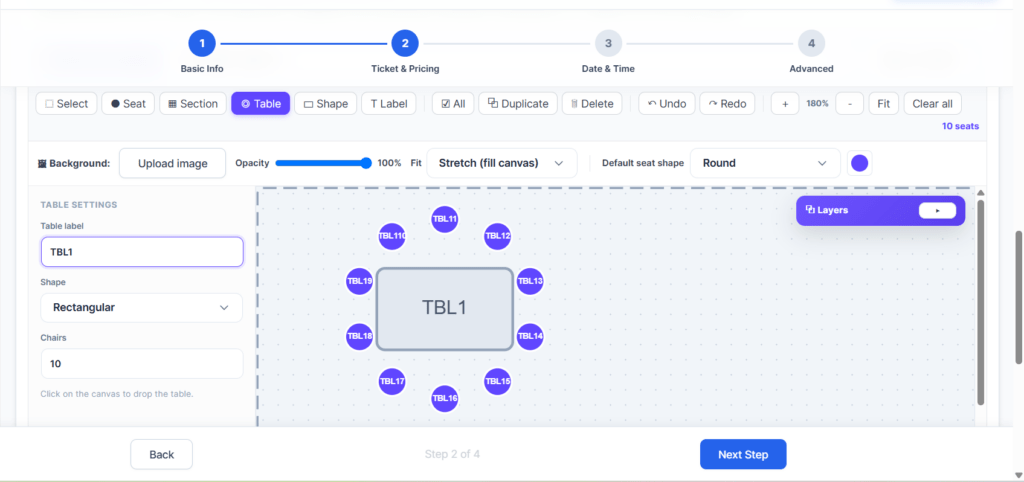
Table label and shape can be changed as needed.
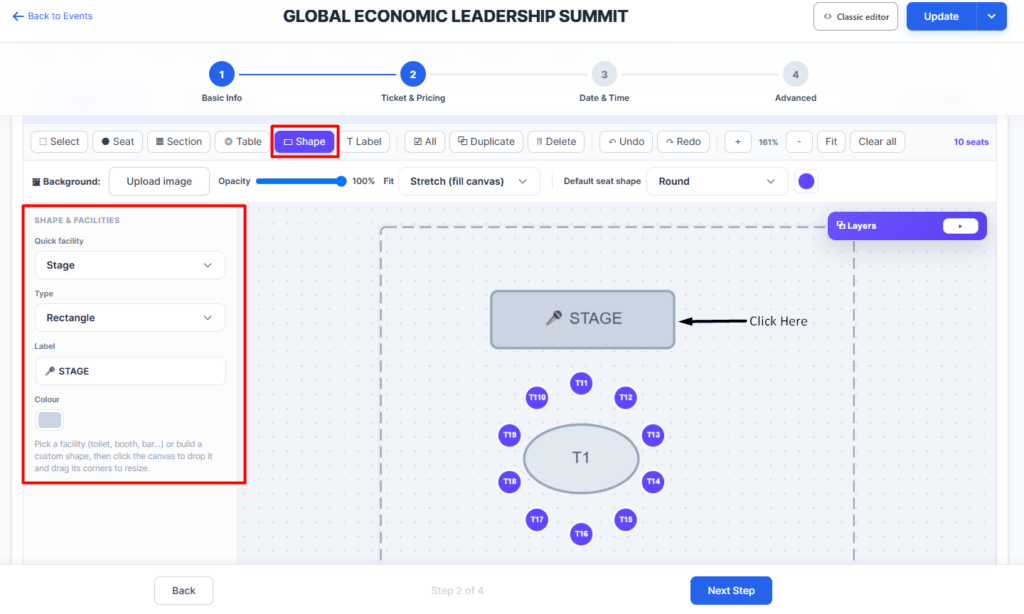
Click the Shape button to add rectangle or ellipse shapes with labels and colors.
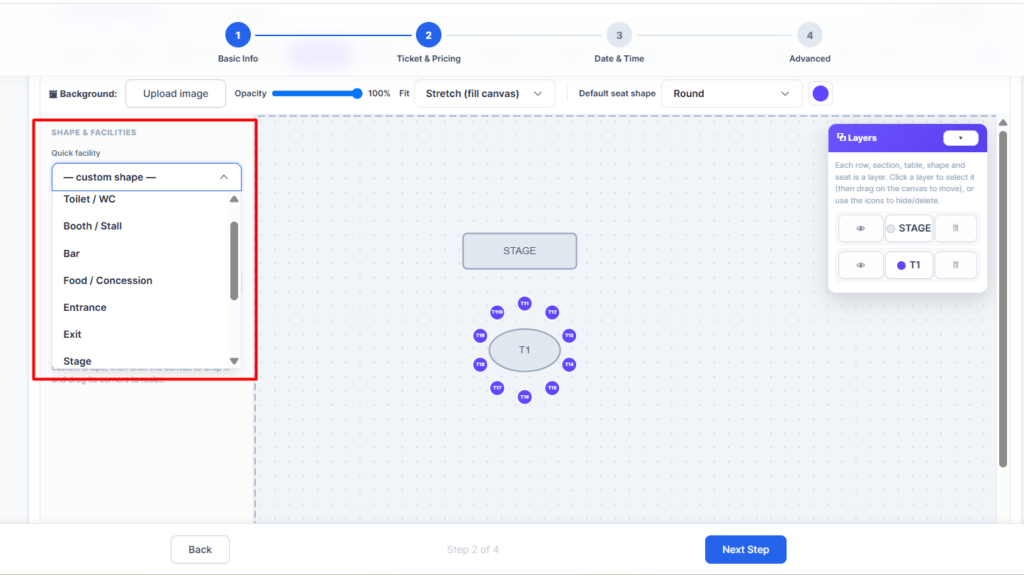
Quick facility shapes include stage, exit, entrance, toilet, and more.
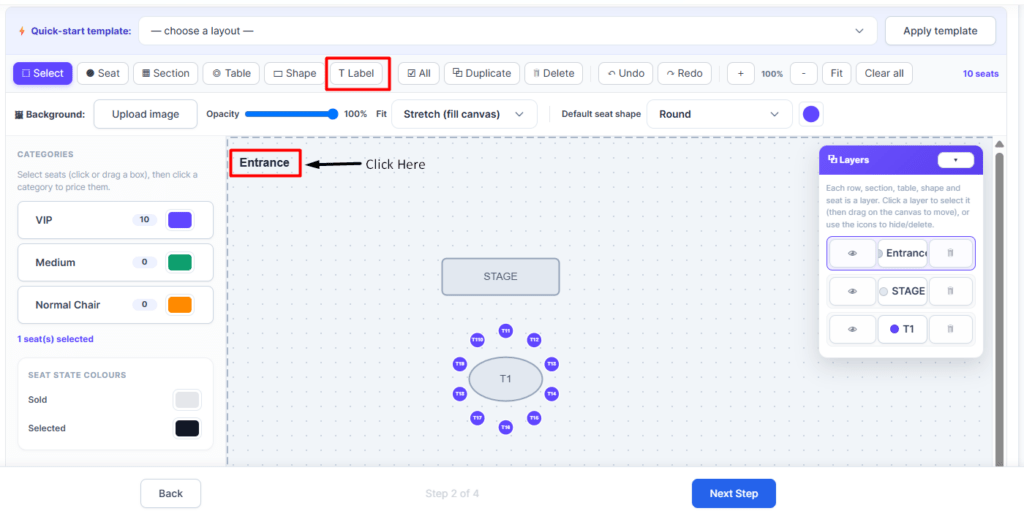
Click the T Label button to add text labels to your design.
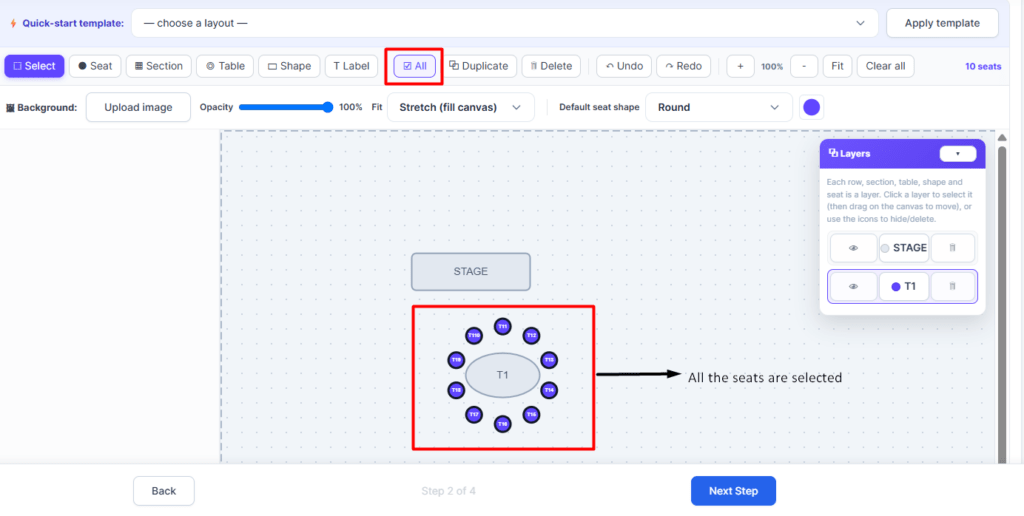
Design Tools
- All — Select all seats on the design.
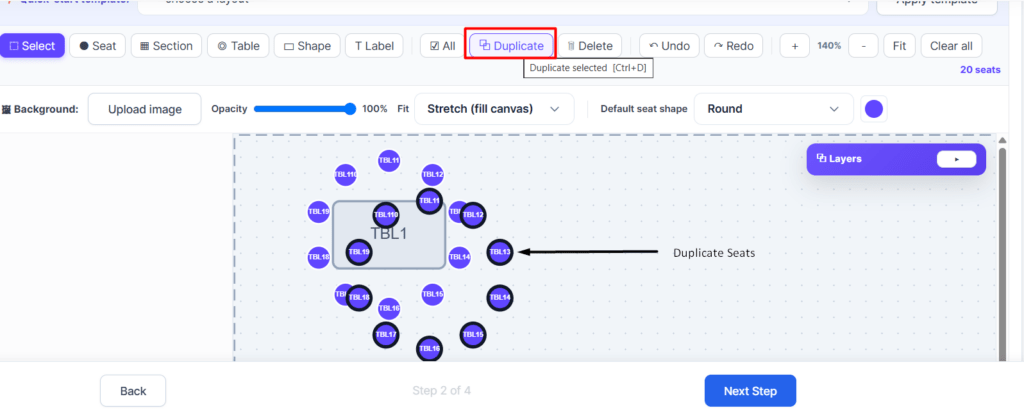
- Duplicate — Duplicate selected seats.
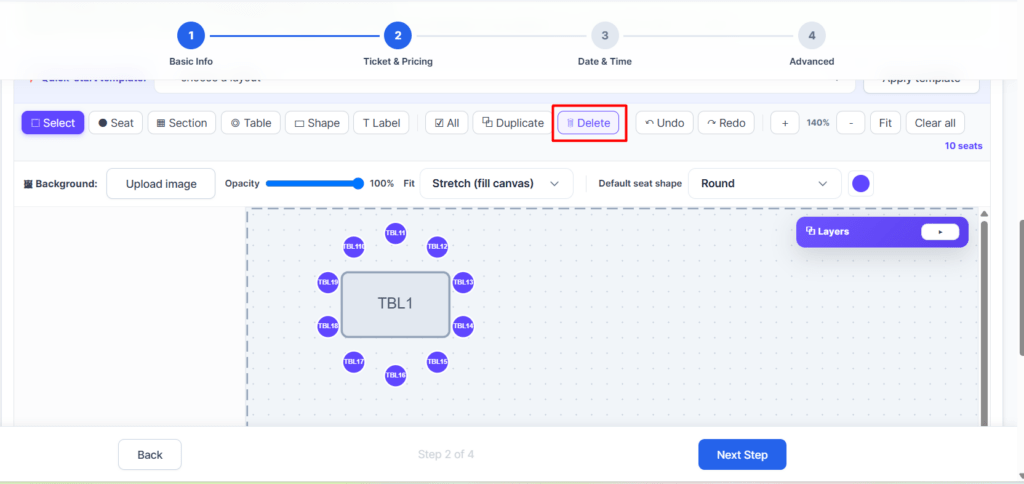
- Delete — Delete selected elements.
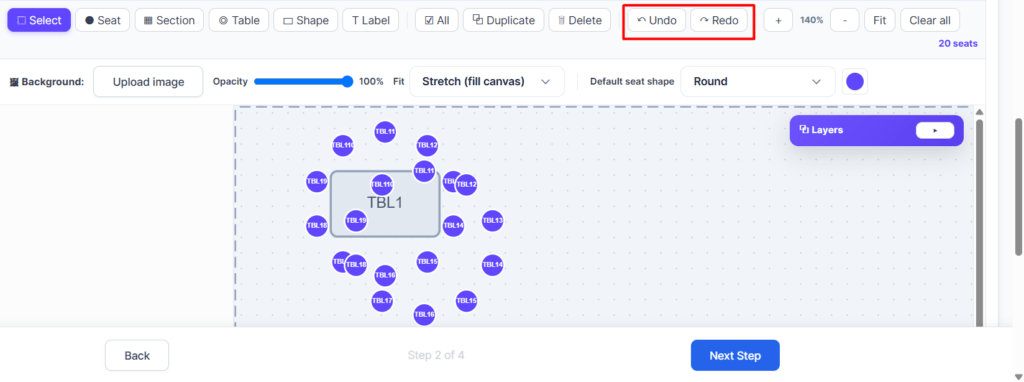
- Undo / Redo — Revert or reapply changes.
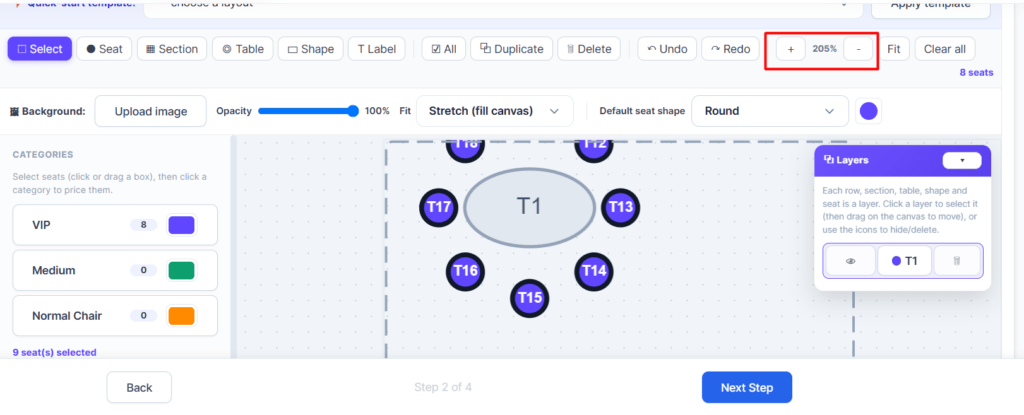
- + / − — Zoom in and out.
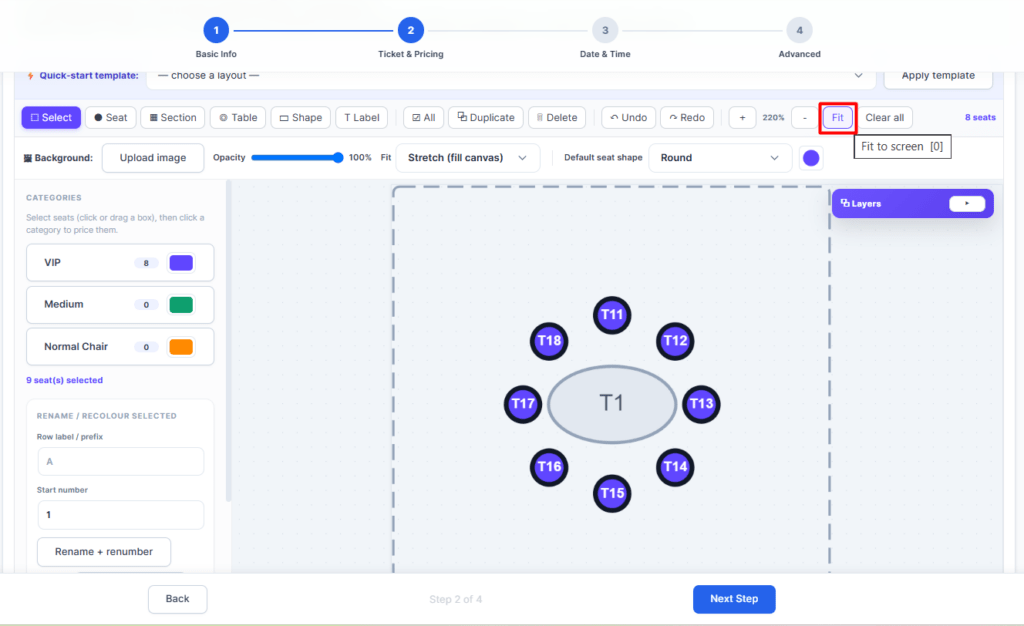
- Fit — Center the seat design.
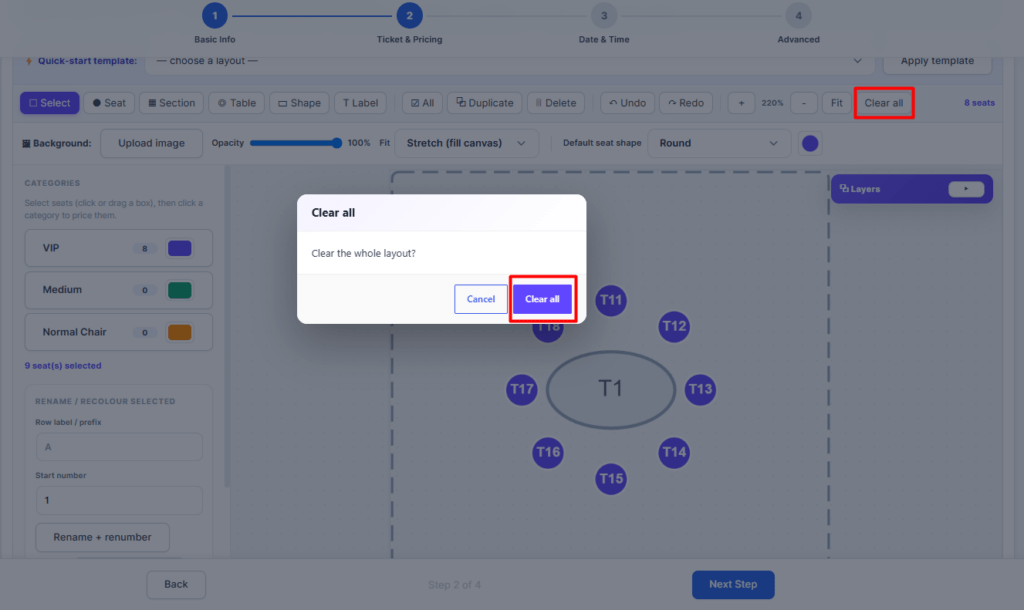
- Clear all — Reset the entire design.
Uploading an Image
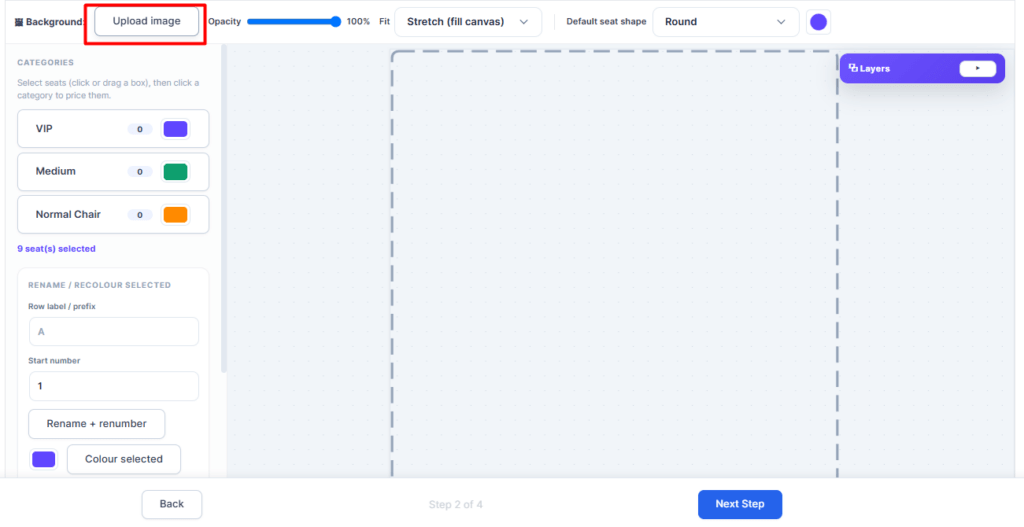
Click the Upload image button to add a background image.
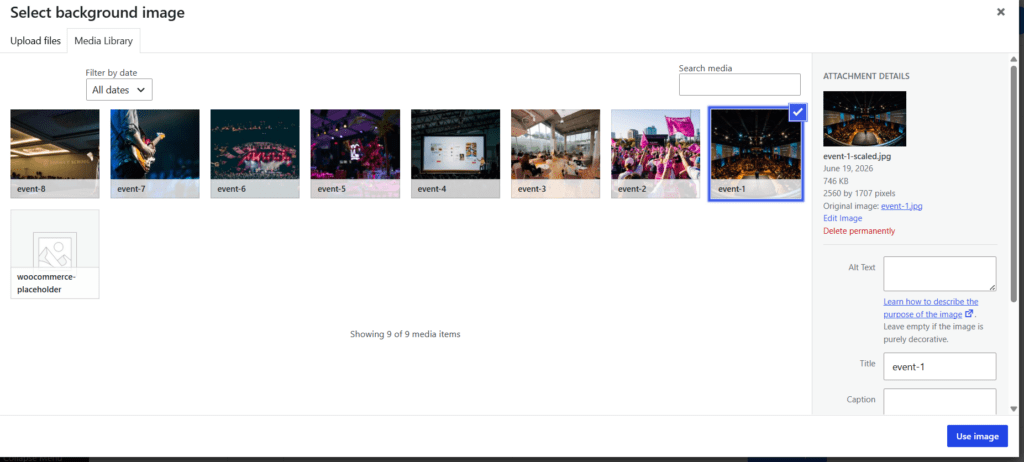
Select an image from the media library or upload from local files, then click Use image.
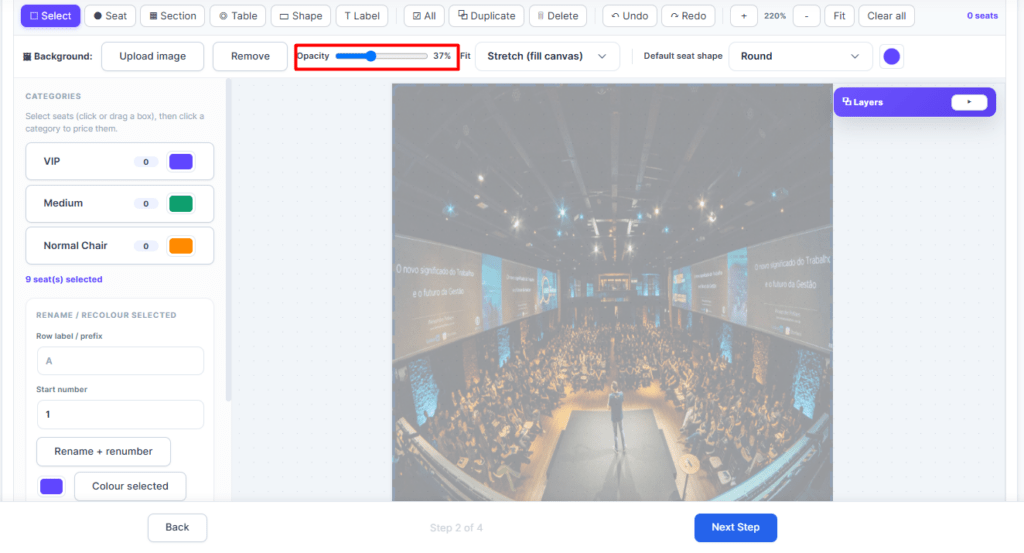
Adjust opacity with the slider or remove the image using the Remove button.
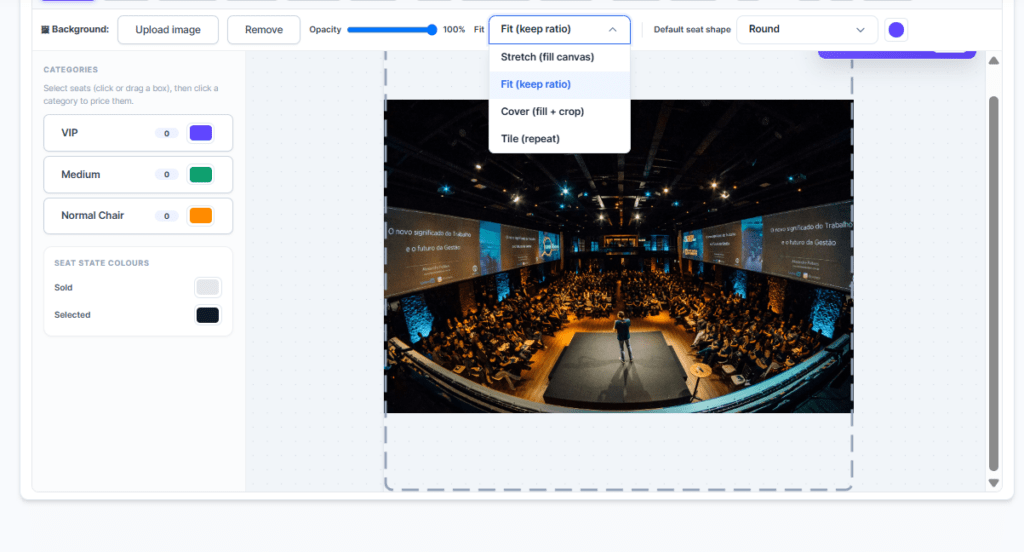
Use the Fit option to control image sizing: Stretch (fill canvas), Fit (keep ratio), Cover (fill + crop), or Tile (repeat).
Quick Starter Templates
If you don't have much time, use the Quick-start template feature.
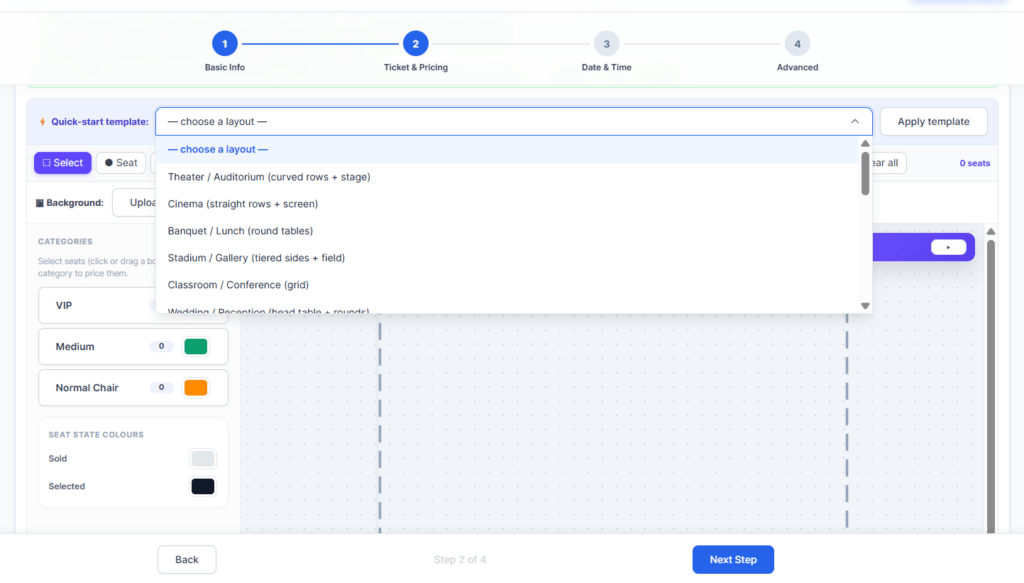
It includes pre-built designs for Theatre, Cinema, Banquet, Stadium, Classroom, Wedding, and more.
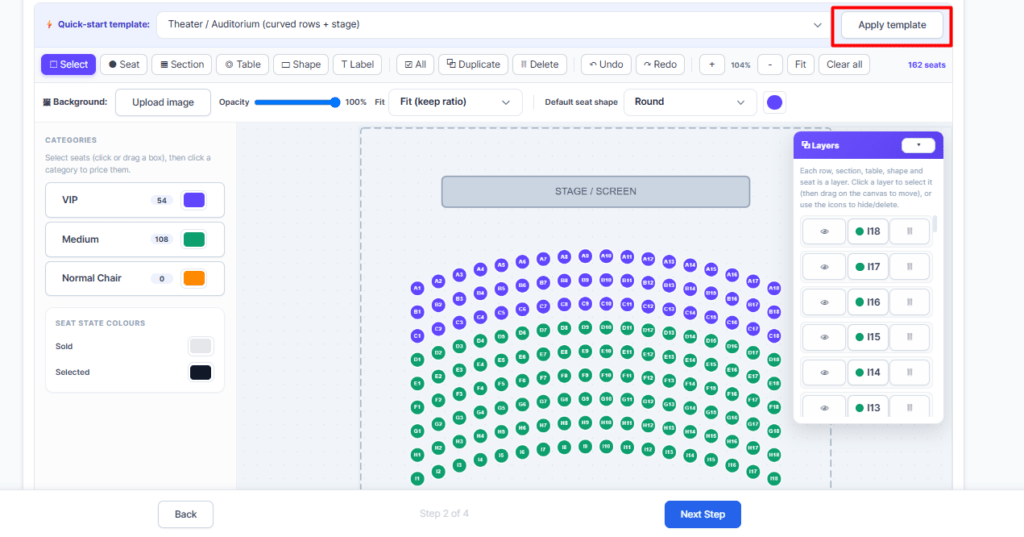
Select a template and click Apply template. The template can be further edited.
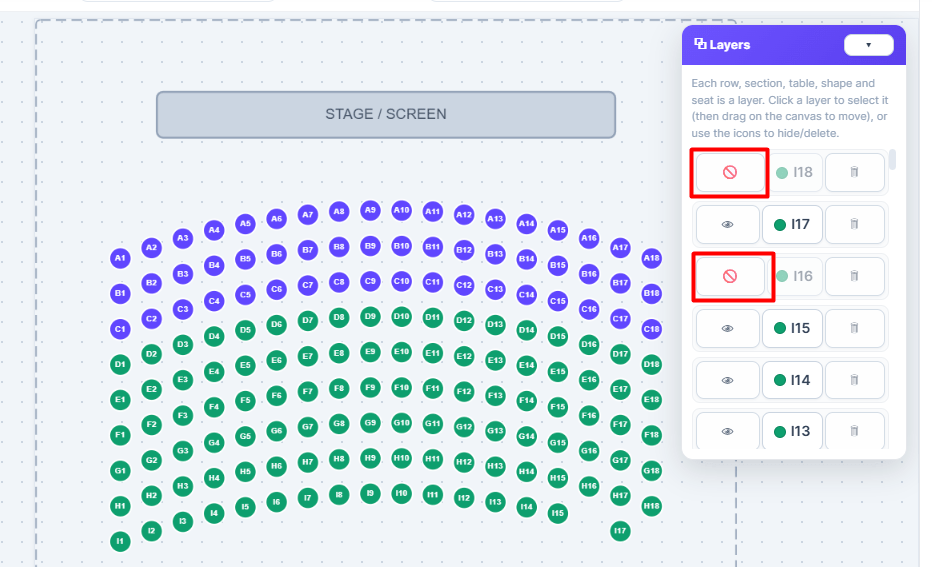
Use the Layers tab to hide, unhide, or delete individual seats.
Generate Seats from Ticket Capacity
If you want to add seats based on ticket types and capacity, enable Set each ticket type's quantity from its seat count.
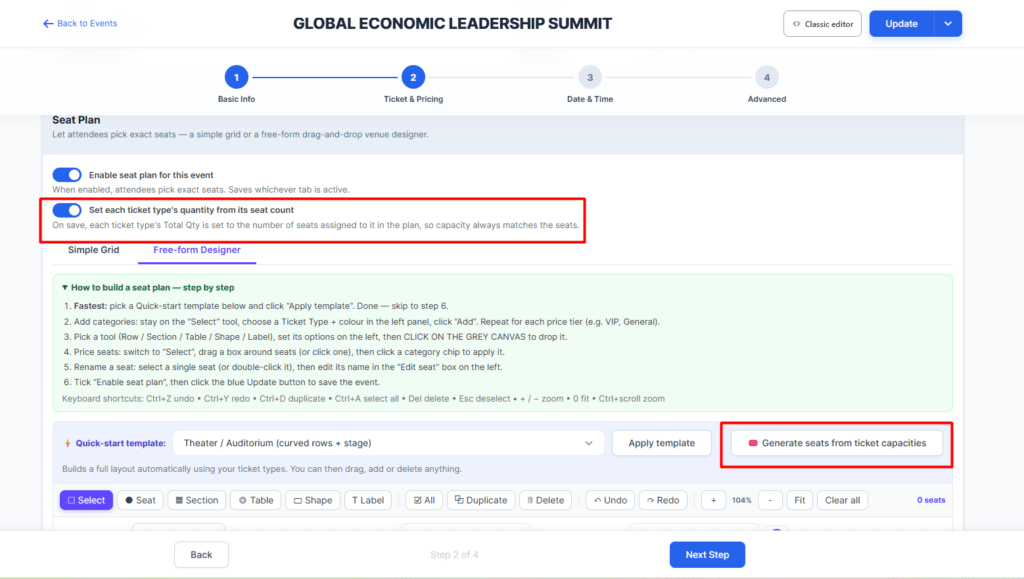
A new Generate seats from ticket capacities button will appear.
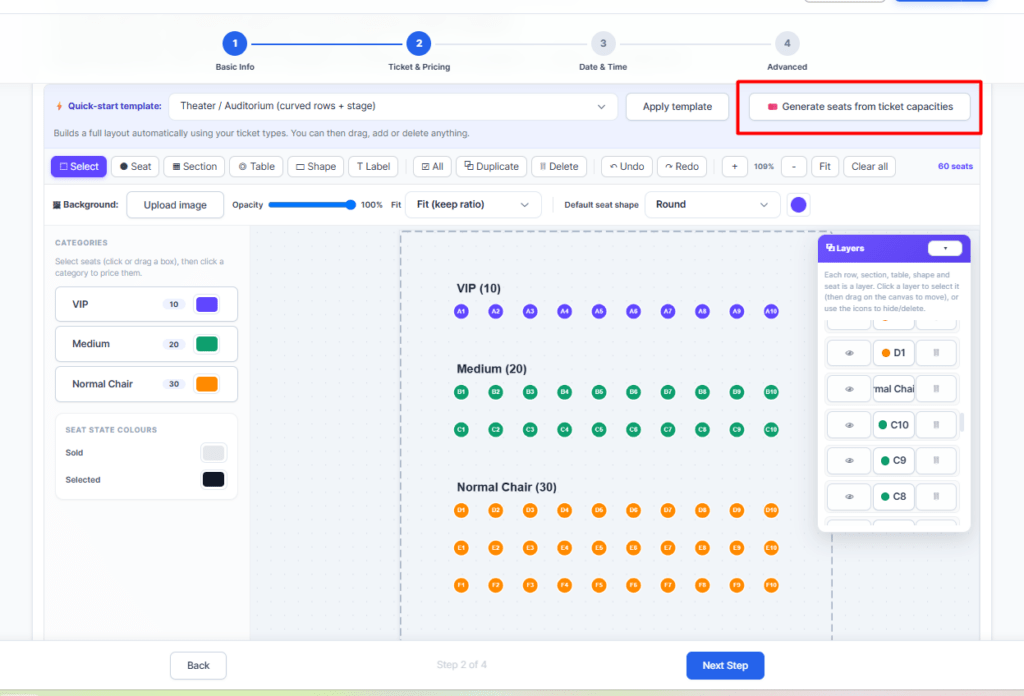
Click it and your seat design will be generated based on your ticket types with specific colors.
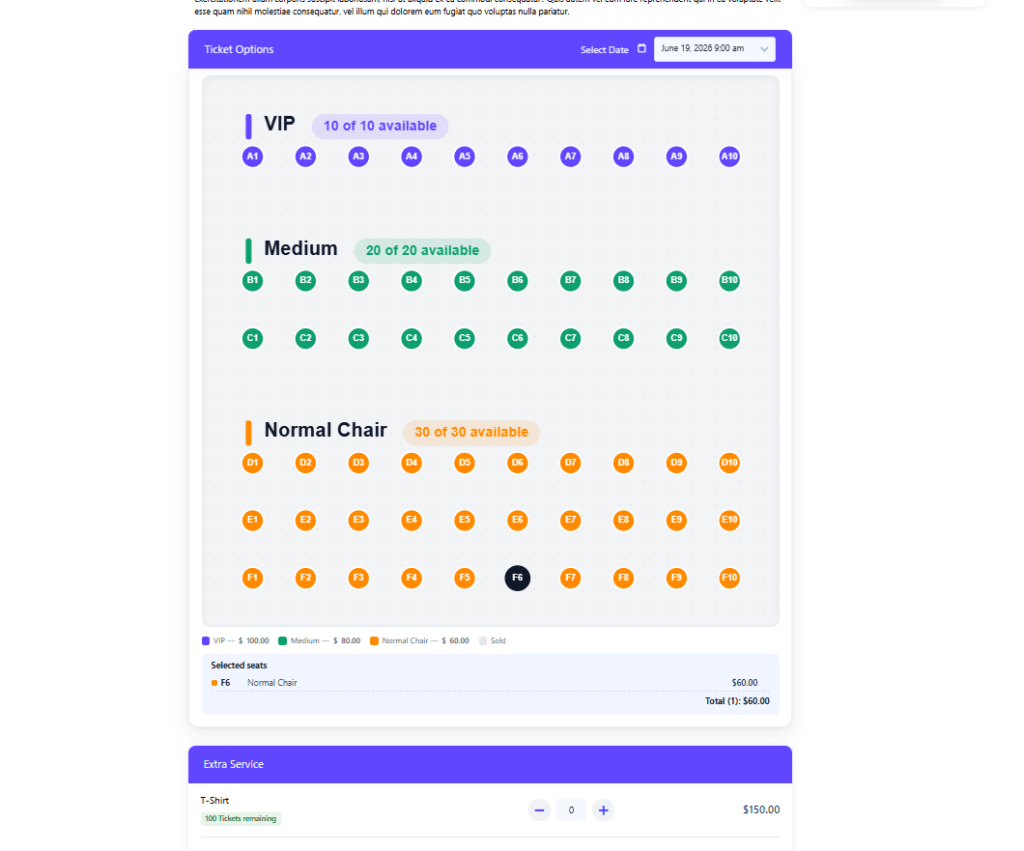
Click Update and check the seat design on your booking page.
Purchase
This addon is available for purchase at the MagePeople website.