Fleet Management
Bus Lists Interface
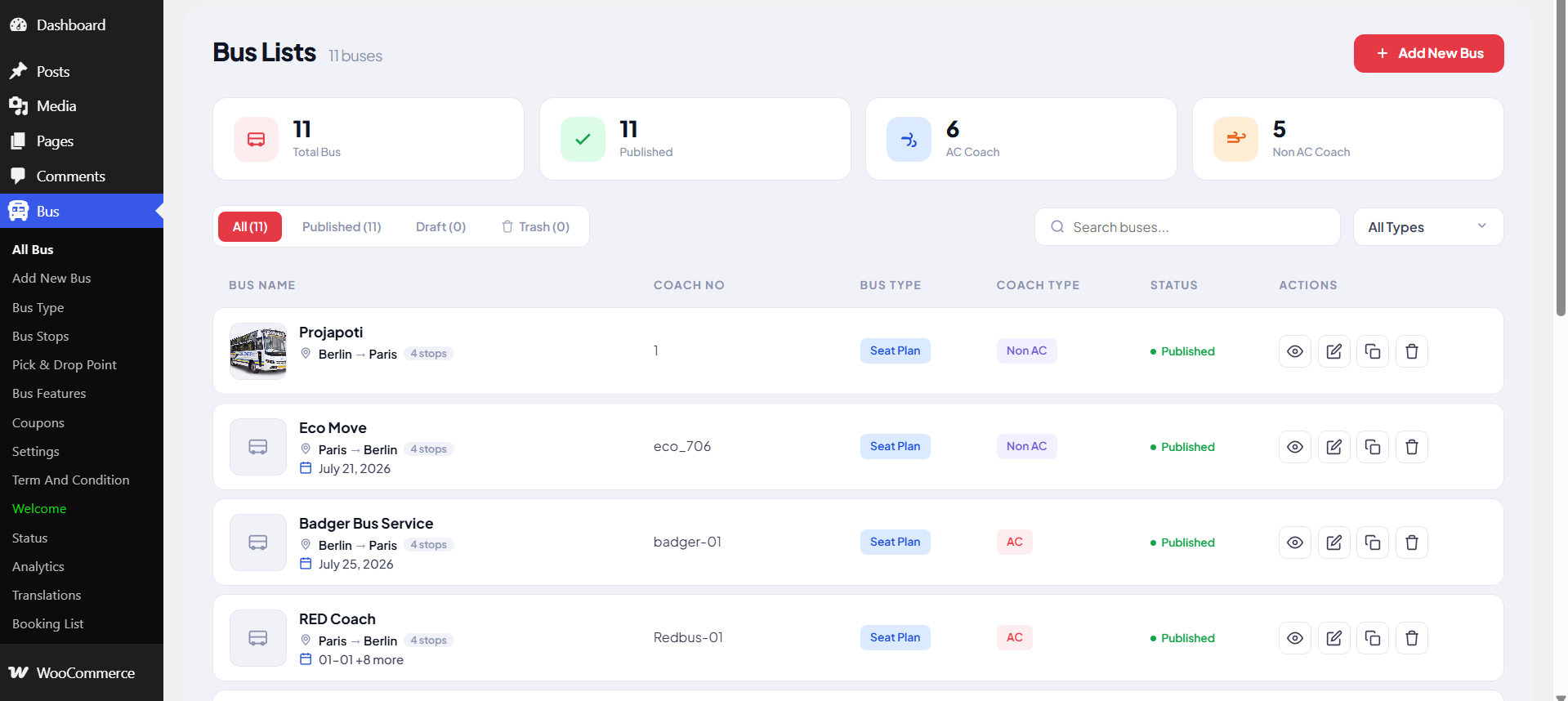
The Bus Lists screen provides a centralized, modern dashboard to manage your entire fleet within WpBusTicketly.
Summary Analytics Cards
At the top of the dashboard, summary cards give administrators an instant statistical breakdown of the fleet:
- Total Bus — total number of buses configured in the system (e.g. 11 Total Bus)
- Published — how many buses are currently active and visible to customers
- AC Coach — number of air-conditioned buses registered
- Non AC Coach — number of non-air-conditioned buses
Quick Actions & Filtering Bar
- Add New Bus Button — a prominent button at the top right to instantly create a new bus
- Status Tabs — filter by All, Published, Draft, or Trash
- Search Bar — look up specific vehicles by name or details
- Type Filter Dropdown — filter buses by specific category configuration
Fleet Data Table
- Bus Name — thumbnail, title, route information (e.g. Berlin → Paris), number of stops, and associated schedule dates
- Coach No — unique identifier or coach number assigned to the vehicle
- Bus Type — quick link or indicator for configuration options, such as the Seat Plan
- Coach Type — whether the vehicle is AC or Non AC
- Status — live publishing state (e.g. Published)
- Actions — View details, Edit the bus configuration, Duplicate the bus profile, or Delete/move to trash
Bus Type Management
The Bus Type Management screen allows administrators to configure and organize different structural classifications for their fleet.
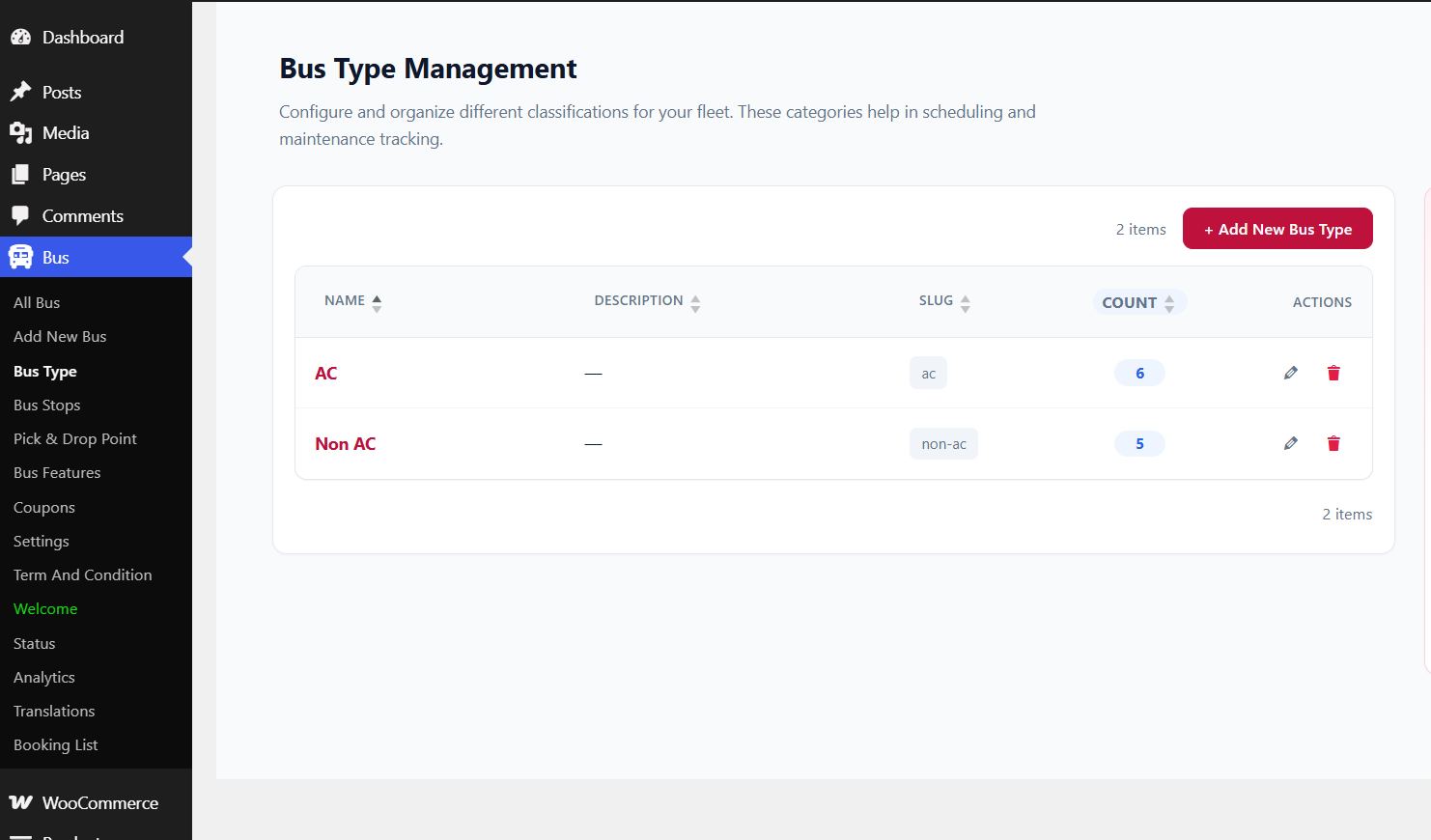
- Add New Bus Type Button — instantly create a new bus category
- Item Counter — total count of configured classifications (e.g. 2 items)
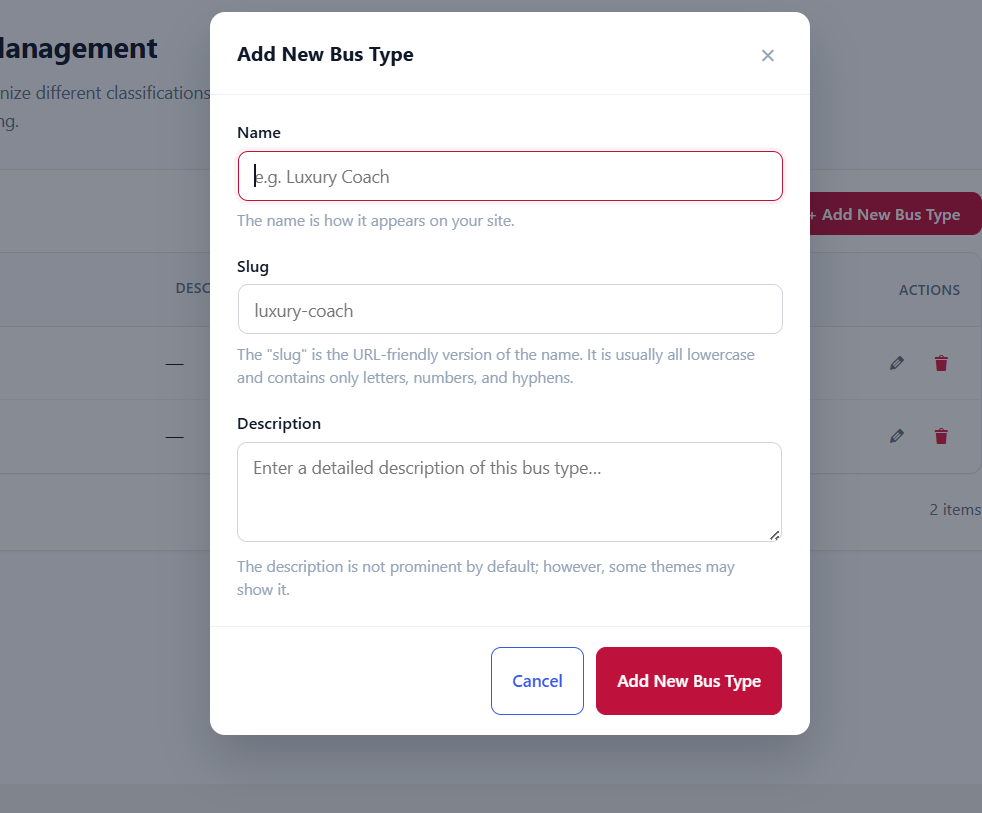
| Column | Description |
|---|---|
| Name | Title of the classification (e.g. AC, Non AC) |
| Description | Optional notes (shown as — when empty) |
| Slug | URL-friendly version of the name (e.g. ac, non-ac) |
| Count | How many buses are currently assigned to that type |
| Actions | Edit or Delete the bus type |
Bus Stops Management
The Bus Stops Management screen allows administrators to create and manage the individual stations or locations that bus routes pass through. These stops can be reused flexibly as boarding or dropping points across any route.

- Add New Bus Stops Button — create a new stop
- Item Counter — total number of configured stops (e.g. 4 items)
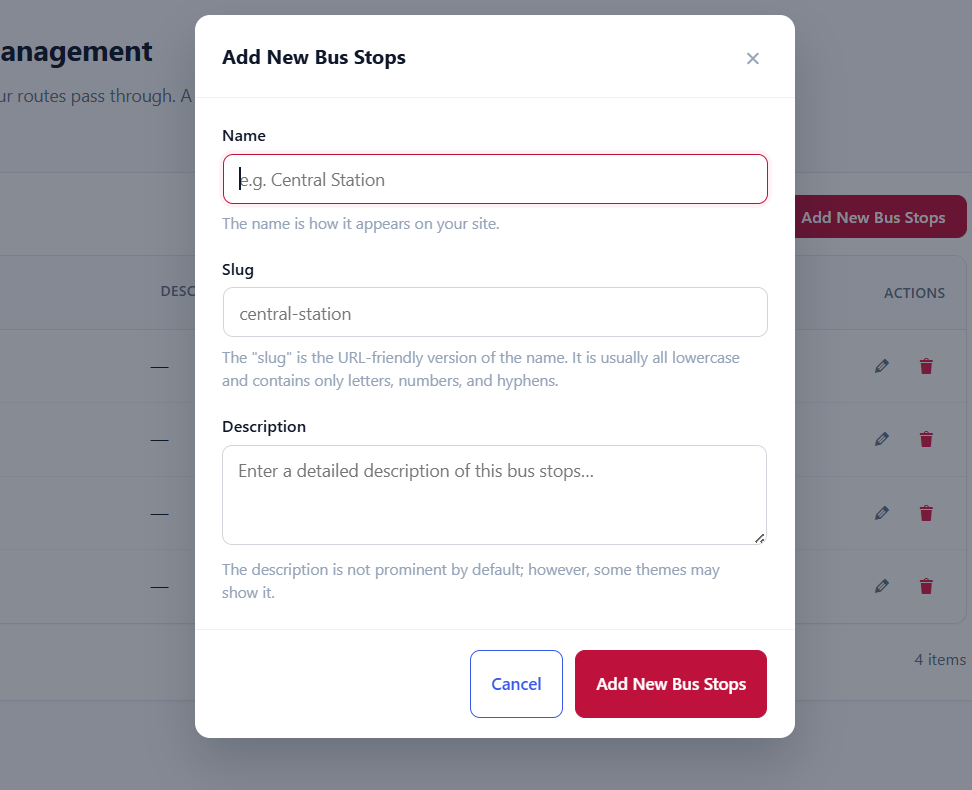
| Column | Description |
|---|---|
| Name | Location name (e.g. Berlin, Frankfurt, Hamburg, Paris) |
| Description | Additional notes (shown as — when empty) |
| Slug | URL-friendly version of the stop name |
| Count | Usage count or number of routes/associations linked to that stop |
| Actions | Edit or Delete the stop |
Bus Pickup & Drop-Off Point
The Pick & Drop Point screen allows administrators to manage specific boarding and destination stations separately for precise passenger routing.
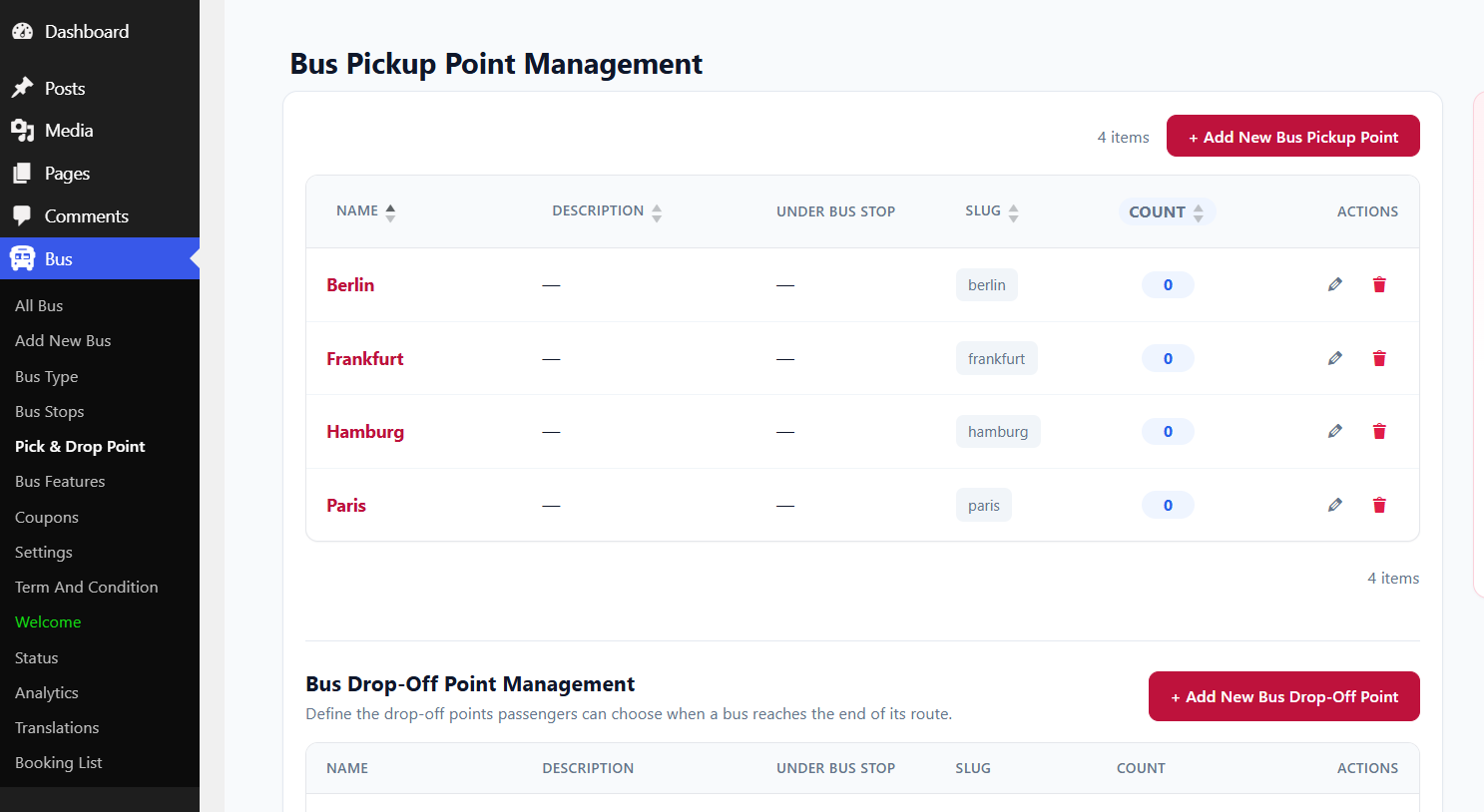
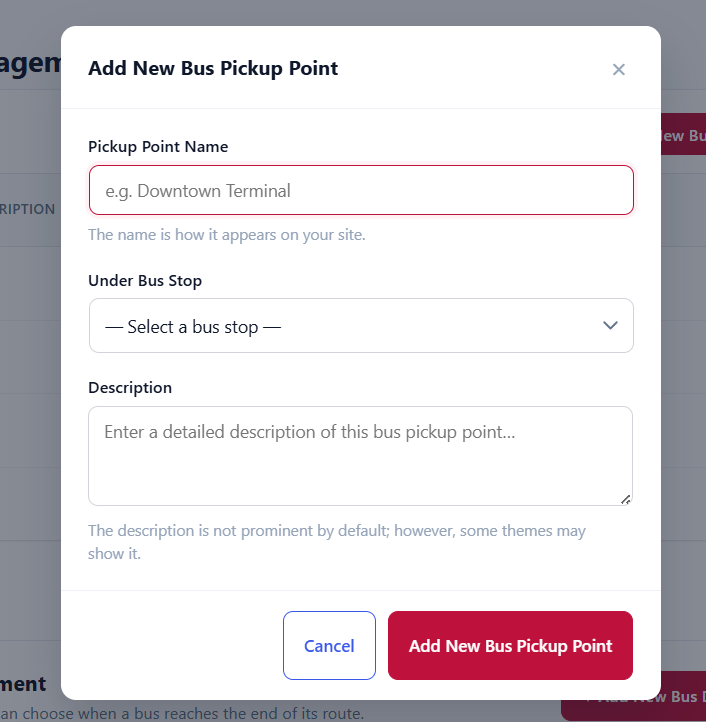
| Column | Description |
|---|---|
| Name | Title of the pickup station |
| Description | Additional details (shown as — when empty) |
| Under Bus Stop | Associates the pickup point with a broader parent bus stop, if applicable |
| Slug | URL-friendly identifier string |
| Count | Number of associations linked to the pickup point |
| Actions | Edit or Delete the pickup point |
Bus Drop-Off Point
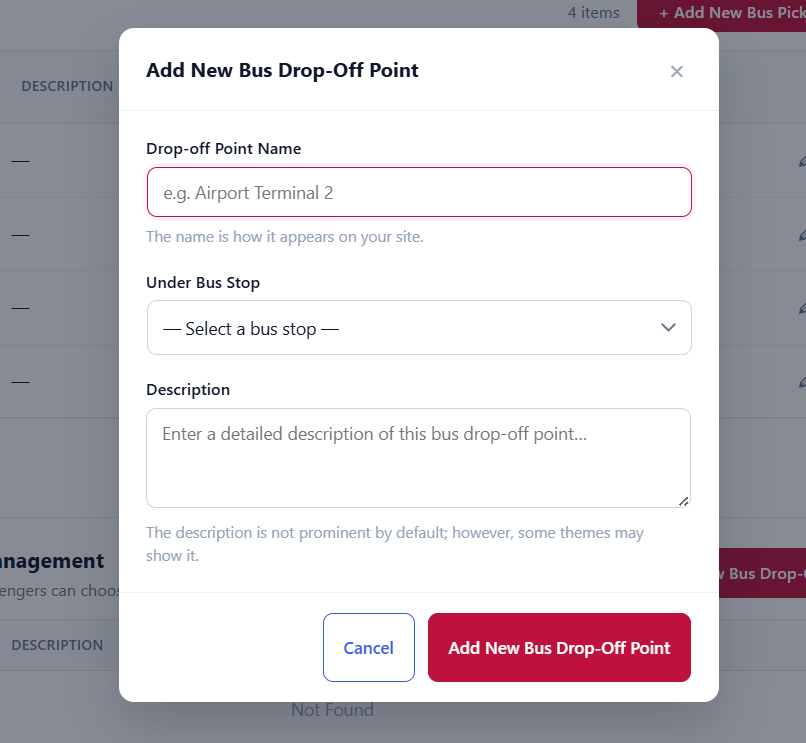
Uses an Add New Bus Drop-Off Point button to configure new destination locations, and the same column framework (Name, Description, Under Bus Stop, Slug, Count, Actions) to maintain consistency when managing passenger exit terminals.
Bus Features Management
The Bus Features Management screen allows administrators to highlight onboard amenities and seating configurations so passengers know what to expect before booking.
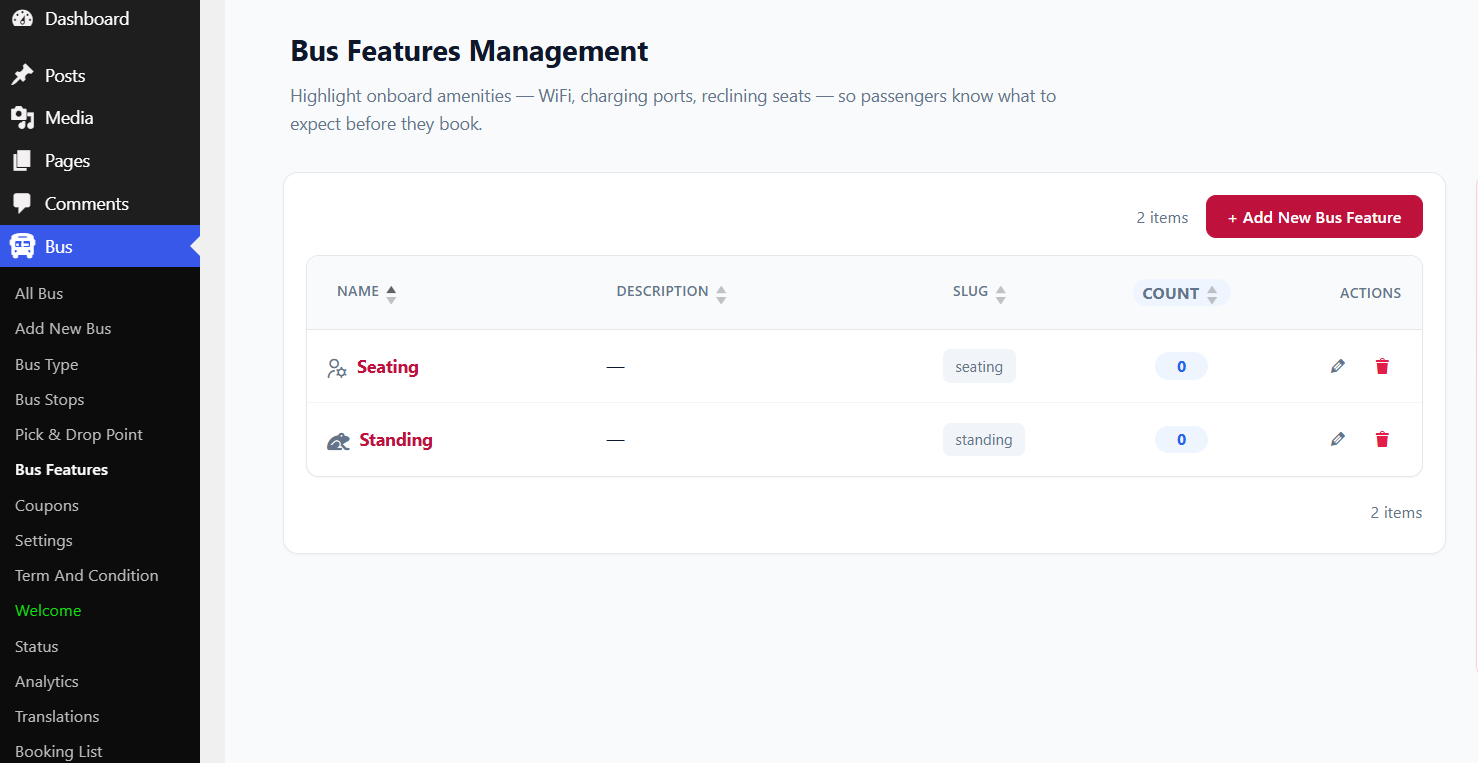
- Add New Bus Feature Button — create a new onboard amenity or feature
- Item Counter — total number of configured features (e.g. 2 items)
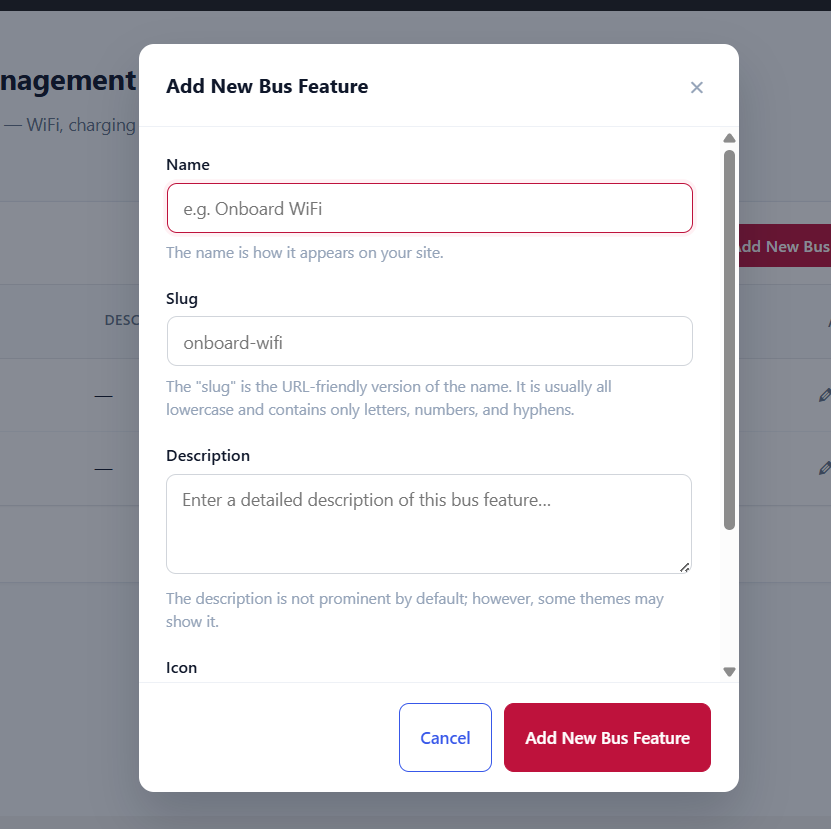
| Column | Description |
|---|---|
| Name | Name and visual icon of the feature (e.g. Seating, Standing) |
| Description | Additional notes (shown as — when empty) |
| Slug | URL-friendly identifier string |
| Count | Number of buses or items linked to that feature |
| Actions | Edit or Delete the feature |