Customer Booking Experience
Frontend Bus Details & Search
The Frontend Bus Details screen provides passengers with a clean, comprehensive view of a specific vehicle's schedule, route stops, amenities, and search parameters on the live site.
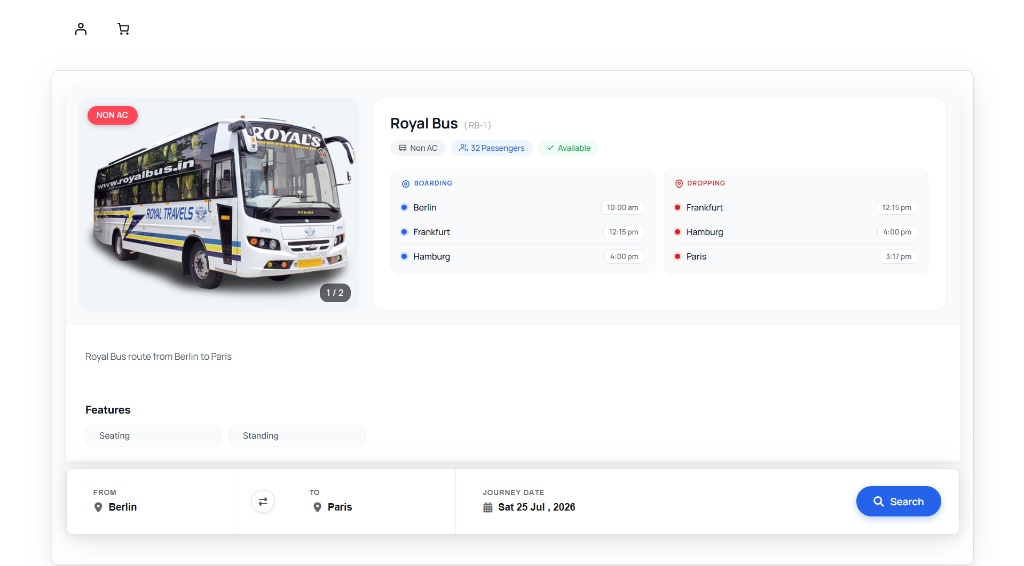
- From / To Inputs — departure station and destination terminal, with a reverse-route toggle button
- Journey Date — calendar selector for the intended travel date
- Search Button — initiates the ticket search and seat selection process
Frontend Bus Search Results & Listing Interface
The Bus Search Results screen provides passengers with a clear, structured view of available trips matching their search criteria.

Each result card is divided into three sections:
Timeline & Route Info (Left)
- Departure time and arrival time
- Total journey duration with a transit icon
Vehicle & Feature Overview (Center)
- Bus Name — the service title
- Availability Badge — real-time seat status (e.g. 32 seats available)
- Onboard Features — available amenities (e.g. Seating, Standing)
- Quick Toggle Links — jump to Bus Details, Boarding/Dropping Points, Bus Features, or the Bus Photo gallery
Pricing & Booking (Right)
- Starting Fare — the minimum ticket price
- Book Seat Button — proceeds directly to seat selection and checkout
Frontend Seat Selection & Checkout
The interactive customer-facing booking page where passengers choose their seats, provide passenger details, add optional extras, and complete their reservation.
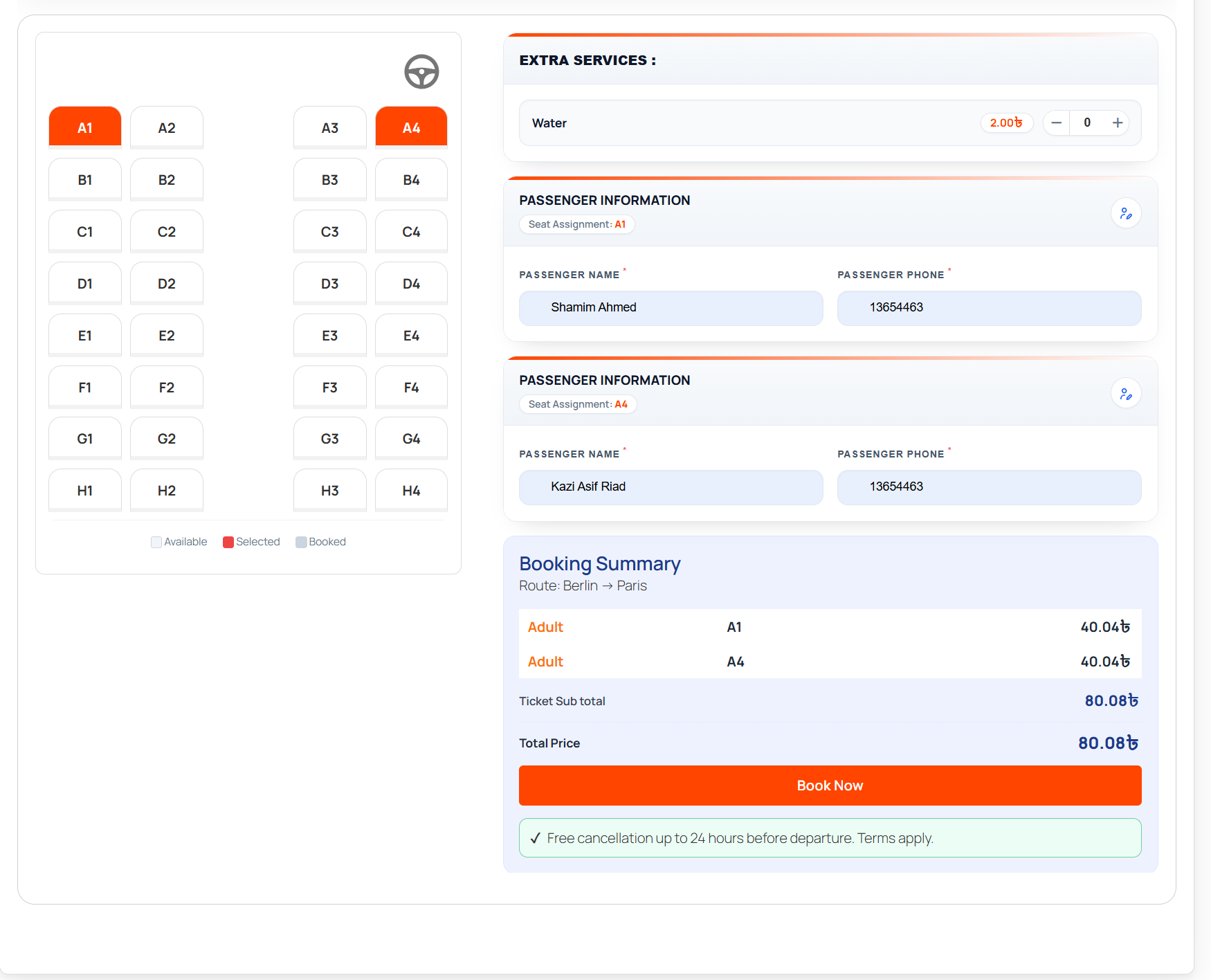
Interactive Seat Layout (Left Column)
- Steering Wheel Indicator — shows the driver orientation at the top of the bus layout
- Seating Matrix — a visual grid of available seats; selected seats highlight in orange
- Seat Status Legend — Available, Selected, and Booked states
Extra Services Panel
- Optional Add-ons — paid extras configured by the administrator (e.g. Water)
- Quantity Controls — decrement/increment buttons to select the desired quantity
Passenger Information Forms
Dynamic input sections generated for each selected seat:
- Seat Assignment Badge — links the form to a specific seat
- Passenger Name — required text input for the traveler's name
- Passenger Phone — required input for a contact number
Booking Summary & Checkout (Right Column)
- Route Information — the journey itinerary (e.g. Route: Berlin → Paris)
- Itemized Fare Breakdown — each selected seat, passenger type, and individual price
- Financial Totals — Ticket Sub total and final Total Price
- Book Now Button — finalizes the reservation
- Cancellation Notice — booking terms (e.g. free cancellation up to 24 hours before departure)
Checkout & Order Placement
The final step in the booking workflow, allowing passengers to provide billing details, review their complete ticket summary, select payment methods, and finalize their purchase.
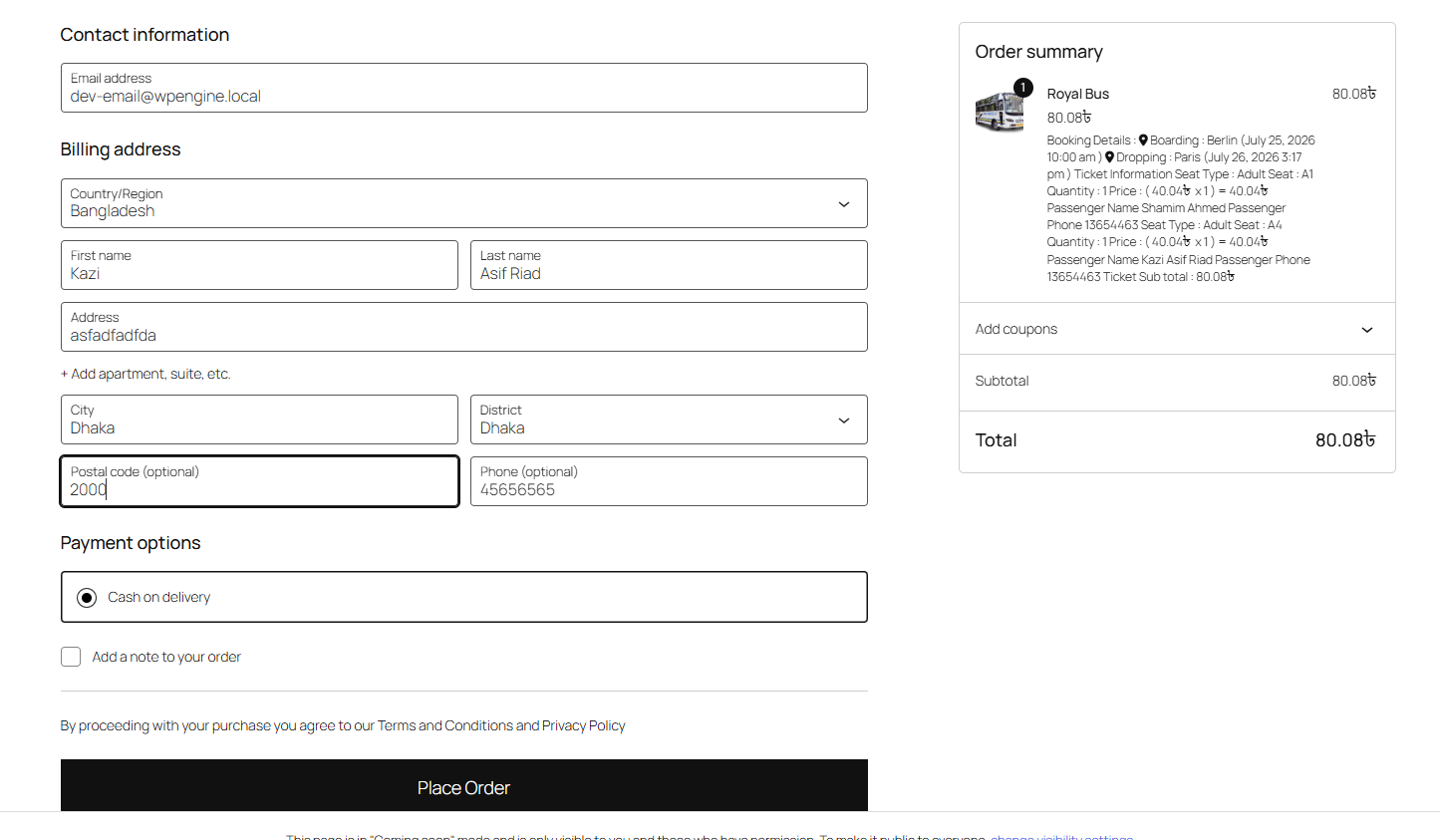
Contact & Billing Information (Left Column)
- Contact Information — buyer's email address
- Billing Address — Country/Region, First/Last name, Address (+ Add apartment, suite, etc.), City & District, Postal code & Phone
Payment Options & Order Notes
- Payment options — active payment gateways integrated through WooCommerce (e.g. Cash on delivery)
- Order Notes — optional note for special requests
- Legal Terms Notice — agreement to Terms and Conditions and Privacy Policy
- Place Order Button — submits and processes the reservation
Detailed Order Summary (Right Column)
- Thumbnail & Title — vehicle image, title, and total cost
- Comprehensive Booking Breakdown — boarding/dropping station and time, seat type, assigned seat numbers, quantities, prices, and passenger names/phone numbers
- Coupon Integration — a collapsible accordion to apply promotional discount codes
- Financial Totals — Subtotal and final Total amount due