Adding a New Bus
Creating or updating a bus profile uses a 4-step wizard: General Info → Seat Configure → Pricing & Route → Advanced.
Step 1 — General Info
The General Info screen is the initial configuration step when creating or updating a bus profile.
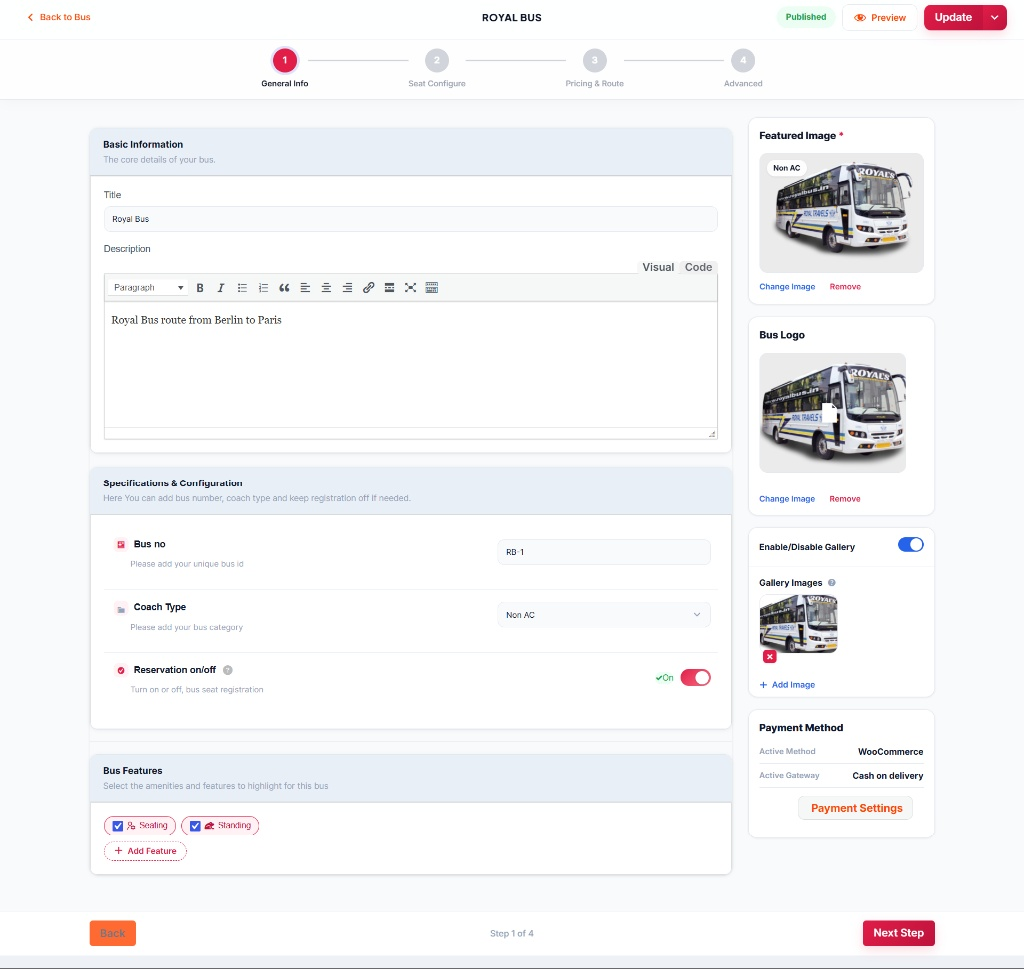
Basic Information
- Title Field — primary name of the vehicle (e.g. Royal Bus)
- Description Editor — a WordPress-style rich text editor with Visual and Code formatting tools to add route details or service descriptions
Specifications & Configuration
- Bus no — unique vehicle identification number or code (e.g. RB-1)
- Coach Type — dropdown to assign the structural category (e.g. Non AC)
- Reservation on/off — toggle to enable or disable seat registrations for the bus
Bus Features
- Amenities List — checkboxes to highlight onboard features (e.g. Seating, Standing)
- Add Feature Button — create and include new custom amenities on the fly
Media & Payment Sidebars
- Featured Image — primary vehicle photo, with Change Image / Remove
- Bus Logo — upload container for the service's brand logo
- Enable/Disable Gallery — toggle a photo gallery with an Add Image button
- Payment Method — summary of active checkout configuration (e.g. WooCommerce, Cash on delivery) with a link to Payment Settings
Step 2 — Seat Configure
Seat Type Selection & Global Toggles
- Seat Plan — enables manual seat selection for customers during booking
- Without Seat Plan — lets the system assign seats automatically
- Enable Multiple Cabin/Coach Configuration — enables multi-cabin booking for train-style reservations
- Show Upper Deck — converts the vehicle layout into a double-decker bus
Double-Decker & Multi-Cabin Configuration
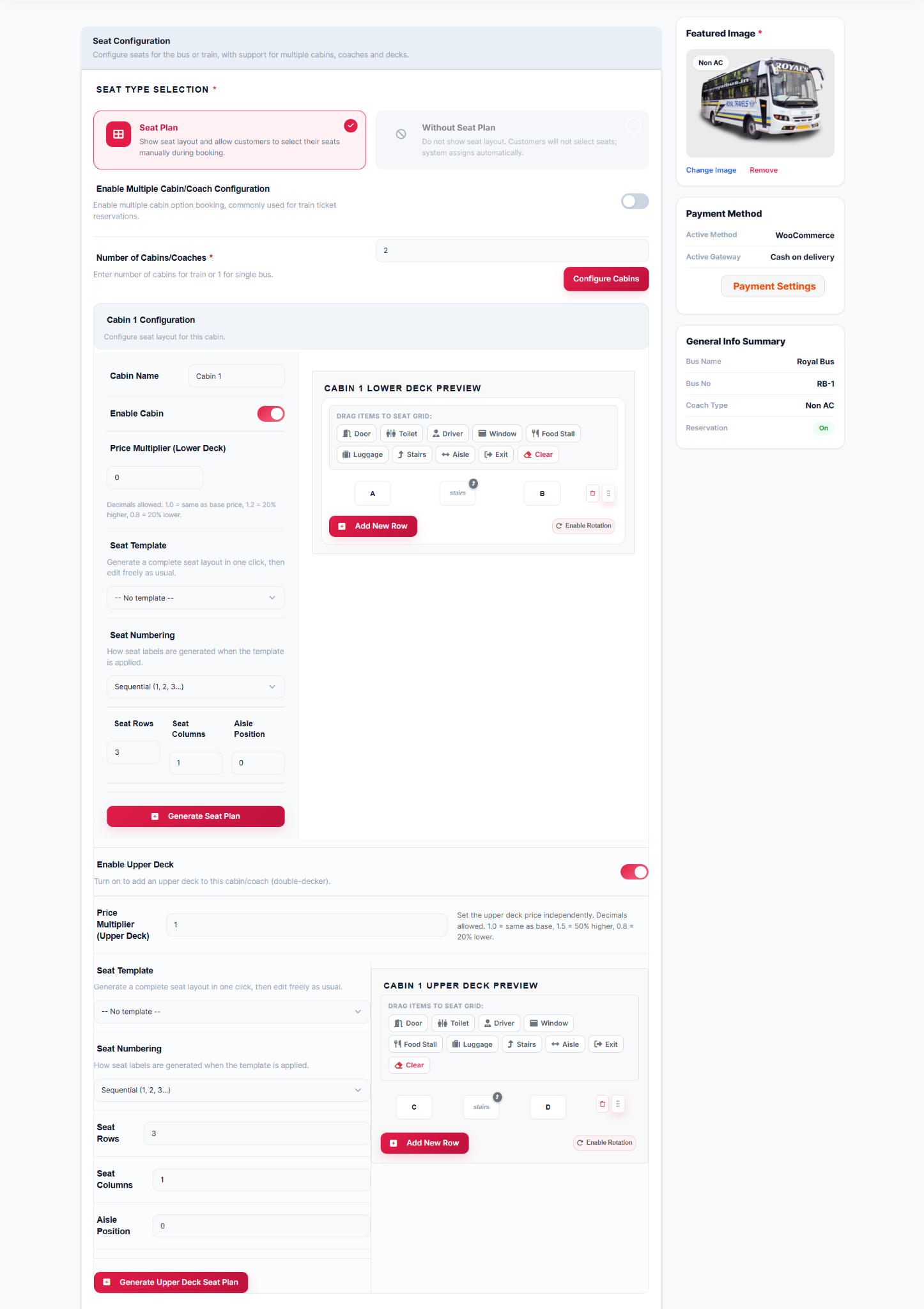
- Number of Cabins/Coaches — enter the number of cabins for a train, or 1 for a single bus
- Cabin Configuration — cabin name, an Enable Cabin toggle, and a Price Multiplier (Lower Deck) relative to the base fare (e.g. 1.0 = same as base price)
- Cabin Lower Deck Preview — a drag-and-drop grid workspace with structural components (Door, Toilet, Driver, Window, Food Stall, Luggage, Stairs, Aisle, Exit, Clear) and a Generate Seat Plan button
- Enable Upper Deck — turns on an independent upper deck layout with its own Price Multiplier (Upper Deck) (e.g. 1.5 = 50% higher) and a dedicated Upper Deck Preview canvas with a Generate Upper Deck Seat Plan button
Layout & Grid Settings
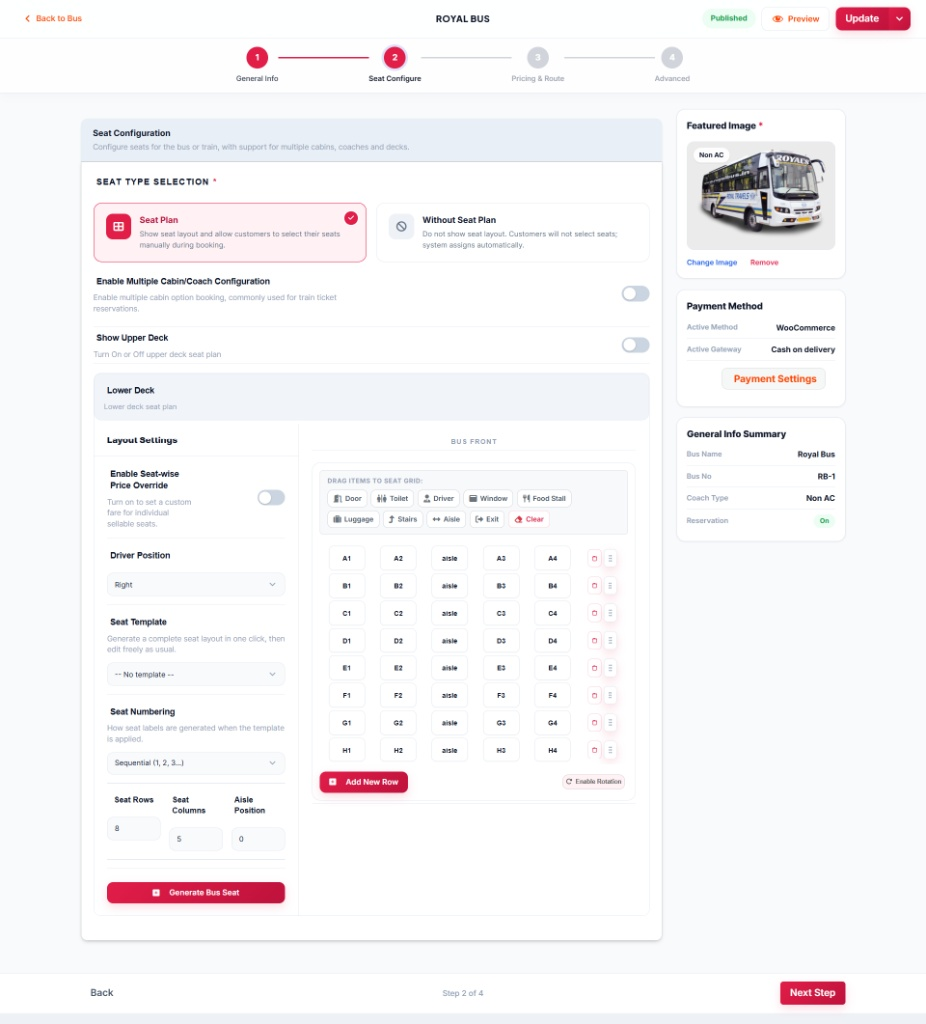
Layout Settings Panel (Left Column)
- Enable Seat-Wise Price Override — set custom fares for individual sellable seats
- Driver Position — dropdown to position the driver's location (e.g. Right)
- Seat Template — dropdown to instantly generate a complete seat layout
- Seat Numbering — label generation method (e.g. Sequential: 1, 2, 3...)
- Grid Dimensions — Seat Rows, Seat Columns, and Aisle Position
- Generate Bus Seat — apply and render the seating matrix
Interactive Visual Grid Workspace (Right Column)
- BUS FRONT Indicator — marks the front orientation of the vehicle
- Drag-and-Drop Elements Toolbar — Door, Toilet, Driver, Window, Food Stall, Luggage, Stairs, Aisle, Exit, Clear
- Seating Matrix Canvas — generated seat rows and columns with labels (e.g. A1–A4, B1–B4, up to H), with Add New Row and Enable Rotation tools
Right-Hand Summary Sidebars — Featured Image, Payment Method, and a General Info Summary box (bus name, bus number, coach type, reservation status)
Step 3 — Pricing & Route
The Pricing & Route screen enables administrators to set up route schedules, boarding and dropping stops, passenger types, segment pricing matrices, and seasonal adjustments.

Boarding and Dropping Settings
- Stop List — sequential route stops with arrival times and roles (e.g. Berlin at 10:00 AM as Boarding, Frankfurt and Hamburg as Boarding+Dropping, Paris at 03:17 PM as Dropping)
- Add New Stops Button — add additional stations to the route
Return Journey & Passenger Types
- Same bus return journey — enable return trips with a custom schedule or reversed route
- Passenger Types — configurable categories (Adult, Child, Infant) with an Add Passenger Type button
Route Pricing Matrix & Discounts
- Route Pricing Matrix — a segment-by-segment fare table (e.g. Berlin → Frankfurt, Berlin → Hamburg) broken down by passenger type, alongside Full Bus Price and Full Bus Discount fields
- Return Discount — percentage or fixed discounts applied specifically to return-journey ticket subtotals
Seasonal Pricing
- Date-Range Adjustments — a table plus an Add New Pricing Rule button to automatically apply fare adjustments for weekends and holidays
Step 4 — Advanced
The final step enables administrators to set up extra services, pickup/drop-off overrides, scheduling dates, tax rules, and custom passenger registration forms.
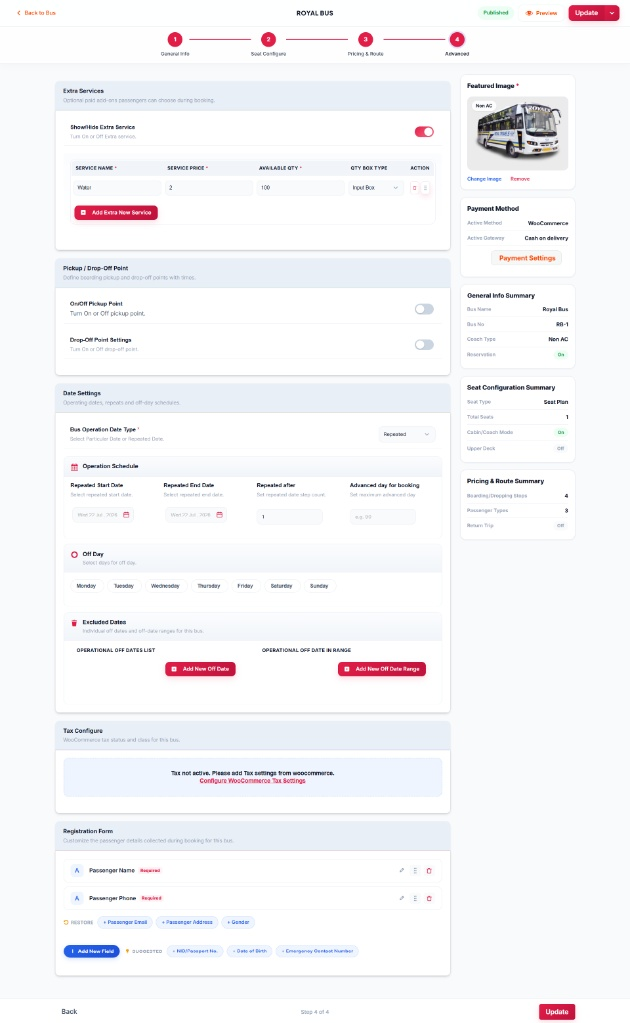
Extra Services
- Show/Hide Extra Service — enable or disable optional paid add-ons passengers can select during booking
- Services Table — Service Name (e.g. Water), Service Price, Available Qty, Qty Box Type, and row-level Actions, plus an Add Extra New Service button
Pickup / Drop-Off Point Settings
- On/Off Pickup Point — enable or disable specific pickup location adjustments
- Drop-Off Point Settings — manage specialized drop-off points with unique schedules
Date Settings & Operation Schedule
- Bus Operation Date Type — specific dates or repeated schedules
- Operation Schedule — Repeated Start Date, Repeated End Date, Repeated after step count, and Advanced day for booking
- Off Day — toggle buttons for days of the week to mark recurring weekly non-operational days
- Excluded Dates — Add New Off Date / Add New Off Date Range to block individual dates or ranges
Tax Configure & Registration Form
- Tax Configure — integration panel linking to Configure WooCommerce Tax Settings when tax is not active
- Registration Form — customize passenger details collected during booking: active fields like Passenger Name and Passenger Phone (Required), quick-restore fields (+ Passenger Email, + Passenger Address, + Gender), suggested tags (+ NID/Passport No., + Date of Birth, + Emergency Contact Number), and an Add New Field button
- Back — return to the previous step (Pricing & Route)
- Update — finalize and save all configurations for the bus profile