Staff & Scheduling
The Staff Members module lets administrators add, organize, and manage team members or service providers. Assigned staff can be tied to specific booking slots, queues, and services, each with their own working schedule.
Staff Management
At the top right of the dashboard:
- Staff Lists — view or refresh the main table of all active staff members
- + Add/Update Staff — open the staff configuration form to create a new profile or edit an existing one
Staff List Table
| Column | Description |
|---|---|
| Sl. | Sequential profile index number |
| User Image | Profile avatar or staff photo |
| User Name | Associated WordPress username for login and access control |
| Staff Name | Display name shown to customers on front-end booking forms and invoices |
| Staff Email | Contact email used for booking notifications and assignment alerts |
| Action | Edit (pencil) — modify staff profile details, assigned services, or working hours. Delete (trash) — remove the staff profile |
Adding or Updating a Staff Member
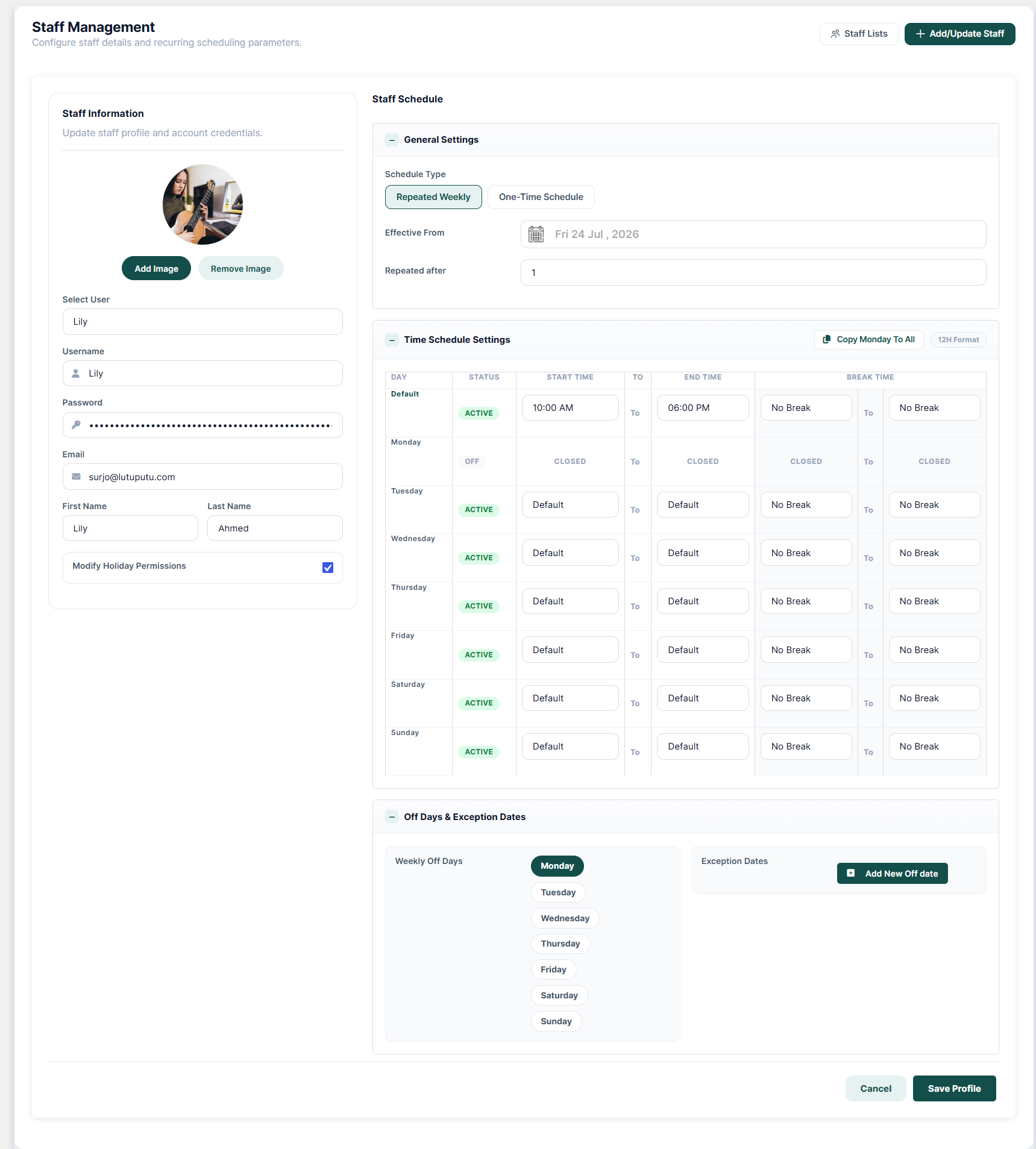
Staff Information
- Profile Image — upload or remove a photo with Add Image / Remove Image
- Select User — link the staff record to an existing WordPress user account
- Username & Password — system access credentials for the staff member's own login
- Email — primary address for booking alerts and schedule notifications
- First Name & Last Name — display name used on booking forms and client notifications
- Modify Holiday Permissions — toggle to let the staff member manage their own holidays and off days
Staff Schedule
General Settings
- Schedule Type — Repeated Weekly (a recurring weekly shift) or One-Time Schedule (a custom date-specific schedule)
- Effective From — the date the schedule rules take effect
- Repeated After — the weekly recurrence interval (e.g.
1for every week)
Time Schedule Settings
- Copy Monday To All — instantly replicate Monday's hours across every day of the week
- 12H / 24H Format — toggle the time display format
- Daily Schedule Grid — a Default row sets fallback start/end times and break window; each day can then be marked ACTIVE or OFF and given its own start time, end time, and break window (or No Break)
Off Days & Exception Dates
- Weekly Off Days — click day pills to mark recurring rest days (e.g. Monday)
- Exception Dates — use + Add New Off date to set one-off holiday or vacation overrides outside the normal weekly routine
Saving Changes
- Save Profile — persists all staff profile details, login credentials, and scheduling rules
- Cancel — discards changes and returns to the staff list
Assigning Staff to a Service
Staff availability is scoped per service. In the Advanced step of the Add/Edit Service wizard, enable staff selection and choose which staff members can be booked for that service — see Step 4 — Advanced Settings.
Service-level working hours, slot length, and holiday overrides are configured separately from individual staff schedules — see Step 3 — Availability Settings.
Staff Selection During Checkout
When staff selection is enabled for a service, customers choose a preferred team member (or let the system auto-assign one) as part of the booking flow — see Booking Modal — Step 3: Staff Selection.
Assigning Staff on Backend Orders
When staff creates a manual booking on a customer's behalf, they can assign a specific staff member from the order form — see Creating a Backend (Manual) Order.
Contacting Staff About an Order
Administrators can message the assigned staff member directly from the Service Queue, and staff can read that message after logging in — see Contacting Staff About an Order.