Service Management
Services are the core offerings customers book. The Service Management dashboard is your central hub for creating, managing, and tracking every bookable service, and the Add/Edit Service wizard is where each one is configured.
Service Listings Dashboard
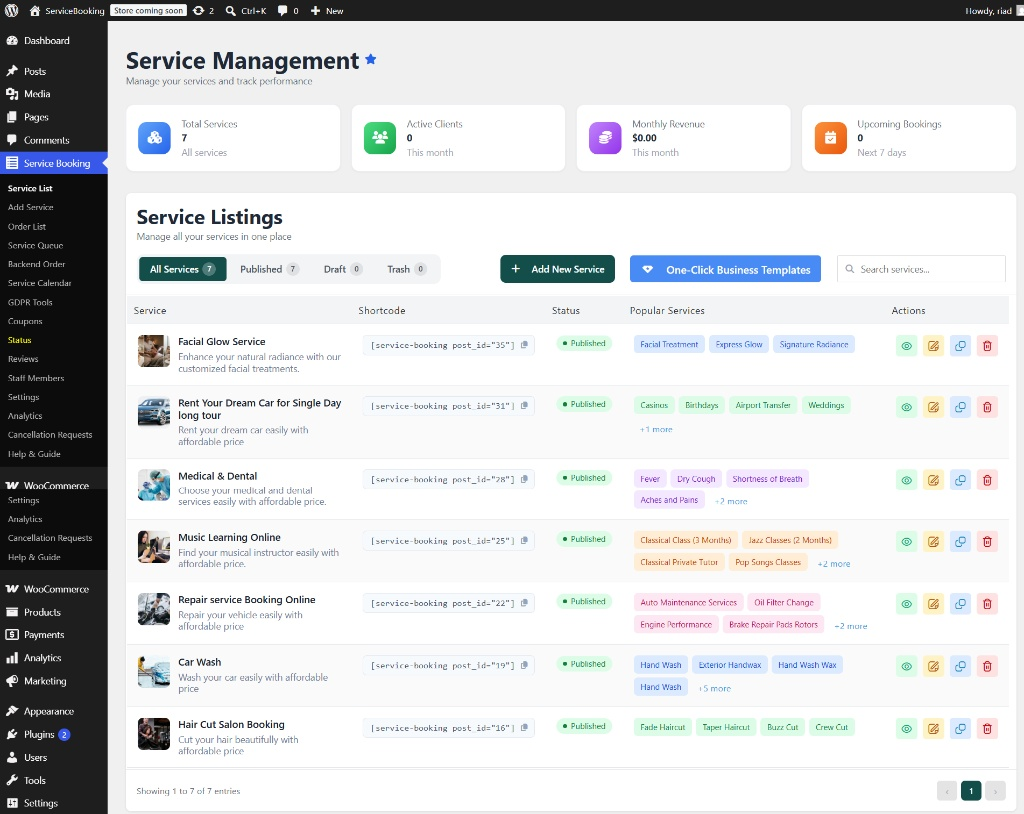
Top Metrics
- Total Services — total count of all configured services
- Active Clients — total number of unique clients served this month
- Monthly Revenue — revenue generated from bookings within the current month
- Upcoming Bookings — total confirmed bookings scheduled for the next 7 days
Quick Action Toolbar
- Status Filters — toggle between All Services, Published, Draft, and Trash
- + Add New Service — opens the service creation wizard to set up a new offering
- One-Click Business Templates — instantly load pre-configured service setups tailored for various industries (e.g. Salon, Medical, Car Wash, Online Learning)
- Search Services — real-time search by title or keyword
Service Listings Table
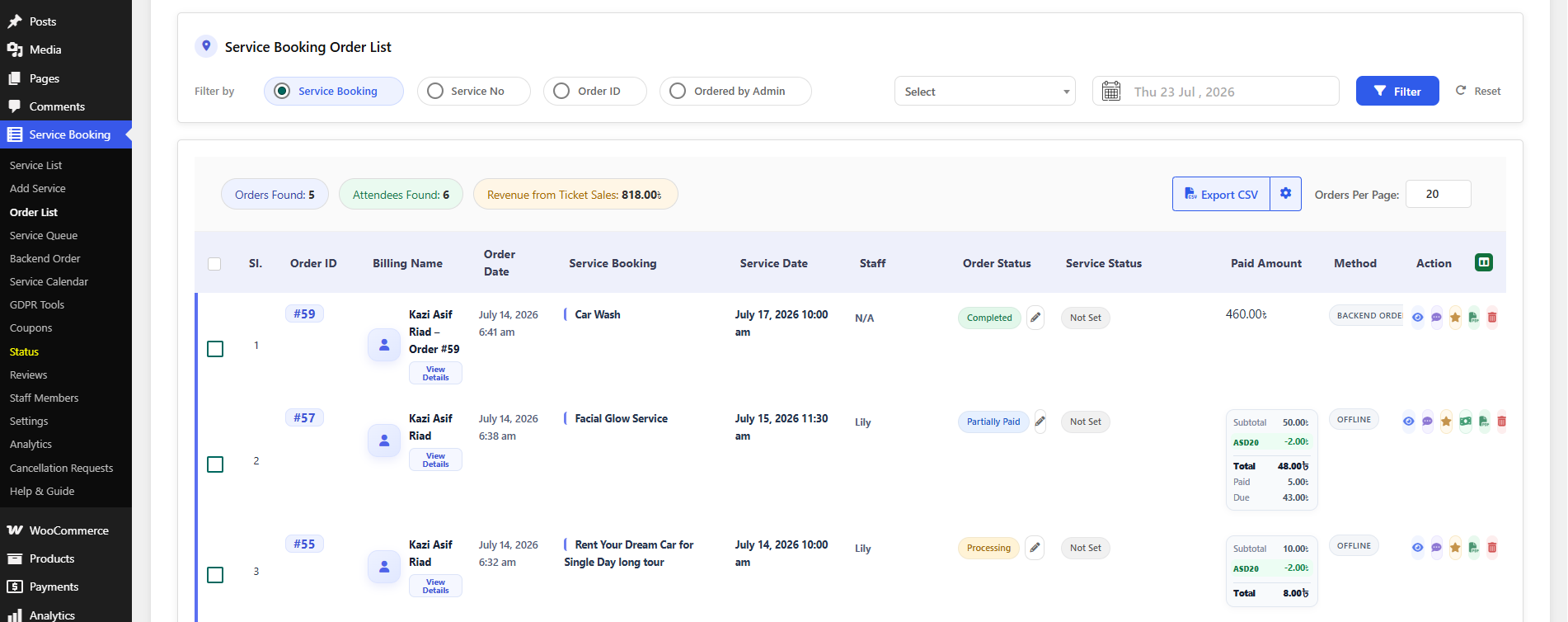
| Column | Description |
|---|---|
| Service | Thumbnail, title, and short description visible to customers |
| Shortcode | Unique shortcode (e.g. [service-booking post_id="XX"]) with a One-Click Copy icon |
| Status | Current publication status (Published, Draft, etc.) |
| Popular Services / Tags | Associated sub-services, categories, or tags |
| Actions | View, Edit, Duplicate, and Delete controls for each listing |
Adding or Editing a Service
Creating a service uses a 4-step wizard: General → Pricing → Availability → Advanced. A progress bar at the top tracks your place in the wizard, alongside Draft Saved Locally / Published status badges, a Preview button, and Update / Publish.
Step 1 — General Settings
- Title & Sub Title — primary service name and short tagline
- Service Overview — rich text editor for the main summary, media, and key bullet points
- Customer Reviews — rating value, scale, and summary text shown as a social-proof badge
- Service Feature Details — highlight key features with custom feature blocks (individually reorderable)
- Service Details — expanded description covering terms and operating/booking hours
- Featured Image & Gallery — showcase photos, with a toggle for the gallery slider
- Payment Method — the active payment method and gateway for this service, with a quick link to Payment Settings — see Payment Integration
- Shortcode & Template — the embeddable Add To Cart Form shortcode and template selector (Static / Dynamic)
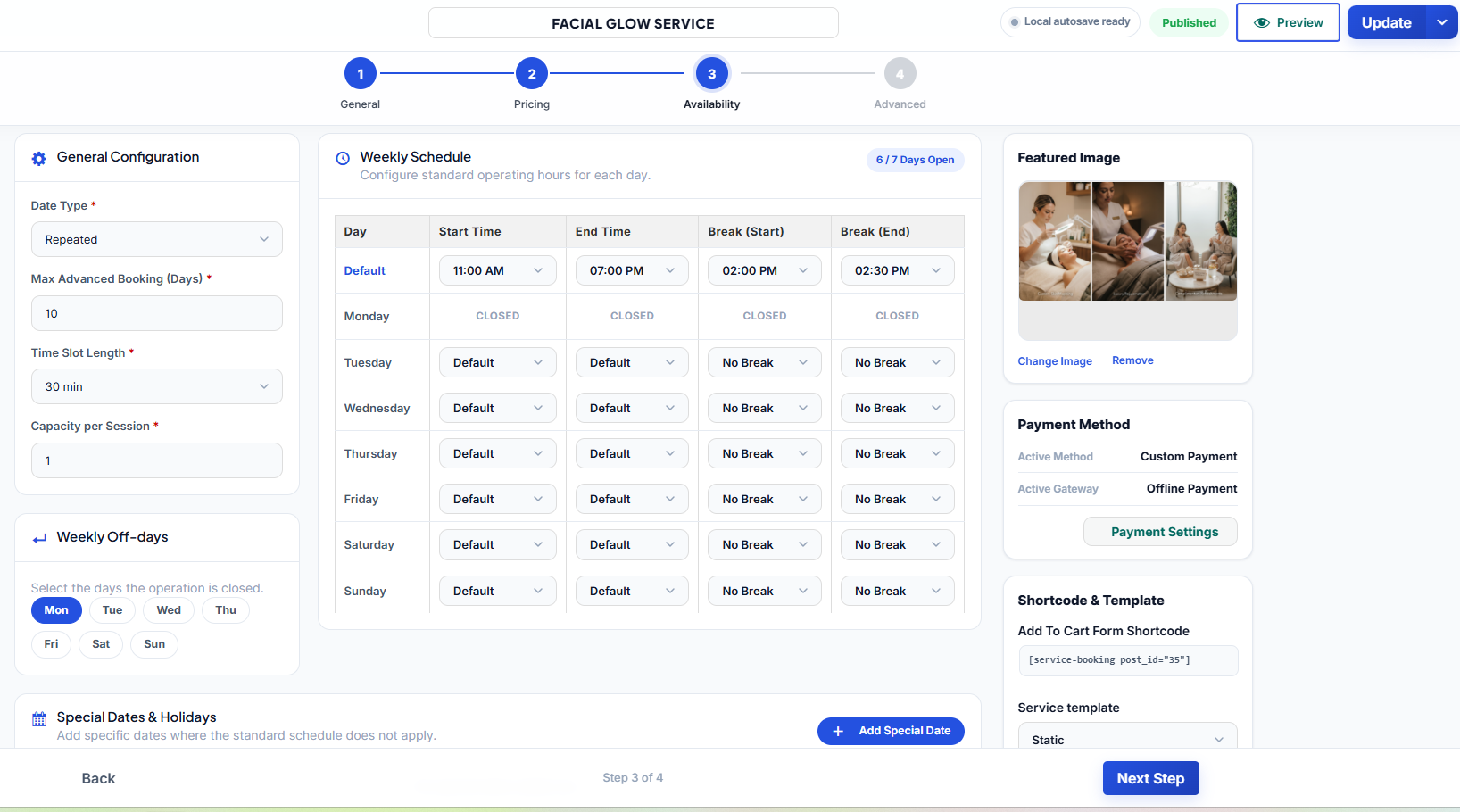
Step 2 — Pricing Settings
- Category Navigation — filter sub-services by category; deleting a category moves its services to Uncategorized automatically
- Sub-Services Grid — each sub-service card shows an icon, title, category badge, description, base price, and duration
- Use Template — load pre-configured pricing and duration templates for faster setup
- Extra Services (Paid Add-ons) — optional add-ons customers can select at checkout, each with its own title, description, price, and stock/capacity limit
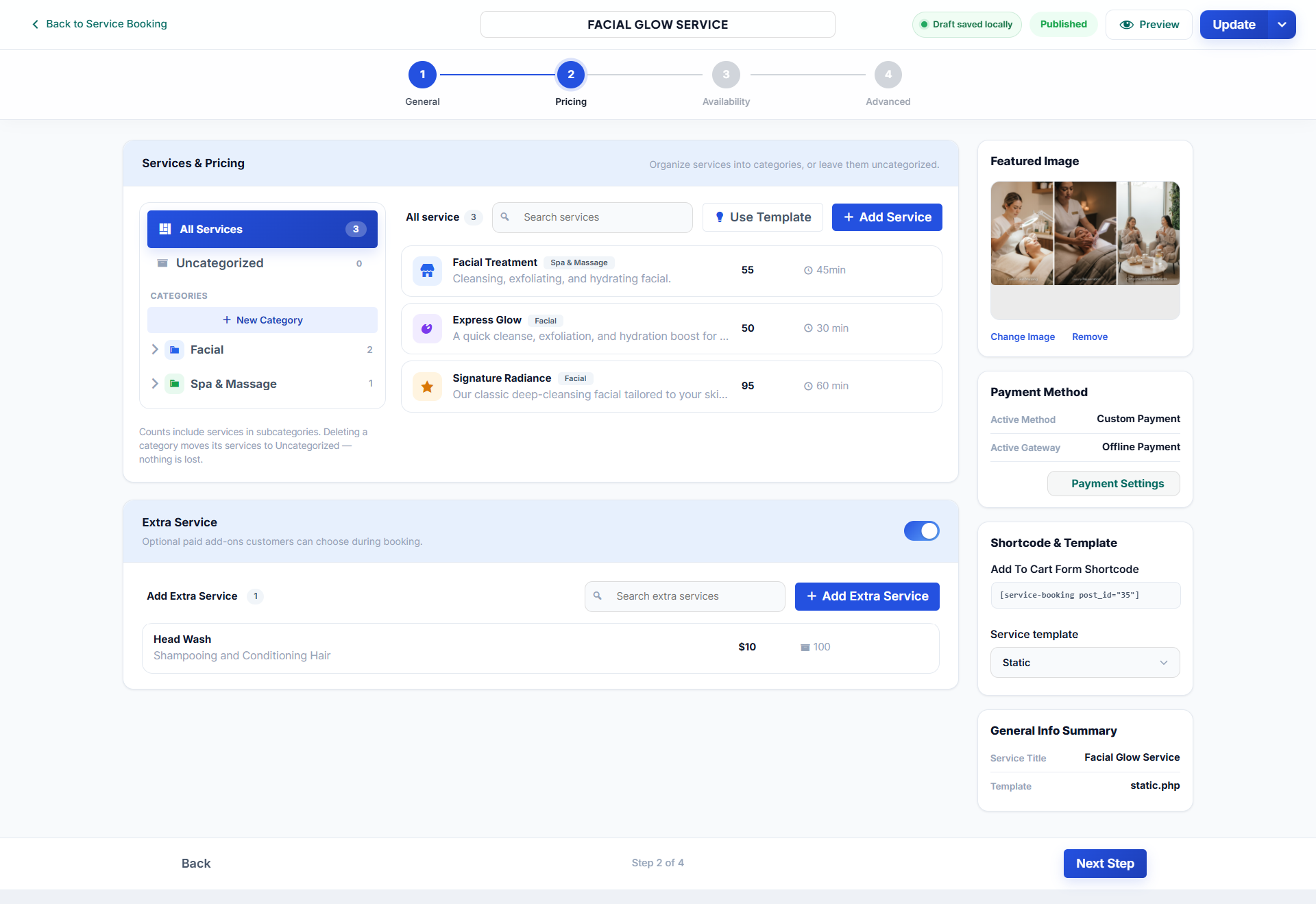
Step 3 — Availability Settings
- Date Type — Repeated (recurring weekly schedule) or single-date
- Max Advanced Booking (Days) — how far in advance customers can book
- Time Slot Length — duration interval for each booking slot
- Capacity per Session — maximum clients allowed per time slot
- Weekly Off-days — click day pills to mark recurring closed days
- Weekly Schedule Grid — default hours and break windows, with per-day overrides and a CLOSED badge for off-days
- Special Dates & Holidays — add one-off schedule overrides for holidays or special events
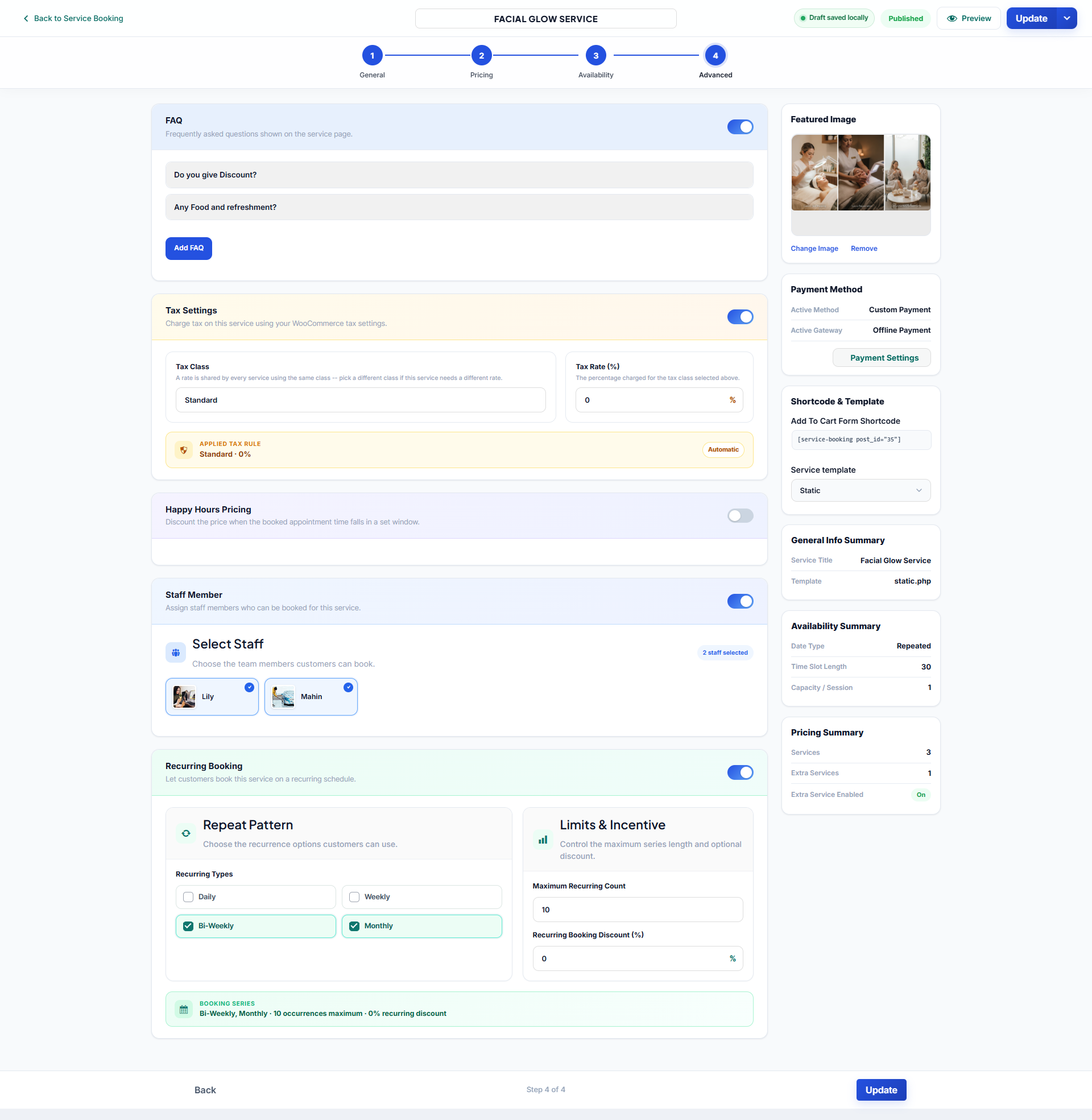
Step 4 — Advanced Settings
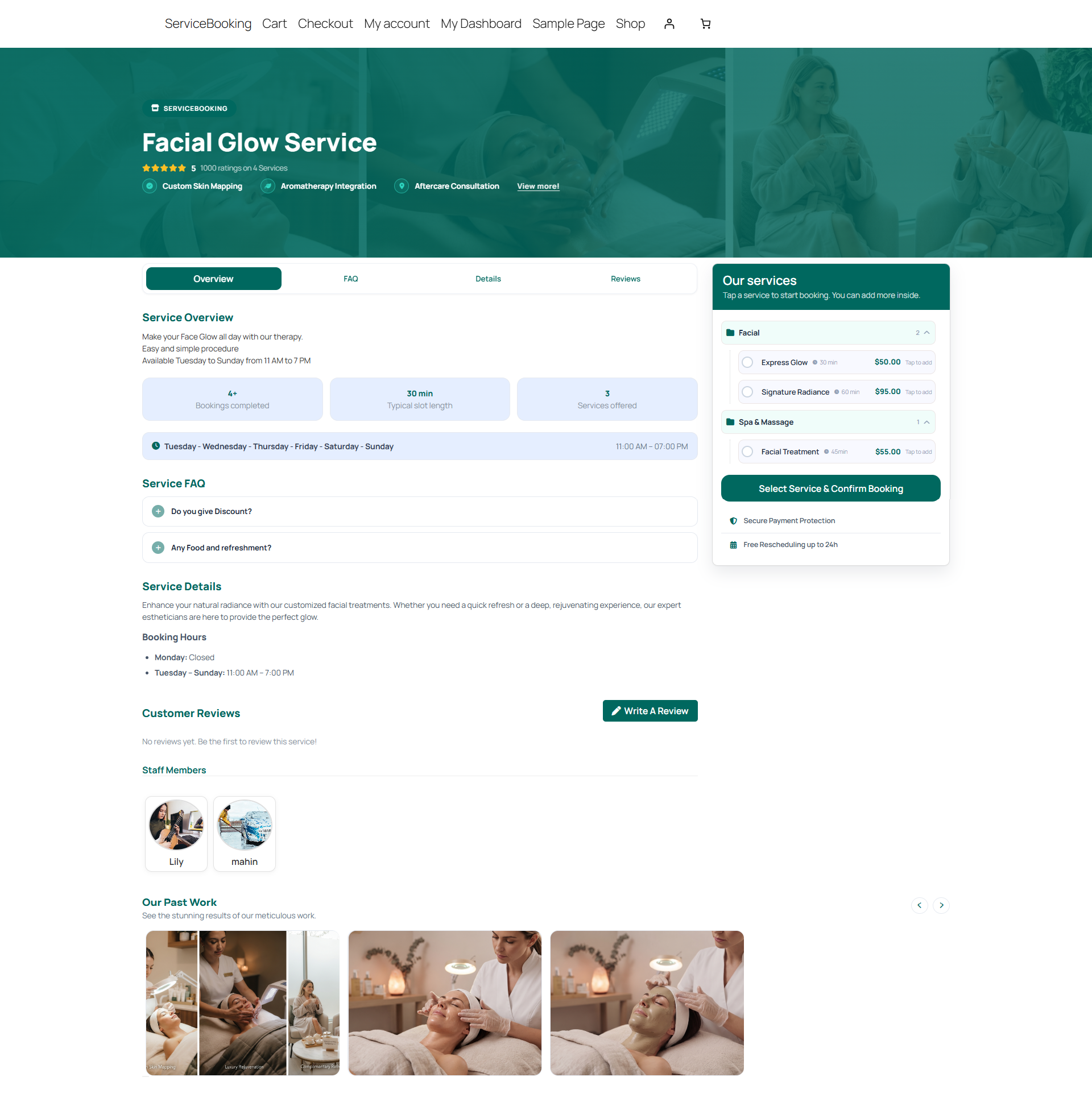
- FAQ Section — add service-specific questions and answers shown on the front-end service page
- Tax Settings — enable WooCommerce tax classes and rates for the service
- Happy Hours Pricing — automatic dynamic discounts for off-peak booking windows
- Staff Member Selection — enable staff selection at checkout and choose which staff can be assigned to this service — see Staff & Scheduling
- Recurring Booking Configuration — allow customers to subscribe to repeating appointments (Daily, Weekly, Bi-Weekly, Monthly) with a maximum occurrence count and optional recurring discount
Click Update / Publish on the final step to save your changes and take the service live.