Bookings & Orders
Manage, filter, and track every customer booking, payment status, and fulfillment detail in real time from the Bookings & Orders screens.
Service Booking Order List
Advanced Search & Filtering
- Filter By Type — Service Booking (search by service title), Service No / Order ID, or Ordered by Admin (manually placed backend orders)
- Date Range Picker — display bookings scheduled or placed on specific dates
- Filter & Reset — apply selected filters or clear all in one click
Order Summary Bar & Export
- Orders Found — total count of orders matching current filters
- Attendees Found — total number of booked slots/clients in the retrieved orders
- Revenue from Sales — live total collected revenue for the filtered subset
- Export CSV — export the filtered order dataset for offline accounting or reporting
- Orders Per Page — adjust row density (e.g. 20, 50, 100)
Order List Table
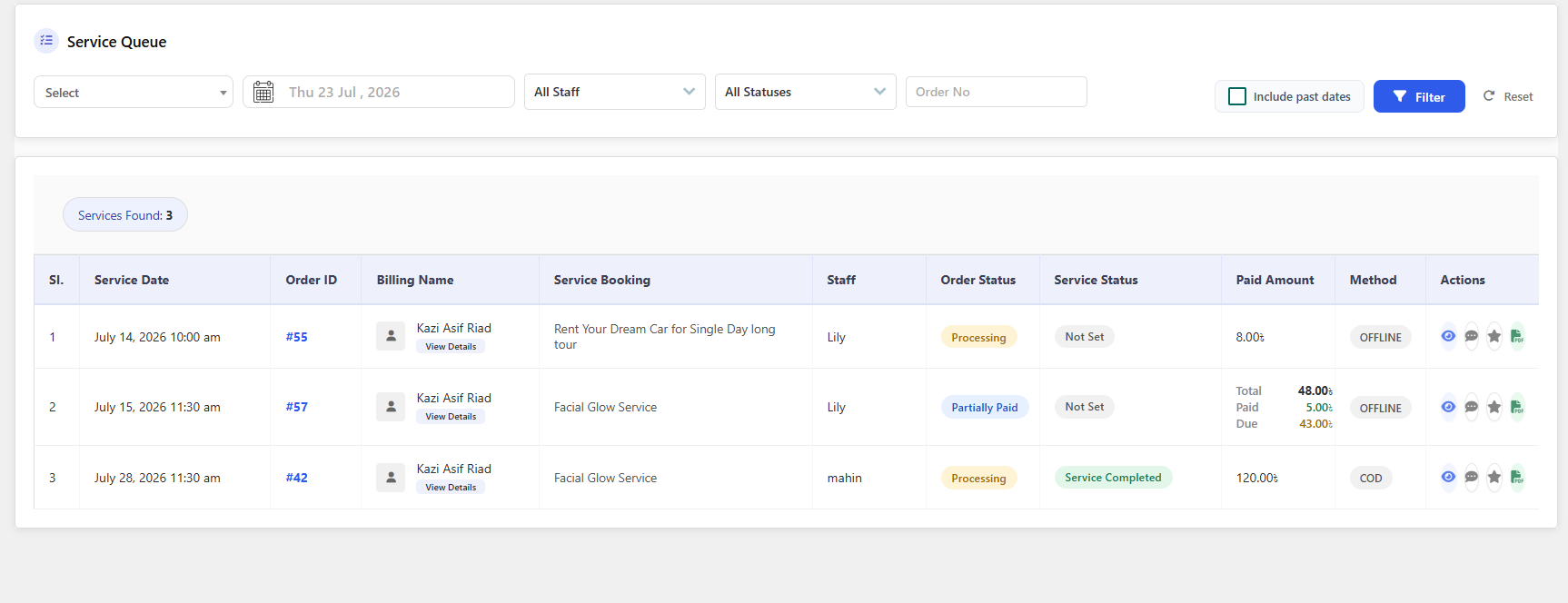
| Column | Description |
|---|---|
| Sl. & Order ID | Row number and clickable Order ID link for detailed inspection |
| Billing Name | Customer name with a View Details link |
| Order Date | Timestamp when the booking transaction was placed |
| Service Booking | Title of the reserved service (e.g. Car Wash, Facial Glow Service) |
| Service Date | Scheduled date and time for the actual service fulfillment |
| Staff | Assigned team member or service provider handling the booking |
| Order Status | Payment/processing state (Completed, Partially Paid, Processing) |
| Service Status | Real-time fulfillment status of the service (Service Completed, Not Set) |
| Paid Amount & Breakdown | Total paid, subtotal, discounts, taxes, and remaining due balance |
| Method | Payment method used (Backend Order, Offline, COD) |
| Actions | View details, send email updates, print invoices, download PDF tickets, or delete |
Service Queue
The Service Queue is a real-time operational dashboard for tracking upcoming appointments, fulfillment progress, and staff assignments — optimized for daily staff operations rather than the historical Order List.
Queue Filtering
- Service Selector — isolate the queue for a specific service
- Date Picker — filter by service delivery date
- Staff Dropdown — filter by assigned team member
- Status Dropdown — narrow by order or service state
- Order No Field — direct lookup by order ID
- Include Past Dates — toggle to view historical appointments alongside upcoming ones
- Filter & Reset
Queue Data Grid
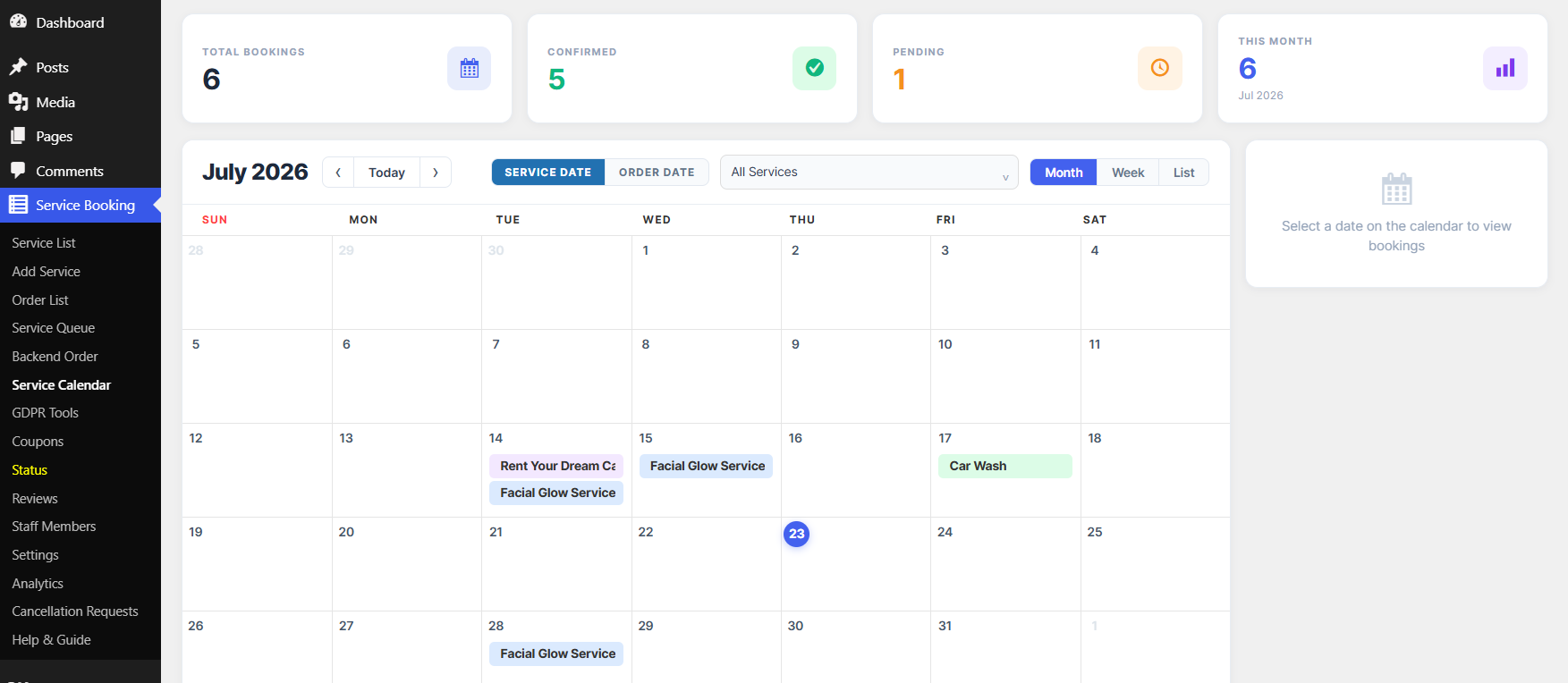
| Column | Description |
|---|---|
| Sl. | Sequential queue item number |
| Service Date | Scheduled date and time slot |
| Order ID | Clickable transaction ID linking to full order details |
| Billing Name | Customer profile with a View Details button |
| Service Booking | Reserved service item or package title |
| Staff | Assigned staff member with a quick reassign icon |
| Order Status | Current payment/order status badge |
| Service Status | Live operational status with an Edit icon |
| Paid Amount & Breakdown | Subtotal, total paid, and due balance for partial payments |
| Method | Payment channel used |
| Actions | Preview, message the client/staff, view feedback, or download the PDF ticket |
Service Calendar
A visual, interactive schedule of all appointments, letting administrators and staff view, filter, and plan daily operations at a glance.
Top Metrics
- Total Bookings — aggregate bookings for the selected period
- Confirmed — approved/confirmed bookings
- Pending — bookings awaiting approval or payment
- This Month — live count of bookings for the active month
Calendar Controls
- Date Navigation —
</>arrows or Today to jump to a specific date - View By — Service Date (when the service will be delivered) or Order Date (when it was booked)
- Service Filter — restrict the view to a single service or show all
- View Granularity — Month, Week, or List
Interactive Grid
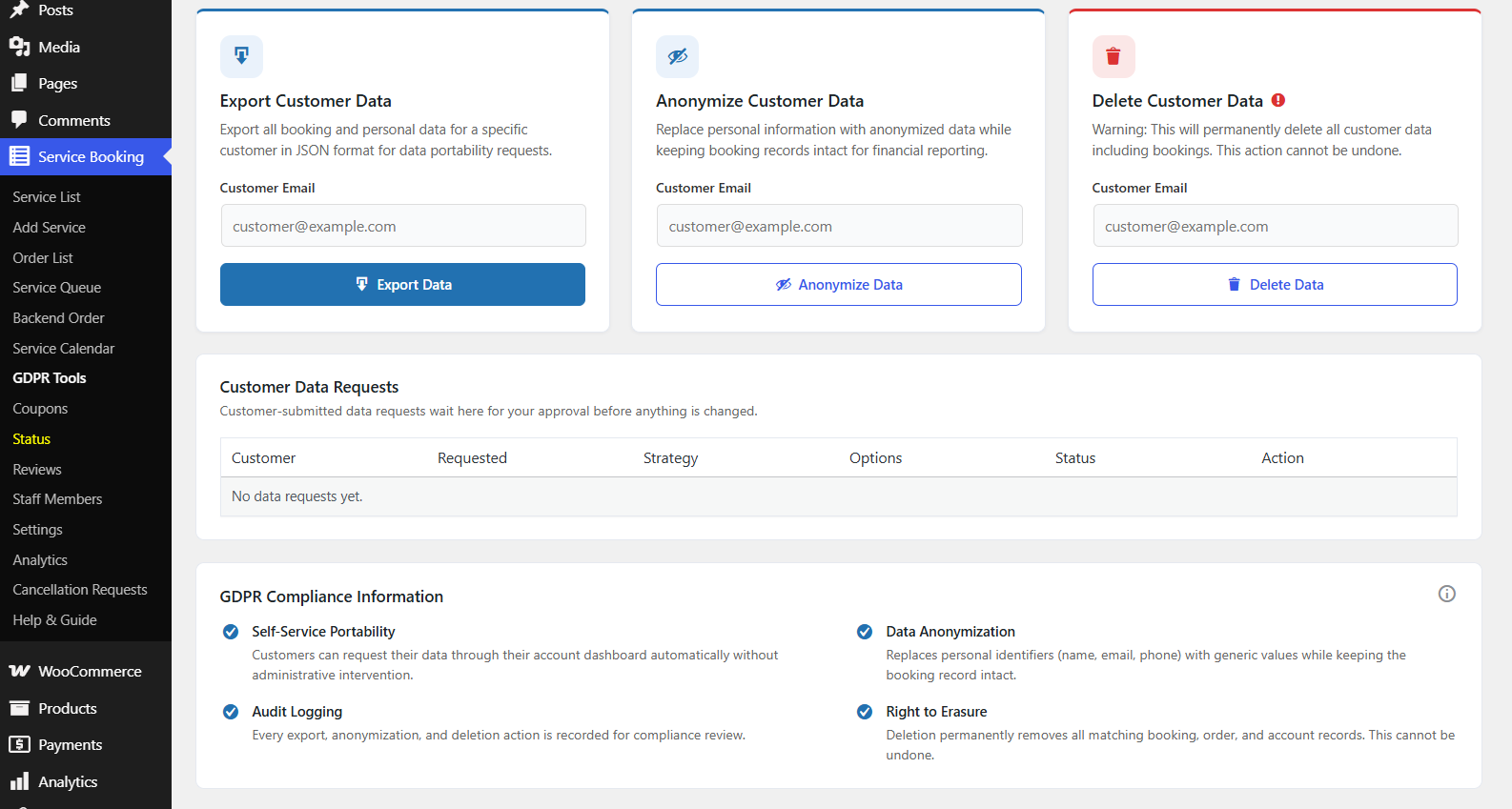
- Color-coded event pills show the service name on each calendar date
- The current day is highlighted with a blue indicator
- Clicking a date or service tag opens a side inspector with full client, order, and time-slot details
Creating a Backend (Manual) Order
Use the Backend Order screen for phone bookings, walk-in customers, or any reservation placed on behalf of a client.
- Select Service — choose the parent service offering
- Service Configuration — filter by category, select sub-service packages/variations and set quantities, then select any extra services with quantities
- Date & Time Selection — pick the service date and available time slot
- Select Staff — assign a specific staff member, if enabled
- Customer Information — search by email/phone to auto-fill an existing customer profile, or click + Create New Customer; linking an account lets the customer view the booking in their My Account portal, while leaving it manual creates a guest order. Fill in First Name, Last Name, Email, Phone, and Address
- Order Summary & Coupon — review the itemized breakdown, apply a coupon code, and confirm the total
Click Create Order to submit the reservation, send notification emails, and update the schedule — or Cancel to discard the form.
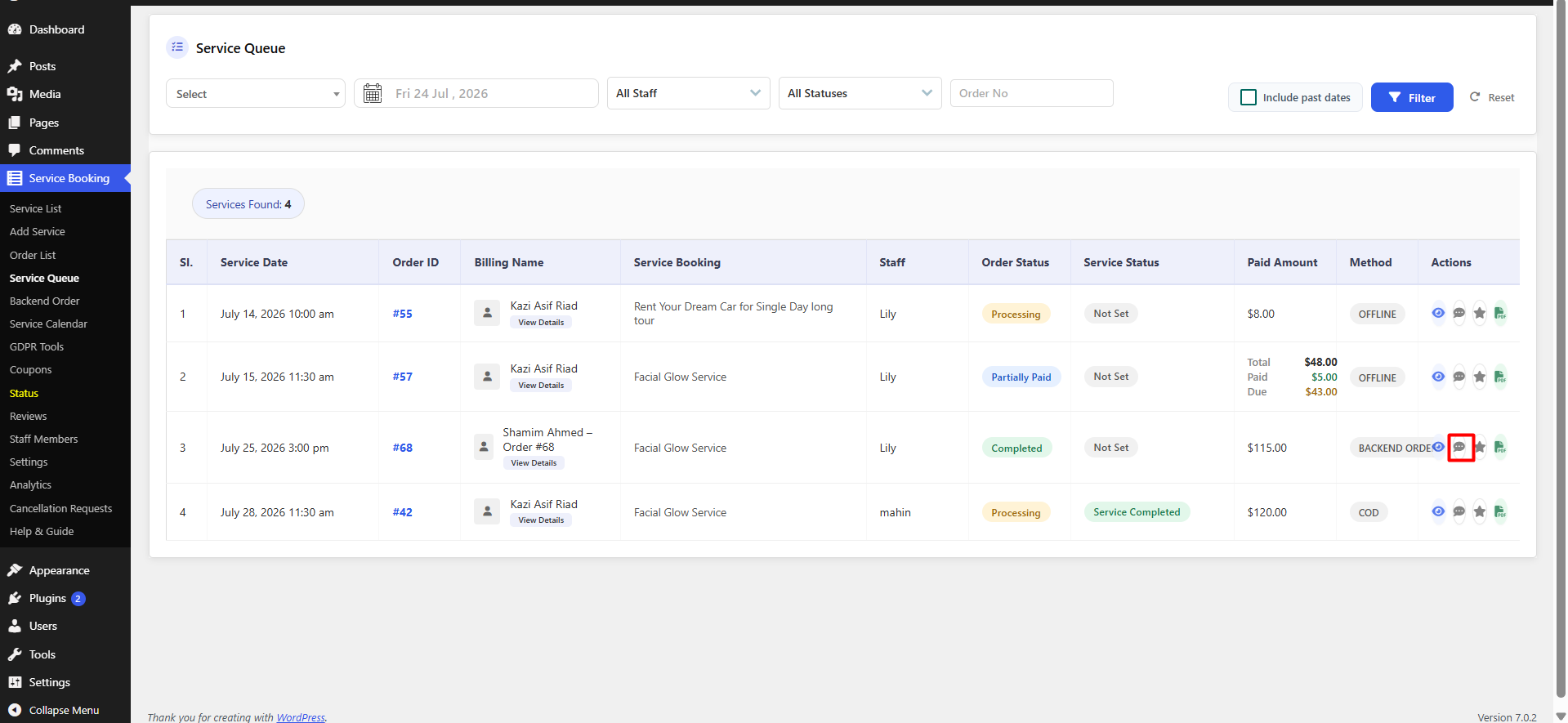
Contacting Staff About an Order
-
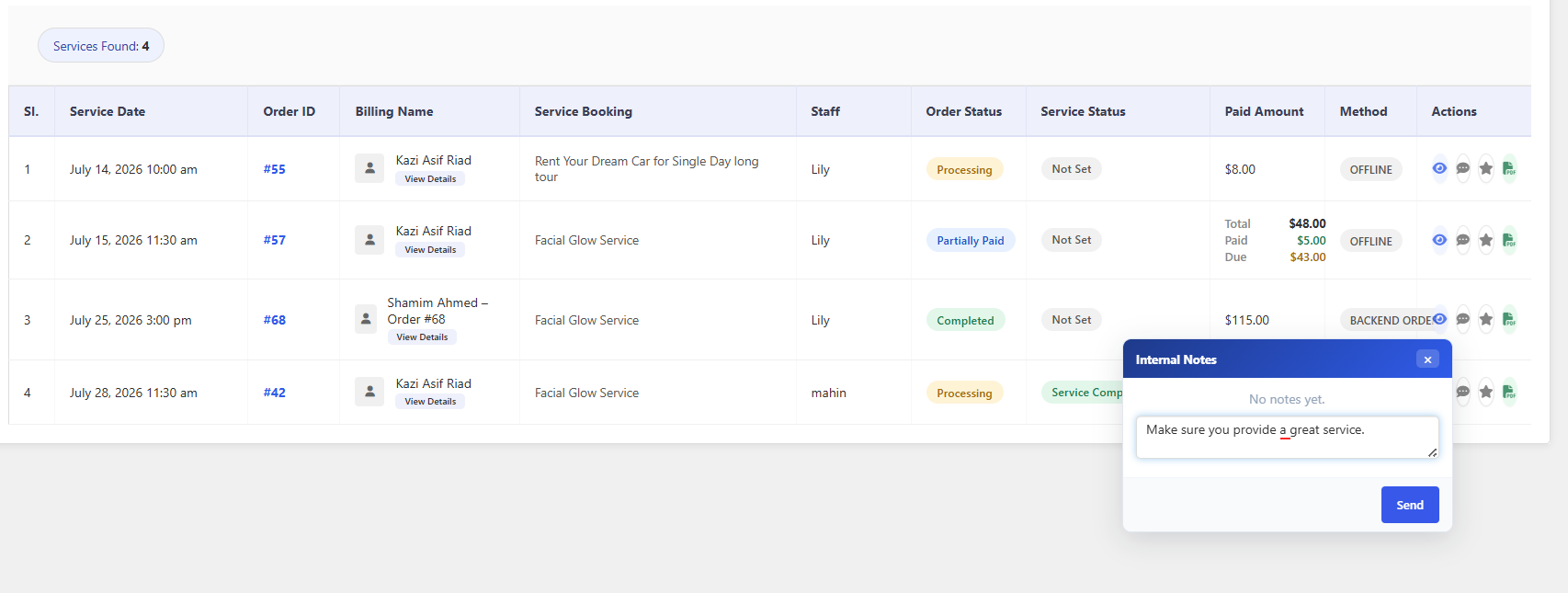
Go to the Service Queue tab and locate the order
-
Click the message icon on that row, type the message, and click Send
-
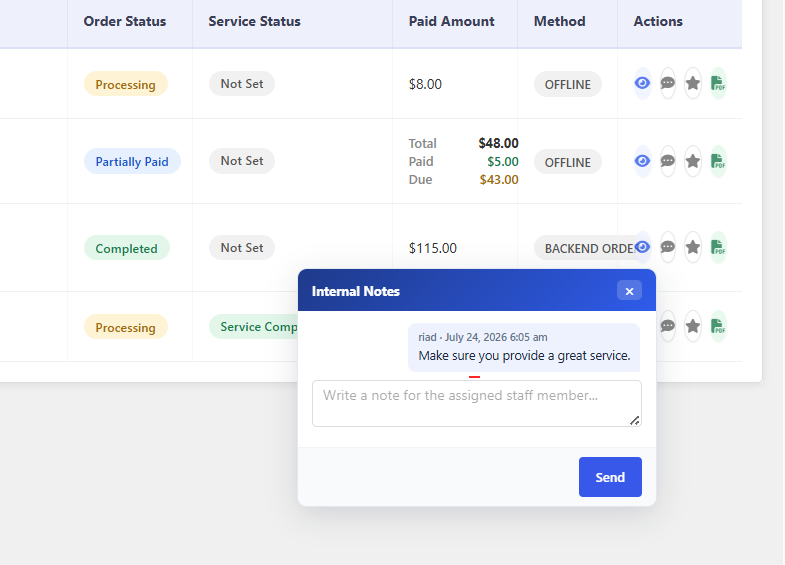
The message is confirmed as sent
-
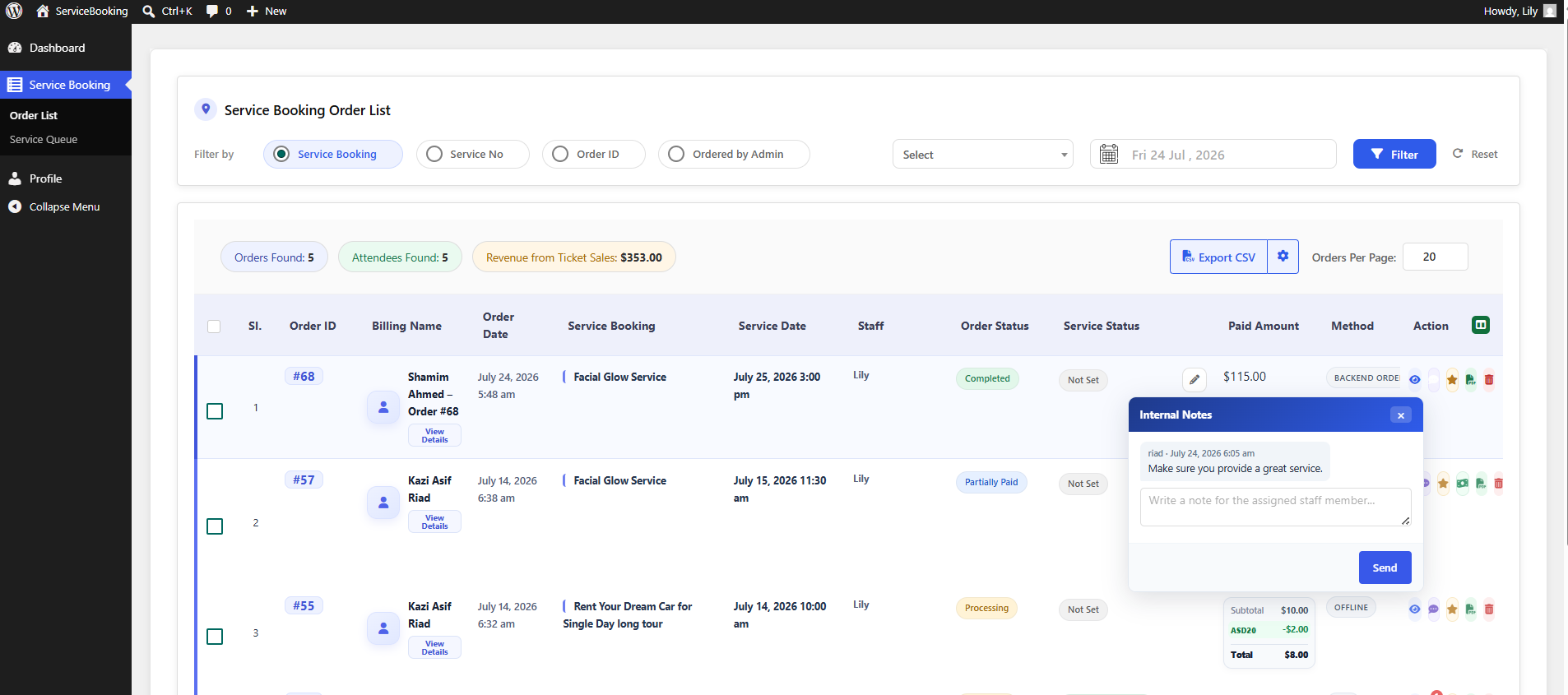
The staff member logs in and reads the message from the backend